
Message
Prepare the text that leads will receive. Variables let you greet each recipient by name and insert their details, while attachments add an image or file to the message.
Preparing The Message
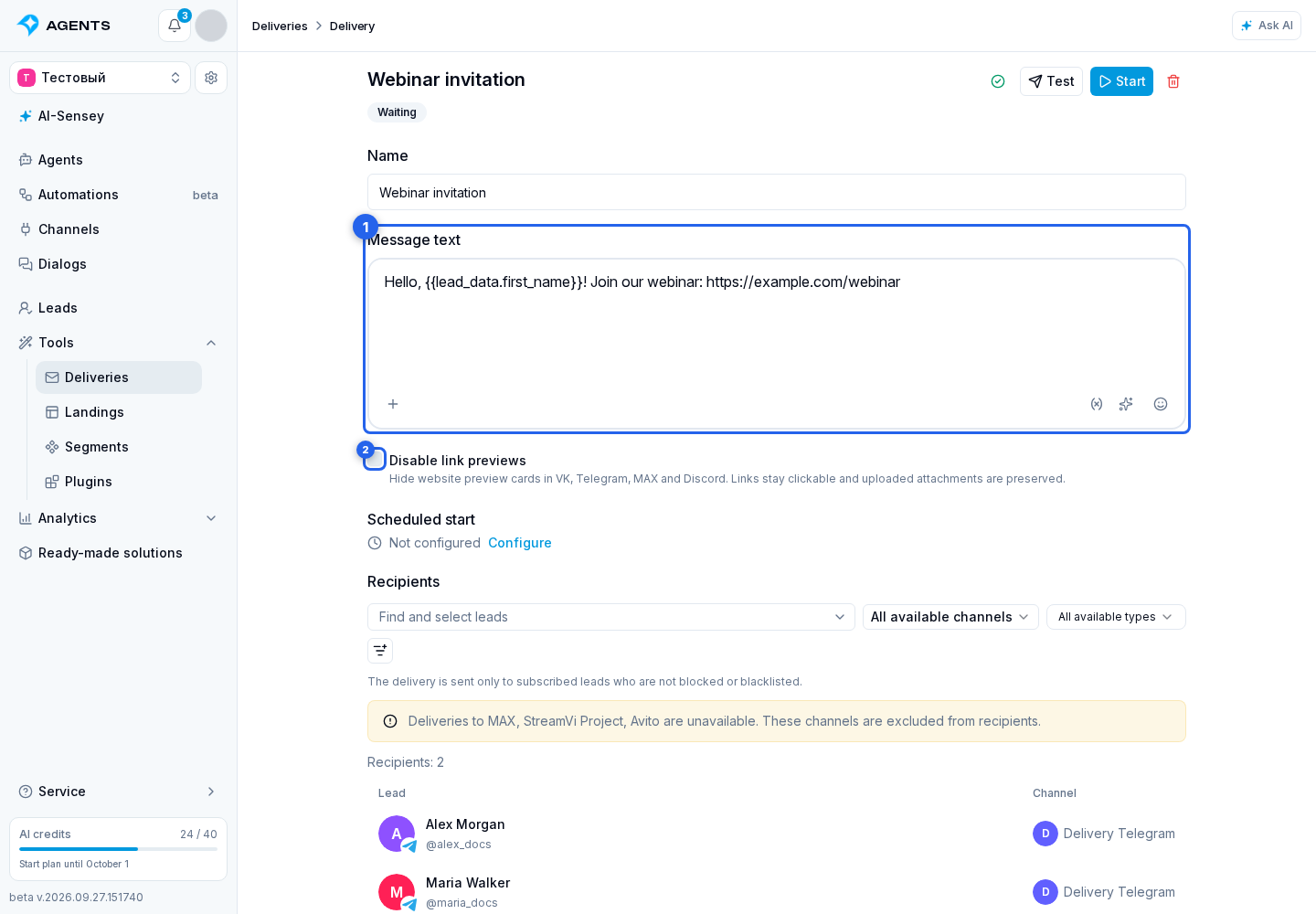
Enter text in the Message text field. The buttons below the field let you insert a variable, add a file or emoji, and use the AI assistant.
The AI assistant can draft text for an empty field or suggest a change to selected text. A change is shown as a proposal first, so you can accept or cancel it before it is saved.
Below the editor, enable Disable link previews to send links without website preview cards on supported channels. The links stay clickable. The setting is saved automatically and used for test messages and delivery runs.
Variables And Recipient Names
To greet recipients by name, insert this directly into the message text:
Hello, {{lead_data.first_name}}!A recipient named Anna will receive "Hello, Anna!". The name comes from the lead's profile: you do not need to create a separate first_name variable. {{lead.first_name}} refers to something different: your custom lead variable named first_name, not the profile name.
If the name might be missing, use a conditional greeting:
{{#if lead_data.first_name}}Hello, {{lead_data.first_name}}!{{else}}Hello!{{/if}}A recipient without a name will see "Hello!". A plain variable placeholder without a condition is replaced with empty text when its value is missing.
To insert custom variables, use the variable button next to the editor: select the variable and choose "Value". "Condition" lets you provide text for filled and empty values. For example, if you have created and filled variables with these names:
{{project.manager_phone}}inserts a shared phone number from a project variable;{{lead.city}}inserts the individual recipient's city from a lead variable;{{dialog.deal_id}}inserts a deal number from a variable of the dialog receiving the delivery. A value from another dialog of the same lead is not used.
Values are resolved separately for each recipient when the message is sent. Before starting the delivery, send a test message to check the final text.
Attachments
Select the plus button below the editor or paste a file from the clipboard. You can attach JPEG, PNG, GIF, and WebP images; MP4, MPEG, and MOV video; MP3, OGG, WAV, WebM, MP4, and M4A audio; and PDF, DOC, DOCX, XLS, XLSX, TXT, CSV, ZIP, RAR, and 7Z files.
A delivery can contain up to 10 attachments. The allowed size of an individual file is checked during upload against the project limit. Upload progress is visible, and an uploaded attachment can be opened or removed.
Autosave
After changing the name, message, attachments, or recipients, wait for the "Saved" state. The icon at the top of the card shows the current state and the time of the last successful save.
While saving or uploading a file, testing, starting, and scheduling are temporarily unavailable.
Message Limits
The text can contain up to 4000 characters, and a delivery can have up to 10 attachments. You can save an empty message, but testing, starting, and scheduling require text.
After the first run, the message and recipients are read-only. To change them and send a new delivery, create a copy.