
Test Send
A test sends the message to selected project members, not to all delivery recipients. Use it to check the text, variables, and attachments before mass sending.
How To Send A Test
In the prepared delivery, select Test.

In the Test send window:
- Select a channel: Telegram or VK.
- Select the recipients who should receive the test. You can select up to 10 people. Use search to find someone.
- Select Test at the bottom of the window.
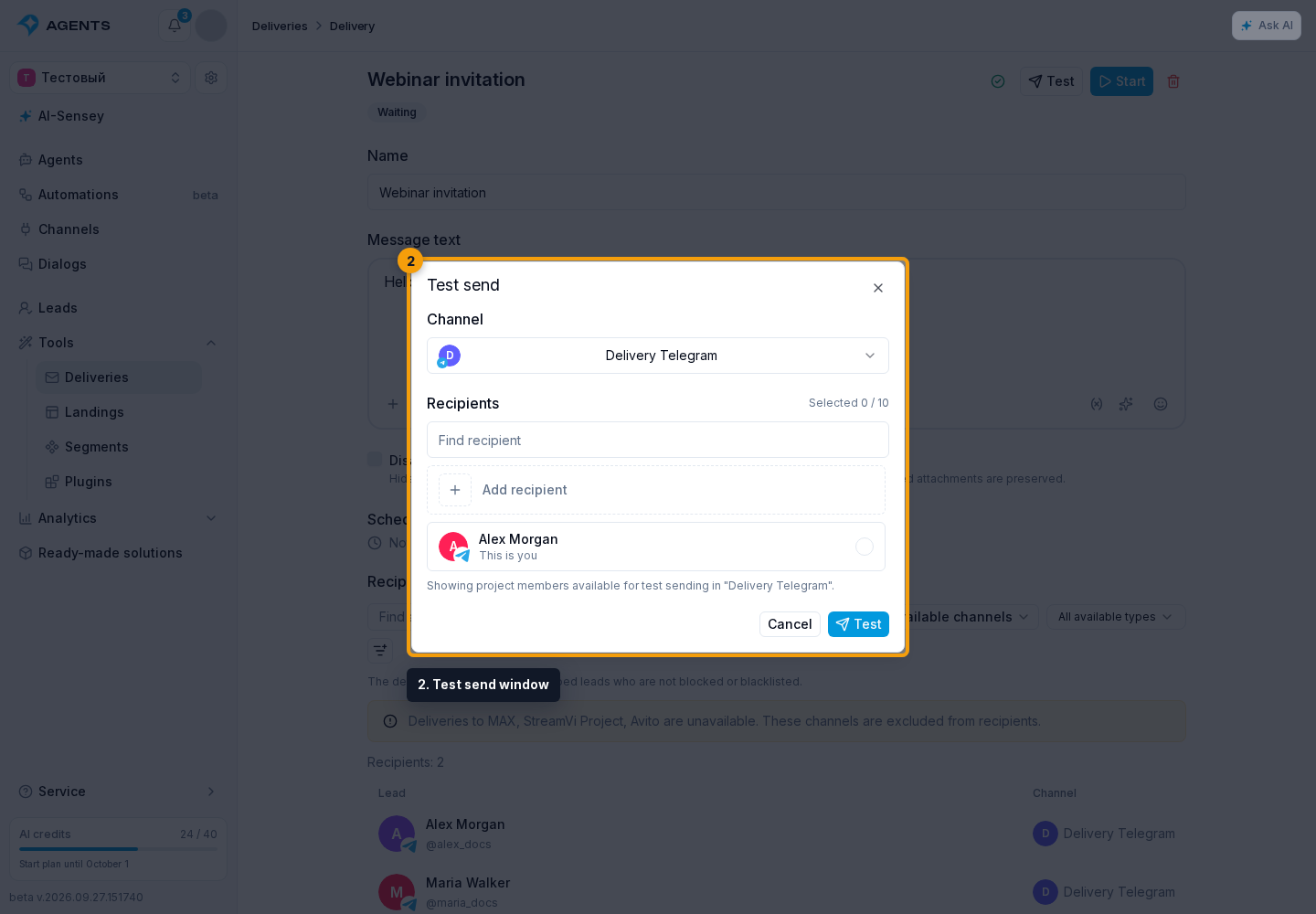
The list shows active project members with permission to manage dialogs who have a recipient identity in the selected channel. It is not the whole delivery audience. You are marked "This is you".
The recipient receives a separate "[Delivery test]" message, followed by the delivery text with resolved variables and attachments. The delivery status does not change.
Adding Yourself To A Test
If you are not listed yet, select Add recipient in the same window.
Telegram:
- Open the provided link to the selected channel's bot.
- Start the bot.
- Return to the cabinet: the list will update, and you can select yourself.
The link is for your account and is valid for about 10 minutes.
VK:
- Link your VK account to your Senler profile if it is not linked yet.
- Allow the selected channel's community to send you messages.
- Select "Check".
Your account appears in the test recipient list after confirmation.
After Testing
Testing is available before the delivery's first run. Discord, Widget, and Email support mass sending but not test sending to project members. See Recipients for other platforms.
When the message is ready, proceed to starting the delivery.