
Widget messages
Send messages, answer polls, and work with agent replies in website chat.
Message and reply
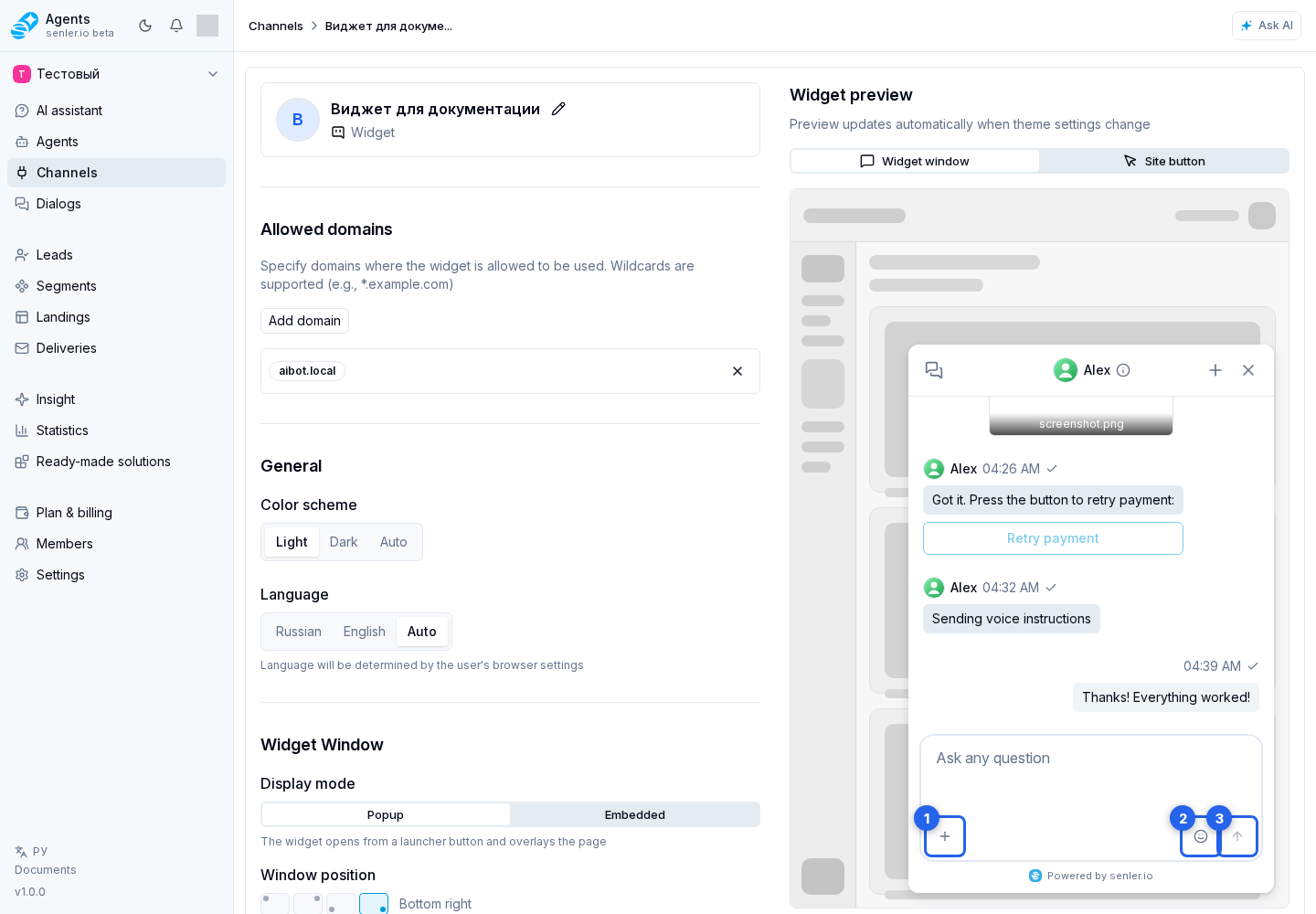
Type your question in the message field at the bottom of the chat.
If the site owner enabled these features, the nearby buttons offer attachments through the plus, voice recording through the microphone, and emoji through the smiley. If page element selection is enabled, select element lets you indicate which part of the website your question refers to.
When the message is ready, select the send arrow. From the keyboard, use Ctrl+Enter on Windows and Linux or Cmd+Enter on macOS.
If the greeting is displayed as centered text, buttons with ready-made questions may appear below it. The widget uses the set for its current language. Clicking a button immediately sends its text as the visitor's message; the active button shows sending progress and the others stay disabled until it finishes. If none of the options fit, the visitor can type a custom message as usual.
Instead of centered text, the website can show an automation message with its name, avatar, buttons, and attachments. It is visible before the visitor's first reply. An answer option can continue the automation's scenario, while a link button opens the specified address. The greeting can vary by website page and whether the visitor has chatted before.
While the agent prepares a response, the widget can show a safe work stage: “Thinking…”, “Searching for information…”, “Working with an external service…”, “Analyzing an attachment…”, “Creating an image…”, “Creating audio…”, “Preparing the result…”, “Preparing an attachment…”, “Performing an action…”, or “Finalizing the response…”. These labels do not expose tool requests, tool results, or the agent's internal reasoning.
You can keep the regular “Agent is typing” status instead of stages or hide the indicator completely. Select the option under agent tools in the What to show while processing field. A separate Show response while it is being generated toggle controls the progressive appearance of response text and does not replace this setting.
When replying to a specific message, its source preview scrolls the chat to that message. You can also go to the message or cancel the reply.
The widget respects the stored format of each message. A Markdown message renders headings, lists, links, quotes, tables, and code blocks. Plain text preserves line breaks but shows Markdown characters literally. Text containing asterisks or hash signs therefore does not become formatting when its source sent it as plain text.
An agent message can show action buttons. Buttons from an automation preserve their configured order; their rows are adjusted to the widget's limits. Their styling distinguishes neutral, primary, confirming, and warning actions. Depending on its configuration, a button opens a link, passes a custom action to the host website, or submits the selected answer to the dialog.
While a button response is being processed, the other buttons on that message are temporarily disabled to prevent duplicate actions. If repeated clicks are disabled for an answer option, it remains unavailable after its answer has been accepted. Links continue to open regardless of this setting. Custom actions that the site allows to run automatically are not shown in the message: the widget runs them through the site's handler without another click.
A button in the top-right corner of a formatted code block copies all of its code. It briefly shows the result after it is clicked. Long lines wrap for reading but are copied in their original form.
After a temporary sending failure, the widget can retry automatically up to twice. If sending still fails, it shows an error. Retrying an unchanged message after such a failure belongs to the same send; after a successful send, the same text is treated as a new message.
Polls
In an automation poll, select answer options and click the confirmation button below them. Radio buttons allow one answer; checkboxes allow several. The selection is submitted only after confirmation and can be changed before then.
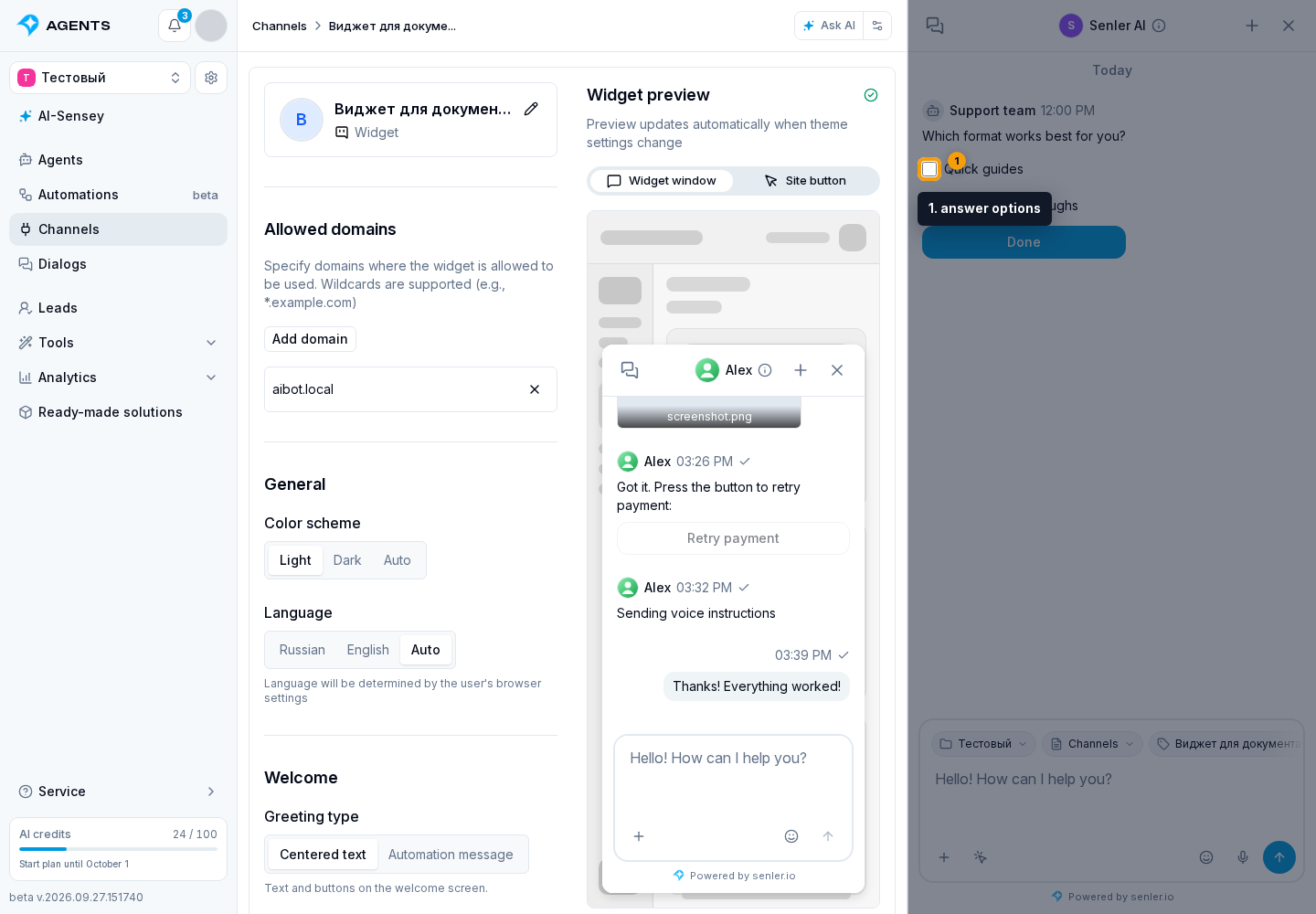
If the poll allows custom answers, you can send your own text instead. It completes the poll separately without saving unconfirmed selections. The poll buttons are removed after the answer is submitted.