
Creating a table
Create an empty knowledge base table or import data from CSV or XLSX.
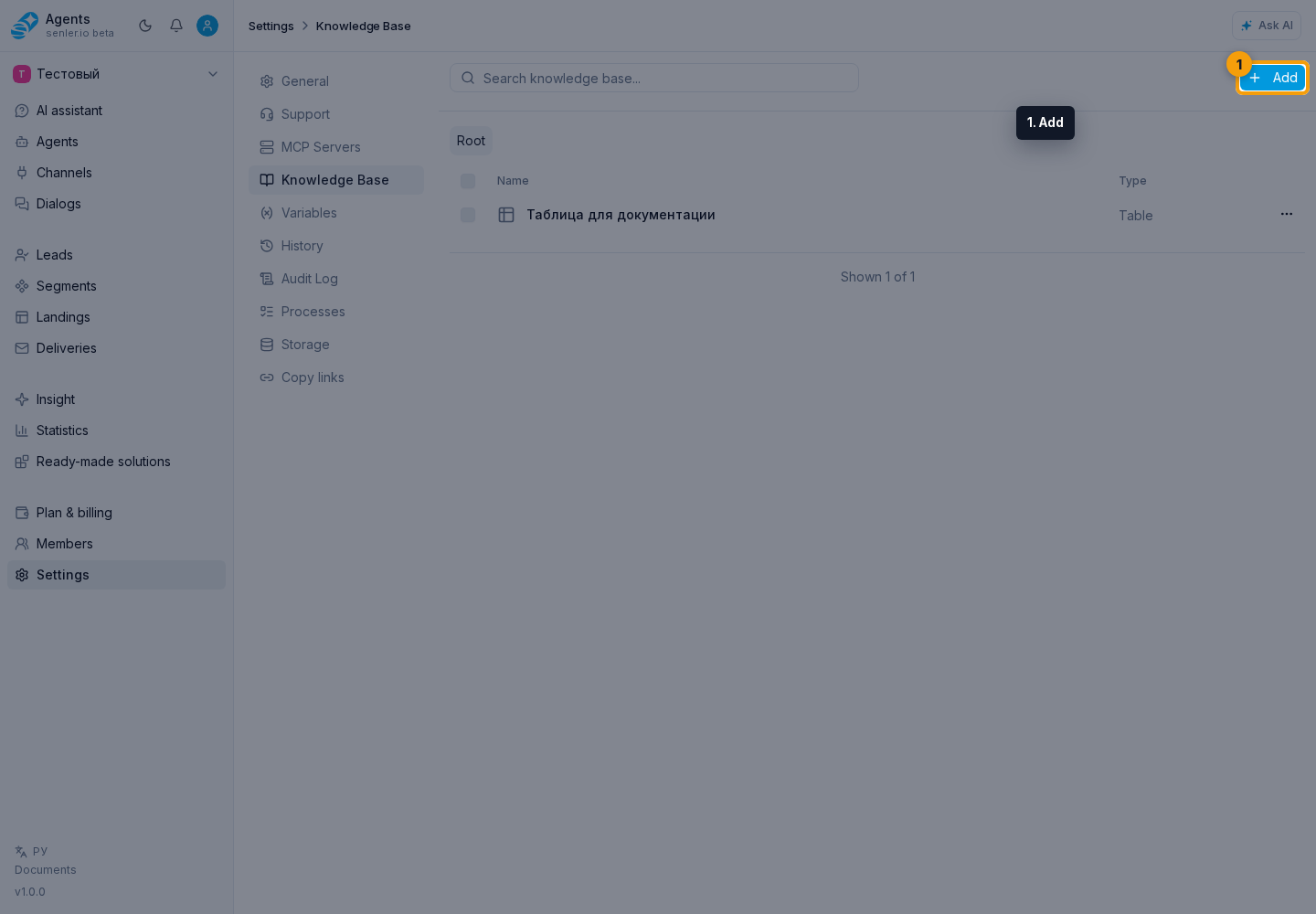
Start in the project knowledge base.
Add a table
- Select the Settings gear to the right of the project name, then open Knowledge Base under Project data.
- Click Add.
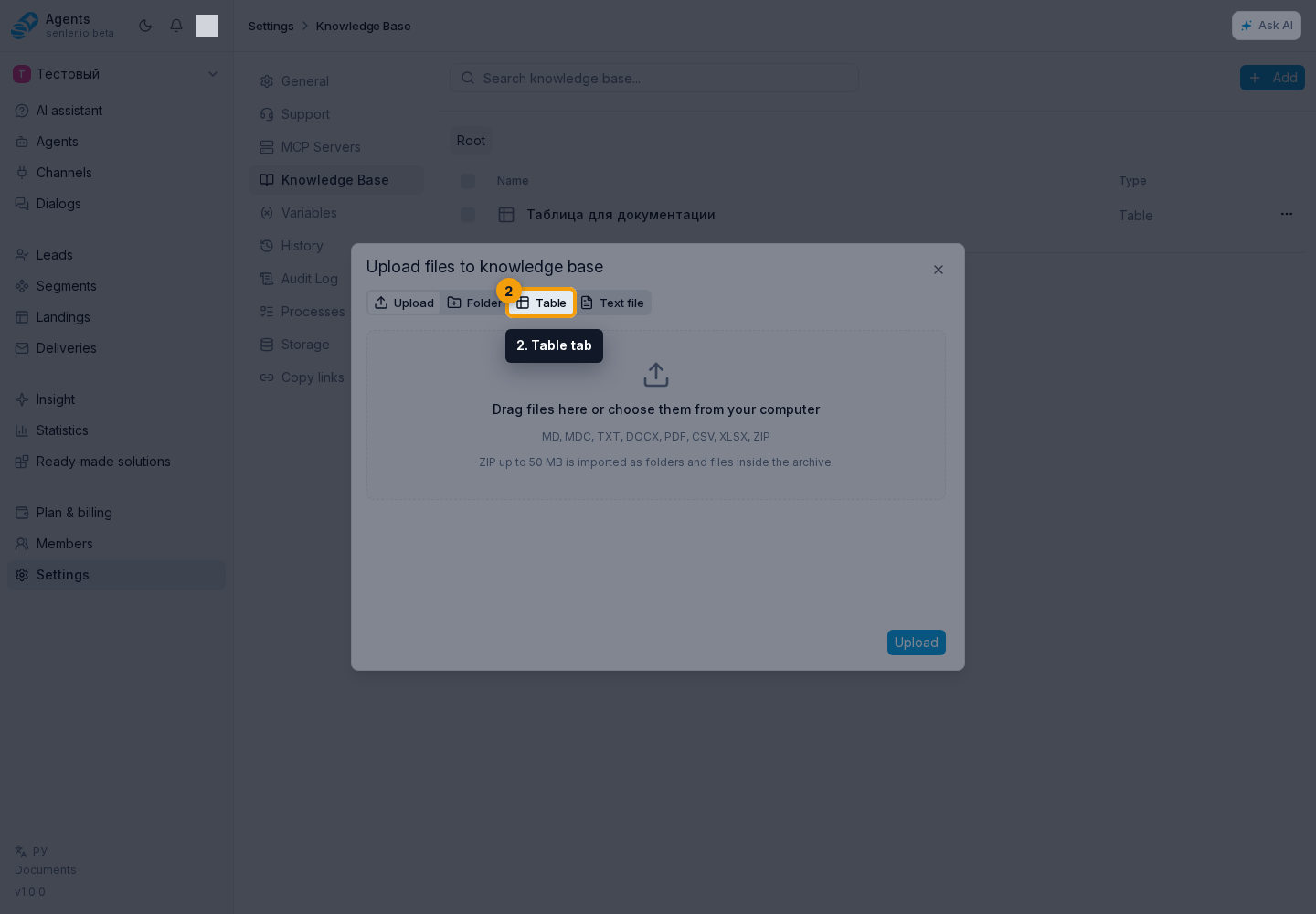
Select the Table tab.
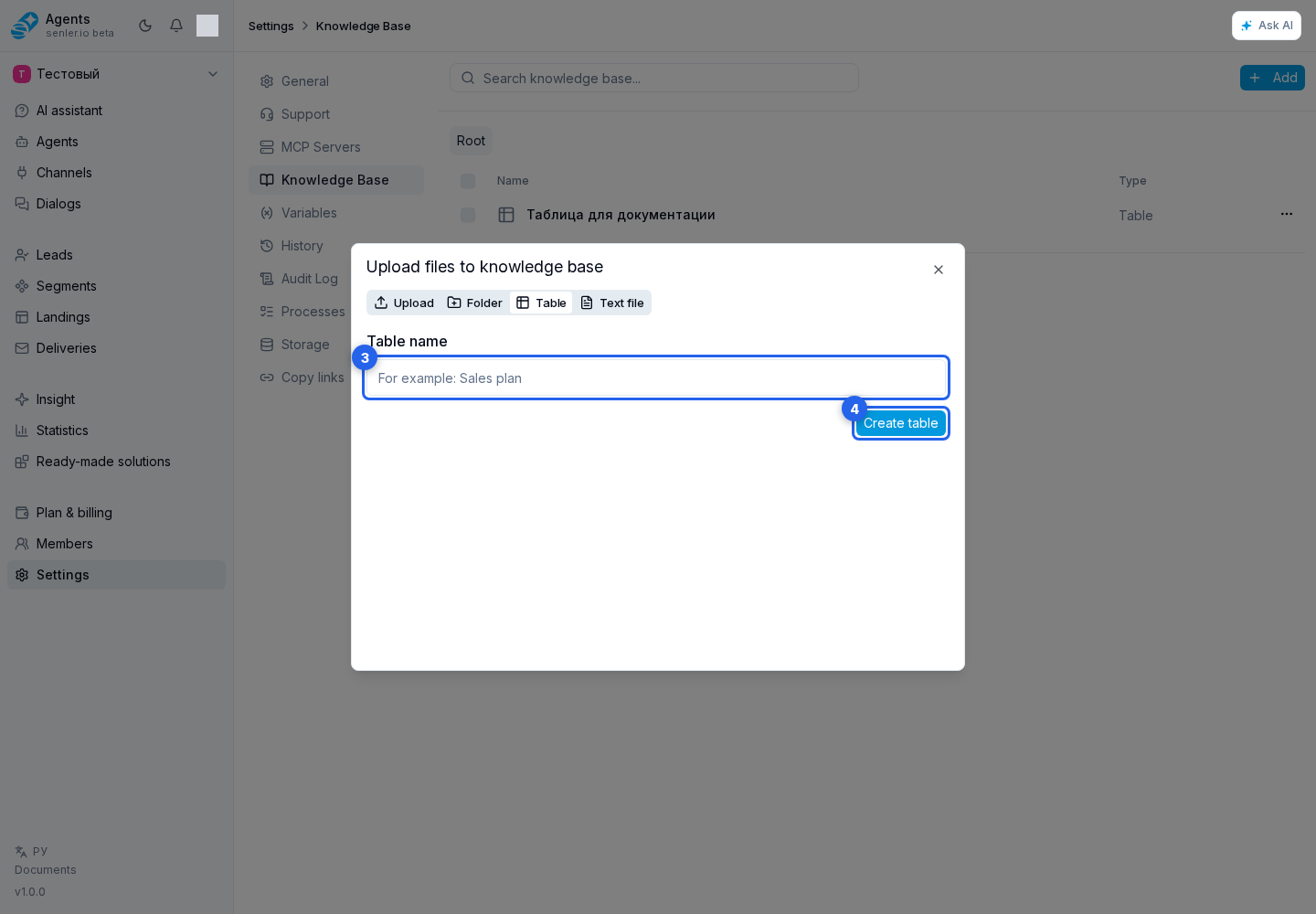
- Enter a name.
- Click Create table.
In the Table created dialog, click Go to editor.
The table editor opens separately. If the dialog is closed, the table can be opened from the resource card in the knowledge base list.
Importing CSV/XLSX as a table
CSV and XLSX can be used specifically as a table if you upload them through the table flow. CSV becomes one default sheet, and XLSX keeps non-empty sheets from the workbook. An empty file or workbook without rows will not create a table.
The regular "Upload" tab also accepts CSV/XLSX, but there they become a searchable document. To edit rows and columns, choose table creation or table import.