
Leads in a funnel
Open the relevant funnel.
Add existing leads
Open the desired stage's three-dot menu.
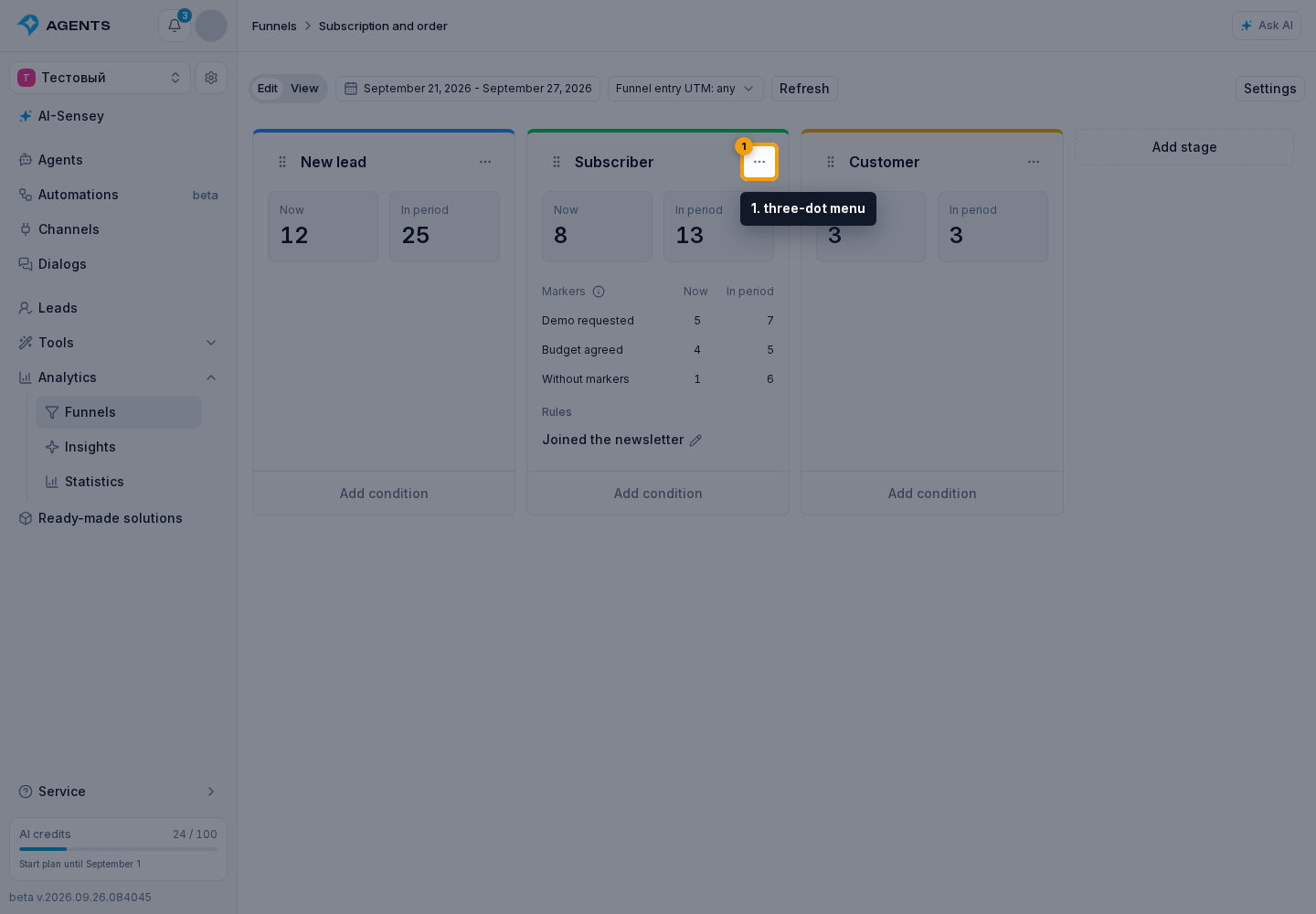
Select “Move leads”.
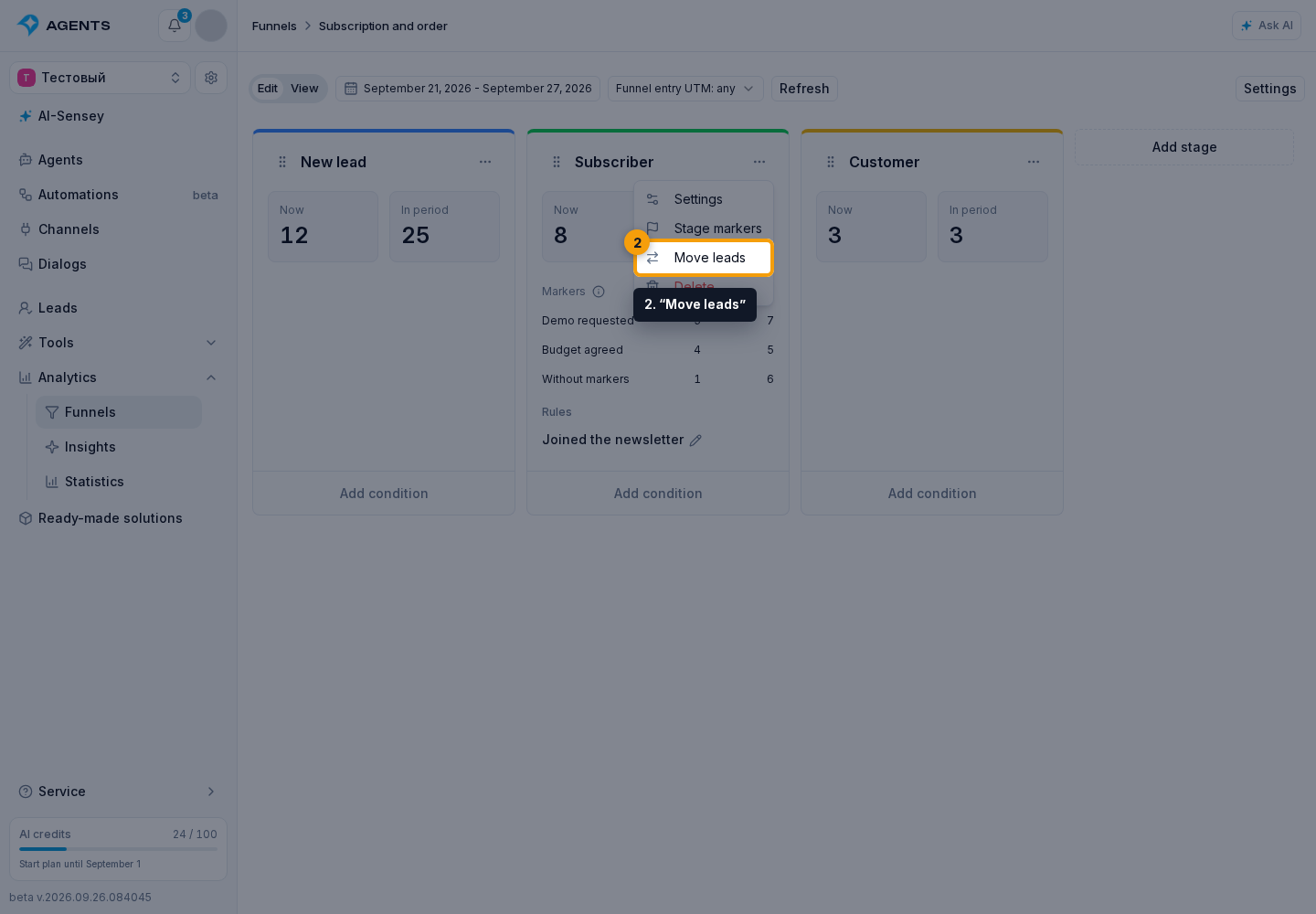
- Check the target stage in the placement dialog.
- Find leads using search and filters.
- Select individual leads or all leads in the list.
- If needed, enable “Count skipped stages”.
- Click “Move selected”.
The move and any skipped stages are recorded at the current time. Existing history is preserved.
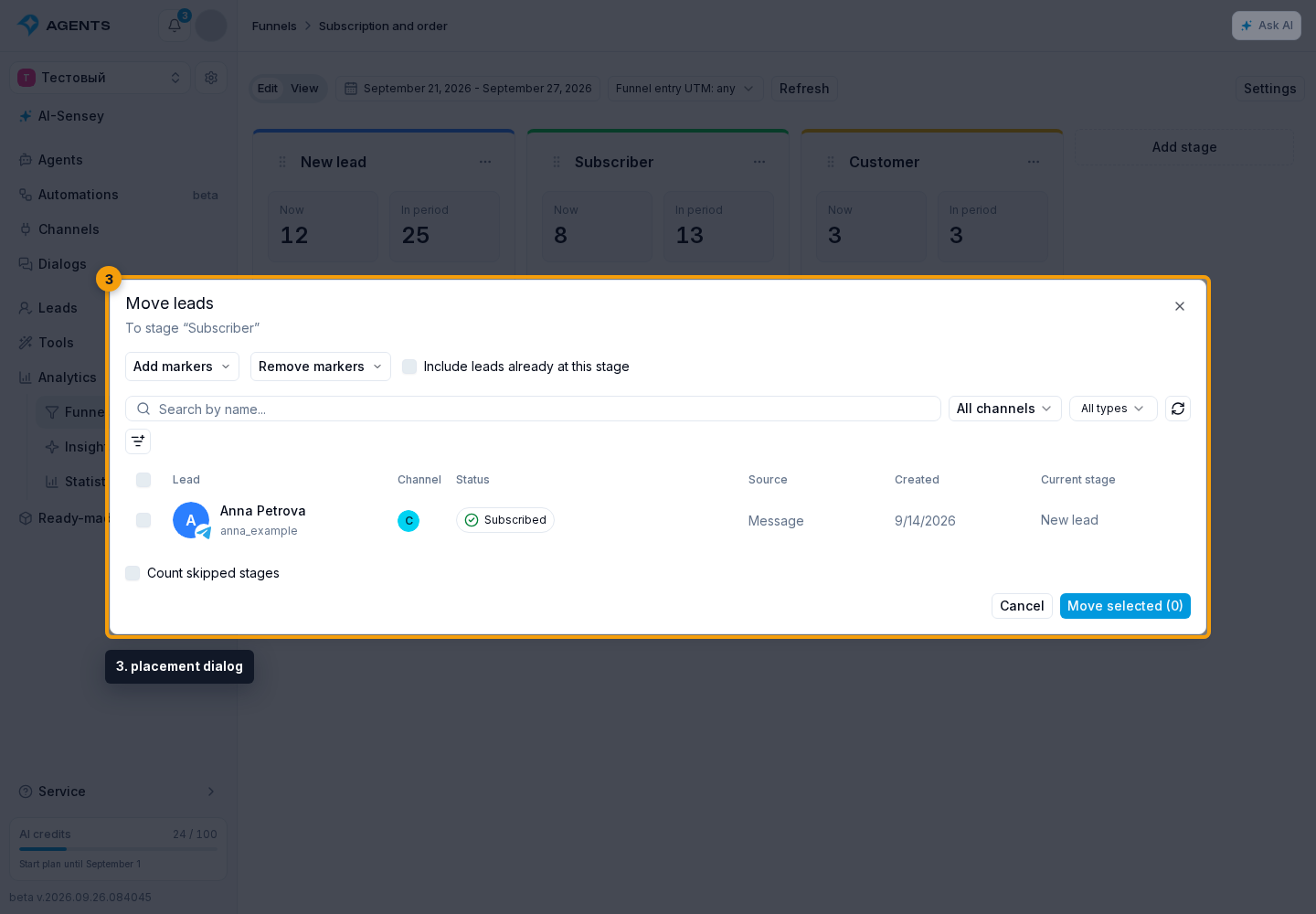
The table shows up to 50 leads, with each lead's current stage alongside their details. Select a lead using its checkbox or by clicking its row. By default, leads already at the target stage are excluded. “Include leads already at this stage” lets you select them to change their markers.
Changing filters updates the list; the “Refresh” button reloads it. Both actions clear the selection. If a lead changes stage after the preview, refresh the selection. Reopen the dialog after moving leads to select the next batch.
“Count skipped stages” is off by default and applies only to the selected move. When checked, entering the third stage directly counts the first and second under “In period”; moving from the first to the third counts only the second. Under “Now”, the lead stays only at the destination stage. Moving backwards does not count previous stages. Reopening the dialog resets the checkbox to off. Automatic transitions count only the destination stage.
An agent can also add and move leads: allow the required stages in its tools and define the condition in its instructions.
To move leads from a workflow, use automation steps.
Find leads at a stage
- Open the “View” tab.
- Select “Now”.
- Click the count to the right of a stage name.
In the “Edit” tab, the “Now” tile opens the same list.
The list contains current leads at the selected stage with the same entry UTM selected above the funnel. The passage period does not restrict this list.
To find leads through the Leads section:
- Open the “Funnels and stages” filter.
- Enter a name in search.
- Select funnels.
- If needed, select individual stages.
- Click “Apply”.
Multiple selections are combined with OR. “Reset” clears the selection. Entry tags are visible inside the funnel filter; “Clear entry UTM” removes only that restriction.
The “Funnels” block in a lead’s profile shows current stages, entry dates and assigned markers. “Edit markers” changes these labels without moving the lead to another stage.