
Ready-Made MCP Authorization
Ready-made server authorization
Select a ready-made connection in the project's MCP servers.
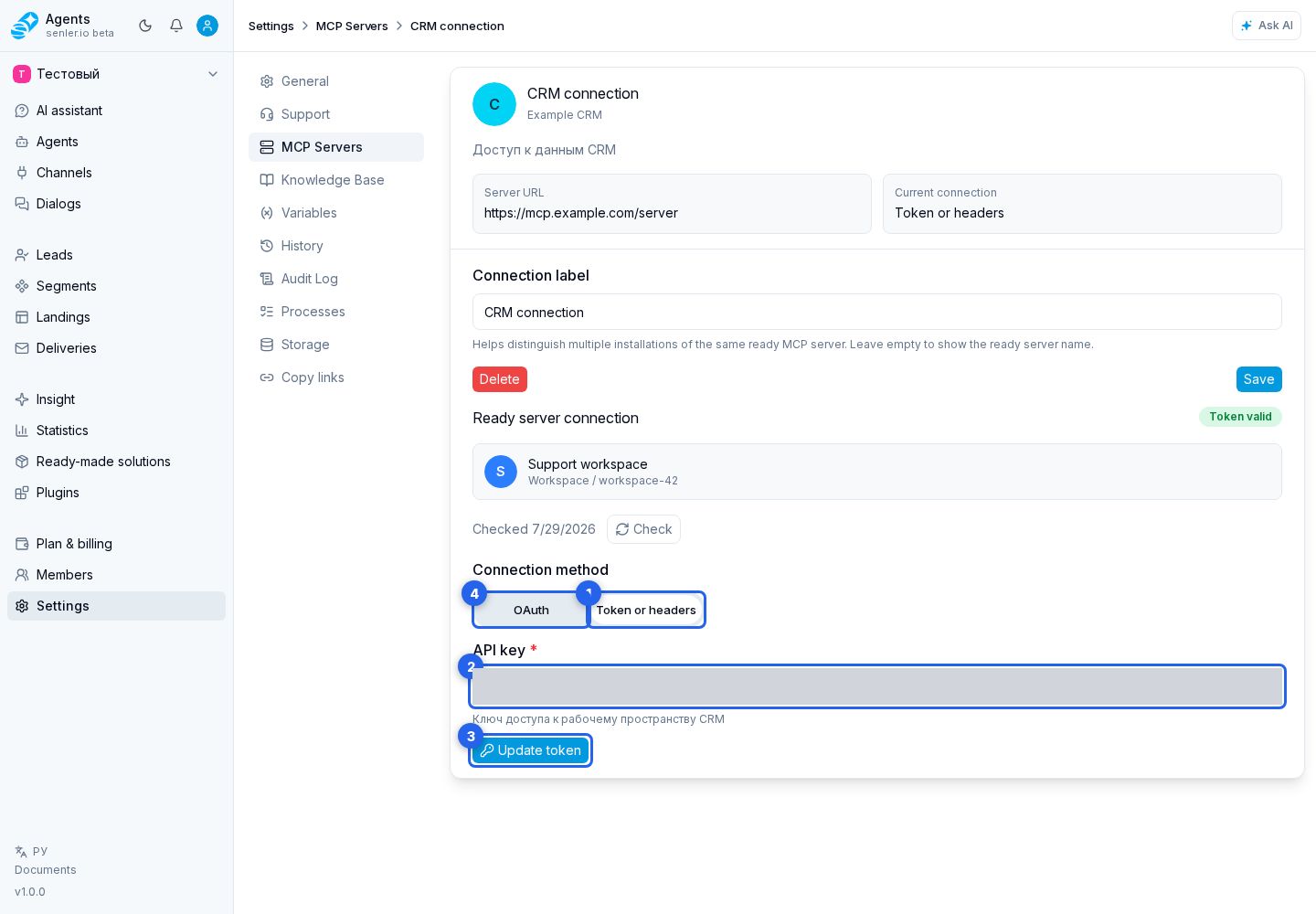
A ready-made server shows only the methods allowed by its template. If it uses shared project credentials, open the Token or headers tab. The template displays either one token field or its set of header fields. A field hint may specify whether it is required and its prefix; the form applies the prefix according to the template rules.
Enter the manual credentials and click Update token. If the template supports OAuth, switch the connection method by selecting the OAuth tab.
On the OAuth tab, click the connect button and complete the external sign-in.
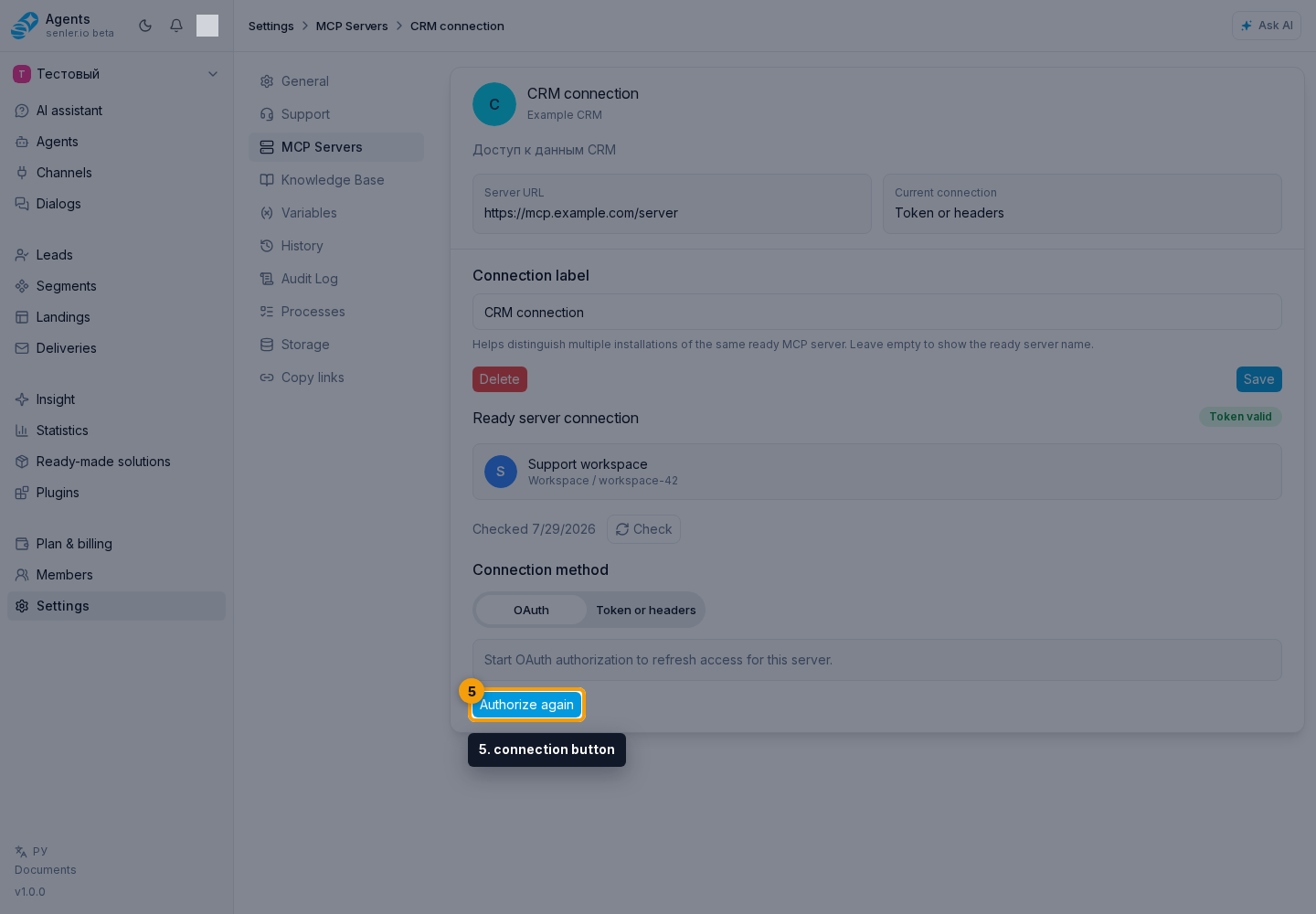
Connection credentials are entered and replaced only on this page or in the external OAuth window. After saving, authorization is applied to the MCP server methods automatically. Do not send the token in chat or agent instructions. To choose another account, complete OAuth again or replace the manual credentials here.
Validating project credentials
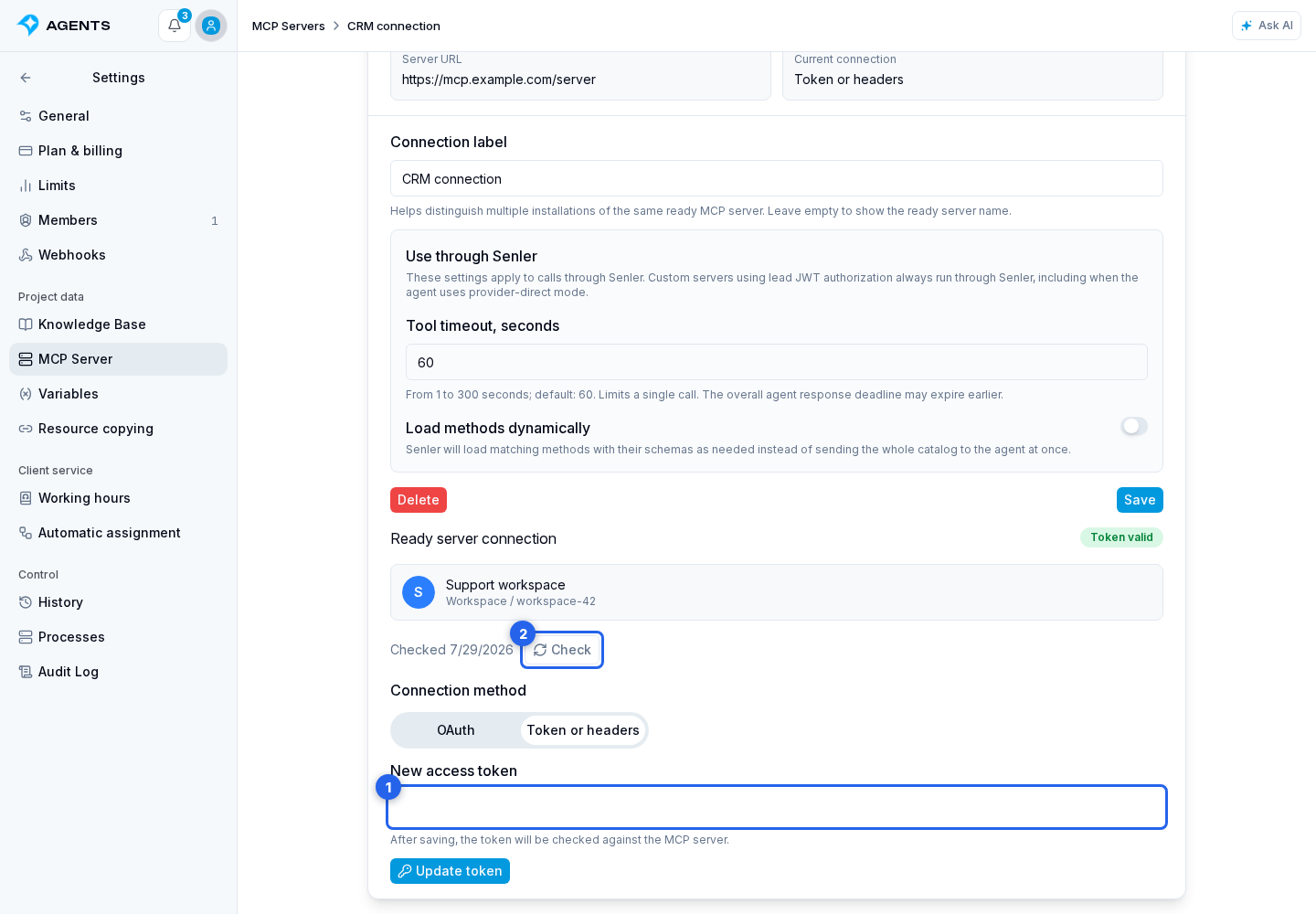
When a ready-made server already has project credentials, the card shows a status, the last validation time, and a validation button.
- Token valid means the latest validation accepted the credentials;
- Token invalid means validation failed;
- Not checked means there is no confirmed validation result;
- Not connected means manual data or OAuth has not been saved.
Validation is available only after project credentials exist.
Per-lead authorization
If a template uses user authorization instead of project authorization, the server has Per lead mode. There is no shared project token for such a connection: an external account is connected separately for a specific user when required by the tool.
Do not replace Per lead mode with a shared secret in the description or agent instructions. Secrets must use the authorization flow provided by the server.
A widget visitor who already has a token can use a server-side binding flow: POST /api/mcp-servers/external-user-credentials. It saves credentials for the project, channel, external ID, and installed MCP; signed widget initialization binds them to the lead. The template determines the supported authorization method. The complete guide with save, renewal, and revocation requests describes this option separately from custom MCP JWT authorization.