
Test Dialogs
AI plays the customer: it sends messages, clicks buttons and checks how the agent replies or the automation proceeds. Each variant starts in a new test dialog. You can test placing an order, clarifying missing details and cancelling a purchase without playing every customer yourself.
Start a test
In the diagnostics launch dialog, enable "Test in dialogs". Test conversations will supplement the settings review for the selected items.
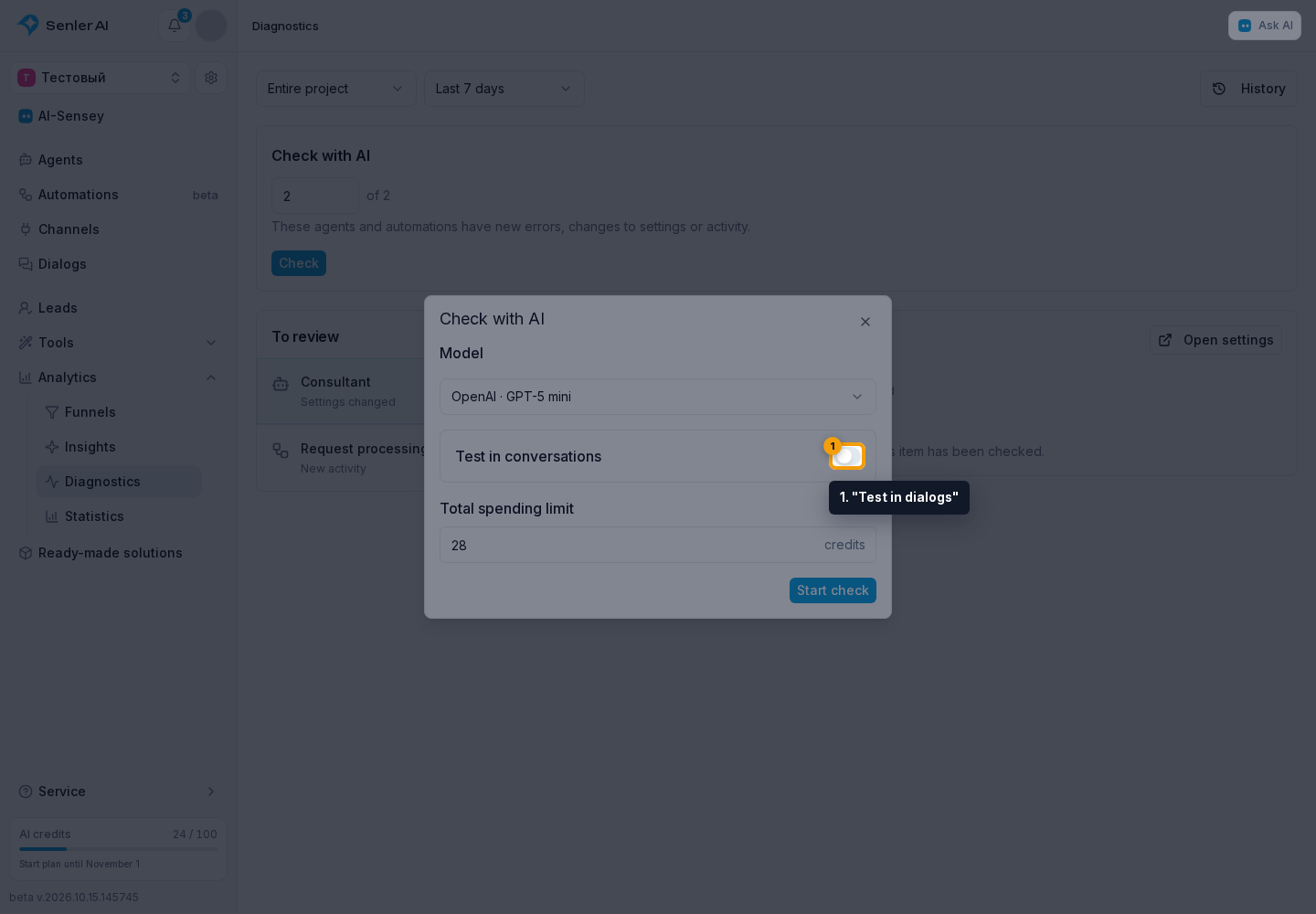
To check one item, open testing in the agent editor or automation editor and choose AI testing. This tests conversations without first running a general project review.
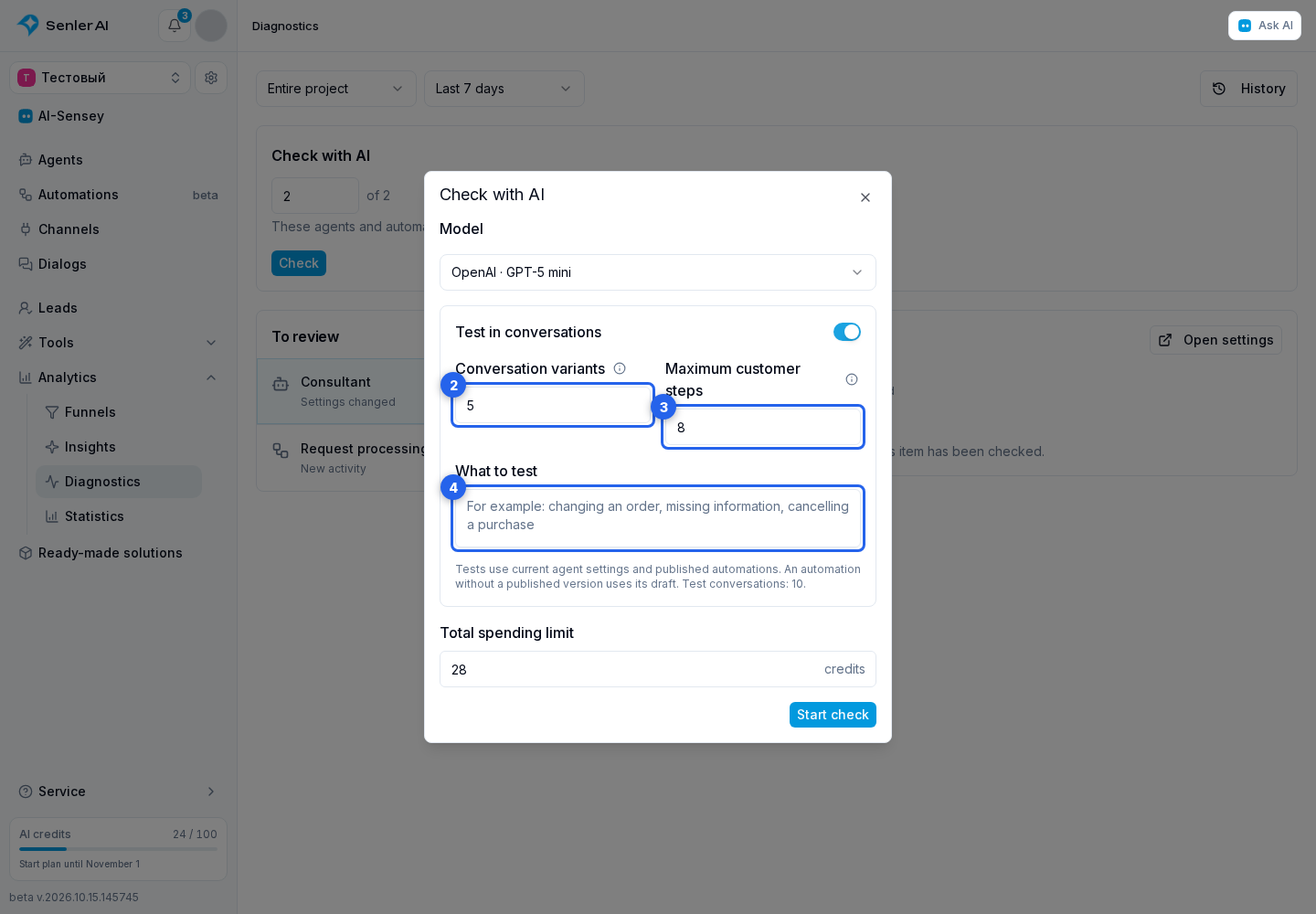
- Choose the model that will play the customer and evaluate the conversation. The agent being tested replies using its own model.
- Set "Dialog variants": from 1 to 10 per selected item.
- Set "Maximum customer steps": from 1 to 30 per variant. A message or button click counts as a step; agent replies do not. A conversation can finish earlier if its goal is achieved.
- In "What to check", describe important situations, for example: "The customer does not know the order number and then asks for an operator."
- Review the spending limit and confirm the start. The estimate accounts for the step limit, variant count and the tested agents' models; only actual usage is charged, not the entire suggested amount.
The payment method is considered separately for the customer model and the tested agents' models. Requests through your own keys are billed by the provider without consuming Senler credits. If some models use Senler or fallback to its accounts is allowed, those requests are included in the credit estimate. The test limit caps Senler credits, not your provider charges.
Tests started from an editor use the saved draft. Diagnostics uses the agent's current settings and the published automation; an unpublished automation uses its draft. The result identifies the version tested. If settings change during a test, start a new check of the updated version.
To test the agent itself, enable Prepare replies and perform actions. When processing is disabled, a conversation with the agent does not start, and the result states that reason. Do not send the main reply to the customer is a separate setting: it does not disable processing or tools.
Read the result
Each variant shows the customer's situation, progress, outcome and findings. Expand a variant and click "Open conversation" to compare the conclusions with the actual messages. The completed counter includes partially checked variants, so inspect each conversation's status as well as the count.
The status explains what was actually checked:
- No issues found in this conversation applies only to the completed variant, not every possible conversation with the agent.
- Step limit reached means that the allowed customer actions have been used up. Read the conversation: this outcome alone does not confirm that the entire task was completed.
- Not checked means there is no saved conversation or action results from which to evaluate behavior.
- Partially checked or Test limitation identifies an unchecked part of the scenario. The reason and, for an automation, the stopping step are shown alongside it. For example, the test does not support a required action or did not receive a complete reply within two minutes.
If the final evaluation could not be prepared, you can review the saved conversation yourself. Fix any configuration error according to the stated reason, then start a new test.
The test does not message other recipients or change shared project data. An unsupported tool, action or automation trigger stops that variant and marks the remaining steps as unchecked. Automatic testing supports an automation's Start or incoming-message trigger. Attachment contents are not evaluated; a conversation that needs to read an attachment to proceed may finish partially. Check these parts manually using safe data.
Pause or stop
"Pause" keeps the option to resume the same test. If the spending limit is insufficient, increase it before continuing. "Stop testing" ends the test and keeps completed results; choose "New test" for another run.
Closing the dialog or page does not stop the work. Return through "View test" in the editor or open the diagnostics report. You can view the active variant in the embedded chat, but sending messages and clicking buttons becomes available only after that variant finishes, not while it is paused.
Access
Starting a test requires analytics and dialog management permissions, plus permission to view agents and automations. Testing an automation additionally requires automation management permission.