
Connect Hermes
Hermes can react to project events: review new requests, prepare replies or perform the actions you specify. It connects to Senler itself, so your computer does not need a public IP or open inbound ports. The computer or server running Hermes must stay on and connected to the internet.
Prepare Hermes
Install the Senler plugin in Hermes:
hermes plugins install SenlerBot/senler-io-user-hermes-plugin --no-enable
hermes plugins enable senler-io-user
Open a new Hermes chat and ask: "Connect Senler.io and show the projects I can access. Do not change anything yet." The plugin prepares the connection and offers authorization through the Hermes interface. Complete Senler sign-in and approve the requested permissions. Do not send tokens in chat.
If you prefer a terminal, use hermes senler connect, then hermes senler check to verify the connection. The plugin uses Senler.io User MCP, so actions run with the signed-in user's permissions. Installation alone does not enable event processing or send customer messages.
The plugin also supports one-off tasks without an event subscription. For example: "What could be improved in the agent instructions?" or "Why did the automation fail?" The subscription below is for automatically reacting to new events, not for every request to Senler.
Connect project events
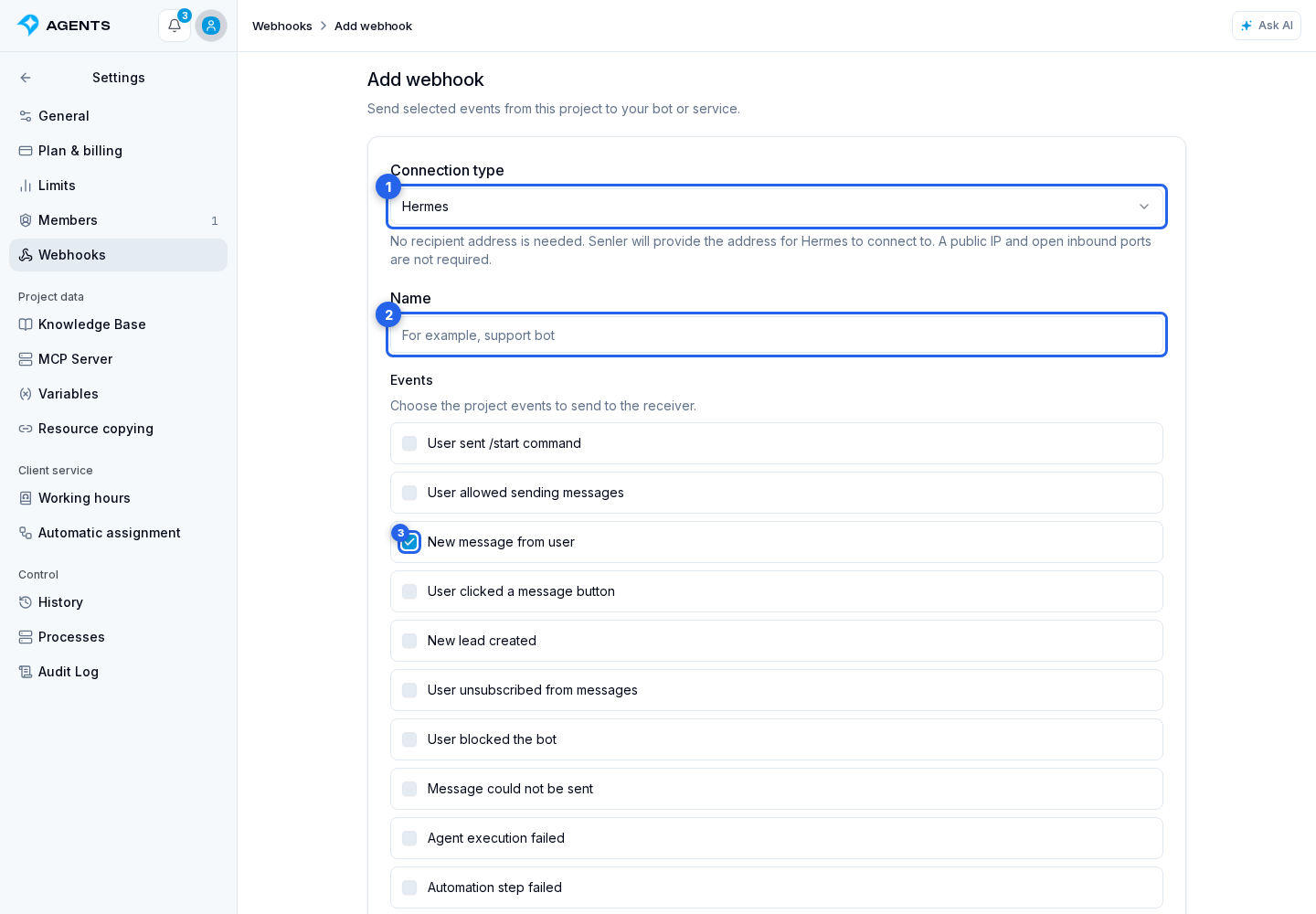
- Click "Add" in project webhooks.
- Select the "Hermes" connection type.
- Enter a name, choose the events you need, then click "Add". A recipient URL, headers and HTTP signature format are not needed here.
- In the new subscription, open the Hermes connection tab. On the connection page, copy the address from "Hermes connection".
- Give the address to Hermes and describe the processing rules. For example: "Connect to this subscription. Classify incoming questions and prepare drafts. Do not send customer messages yet."
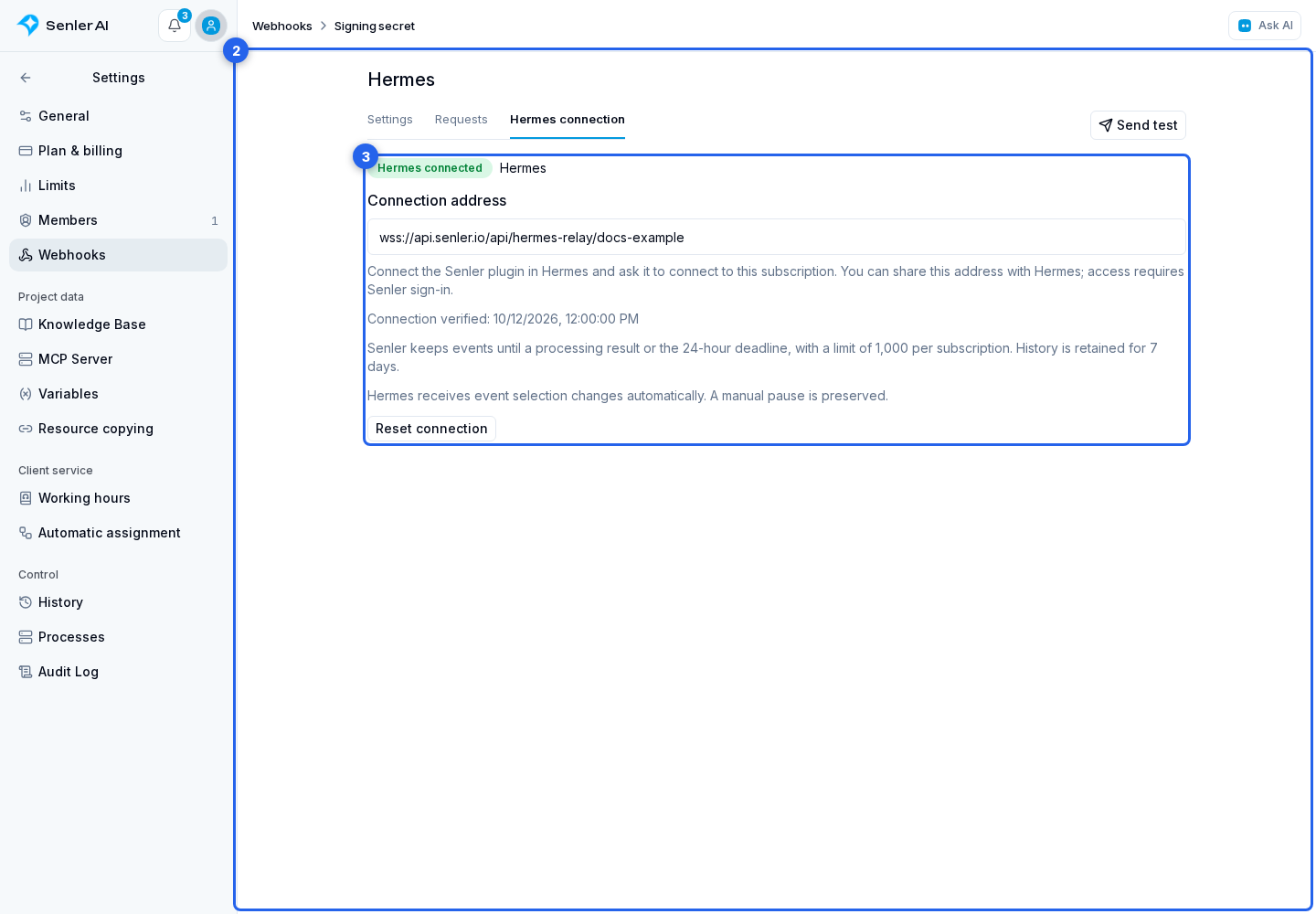
The address identifies the subscription but does not grant access on its own: authorization is required. The subscription activates automatically after the reception check. The cabinet shows "Hermes connected" and the verification time. A subscription paused manually must be resumed separately.
You can instead start with a request in Hermes chat, for example: "Process new messages for the Training project." The plugin helps create the subscription and check the connection; you do not need to create a duplicate manually.
Check processing
"Send test" checks the connected Hermes for the selected event types without running AI or messaging customers. Actual processing follows the rules you gave Hermes.
Open the "Requests" tab and inspect each event's state:
- "Queued": waiting to be received.
- "Received": Hermes saved the event but has not confirmed completion.
- "Processing": execution started.
- "Completed" or "Processing failed": a result arrived; its text is shown below the event.
- "Expired": no result arrived within the retention period.
Senler keeps pending events until a result arrives or for up to 24 hours, with at most 1000 events per subscription. History remains available for 7 days. If dropped delivery attempts are reported, check the queue and connection: do not assume every event was processed.
A draft prepared by Hermes is available in its processing session and the event result. It does not automatically appear in the original Hermes chat or become a message draft in Senler. To find the draft, tell Hermes: "Show processing results for the Training project."
Stop or change the connection
To stop processing, tell Hermes: "Pause processing for this subscription." It stops the local handler and disables the Senler subscription. An external action already sent may finish. Disabling only the subscription in the cabinet stops new events but does not cancel an action Hermes has already started.
To connect another computer, open the Hermes connection tab and on the connection page click "Reset connection". The previous installation's key is revoked. Connect the new installation and wait for verification. A previously active subscription resumes after verification, while a manual pause is preserved.
The agent and plugin must run in the same Hermes instance. Forwarding tasks to another instance through gateway.proxy_url or GATEWAY_PROXY_URL is not supported for incoming events; this does not prevent using a cloud model within Hermes itself.