
Bulk Dialog Actions
A bulk action applies to every dialog matching the current filters, not just the rows already loaded on screen. Dialogs created after the operation starts are not added to it. For example, you can assign an agent to dialogs from one channel or stop automations for a particular group of conversations.
How to Start
- Open the dialog list and set the filters.
- Clear the text search if it is filled in: the bulk actions menu is available when the search field is empty.
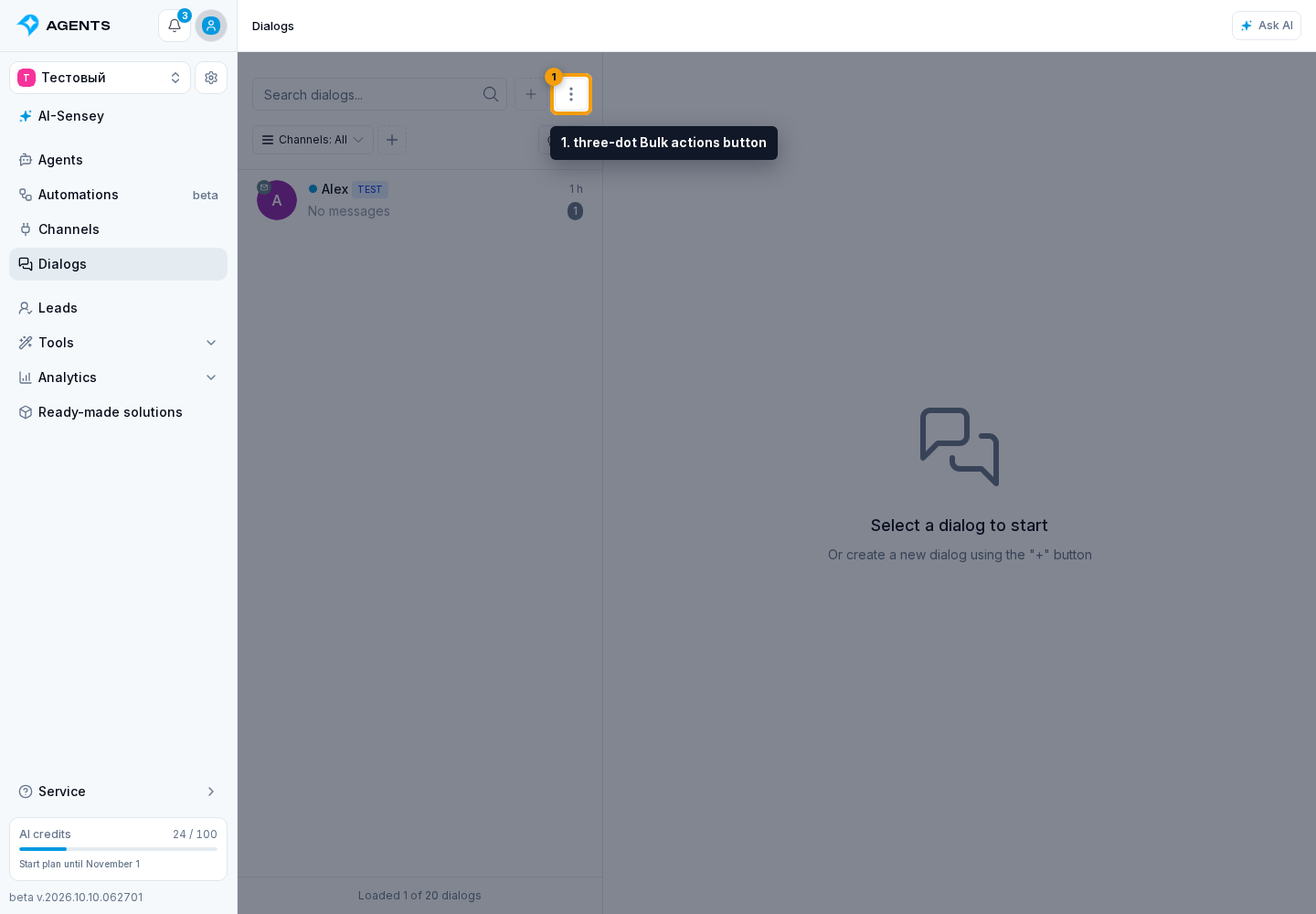
- Click the three-dot Bulk actions button next to search and choose an action.
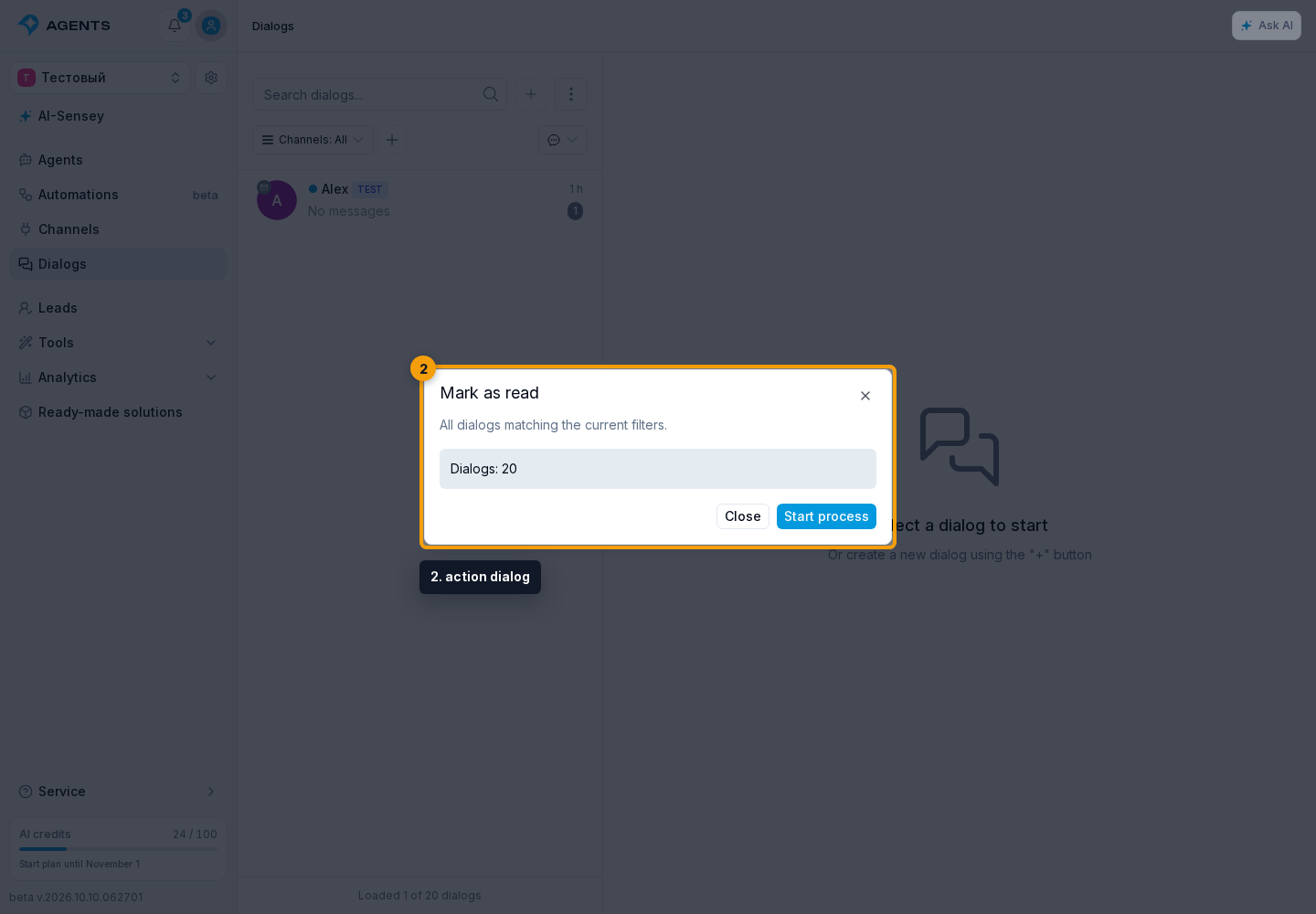
- In the action dialog, set the options and check the number of dialogs.
- Click Start process.
Starting an action requires dialog management permission. Starting or stopping automations also requires automation management permission.
Assign or Remove an Agent
In the assignment dialog, choose an active agent and a role: Primary or Background. Archived dialogs are skipped. The same agent cannot hold both roles in a dialog: if it is already assigned to the other role, the dialog is also skipped.
- Replace the assigned agent allows replacing another agent in the selected role. Without this option, dialogs with a different agent in that role are skipped.
- Invoke the agent after assignment also starts the agent's work, including when the selected agent is already assigned to that role. The run may send a message to the client and incur AI processing costs. Without this option, the action only changes the assignment.
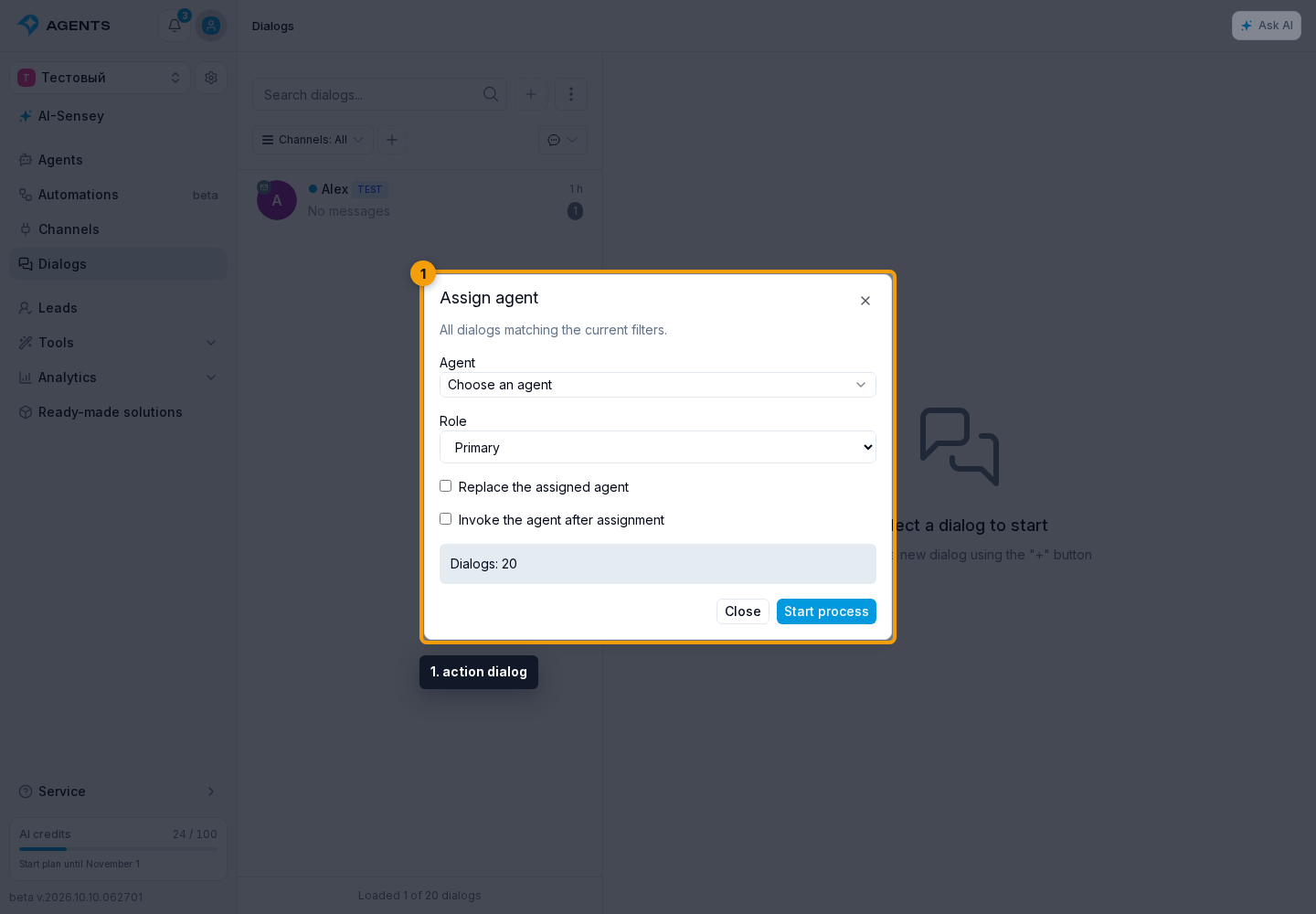
When removing agents, select a particular agent or All agents, and one role or Both roles. Disable auto-assignment after removal is enabled by default: it prevents automatic reassignment in these dialogs. Clear the option if auto-assignment should continue.
For a single conversation, use agent assignment in dialog information.
Start or Stop an Automation
In the start dialog, select a published dialog automation that accepts new runs and contains a Start step.
Bulk start skips test and archived dialogs, as well as dialogs without a lead or channel. Use automation testing to check a draft.
Run again even if the automation is active allows another run in the same dialog. Without this option, dialogs where the selected automation is already running are skipped.
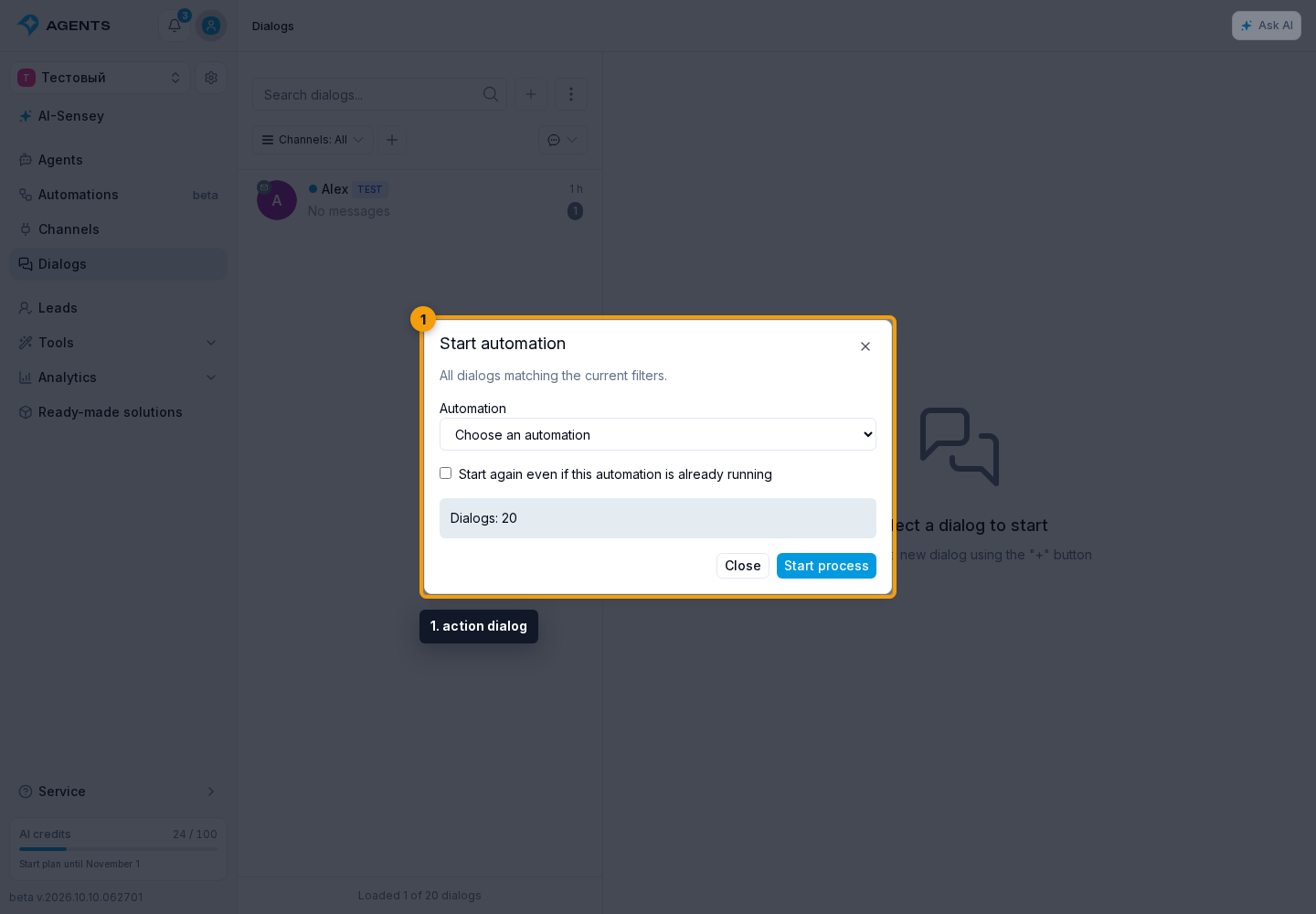
When stopping, select a particular automation or All automations. Completed steps are not undone.
Completion of a bulk start means the start requests were accepted. The automations continue running separately: check their state in dialog information.
Archive or Restore Dialogs
Archive dialogs removes conversations from the working list and stops their current automations. A new incoming message returns a dialog to work.
To restore archived dialogs, select Archived in the status filter, then open bulk actions and choose Restore from archive.
Mark as Read
Mark as read changes the operator-side read mark, not the client's. Messages received after the operation starts remain unread. Follow the illustrated read status guide.
Progress and Stopping
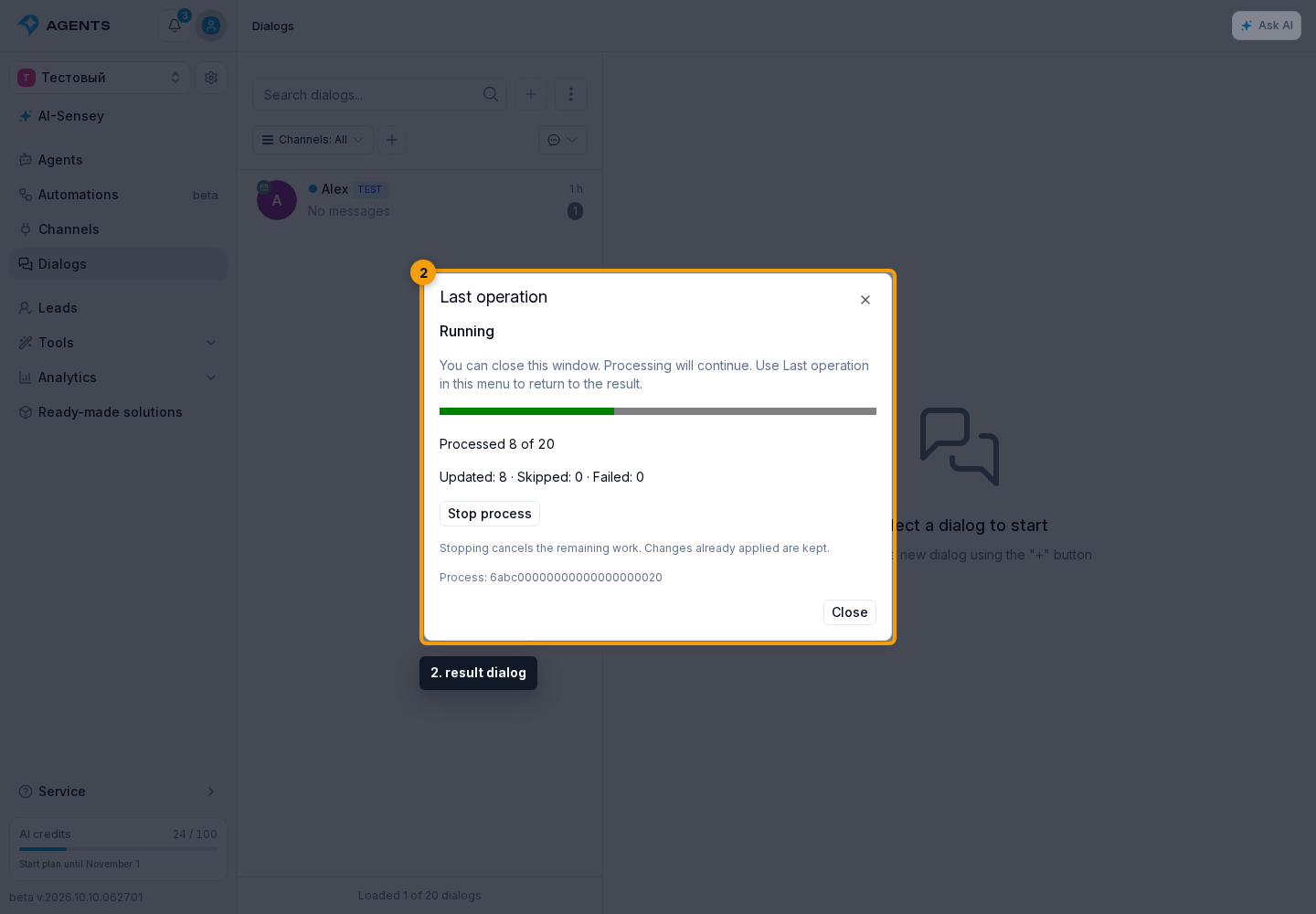
You can close the dialog or leave the page: the process continues. To return, select Last operation in the bulk actions menu. The result dialog shows progress and Updated, Skipped, and Failed counts. Operation history is also available in Processes.
A skipped dialog does not always indicate an error: it may already be read or have an occupied role. Expand Reasons for skips and failures to see the last 100 details. If agent assignment or dialog state changed after the list was prepared, the operation may skip the dialog to avoid overwriting more recent changes.
Some results mean that only part of the action was completed:
- Assignment saved. Agent invocation is unconfirmed: the agent is already assigned, but it is not known whether its work started. Check reply preparation in the dialog before invoking it again to avoid an extra message and duplicate costs.
- Assignment saved, but agent invocation became unavailable: the assignment is not undone; check the current dialog and agent state.
- Automations stopped; the dialog changed and was not archived: stopping has already been completed, but the conversation remains active after more recent changes. Check it before archiving again.
Stop process cancels the remaining work but preserves completed changes. This stops the operation rather than pausing it for later continuation.