
A/B tests
An A/B test distributes visitors between variants and shows which offer more often leads to the desired action. It complements overall landing statistics and does not require external analytics counters.
Start a test
- Prepare page or block variants.
- Create an “A/B test” rule in the variant list.
- Enter the rule name and name the test outcomes, for example “Short offer” and “Detailed offer”.
- Set each outcome's coefficient from 0.01 to 100, with at most two decimal places. Percentages are calculated automatically: for example, coefficients of 1 and 3 give 25% and 75%.
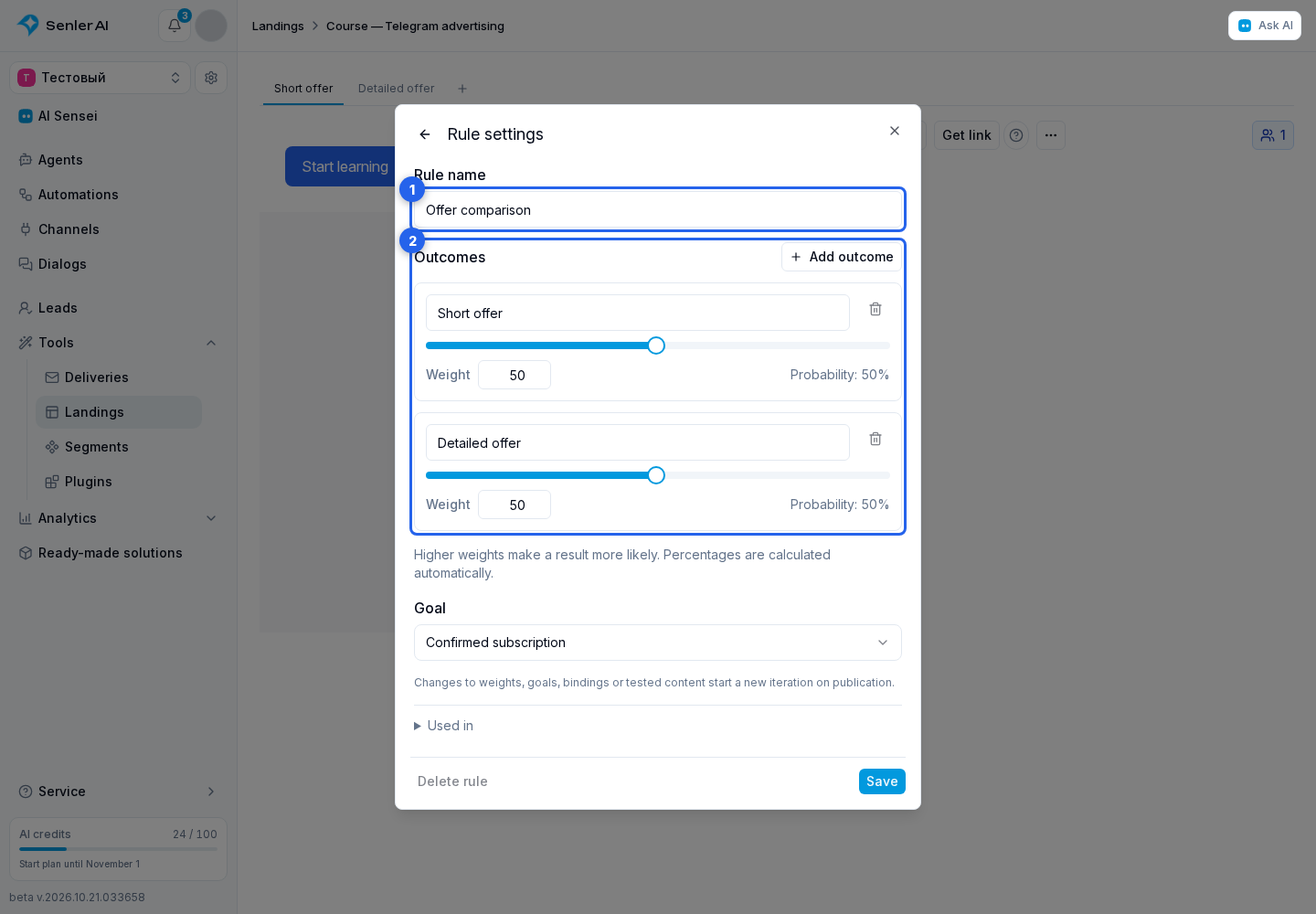
- Select “Confirmed subscription” or “Button click” as the goal. For clicks, select the specific buttons to count.
- Save the rule.
- Assign its outcomes in the variant list and click "Save display settings".
- Check the variants and publish the landing.
The outcome is assigned to the browser for this test. One person in different browsers can count as different participants; clearing browser storage also changes the identifier. Shares determine the distribution, not guaranteed equal counts in a small sample.
View results
- Open “Statistics” in the landing’s three-dot menu.
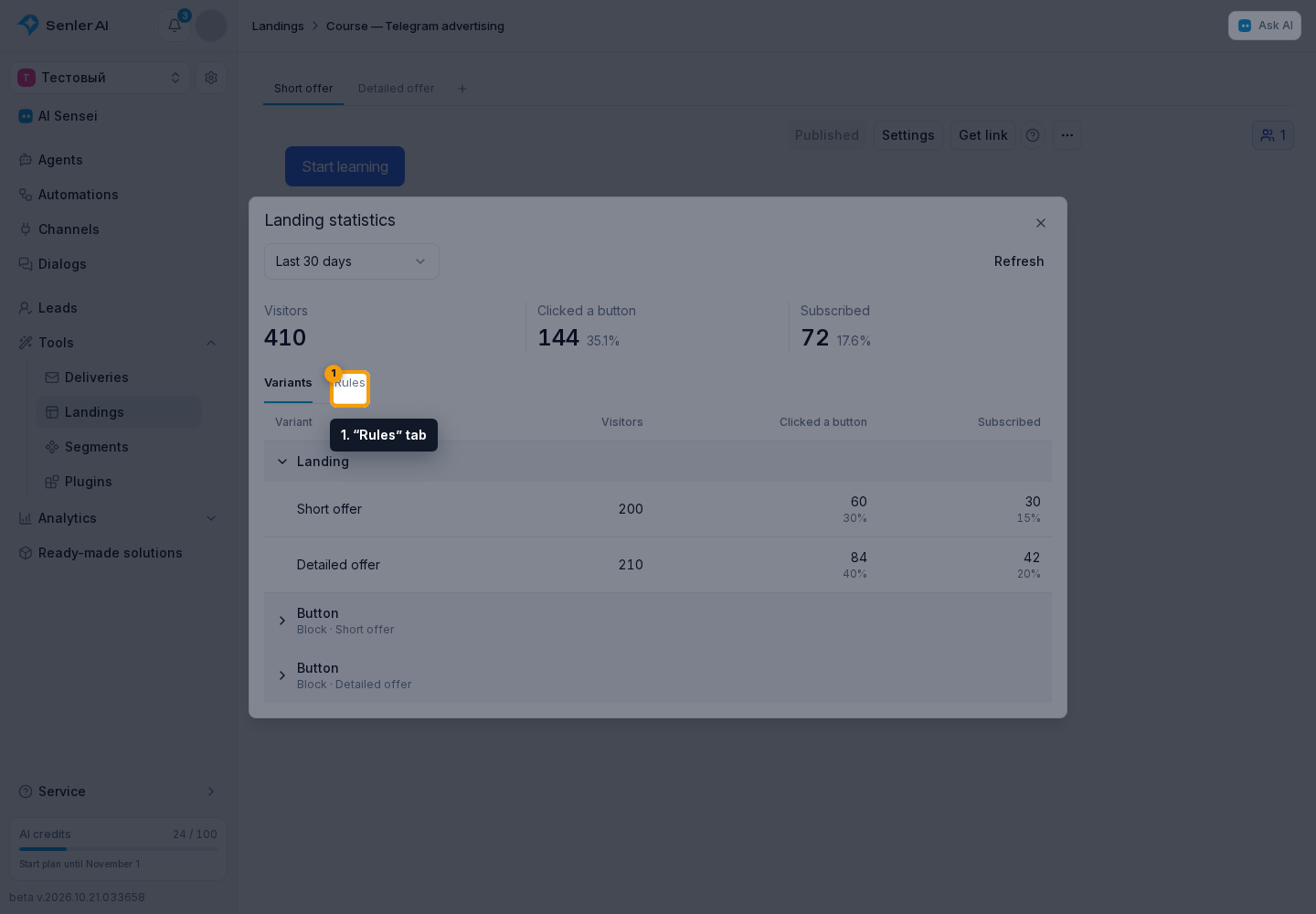
- Select the “Rules” tab.
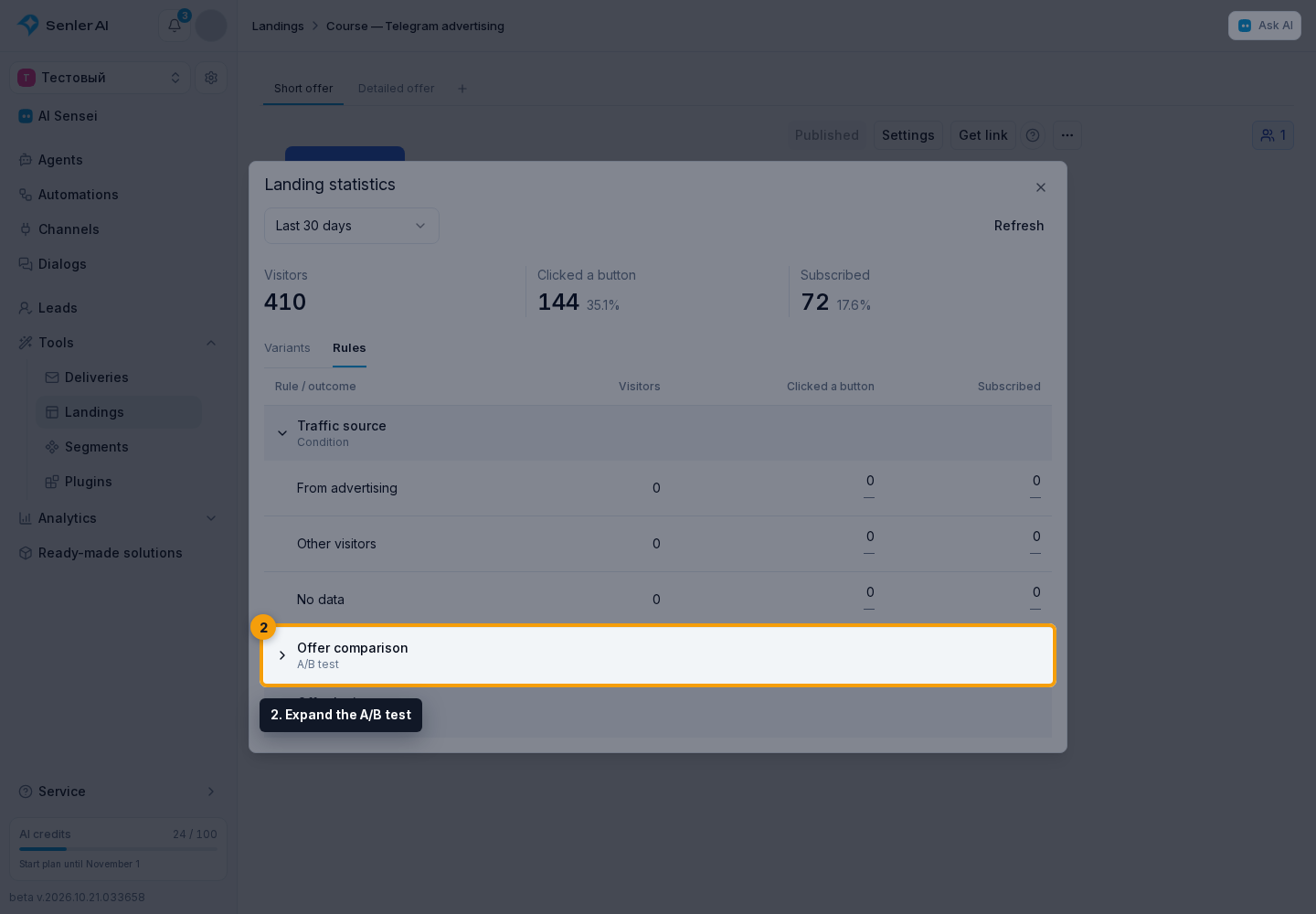
- Expand the A/B test.
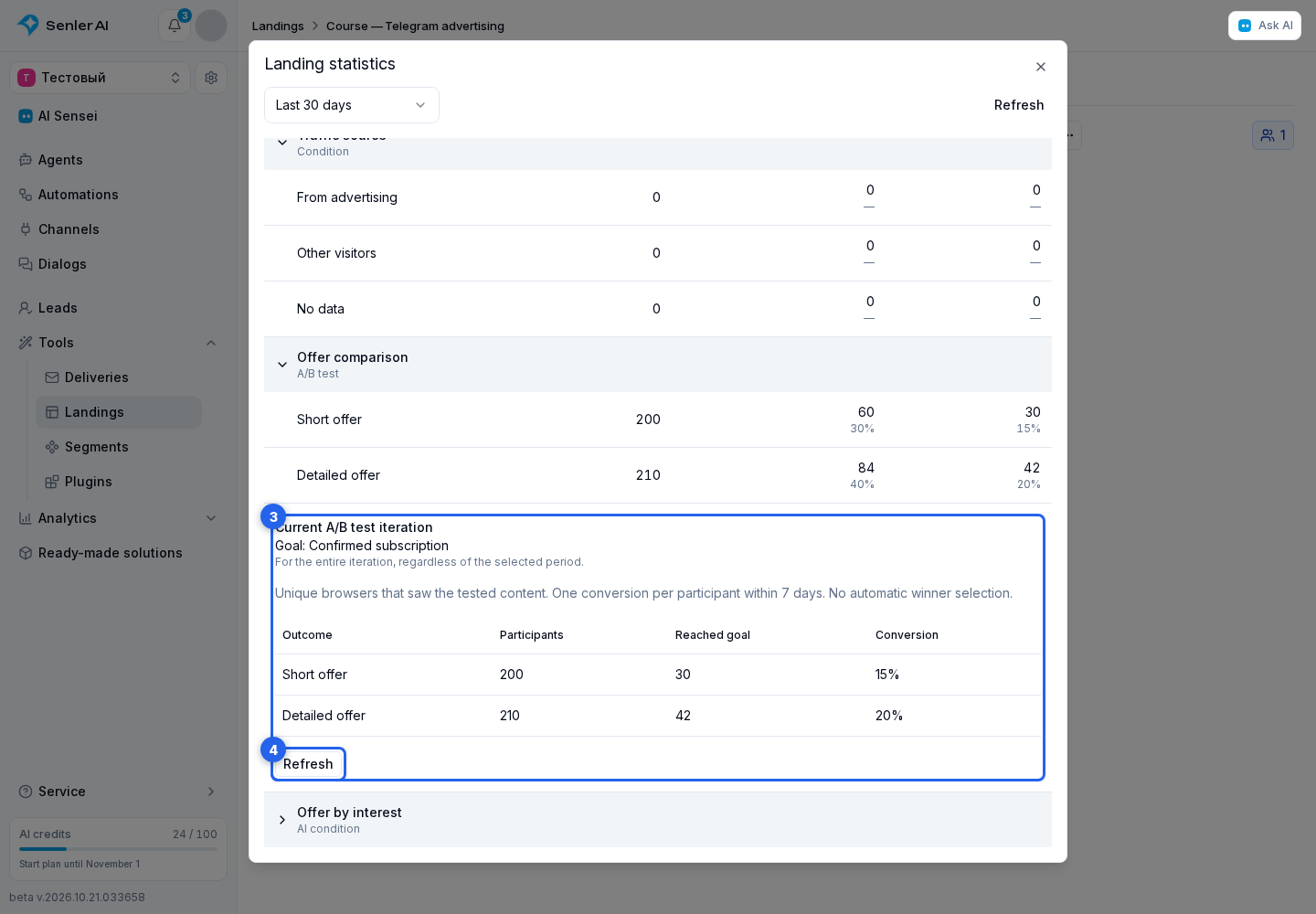
First, the overall statistics for the rule’s outcomes show visitors, clicks on any button, and confirmed subscriptions for the selected period. Below them, “Current A/B test iteration” displays the selected goal. This report covers the entire current iteration regardless of the period filter. If the rule has been removed from the landing’s current versions, its overall statistics remain available, but there is no current iteration.
The variant report shows:
- Participants are unique browsers shown the tested content. Requesting the page does not itself count as viewing a block below the viewport.
- Reached goal counts participants with a confirmed subscription or a click on a selected button, depending on the goal.
- Conversion is the share of participants who reached the goal.
The “Refresh” button loads the latest report data.
One conversion is counted per participant. The attribution window is 7 days from the first recorded exposure. For a subscription goal, clicking the button is not enough: the subscription must succeed. Preview does not contribute to statistics.
A winner is not selected automatically. After comparing results, select the desired variant in display settings and publish the change.
Buttons and test changes
Copied buttons receive their own identifiers and are not automatically added to the “Button click” goal. After copying a page or block, select the relevant buttons from both versions in the goal settings. If selected buttons cannot be reached in any displayed variant, the Cabinet prompts you to check the goals.
Changing shares, the goal, variant bindings, or tested content starts a new iteration when published. While changes are in the draft, the current iteration report under “Statistics → Rules” shows the published test’s results.