
Variant preview
Preview helps check an offer before publication. Choose rule outcomes manually to inspect the design, or enter visitor data to test selection itself. Landing settings and real lead data are not changed; preview does not count in statistics.
Inspect a specific variant
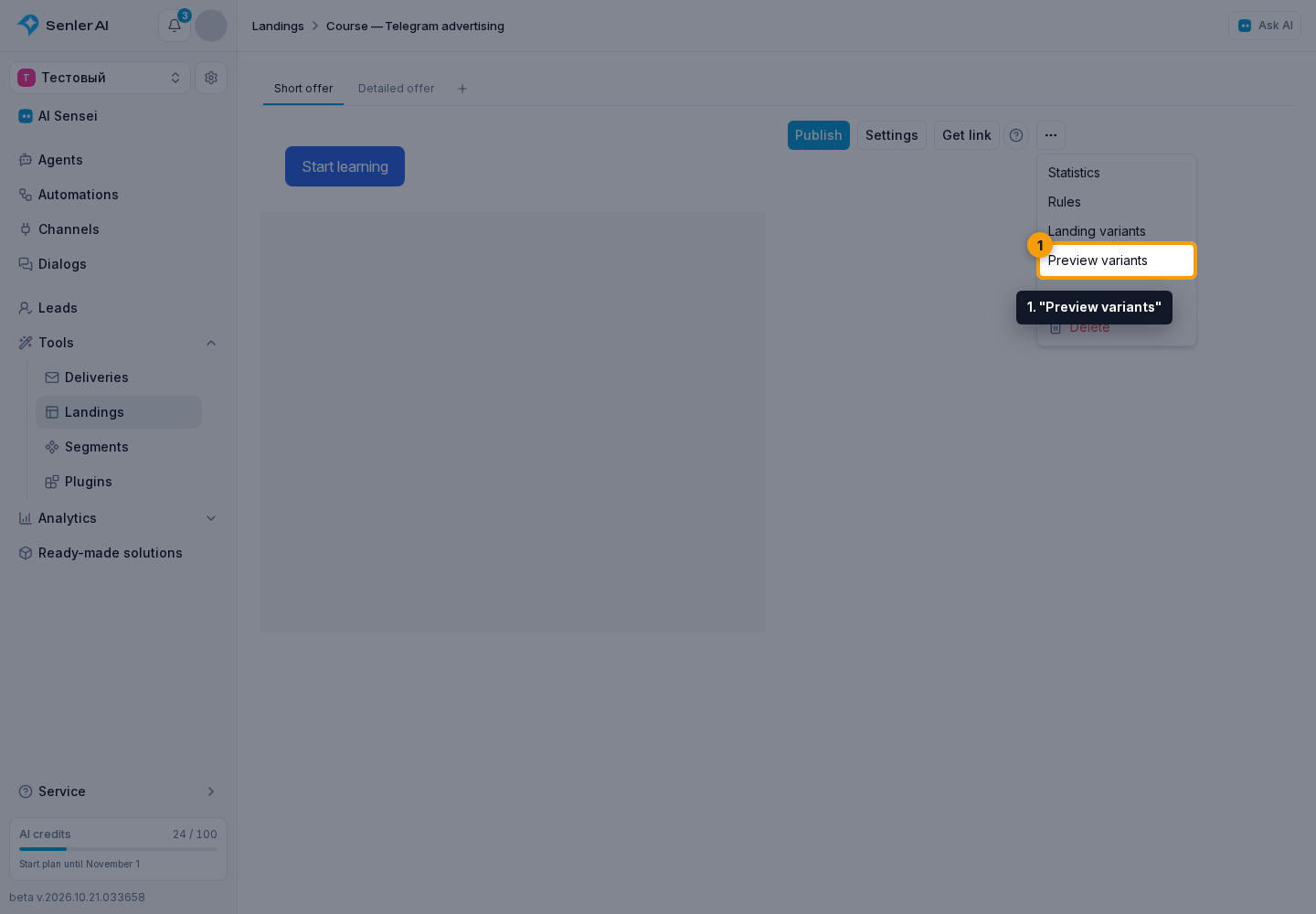
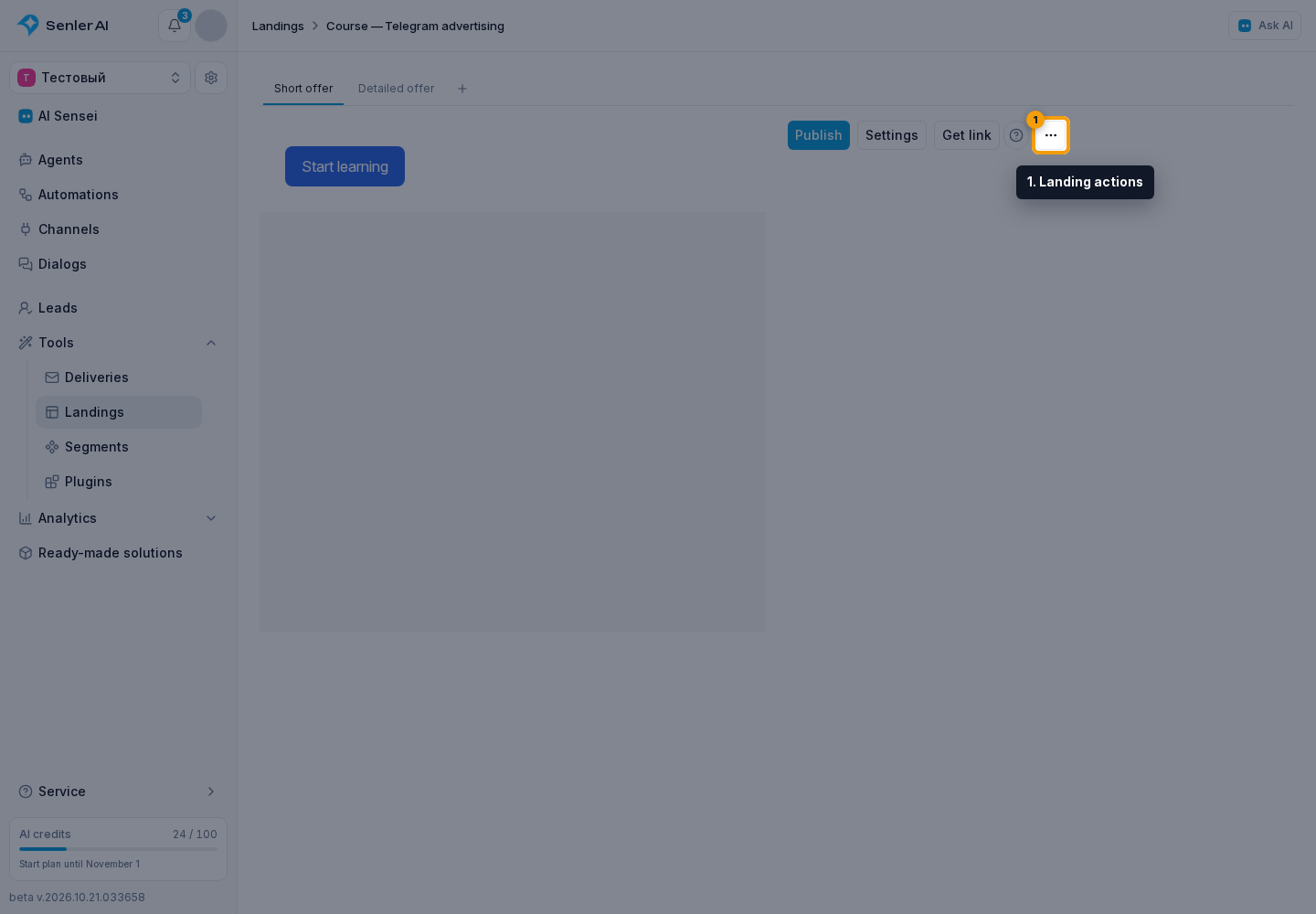
- In the editor's three-dot menu, click "Preview variants".
- In the preview dialog, keep the "Choose rules" tab selected.
- Choose an outcome for each rule or "Fallback display".
- Click "Show variants". The dialog closes and the editor displays the matching page with the selected block variants.
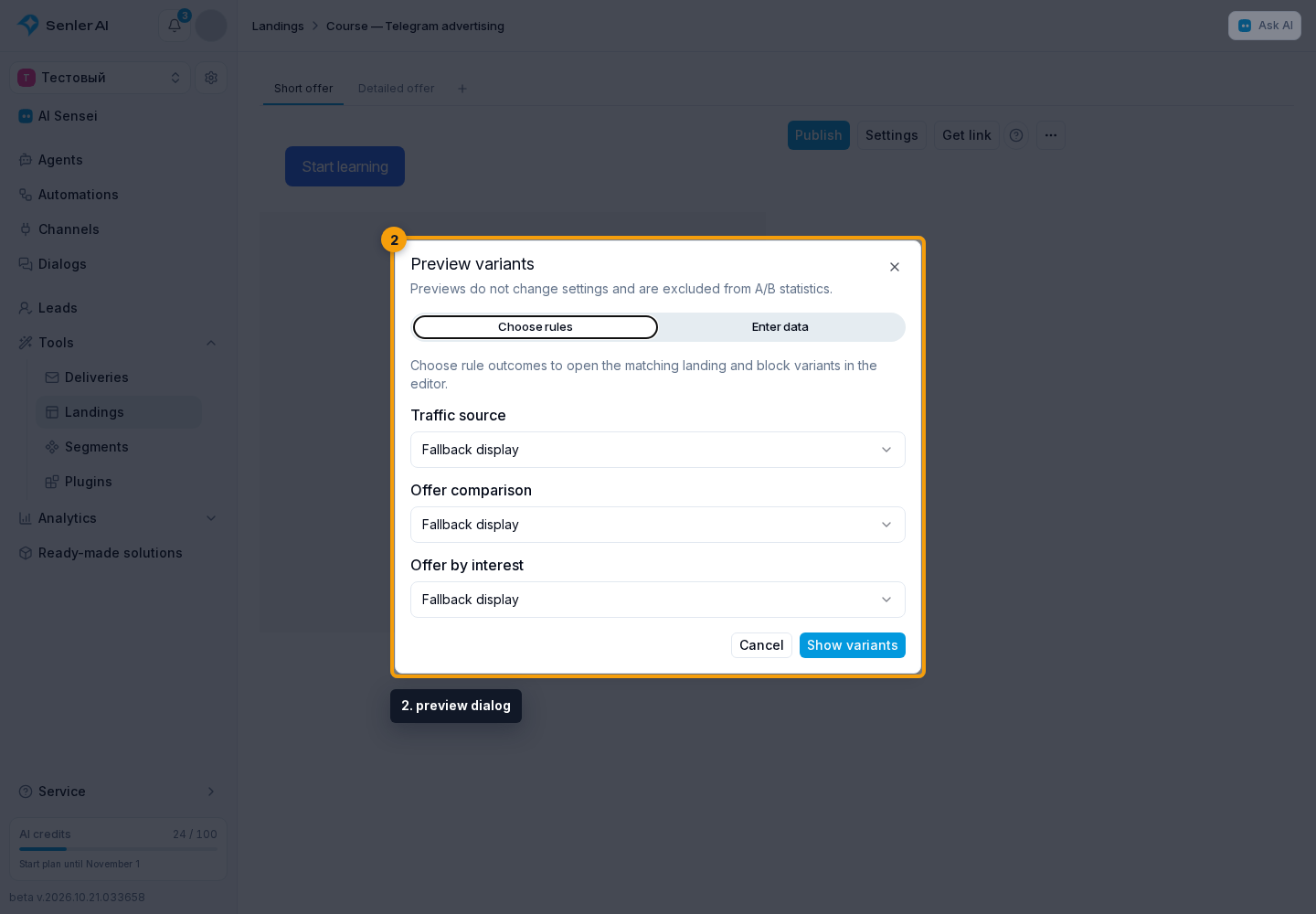
This mode does not call AI: you choose the outcomes yourself. It checks text and design but does not test which decision the rule would make from visitor data.
Check a rule
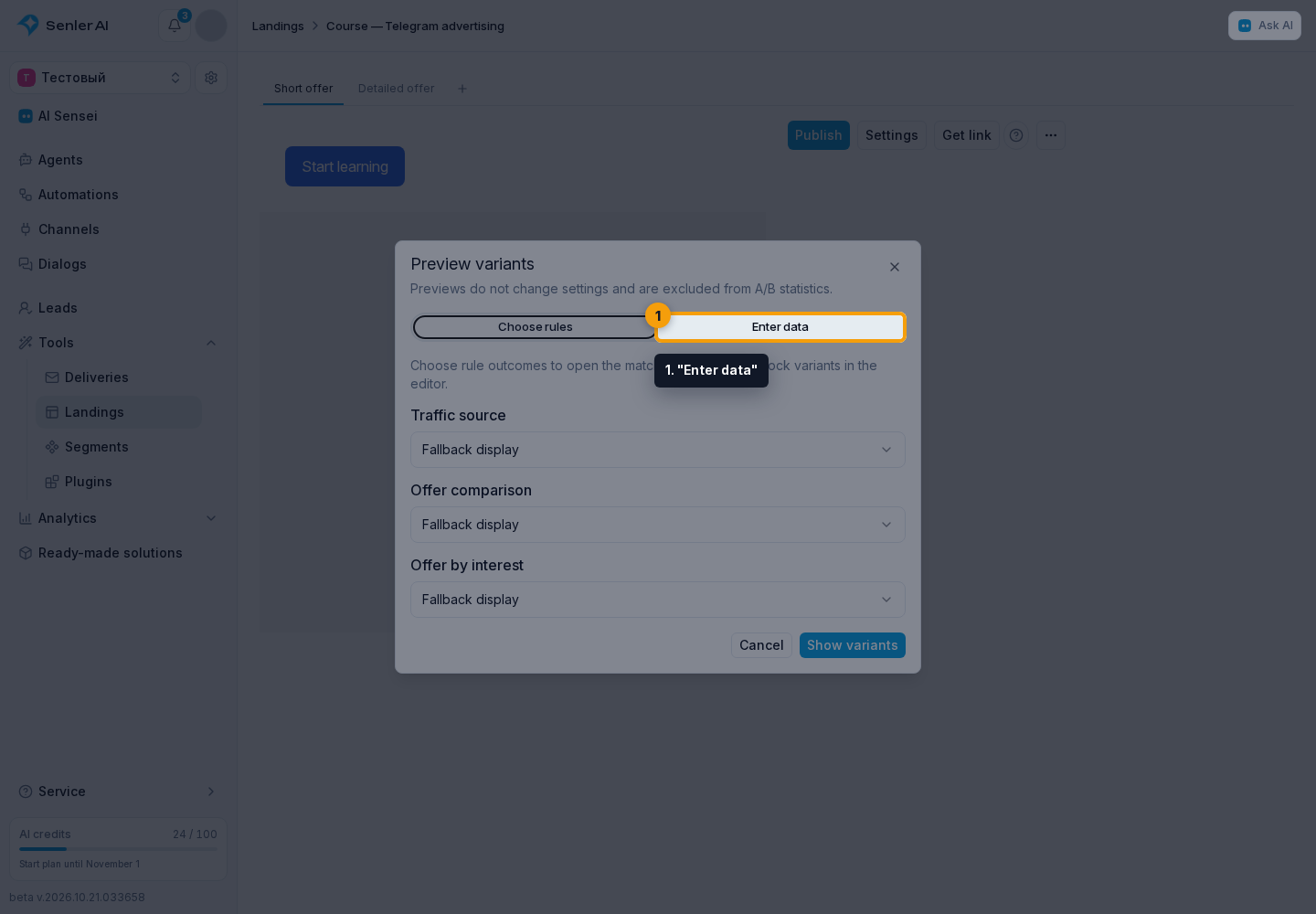
- Open preview and switch to the "Enter data" tab.
- Optionally select a lead in "Use a lead's data". Their data becomes the basis for the check. Without a lead, preview uses an anonymous visitor with the test data you enter.
- Fill in the variables and traffic source you need, for example
UTM source = telegram. Context fields appear according to the rules in use. - If needed, enable "Set conversation history", "Set segments", or "Set funnel stages" and supply test context.
- Click "Check and show". The editor displays the variants selected by the rules.
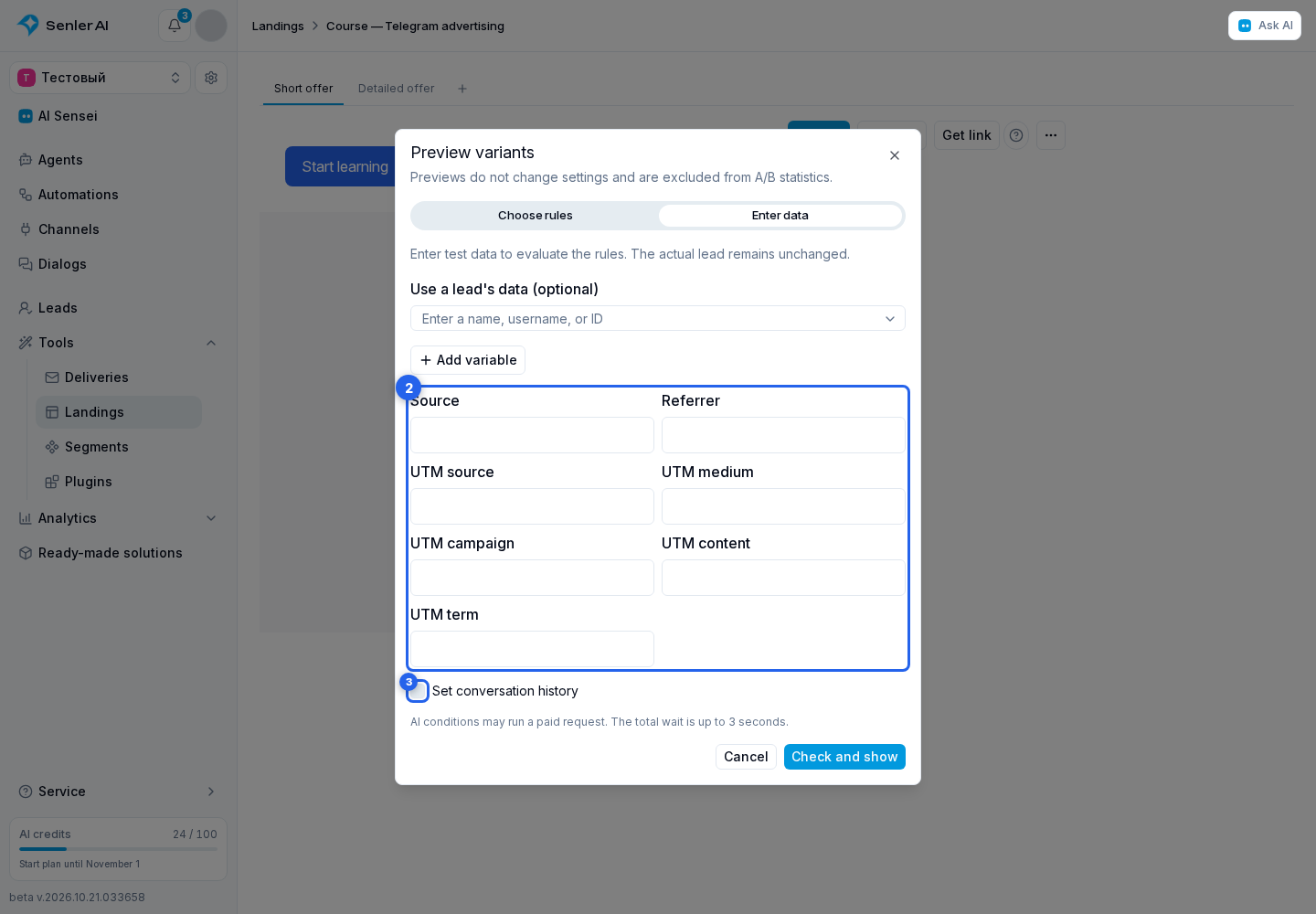
A blank variable value means "Do not override". For history, segments, and funnels, the toggle matters: off keeps the original context, while on with an empty list specifies no messages, segments, or funnels. Test history accepts one message per line, up to 50 messages. The avatar comes from the selected lead; it cannot be uploaded manually here.
Check both the main scenario and missing data. If the selected content uses an AI condition, the check may run a paid request; the shared AI wait is up to three seconds.
To return to normal editing, select "End preview" in the three-dot menu.
Check the public page
After checking, publish the landing and open its public link. The tab selected in the editor does not determine what visitors see.
To check ordinary distribution, open the link to the whole landing. A link to a specific subscription button opens the page and button variant associated with it, so its result can differ from the general rule.
Selected content is retained within a visit. Reopening in the same browser does not necessarily produce a different result; a new visit starts after 30 minutes of inactivity. A/B assignment is tied to the browser separately and does not have to change with a new visit.