
Connect Instagram
Connect a professional Instagram account to receive direct messages in dialogs, reply to customers, and assign conversations to an agent. Use a Business or Creator account, not a regular personal account.
Connection access
The platform is marked In development: only Senler AI service administrators can connect it. Project administrator permissions alone do not grant this access.
Connect an account
Select Instagram on the add-channel page. In the Russian interface, the button is called Inst*.
- Click Connect.
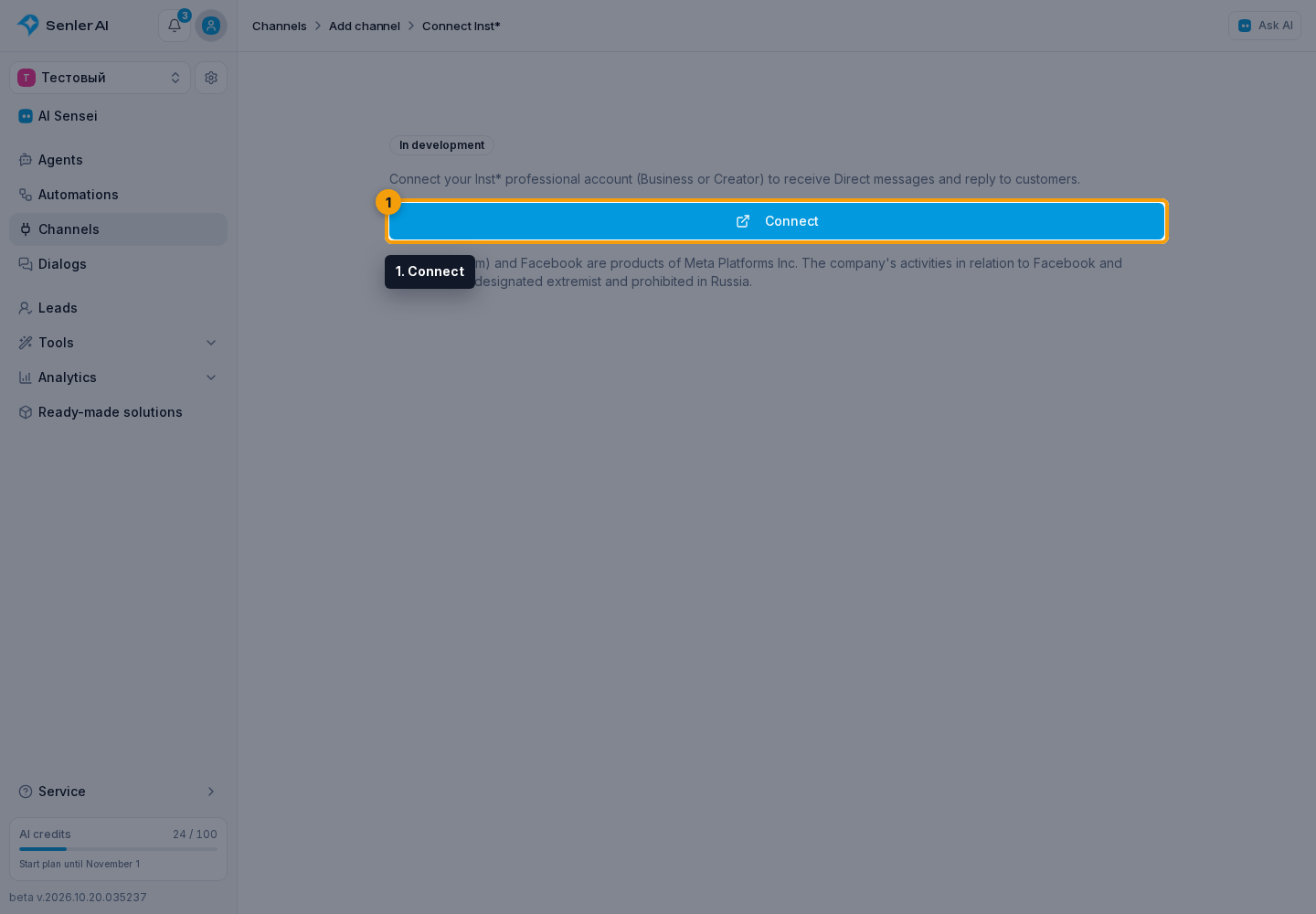
- In the window that opens, sign in to the required professional Instagram account and grant the requested permissions.
- Once authorization finishes, channel settings open. Check the connected account name.
- Send the account a direct message and open the resulting dialog.
An account cannot be connected again as another channel while its existing connection remains. Restore access by reconnecting the existing channel.
Messages and limits
Senler sends ordinary replies within 24 hours of the customer's latest incoming message or action-button click in the conversation. Following a link button does not open the reply window.
You can send text, images, audio, video, and PDFs. Images must be JPEG or PNG up to 8 MB; other supported attachments can be up to 25 MB. A message can contain up to three buttons, each with a label up to 20 characters: a link or an action. Bulk broadcasts are unavailable for this channel.
Restore the connection
In channel settings, click Reconnect and authorize the same Instagram account again. Dialog history and channel settings are preserved. Create a separate channel for a different account.