
AI conditions
An AI condition chooses one predefined outcome using your instruction. It does not generate a new page: prepare variant content in the editor. If a precise UTM, variable, or segment comparison is enough, use a regular condition without an AI request.
Configure selection
- In the variant list, choose “Create rule…” → “AI condition”.
- Enter the rule name.
- Select a model and write the selection instruction. Type
@or use the insert variable button next to the instruction. - Under “Additional context”, enable only the data you need: the last 50 messages, lead segments, funnel stages, traffic source and UTM, or the lead's avatar.
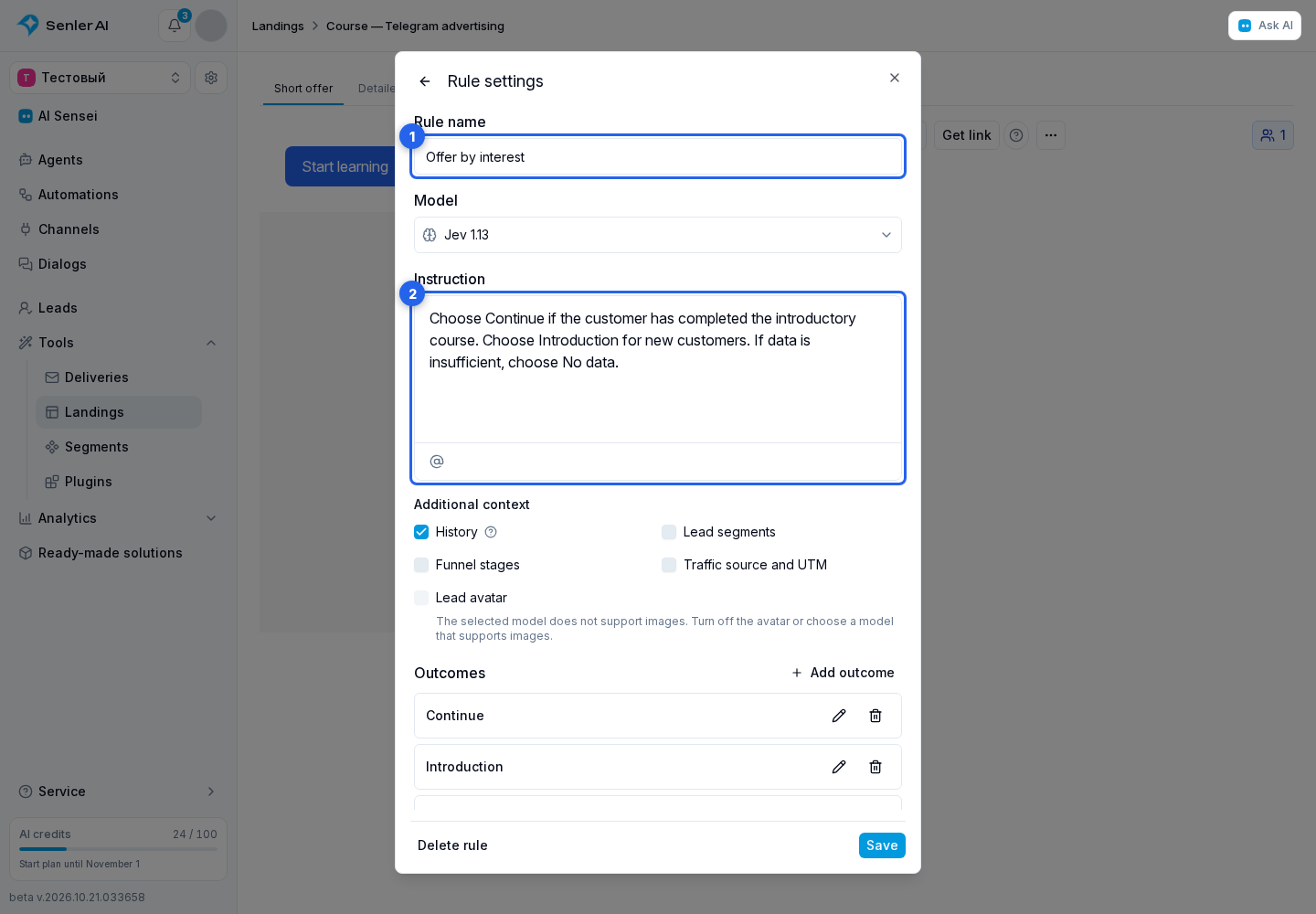
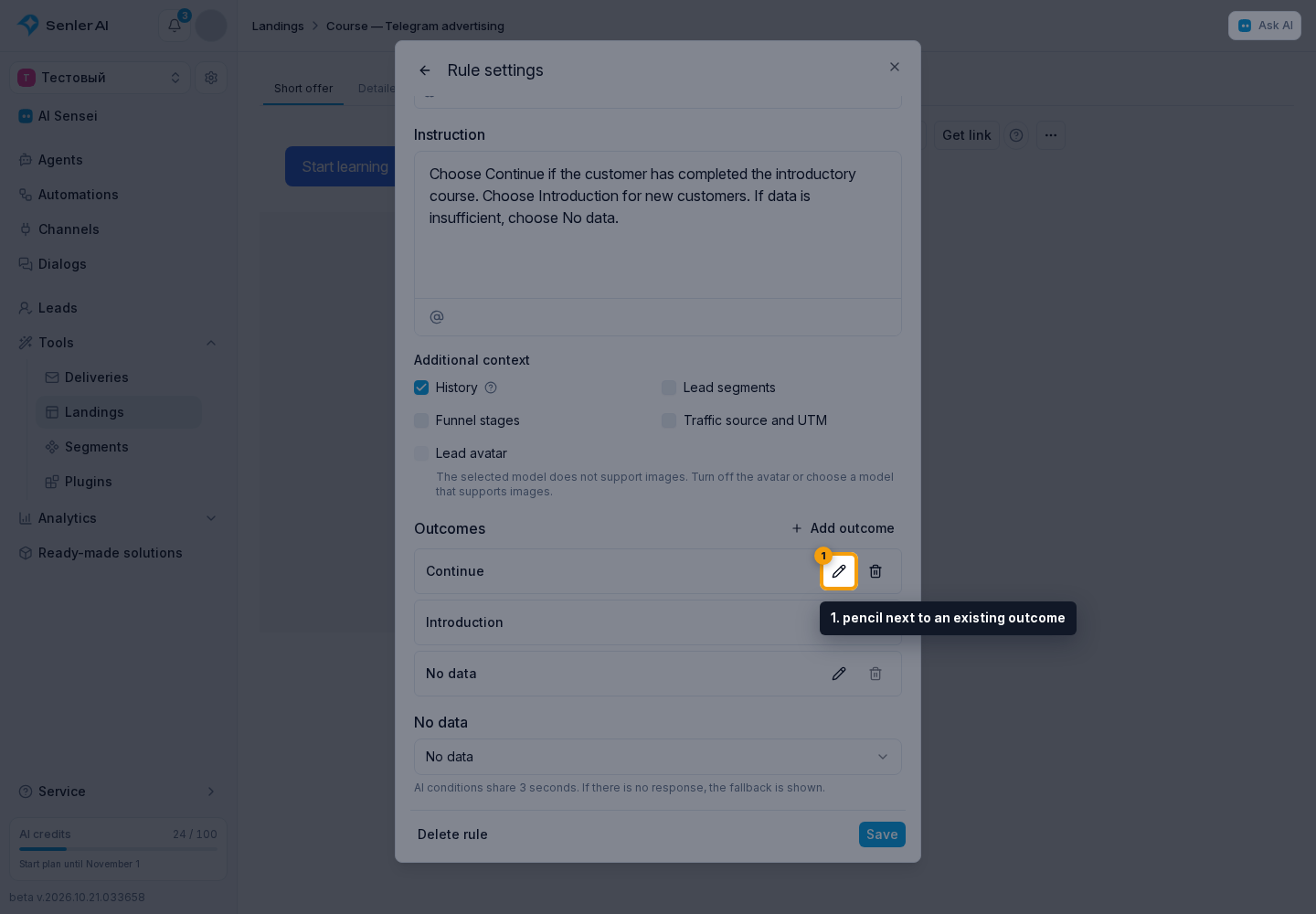
- Add outcomes or click the pencil next to an existing outcome.
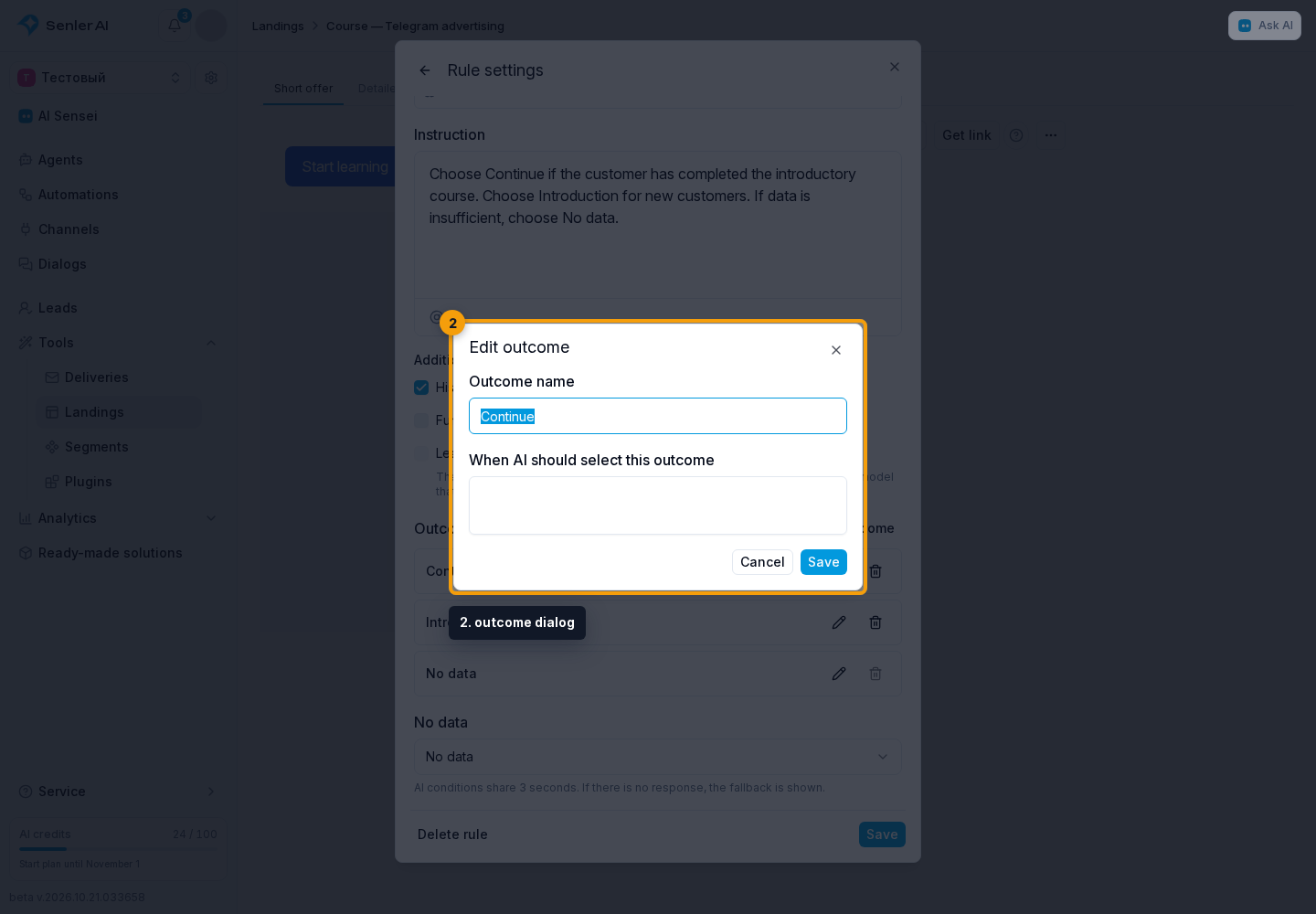
- In the outcome dialog, enter the name and description for AI. Explain when this outcome should be chosen, then save.
- Select the “No data” outcome.
- Save the rule and assign outcomes to variants.
- Check the display and publish the landing.
For example: “Choose ‘Continue’ if the history shows that the customer has completed the introductory course. Choose ‘Introduction’ if they are asking how to start learning. If there is not enough information, choose ‘No data’.” Prepare variants with the corresponding offers.
Available data
Lead data, memberships, and dialog context are available only for a verified visitor identity. History includes up to 50 recent messages from the lead's latest dialog in the verified channel. Opening an ordinary link anonymously does not grant access to someone else's data. Missing context does not mean the visitor is uninterested in the product: provide a neutral outcome.
An avatar is sent only when its option is enabled and the model supports images. If there is no photo or it cannot be retrieved, AI receives an indication that the data is unavailable.
Waiting time and costs
All AI conditions share a total budget of up to three seconds when the page opens. If a suitable result is not available in time, the fallback variant from variant display settings is used. A late answer does not replace the page already shown.
“No data” in a rule is an outcome for insufficient context. The fallback variant in variant display settings is used when no outcome is returned or no variant is assigned to it. Configure both cases.
AI requests are billed according to the project's AI payment settings, including preview requests. Falling back after a timeout does not cancel the cost of a request already performed. If a rule has only one outcome, no selection or AI request is needed.