
WhatsApp templates
An approved template lets you continue a conversation after the 24-hour ordinary reply window ends. First, connect a WhatsApp Business number and create a template in WhatsApp Manager. Senler lists approved templates from the connected business account.
Sending requires an existing dialog in the WhatsApp channel. The cabinet does not let you create such a dialog manually for an arbitrary phone number.
Send a template
Open the customer's dialog in the WhatsApp channel.
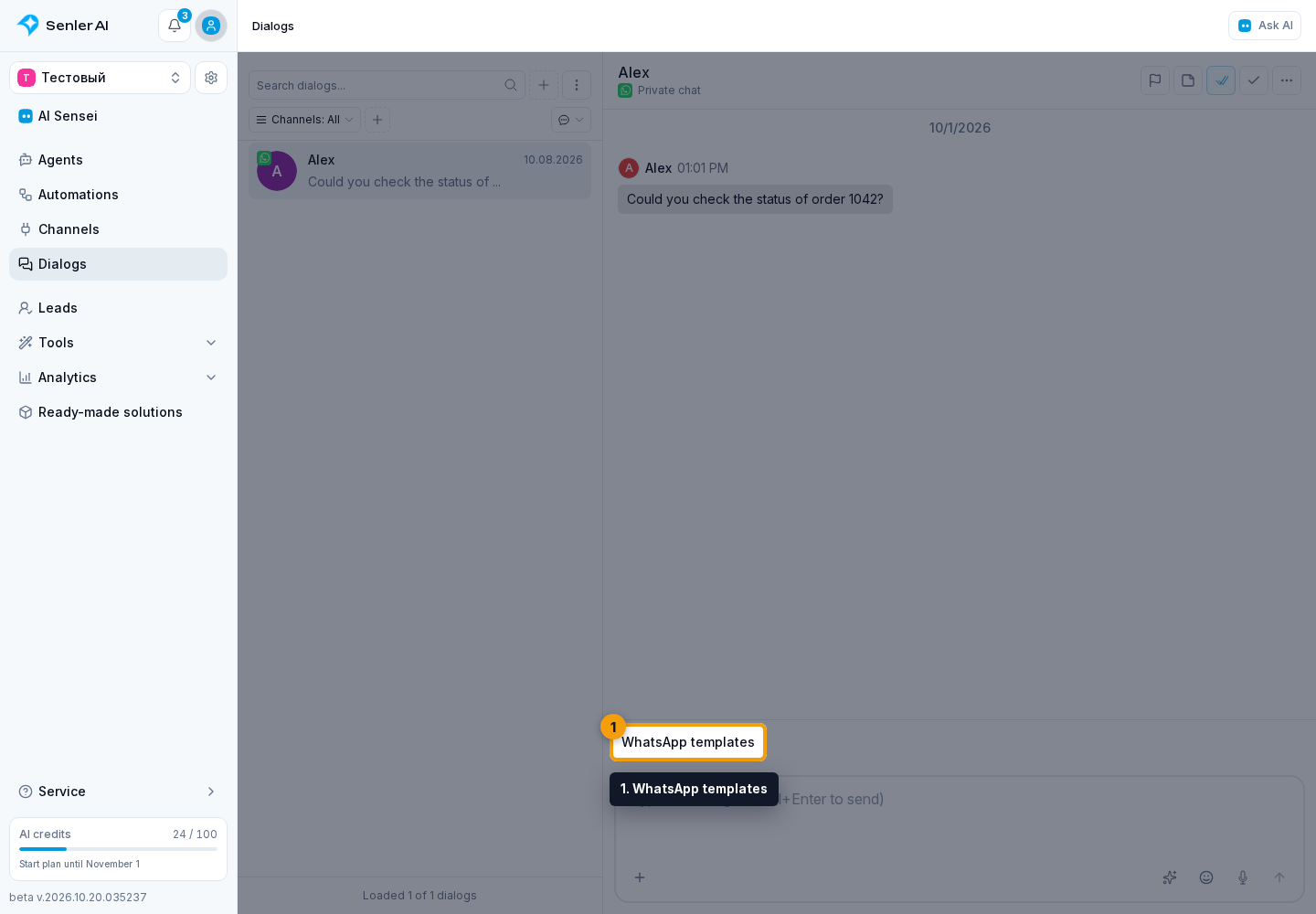
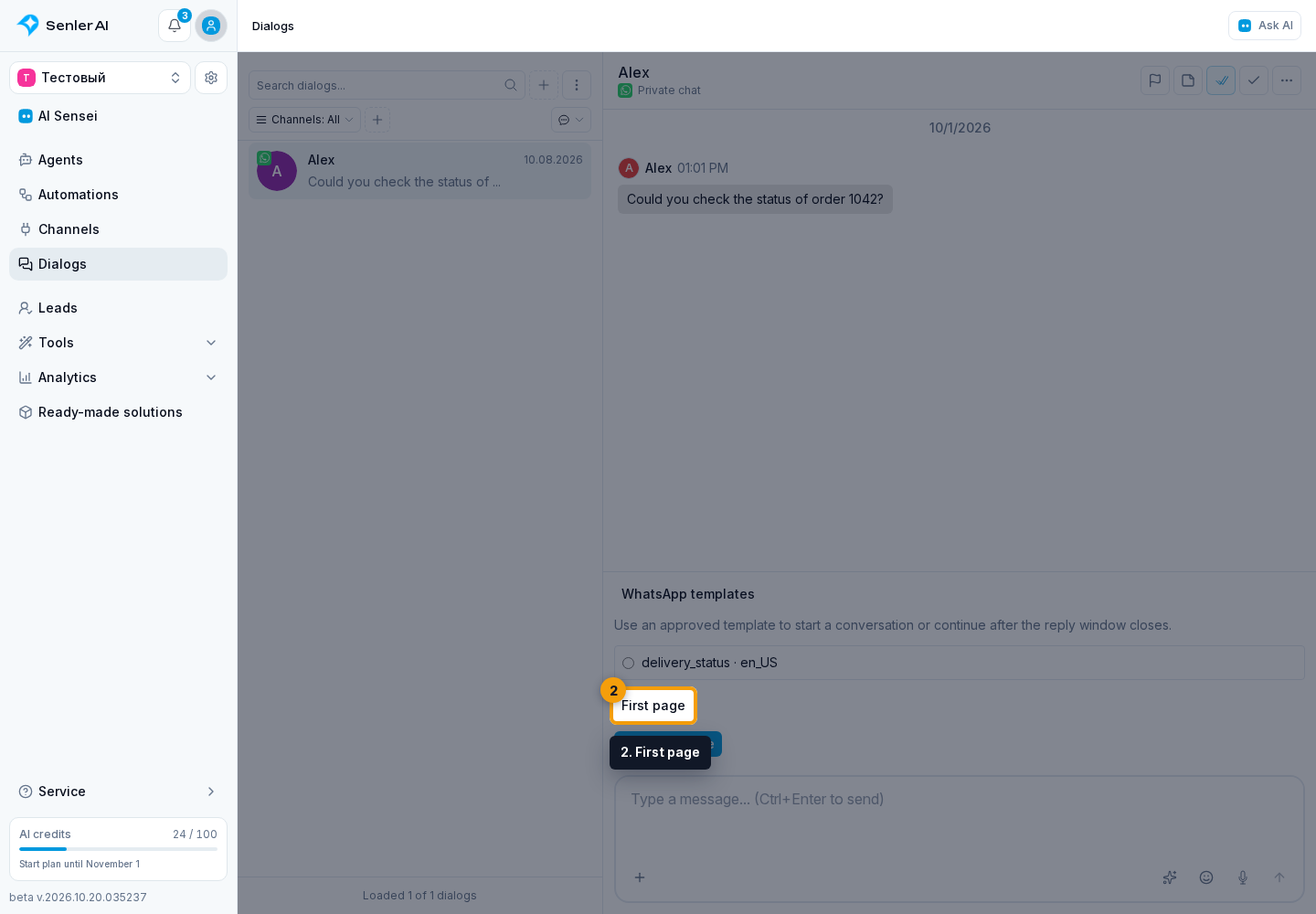
- In the message composer area, click WhatsApp templates.
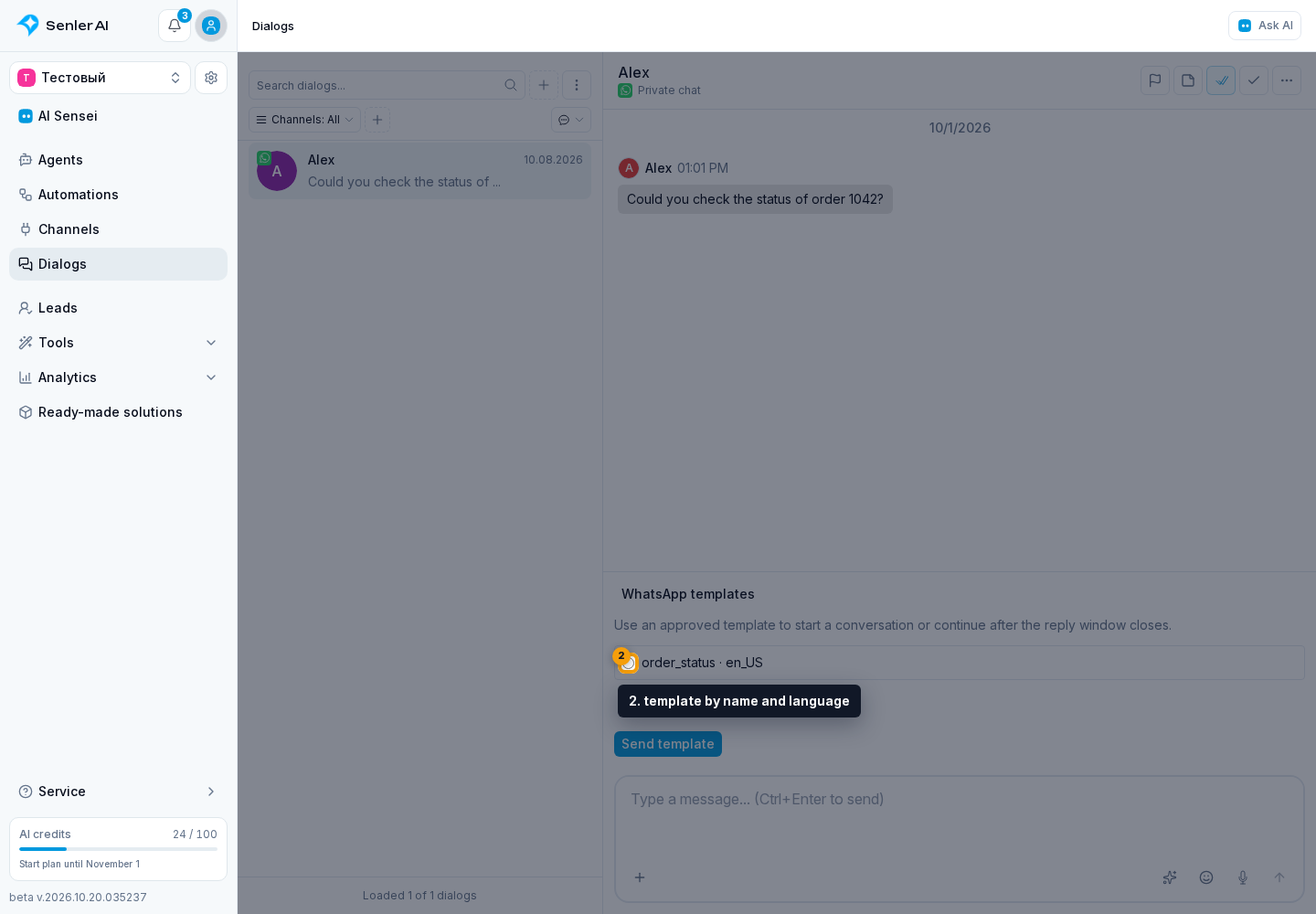
- Select a template by name and language.
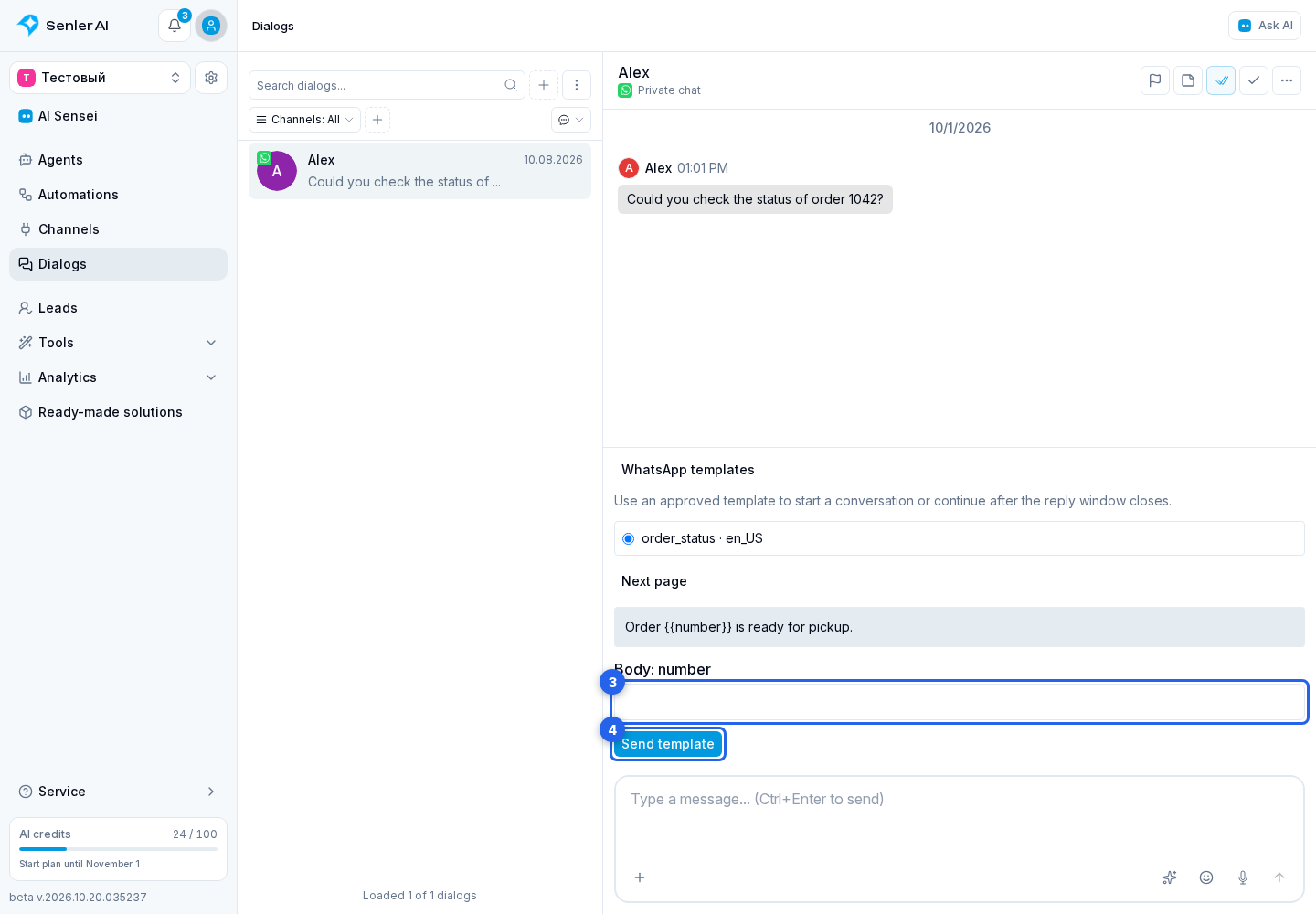
- Fill in the parameters shown below the template. These belong to its header, body, or button. Body parameter values appear in the preview.
If the template requires a file, attach it using the ordinary attachment button before sending.
- Check the recipient, language, and values, then click Send template.
Other list pages
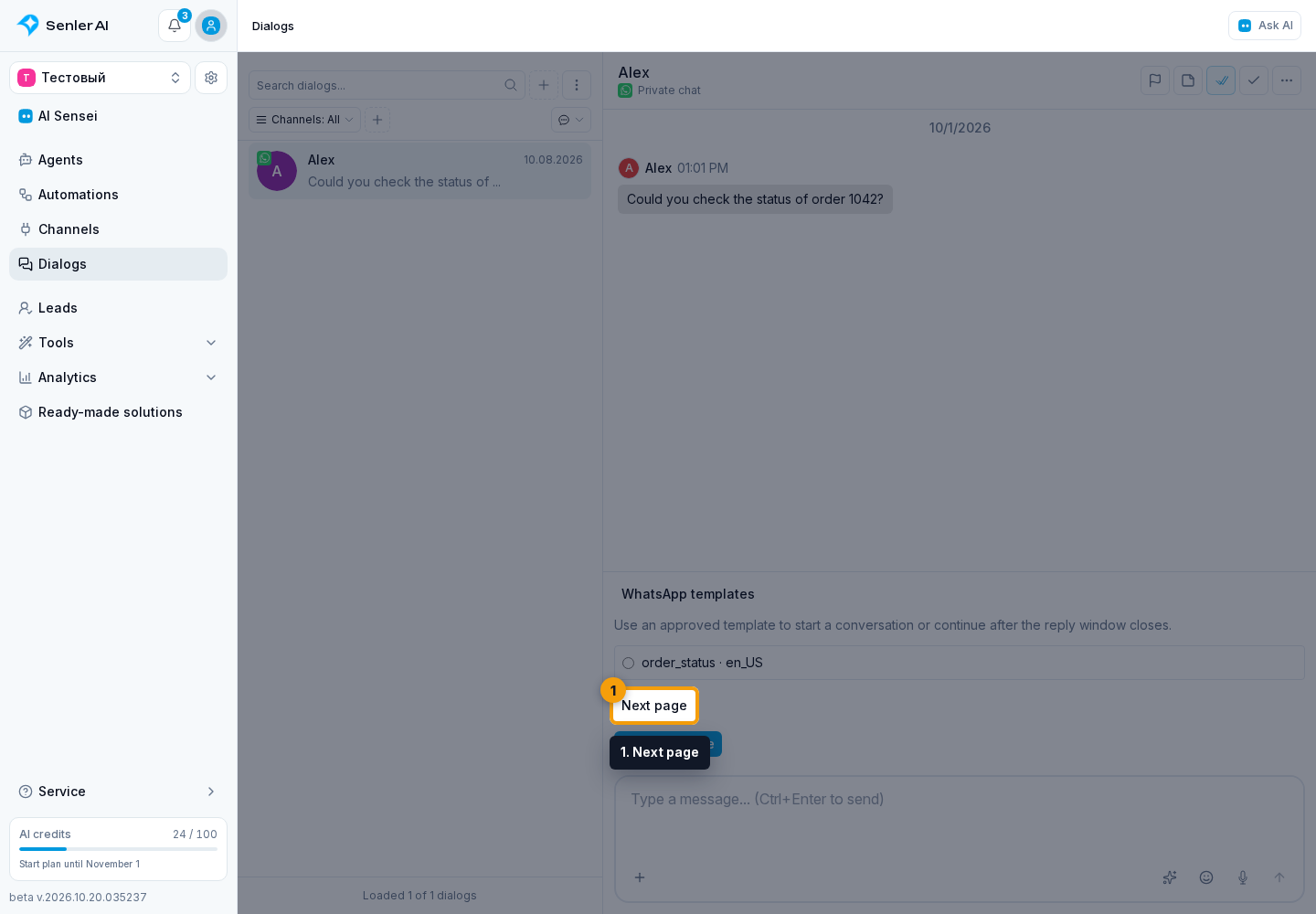
Click Next page if the template is not on the current page.
First page returns to the initial list.
Files and template availability
A template with a media header requires one file of the matching type:
- a JPEG or PNG image up to 5 MB;
- an MP4 video up to 16 MB;
- a PDF document up to 100 MB.
A template marked This format is not supported yet cannot be selected. Approval in WhatsApp Manager does not mean that every template format is supported in Senler.
Text from the ordinary message input is not used when sending a template.