
Landing variants
Variants let you change an offer, text, or design for different visitors while keeping one landing link.
A page variant has its own set of blocks. A block variant changes the content of one position on a page. A page that is identical for everyone needs no variants or rules.
Create a variant
Open the landing in the editor.
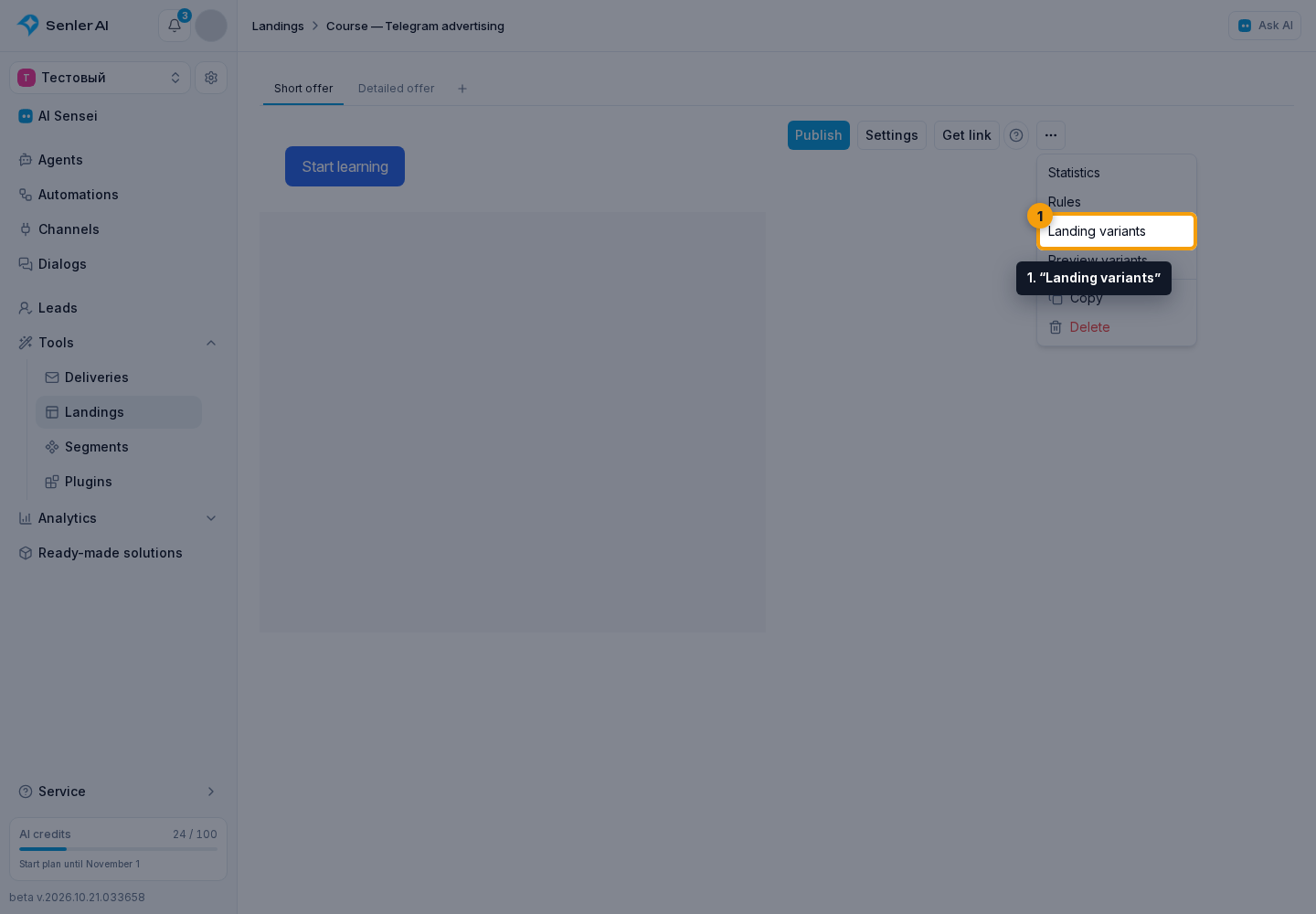
- In the landing’s three-dot menu, choose “Landing variants”.
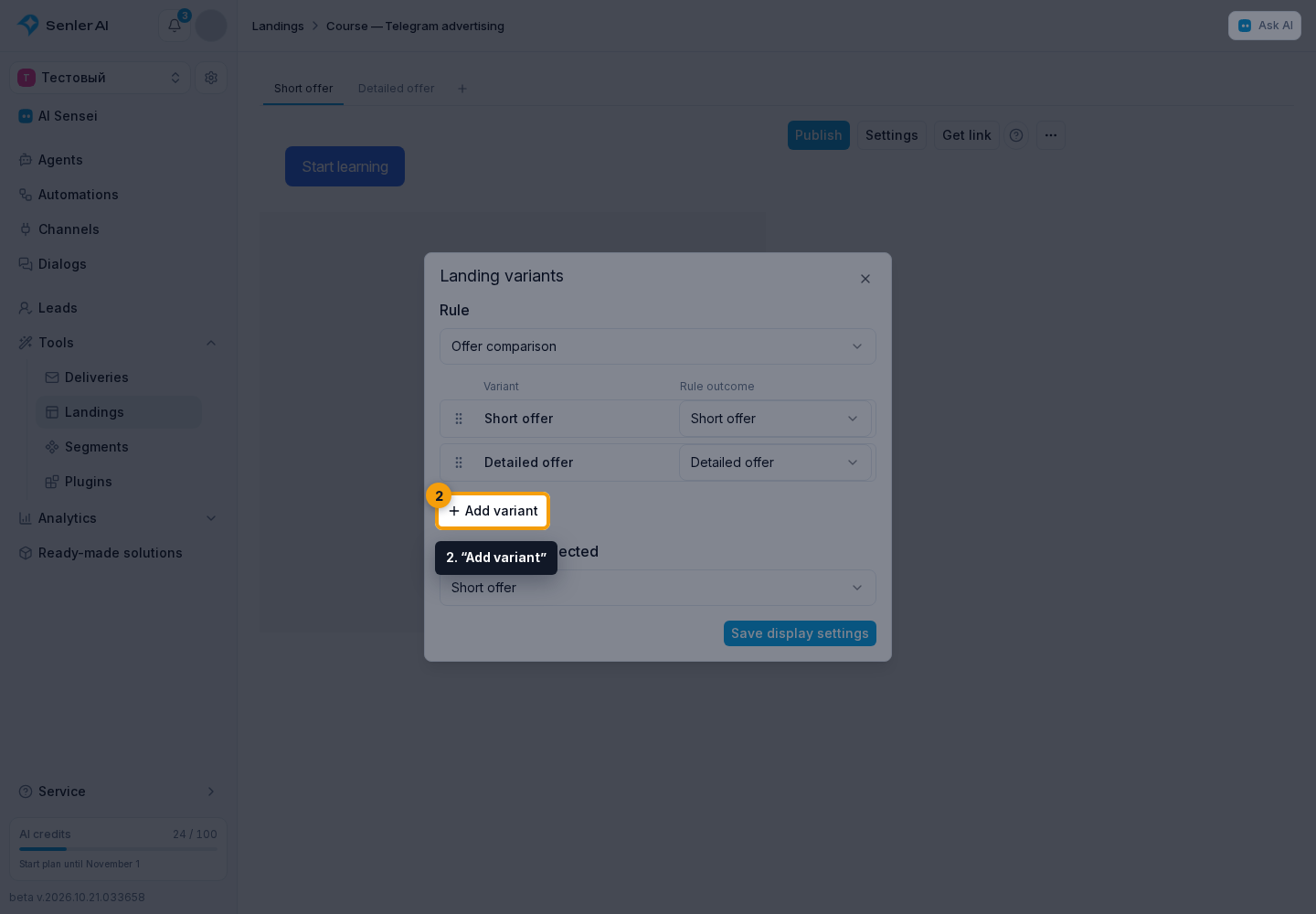
- Click “Add variant”.
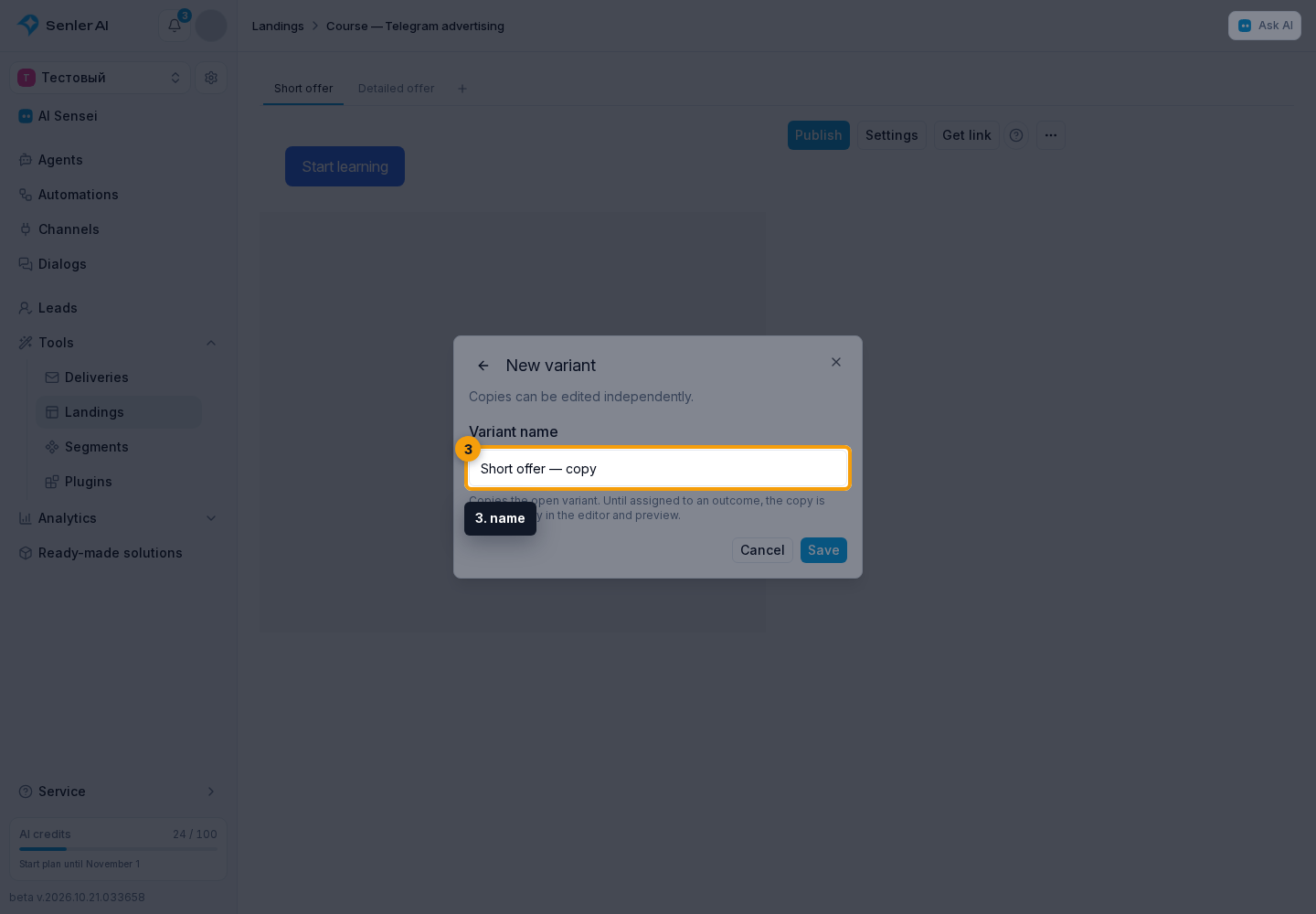
- Enter a name and save. The new variant copies the currently open content, including the nested block settings.
- Close the dialog and edit the content. Copies are independent.
The new variant is available in the editor and preview. Visitors see it after you configure display. Tabs appear when there are multiple variants; the final plus tab adds a variant, and the pencil on a tab opens its settings.
A variant of one block
- Open the block menu using its three-dot button.
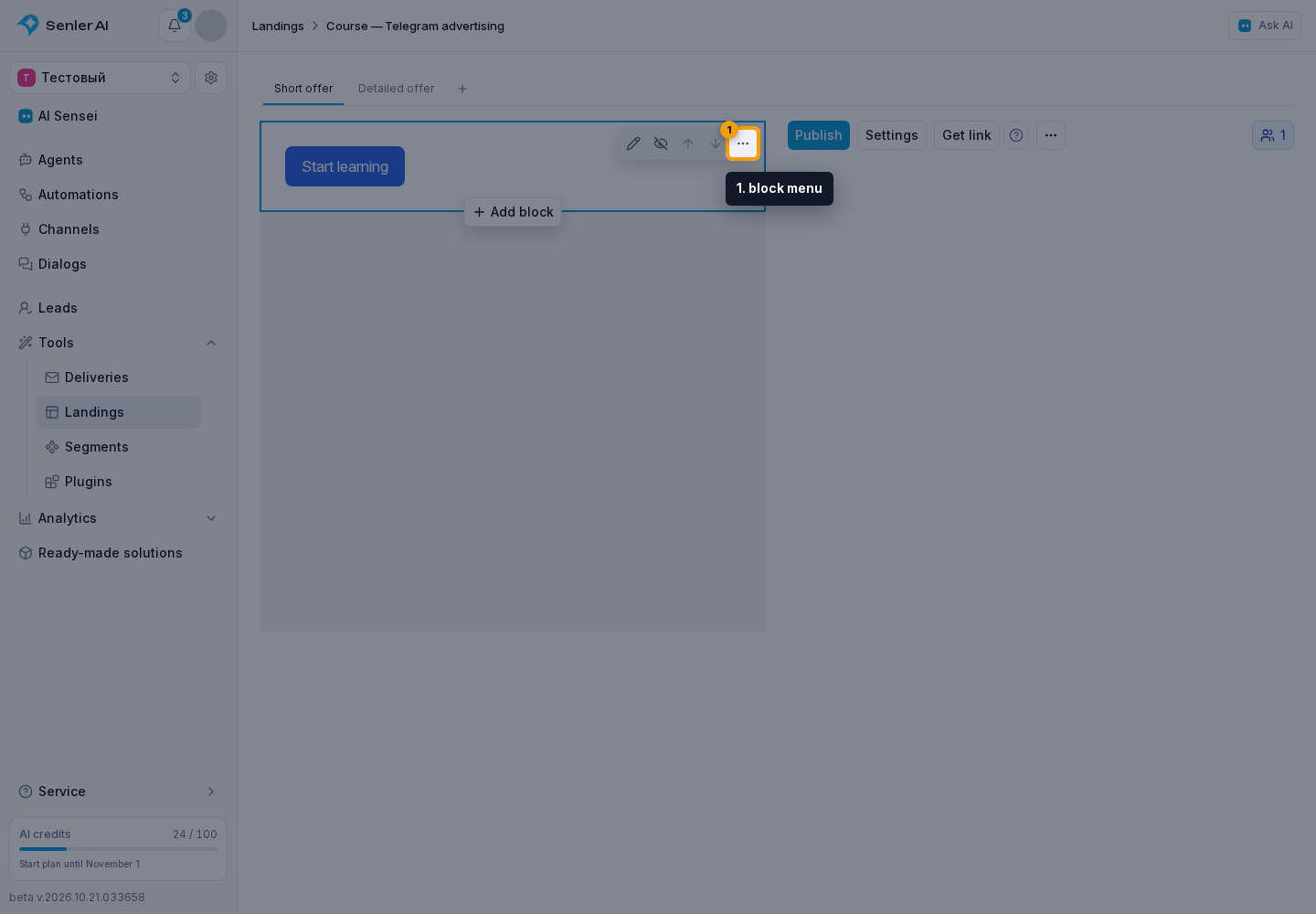
- Choose “Block variants”.
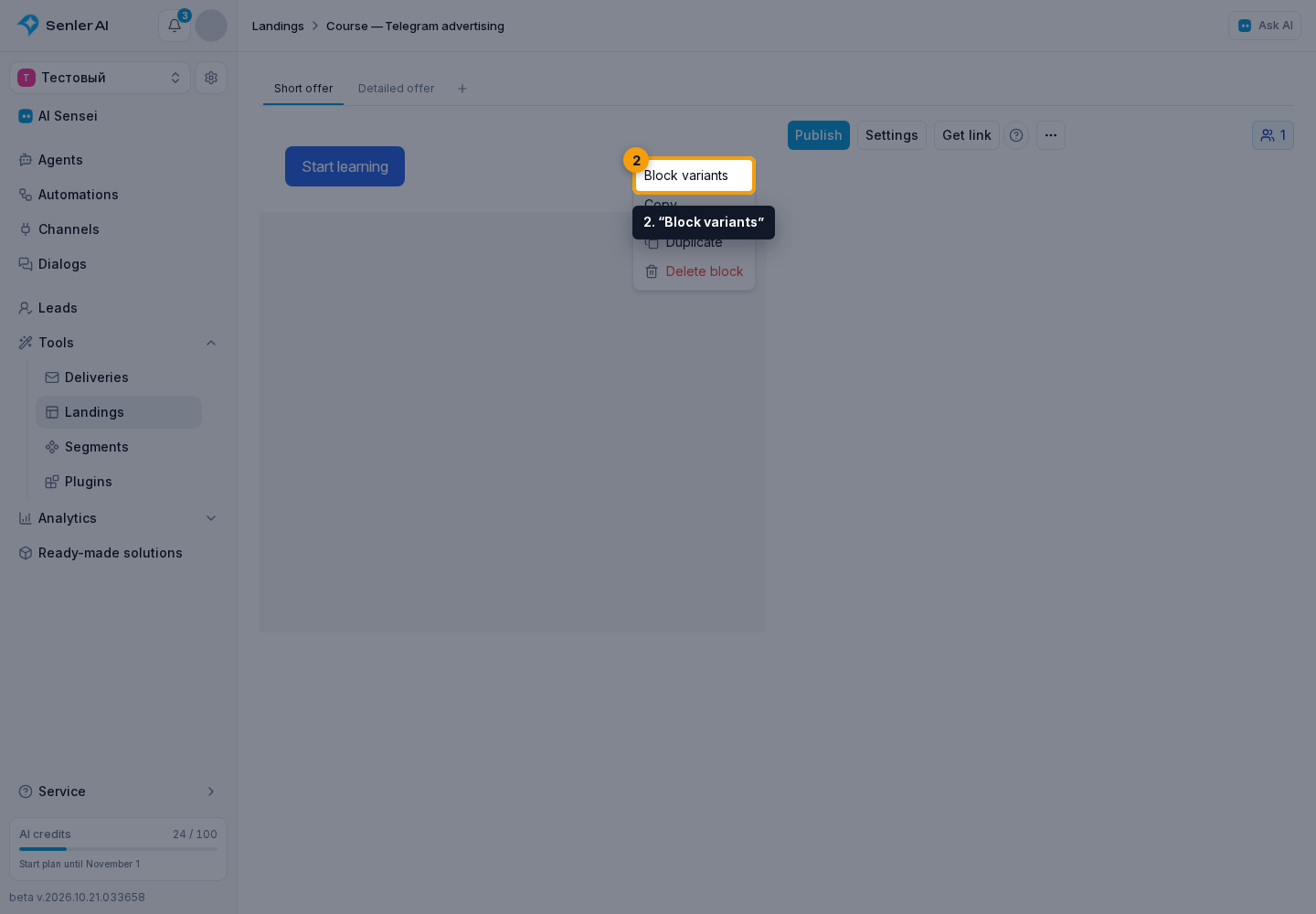
- Click “Add variant” in the dialog.
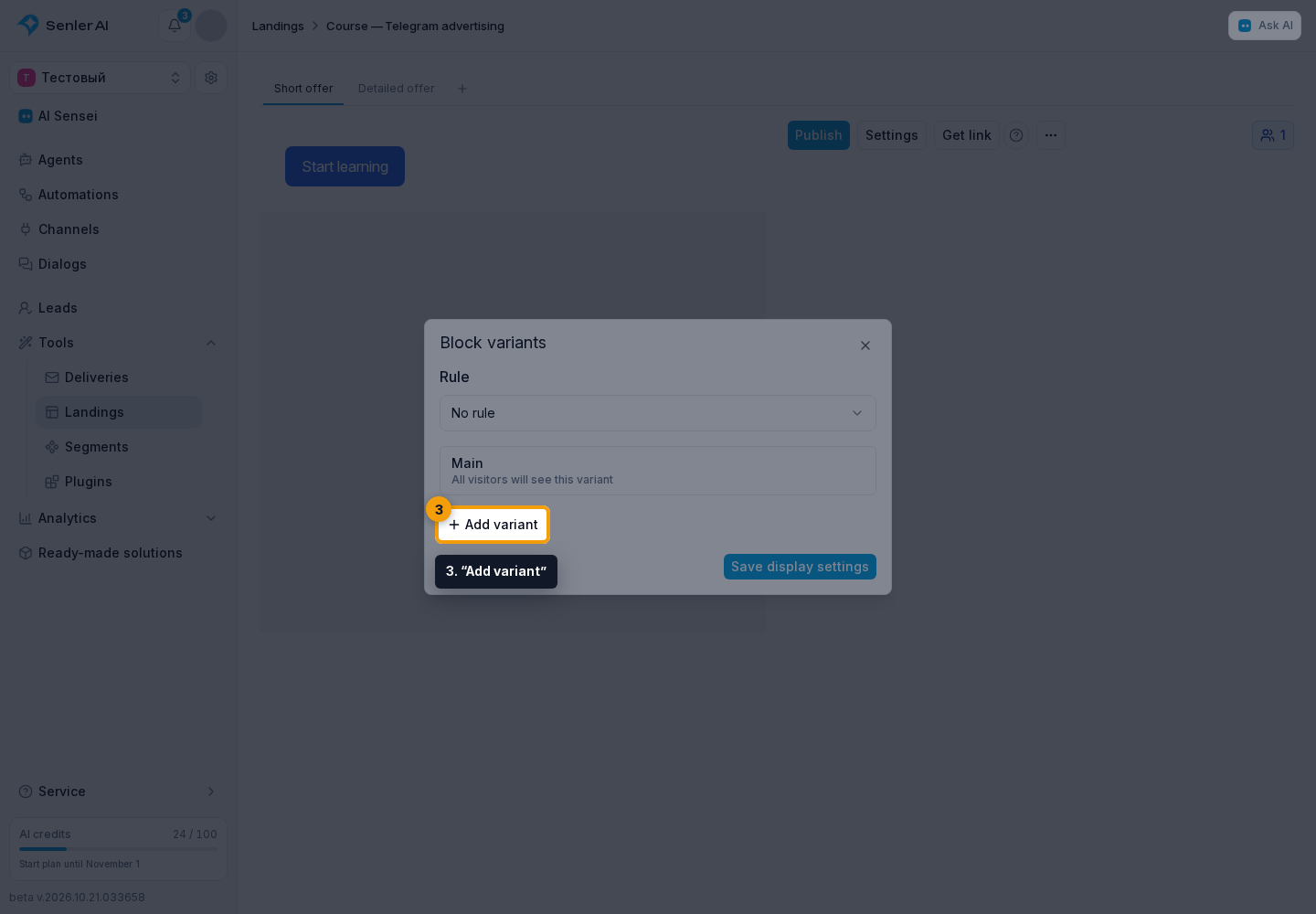
- Enter a name and save.
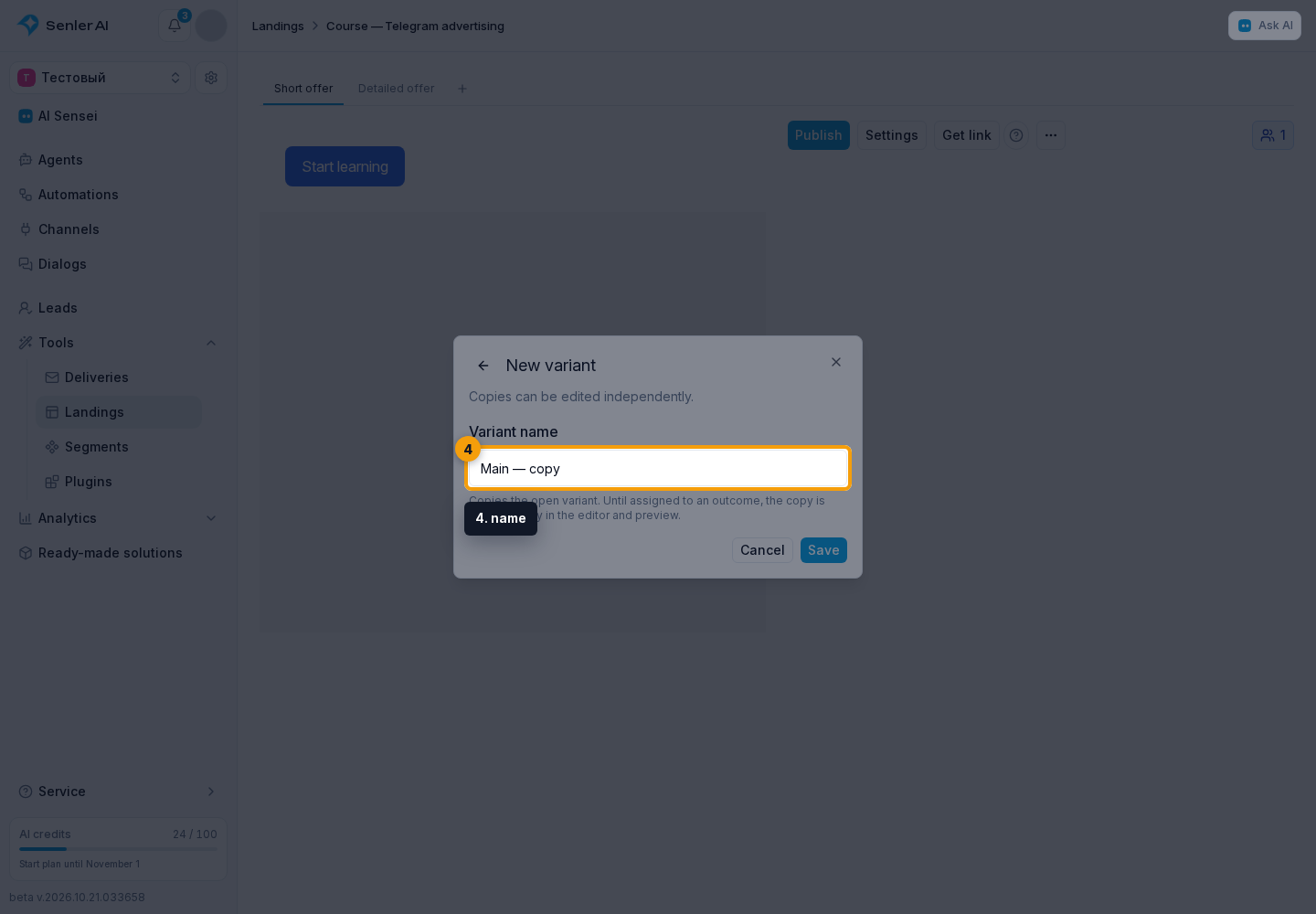
- Open the block editor. Variant tabs are inside the editing dialog; switching tabs also changes the block preview. Other page blocks are not copied.
Configure display
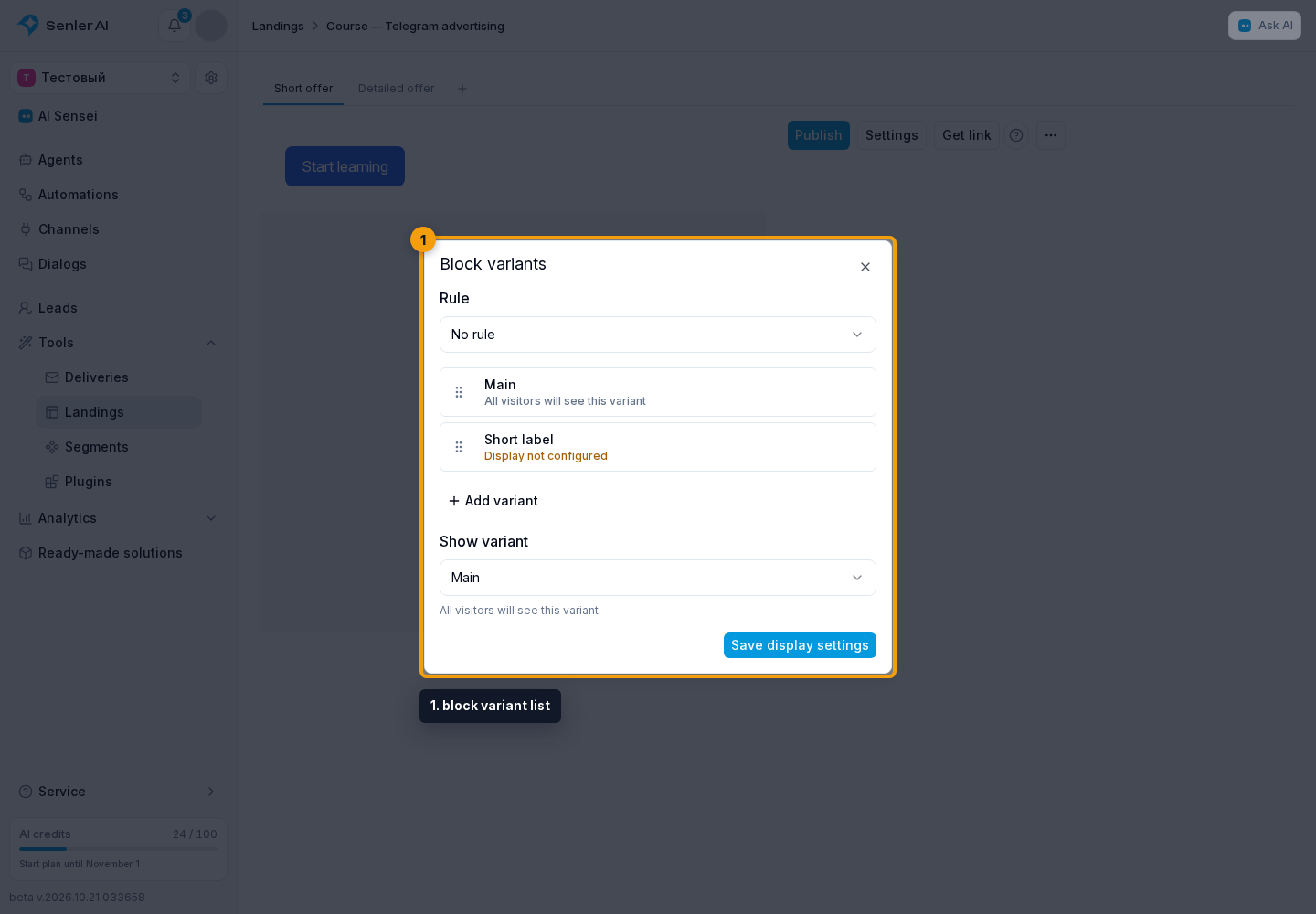
- In the landing or block variant list, select one shared rule for the set. Choose an existing rule or create a new one.
- Assign rule outcomes in the variant list rows. One outcome can be assigned to only one variant in the set.
- Choose a fallback variant below the list: the field is “If no variant is selected” for a page and “If no matching variant is selected” for a block. A block can use “Hide block”; a page must have a page variant selected.
- Click "Save display settings", check the result, and publish the landing.
In landing display settings and block display settings, “No rule” shows the variant selected under “Show variant” to all visitors.
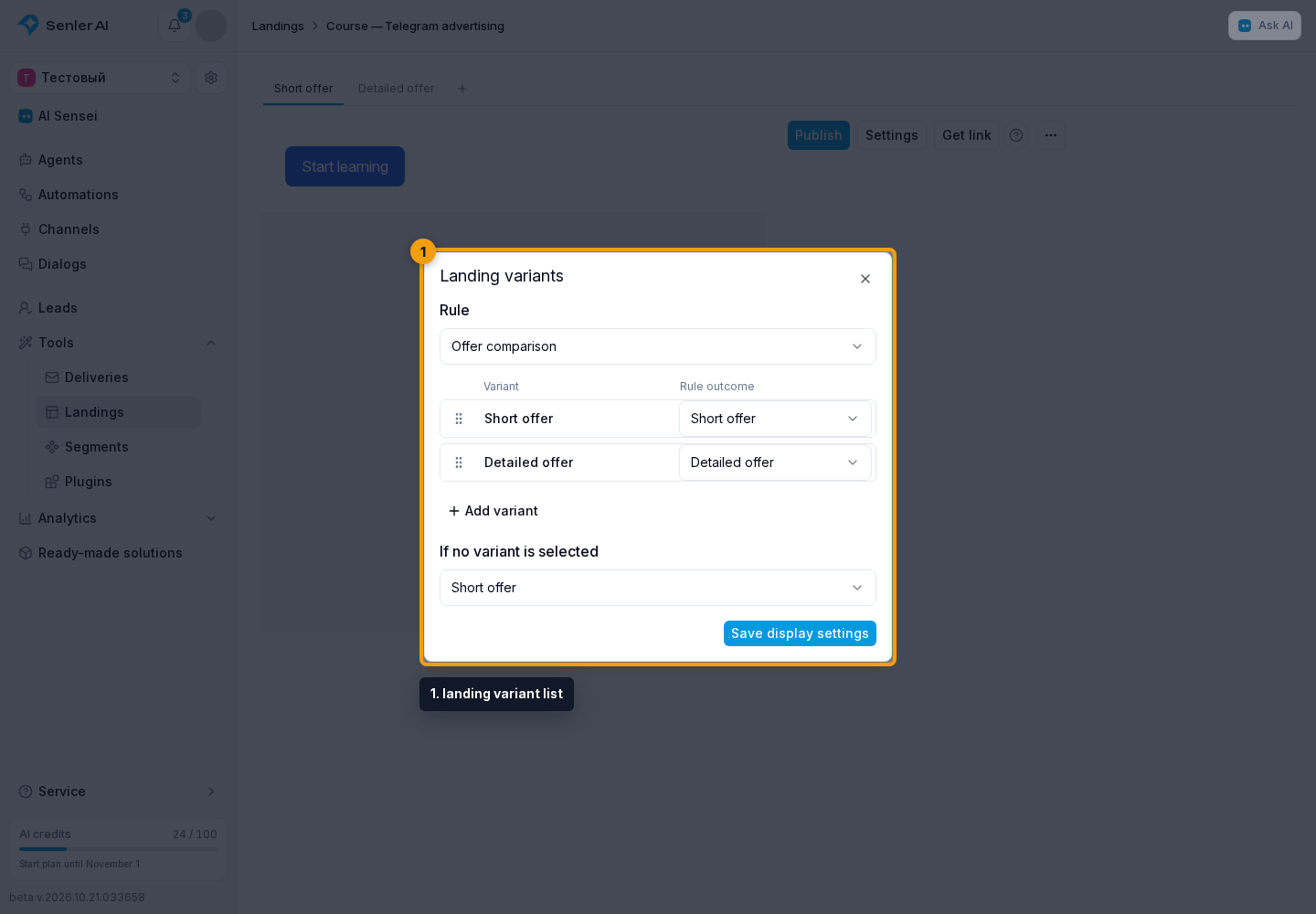
For example, a rule returns “Member” or “New visitor”. Assign these outcomes to two variants. If no outcome is returned or no variant is assigned to it, the fallback is used. An unassigned variant remains available only in the editor and preview unless it is selected as the fallback.
Reuse a rule
Rules belong to the landing. One rule can control the page and several blocks: they use the same outcome when the page opens. The page is selected first, then its blocks; rules for unused variants are not evaluated.
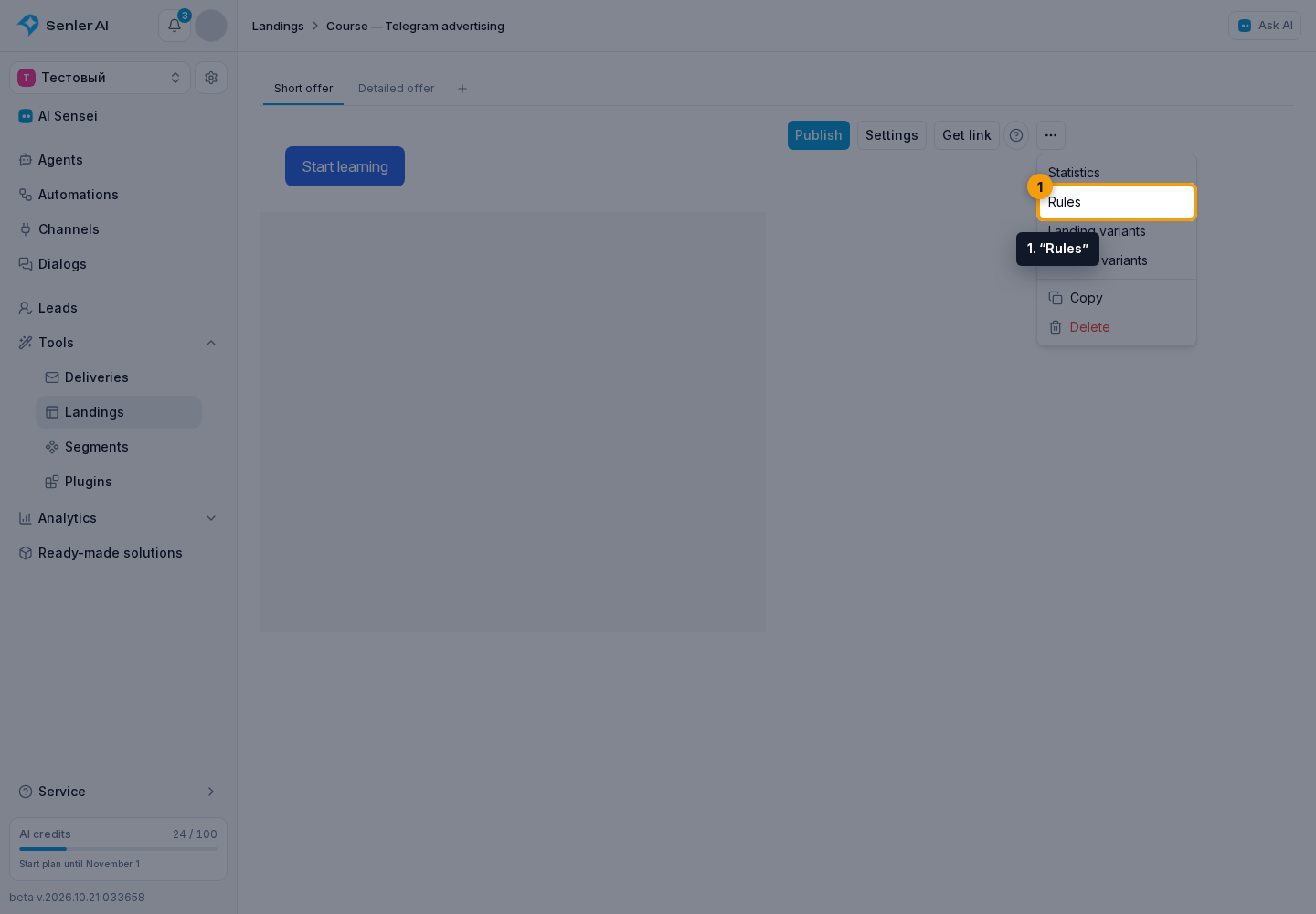
- Open “Rules” in the editor menu.
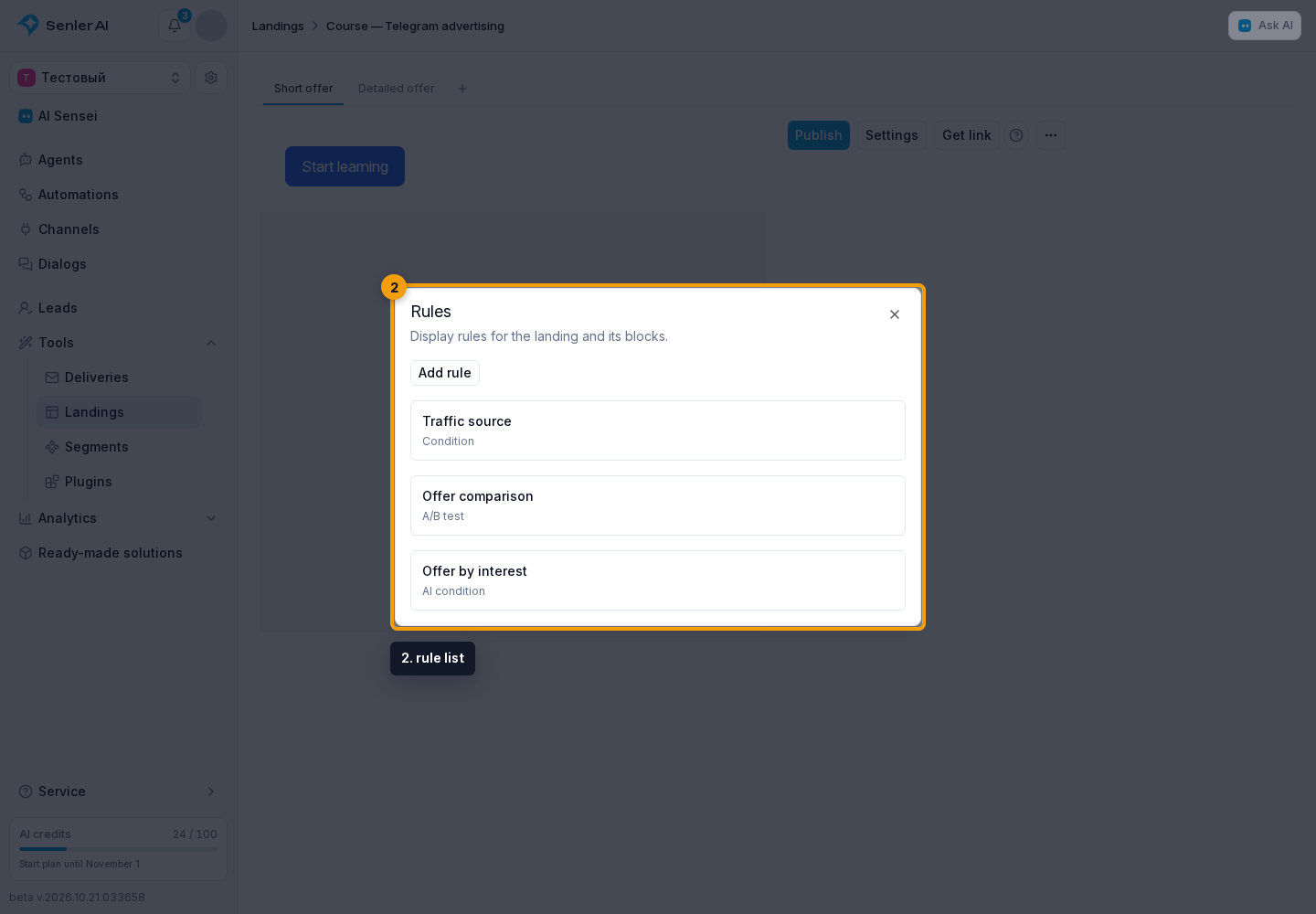
- In the rule list, click “Add rule”.
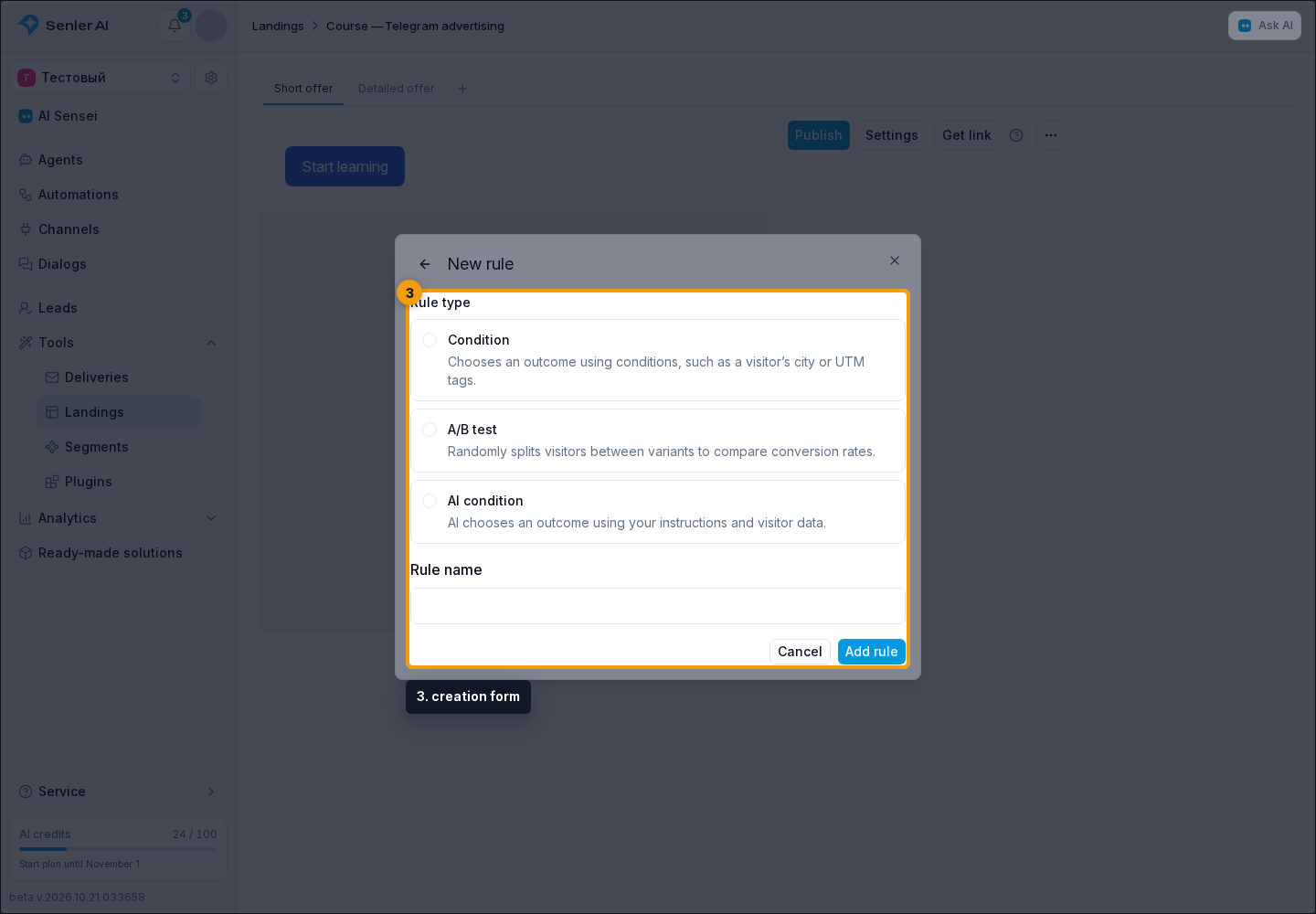
- In the creation form, select “Condition”, “A/B test”, or “AI condition”.
- Change the suggested name if needed and click “Add rule”.
- Configure and save the rule. The back arrow returns to the previous screen.
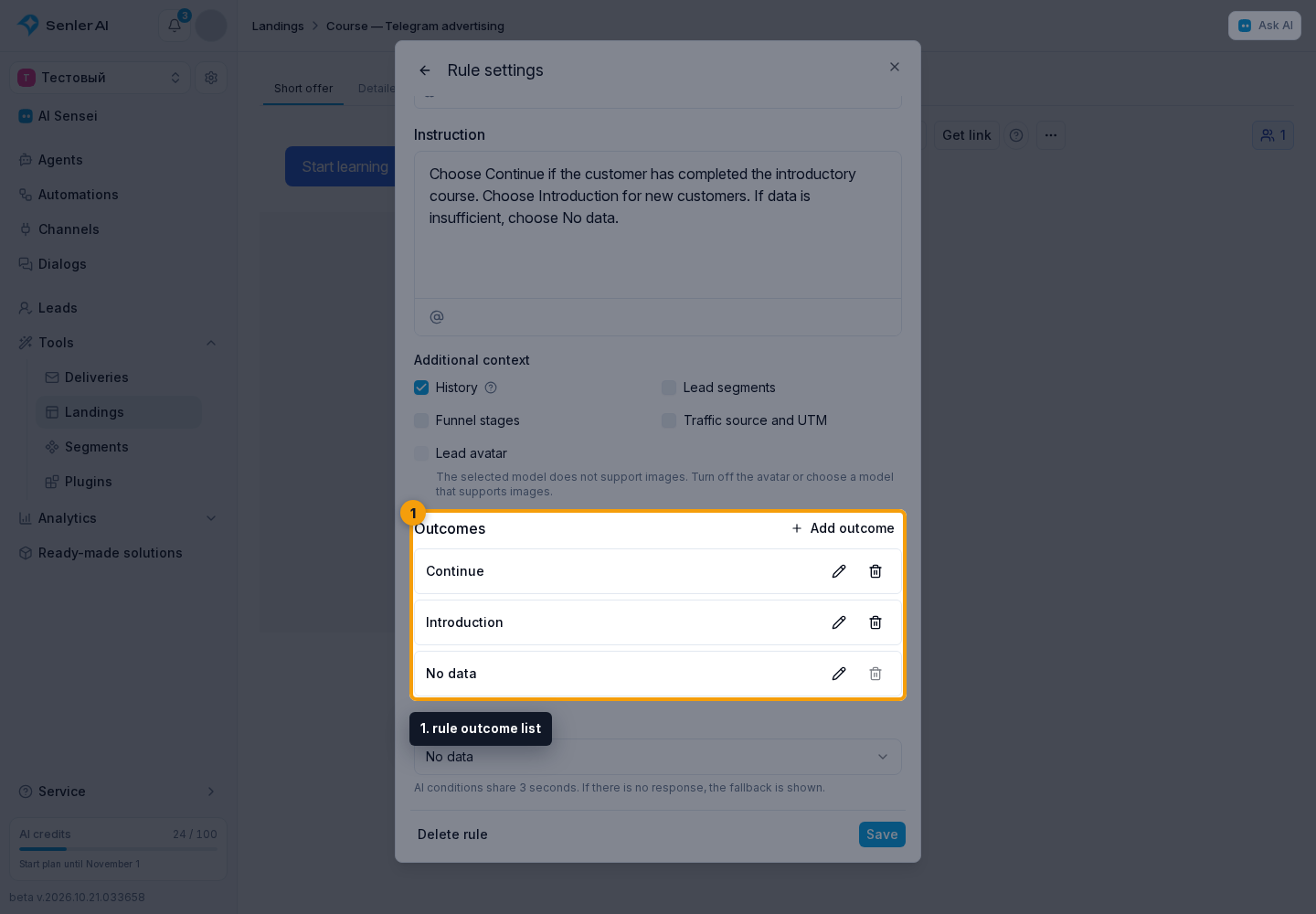
In the rule outcome list, you can add an outcome or remove an unused one. Unlink an outcome before deleting it if it is in use. An A/B test must retain at least two outcomes; other rules must retain at least one. In an AI condition, each outcome also has a description to help AI choose.
Changing a shared rule affects every linked location after publication. When selecting a different rule, assign outcomes to variants again.
Manage variants
In the landing variant list, drag the left handle to change the order. Clicking a variant row opens its settings: name and deletion.
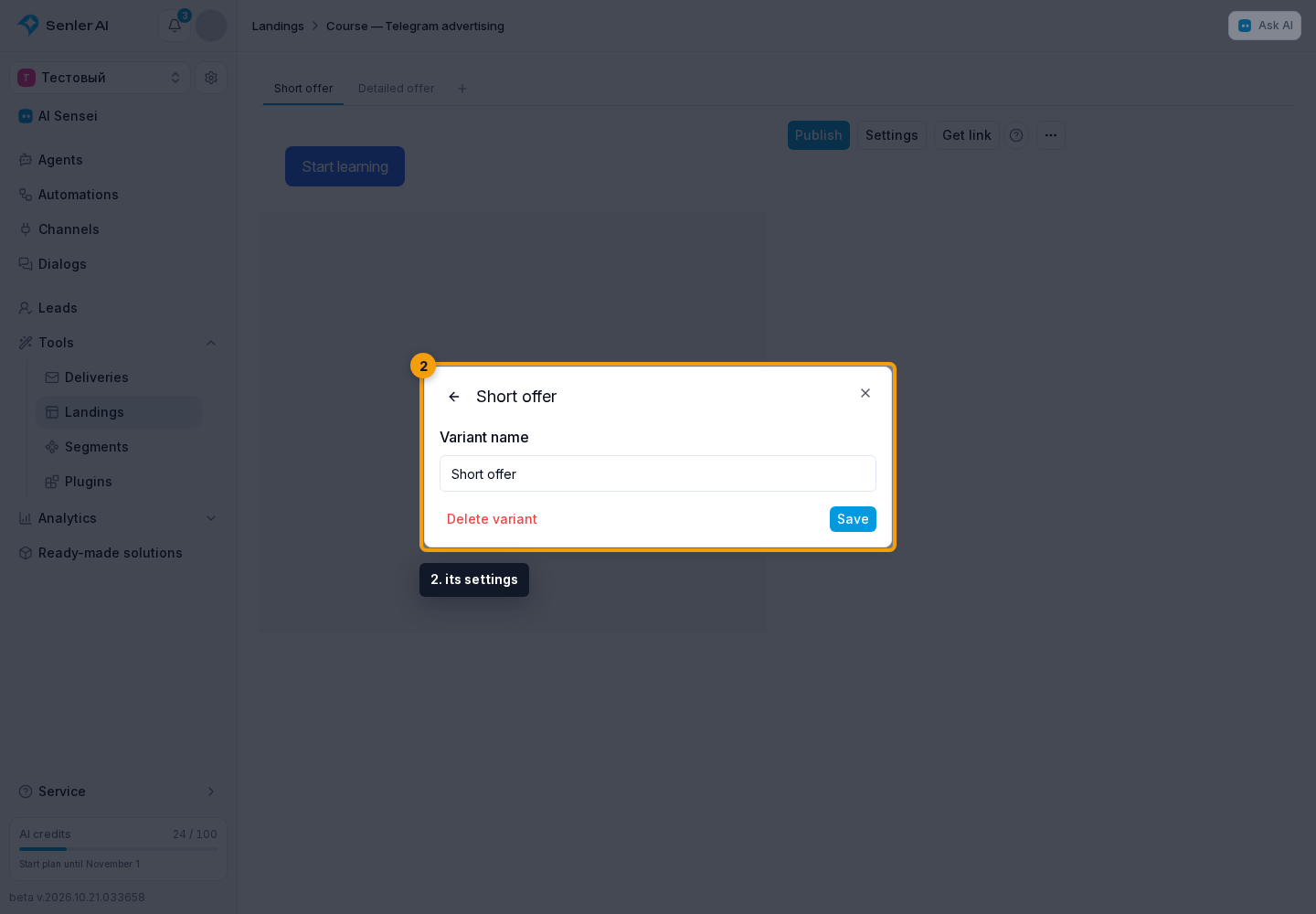
The block variant list has the same reorder handles. Tab order does not change A/B test probabilities.
Click a block variant row to open its settings.
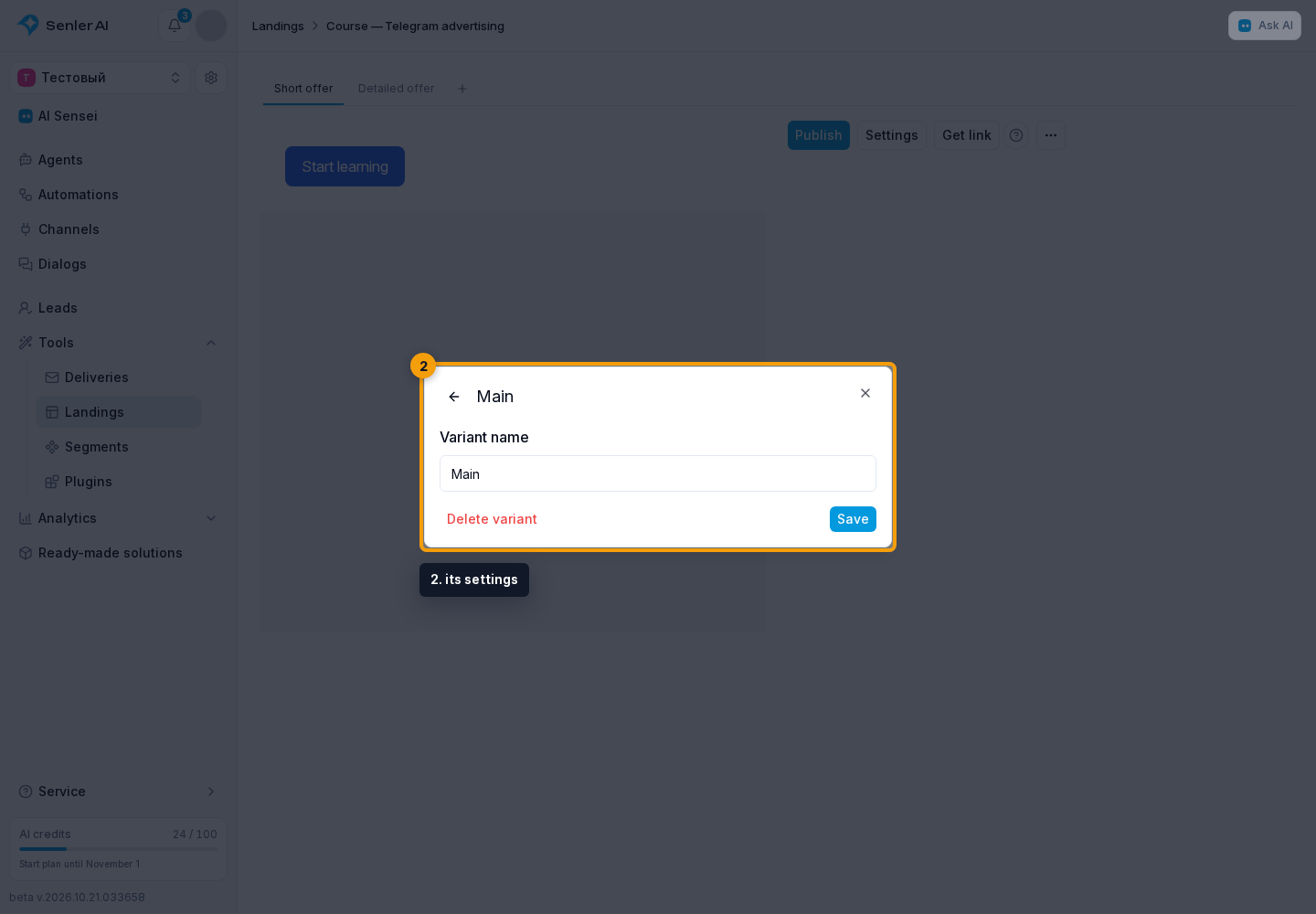
The last page or block variant cannot be deleted. Deleting the variant selected for display automatically selects another one. Edit content in the page or block editor.
If the landing has multiple variants, “Copy” in the block menu lets you select a landing variant to receive an independent copy of the block with all its variants. Copied buttons are not added to A/B test goals automatically — check the goals.
For an agent subscription page, publish the agent to release these changes.