
Display conditions
“Condition” selects a variant from known data without an AI request. Use it for an offer based on an advertising tag, different text for a segment member, or a page based on a funnel stage.
Configure a rule
- In display settings, choose “Create rule…” → “Condition”.
- Enter the rule name and its outcomes, such as “From advertising”, “Other visitors”, and “Insufficient data”.
- In the condition branch, select a data source, field or resource, comparison, and value.
- For multiple conditions, choose “All conditions” or “Any condition”.
- Assign the branch outcome under “Then outcome”.
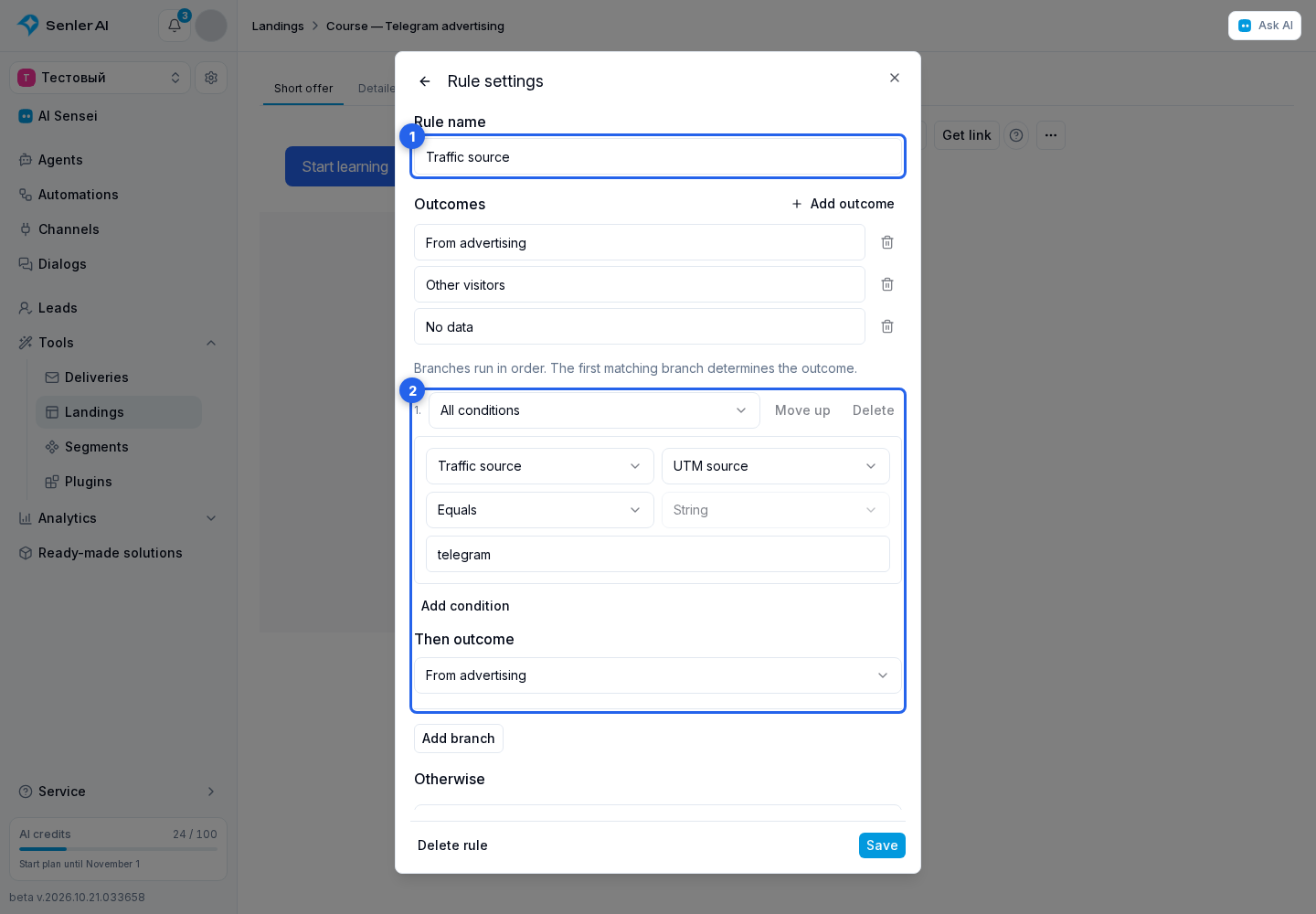
- Add another branch if needed, then select the “Otherwise” and “No data” outcomes.
- Save the rule and assign its outcomes to variants.
Available sources:
- A lead, project, or dialog variable.
- Traffic source: source, referring site, and UTM fields.
- Membership in a segment.
- The current funnel stage.
Comparisons depend on the data type: numbers support magnitude comparisons, dates support “Before” and “After”, and strings and arrays support “Contains”. “Is set” and “Is not set” check whether a value exists.
Advertising tag example
In a branch, choose “Traffic source”, “UTM source”, “Equals”, and the value telegram. Assign “From advertising” to the matching branch and “Other visitors” to “Otherwise”. Connect these outcomes to page variants and use a link with a UTM tag.
Order and missing data
Branches are checked from top to bottom. The first matching branch is used. If all checks are false, “Otherwise” is selected.
“No data” is a separate outcome: for example, an ordinary web link is opened anonymously and Senler cannot read lead segments or variables. An unknown visitor is not automatically treated as a non-member.
If the current condition group cannot be evaluated using the available data, the rule selects “No data” without checking later branches. Place a general branch for everyone else after more specific branches and prepare a separate offer for unknown visitors.
Check an anonymous visitor and a selected lead using variant preview. Then publish the landing.