
Widget block
The Widget block lets visitors ask a question directly on a landing, either within the page or in a popup chat. It connects an existing project channel, so no JavaScript snippet is required. The block is also available on an agent subscription page.
Add a chat
- Create a Widget channel if the project does not have one yet.
- In the landing editor, add a block of the Widget type.
- In the widget area, click the edit button with the pencil icon.
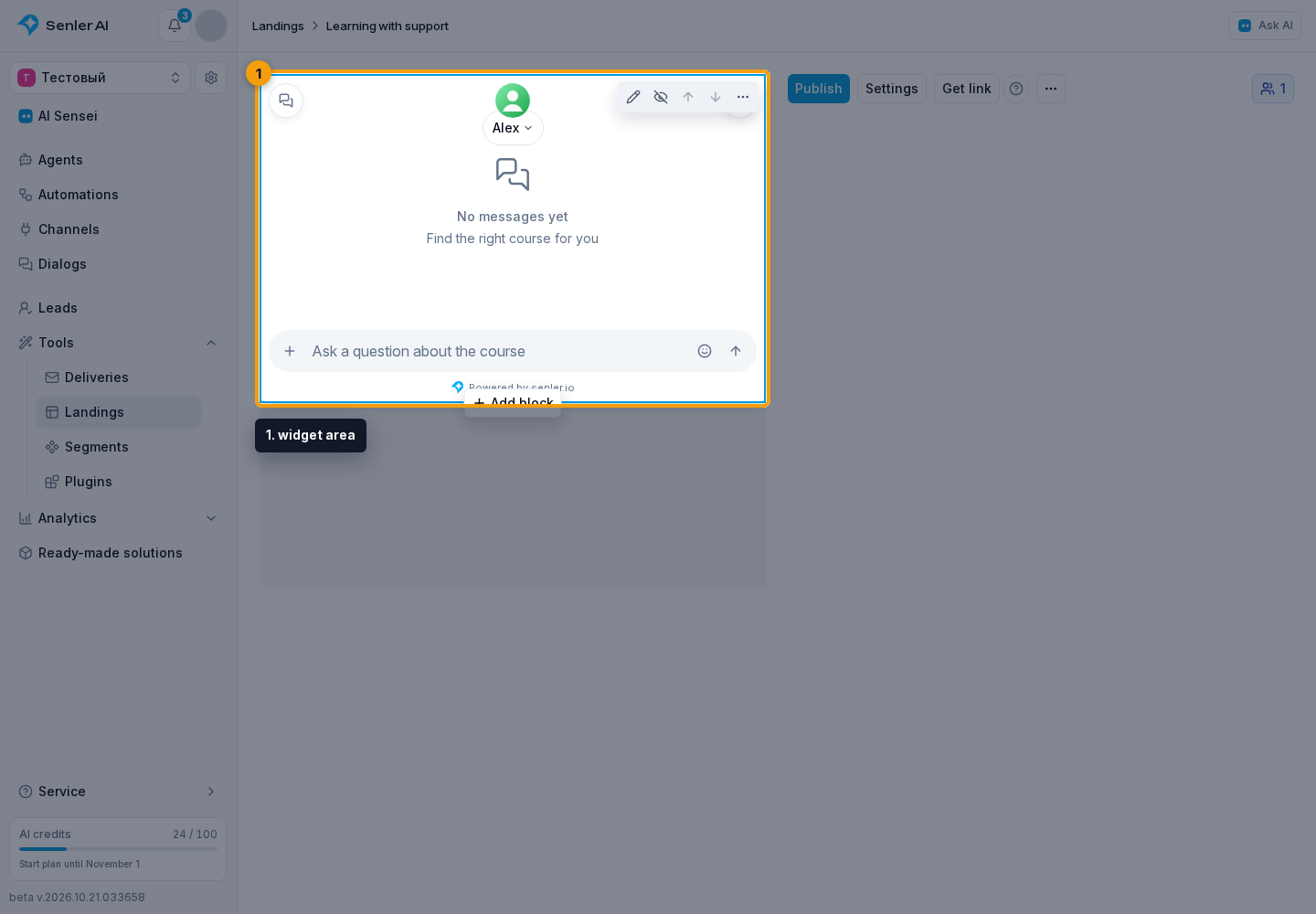
- In the Widget block settings, select a widget from this project and its placement.
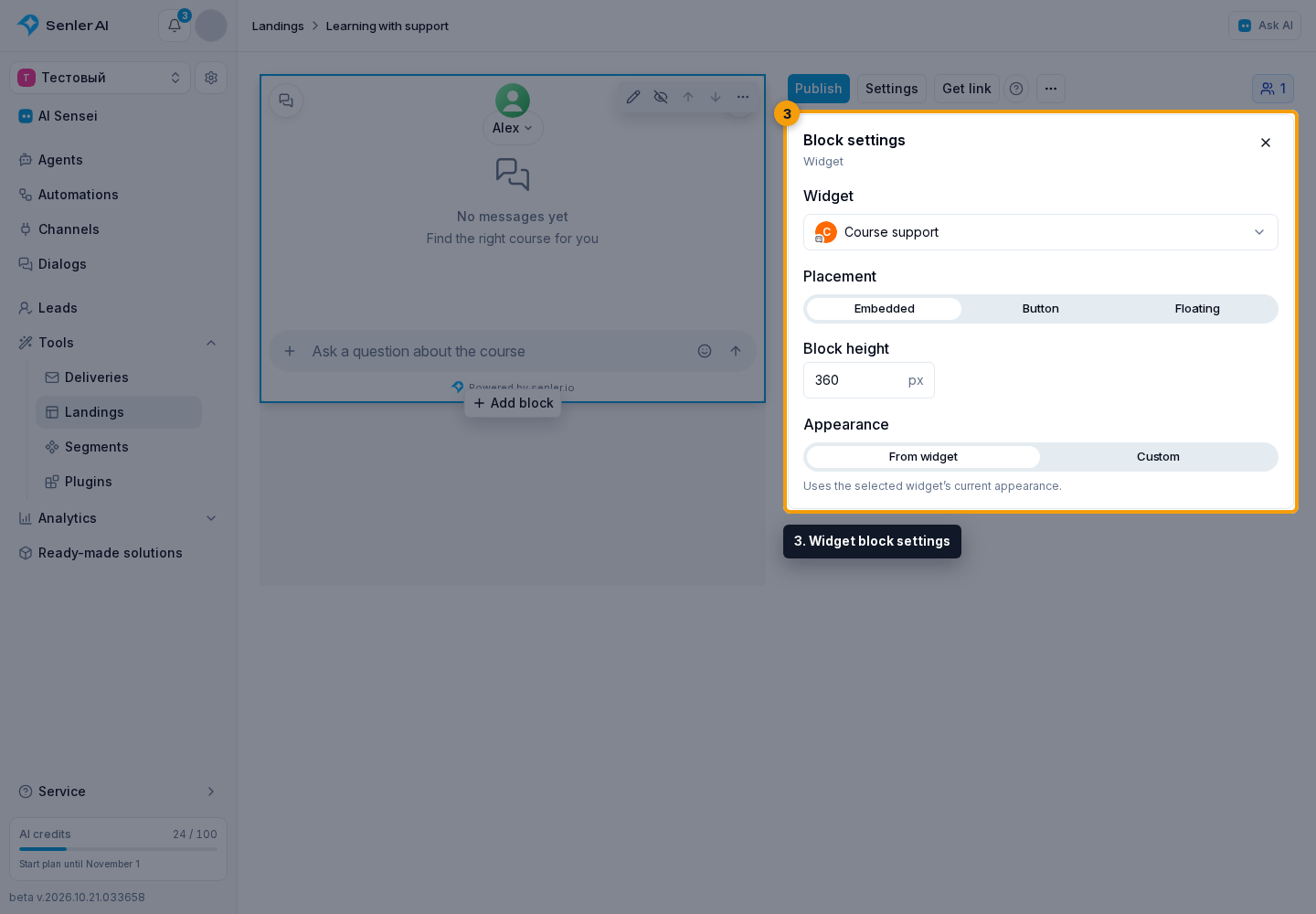
Choose placement
- Embedded: the chat sits among the page's blocks. Set a height between 300 and 1200 px; the block determines its width.
- Button: the visitor clicks a page button to open a popup chat. Set the button text, background color, and text color in the block. This widget does not show a separate floating launcher.
- Floating: a button in the corner opens the chat. Its position and colors come from the widget appearance settings. The block takes up no space on the published landing; the editor displays a card for the selected widget instead. The Hidden button position removes the launcher.
Customize appearance
Under Appearance, choose:
- From widget: use the selected channel's current appearance and language settings. Later changes in channel settings are applied when the chat opens.
- Custom: copy the current appearance into the block the first time you select this option. You can change the theme, colors, language, welcome text and image, window dimensions, corner radius, and text labels. These changes do not change channel settings or other blocks. Floating placement also provides launcher settings here.
See widget appearance for individual field descriptions. Custom block settings affect appearance and language: chat features and the automation welcome message still come from the selected channel's settings.
Selecting From widget uses the appearance from channel settings while keeping the block's custom settings. Select Custom again to return to them.
Check and publish
The editor preview displays chat appearance using demonstration messages; it does not contact the agent. Check the embedded chat or open the window using its button, then publish the landing. Subscription page changes take effect when the agent is published.
Publishing the block requires an available Widget channel from this project. Project landings on Senler domains are automatically allowed for its widget; you do not need to add them to the domain list. For another website, follow widget installation and configure allowed domains.