
Landing address
Every landing has a standard Senler address. You can also assign one custom address, such as go.example.com/course. First connect the domain and wait for Connected status.
Choose an address
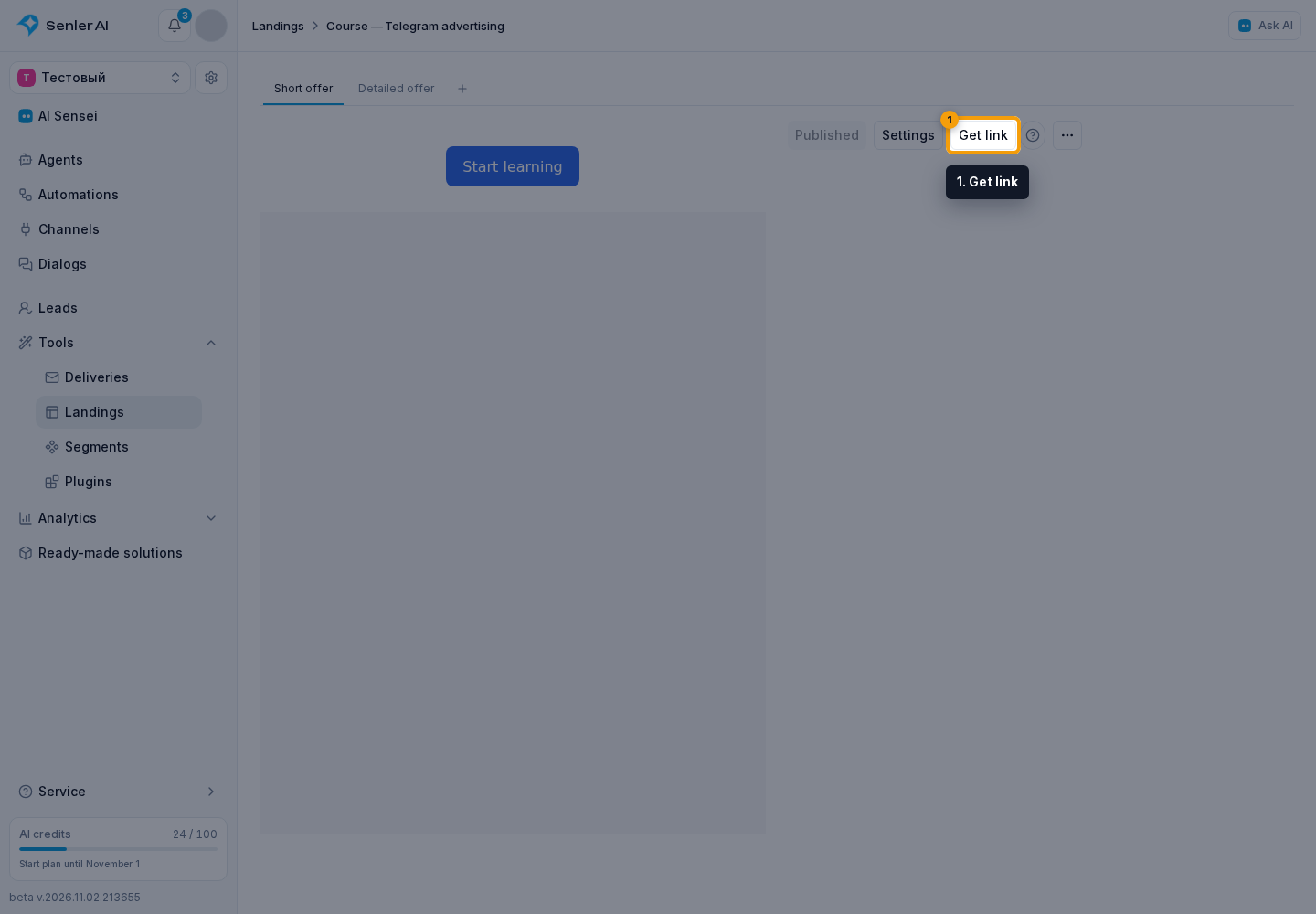
Open the landing and select Get link.
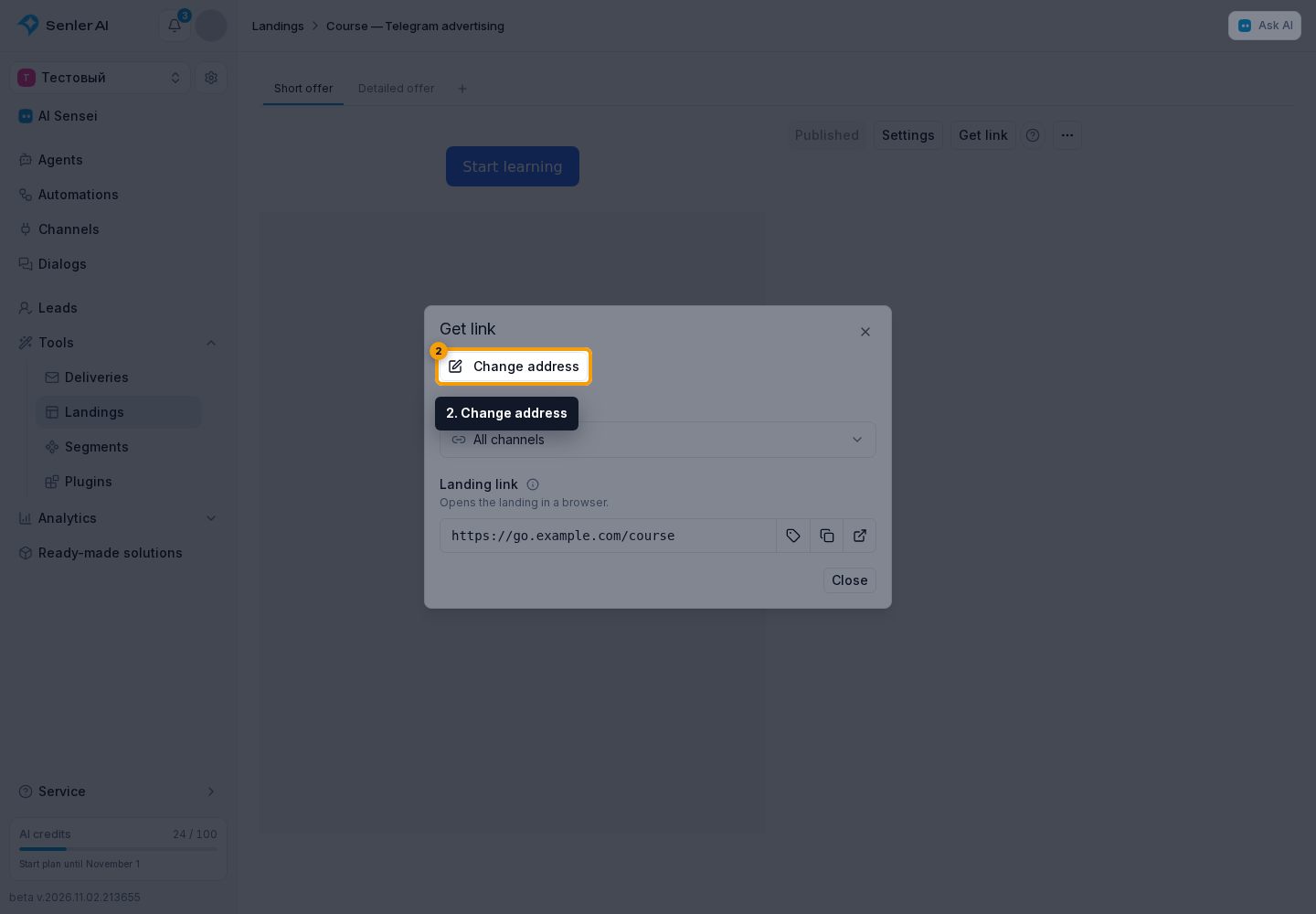
Select Change address. On an agent's subscription page, this button is on the Landing tab, not Direct link.
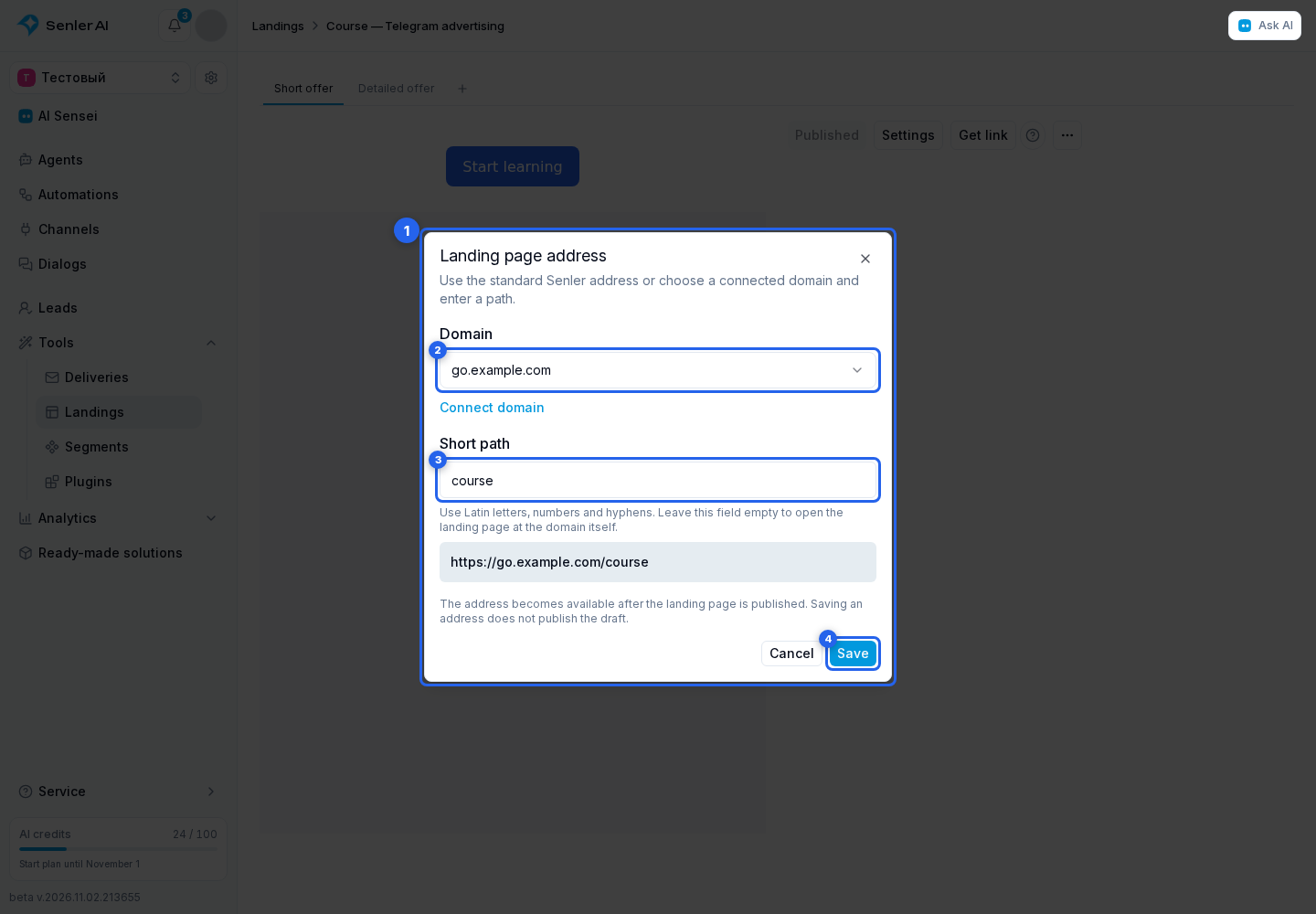
In the Landing page address dialog (1):
- In Domain (2), select a connected domain.
- Enter a short path (3), such as
course. Use lowercase Latin letters and numbers; single hyphens can separate words. The path must not start or end with a hyphen, contain nested paths or exceed 80 characters. Leave it empty to open the page directly at the domain address. - Check the displayed full address and select Save (4).
You can prepare a custom address in advance, but it opens the page only after publishing the landing. Saving an address does not publish the draft. An agent landing is published with the agent.
In Get link, the main web link and selected channels' web links use the custom address. Links opening inside Telegram, VK or MAX remain platform links. The standard Senler link also keeps working.
Change the path or domain
Open Change address again and save the new choice:
- Another path on the same domain. Old paths keep redirecting to the new address; link parameters, including UTM, are preserved. You cannot choose a path occupied by another landing.
- Another domain. The previous custom address and its old paths stop working. There is no cross-domain redirect. Update links already placed on your site, in messages or in advertising.
Return to the standard address
In Domain, choose Standard Senler address and select Save. This removes the page's custom address and old paths. The landing remains; other pages on the connected domain do not change.