
Working a shift
Checking in indicates that you are ready to receive new requests. It applies to you in the selected project. Your operator group settings determine whether check-in and scheduled working hours are required.
Start your shift
Open the project you need. Find the shift status in the left menu and click Start shift. Your status changes to On shift.
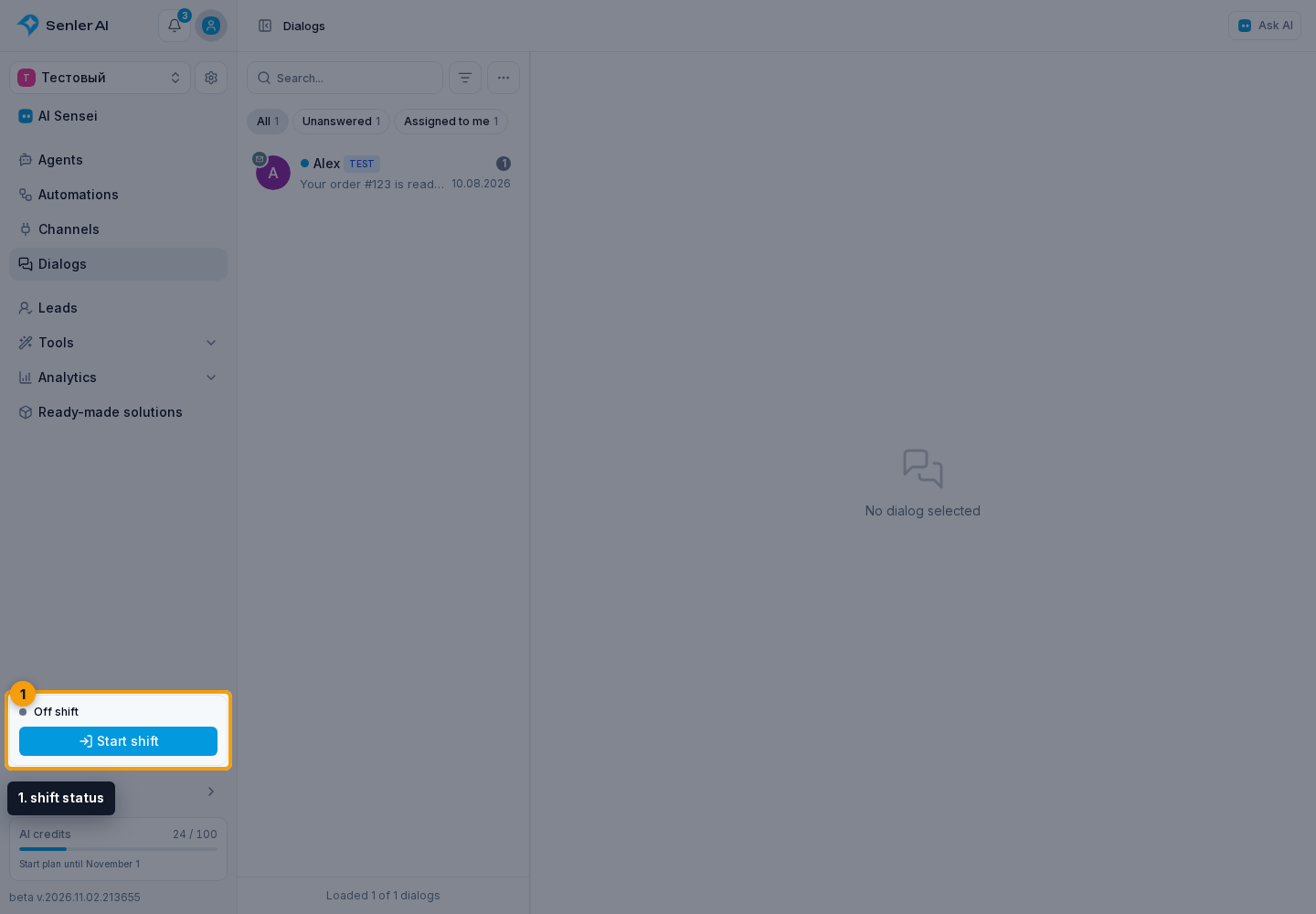
Scheduled check-in requires a currently active working interval assigned to you. A calendar entry does not replace clicking the button. If at least one of your groups requires On shift status but does not follow a schedule, you can start at any time. This does not make you available outside working hours in other groups that follow a schedule.
The button appears for an active member with the support operator setting enabled when they can start a shift. If it is missing, check your groups and assigned hours with the person who manages working hours. If none of your groups requires check-in, they do not need this button.
End your shift
Click End shift in the project left menu.
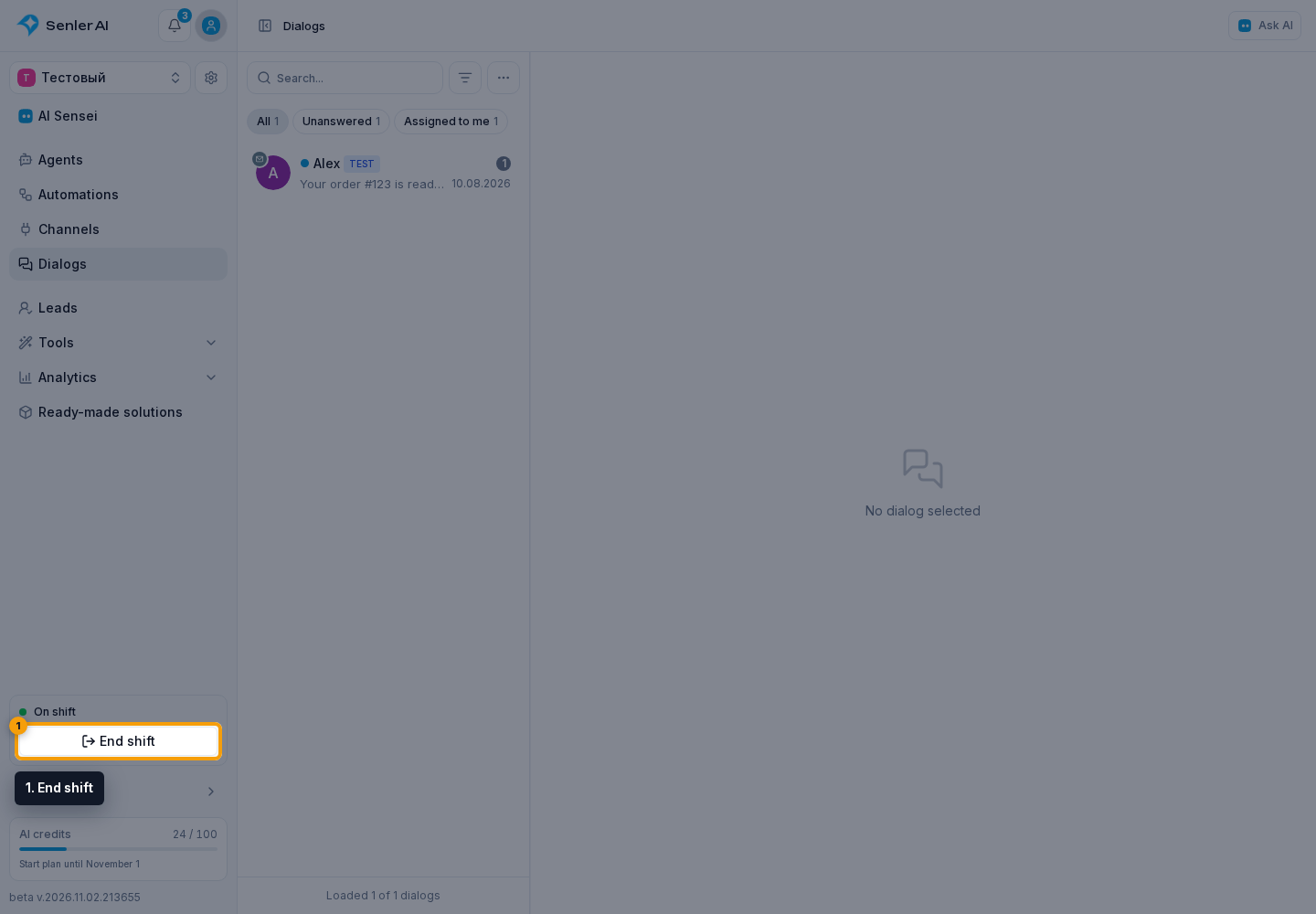
You stop receiving new dialogs from groups that require On shift status. Open and snoozed dialogs already assigned to you remain yours. If needed, transfer them to another operator or group.
If one of your groups does not require check-in, its requests can still be assigned after you end your shift. Off shift status does not disable project access or prevent manual dialog assignment.
When check-in is allowed only by schedule, it expires at the end of the current working interval. You must check in again for the next shift. If at least one group allows check-in without a schedule when you start, it remains active until you end it manually, as long as that condition remains true; other groups still follow their own working intervals and restrictions.