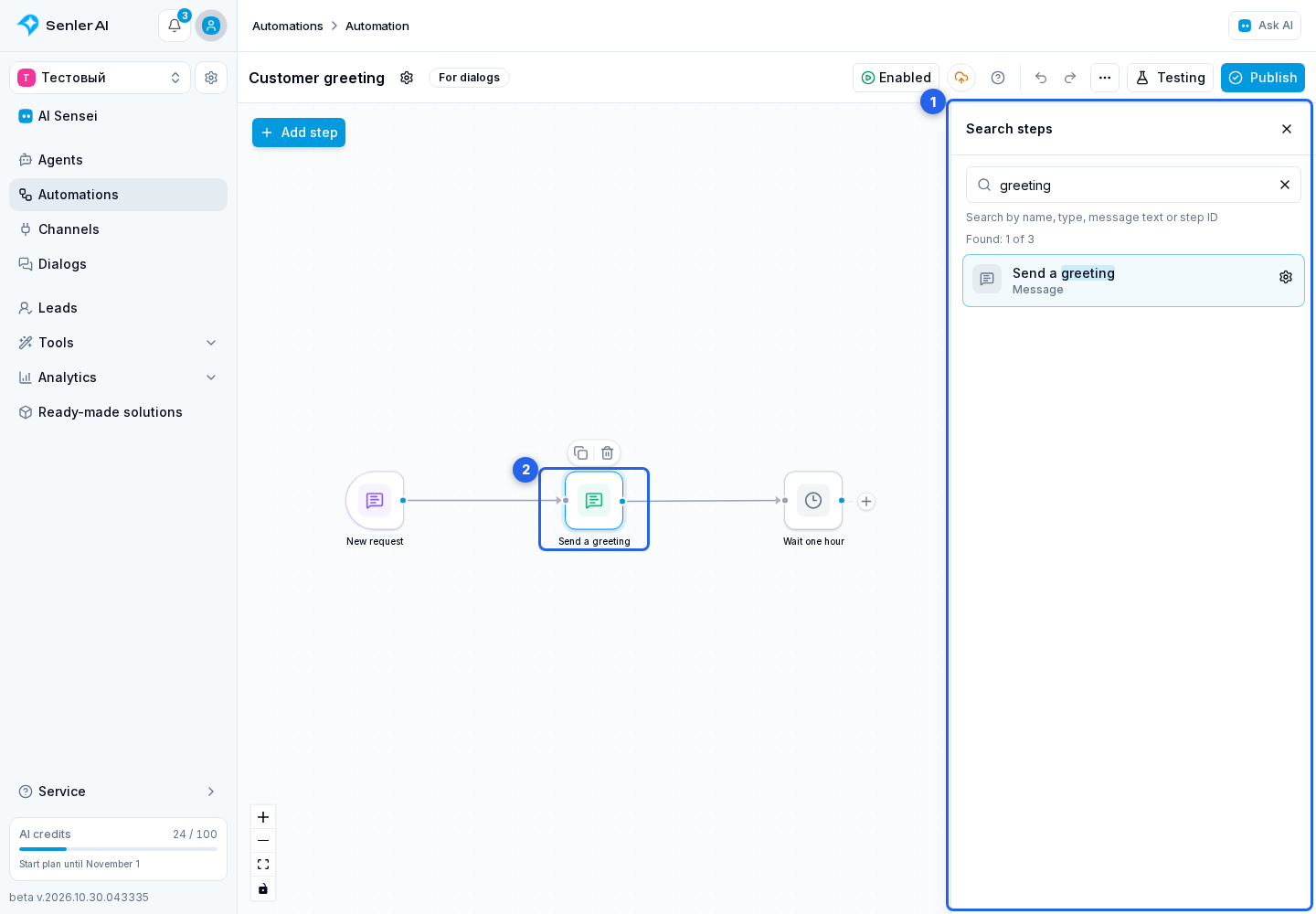
Step Search
Search helps you find a message, condition, or action in a large workflow. It searches steps already added to the current automation. To add a new step, use the step catalog.
Find A Step
- Open More actions.
- Select Search steps.
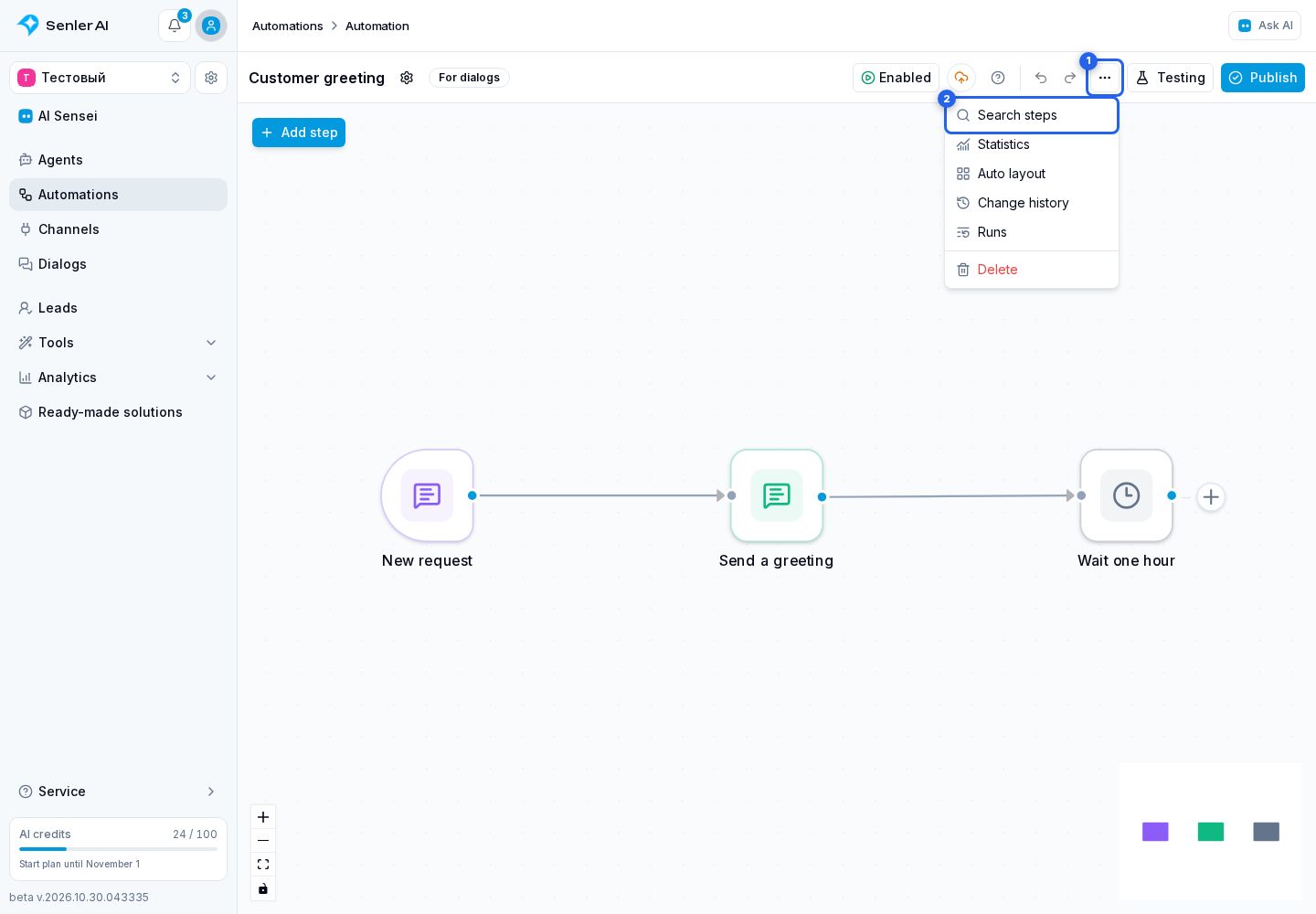
In the search panel:
- Enter a step name or type, part of a message, or a step ID in the search field. Search is case-insensitive. Without a query, all steps are shown.
- Select a matching step to see it on the workflow without opening its settings.
- To edit a step, select the gear beside the result. It is available to members with permission to manage automations. Search itself is also available with view permission.
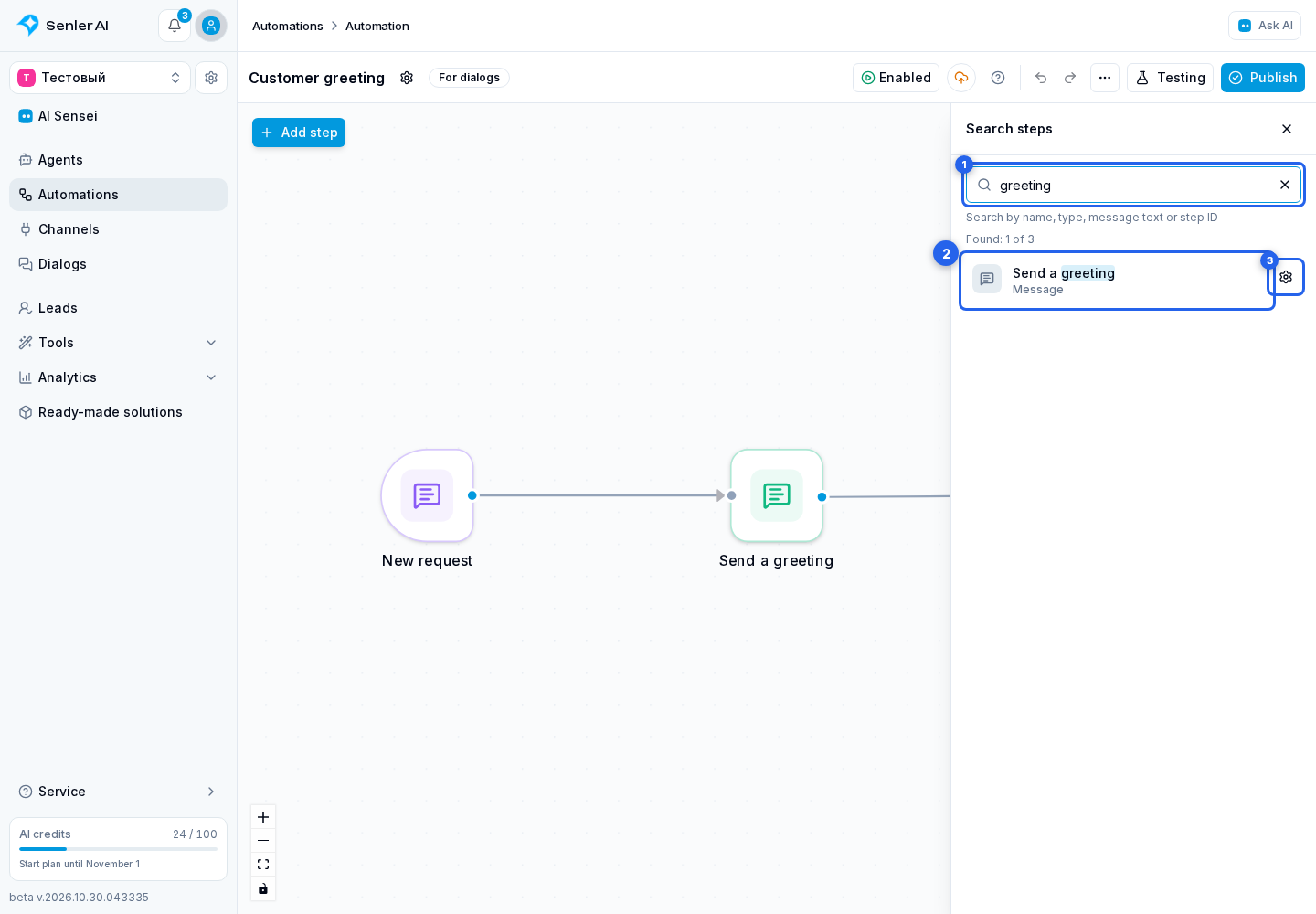
The cross in the field clears the query; the cross in the heading closes search. Reopening search in the same automation restores the query and list position.
Return To Search
In step settings, Back to search results returns to the list. Save step changes first; if they are unsaved, the editor asks you to confirm discarding them.
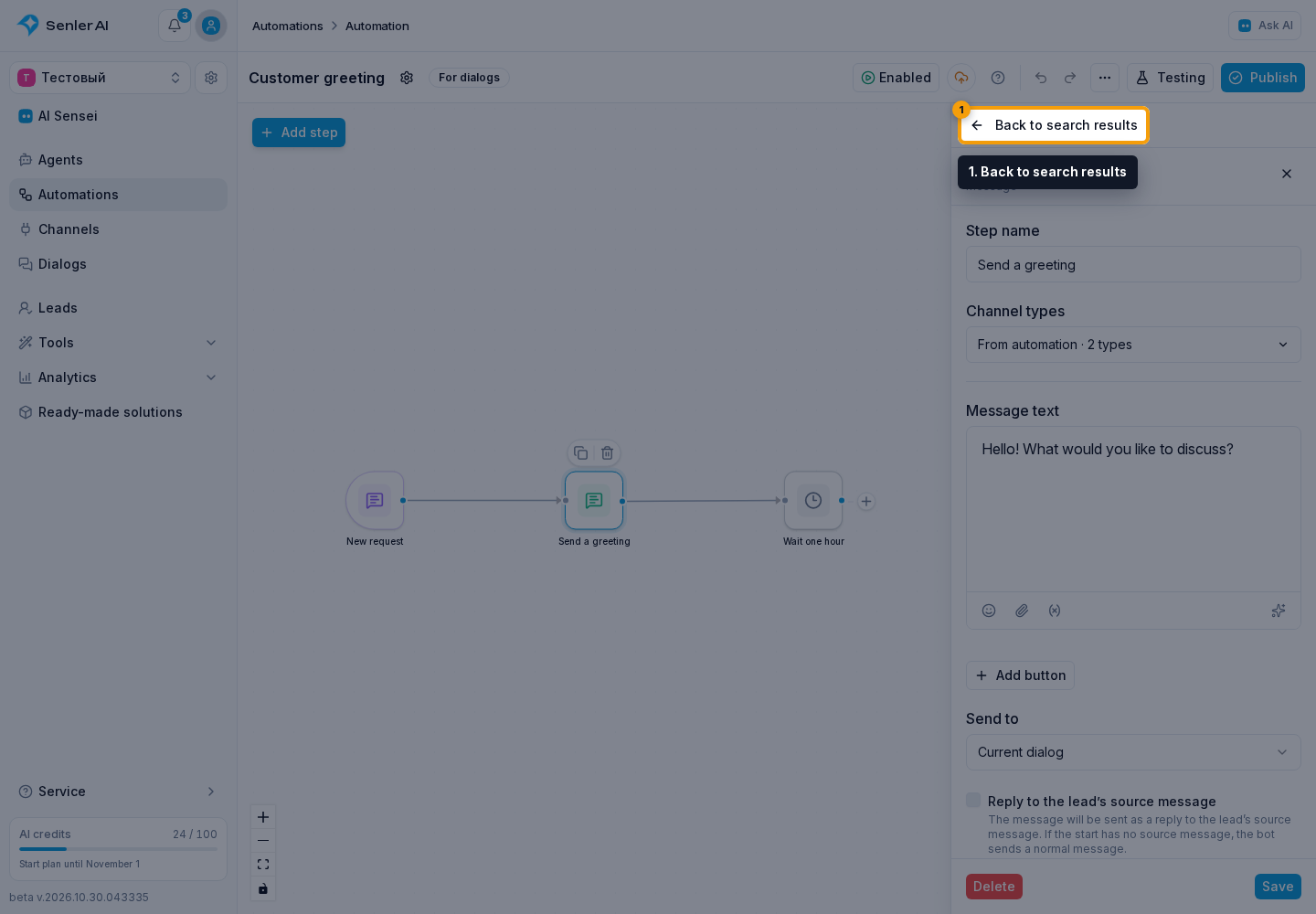
When navigating from the list to the workflow, the editor selects the matching step and centers it on the canvas. If the search panel closed, select Back to search results above the canvas to reopen the list with the same query.