
Booking Automations
Automations process bookings and react to changes: send confirmations, reminders and messages after visits. They use the same services and availability as the journal.
Booking action
- In the automation editor, add an Online booking action.
- Choose an operation in the step settings.
- Fill in the displayed fields. The button on the right helps insert a variable at the required position. For the result, choose an Object variable in the run or project scope; For dialogs automations also support the lead or dialog scope.
- Connect the displayed outputs to the next actions. Available outputs depend on the operation: reading the catalog or specialists has Success; time search also has No available times; session or booking search has its corresponding not-found output. Mutation operations may additionally have No available seats, Booking data not found or Booking not found, and Error.
After changing the operation, check its connections: fix any transition unsupported by the new operation before publishing.
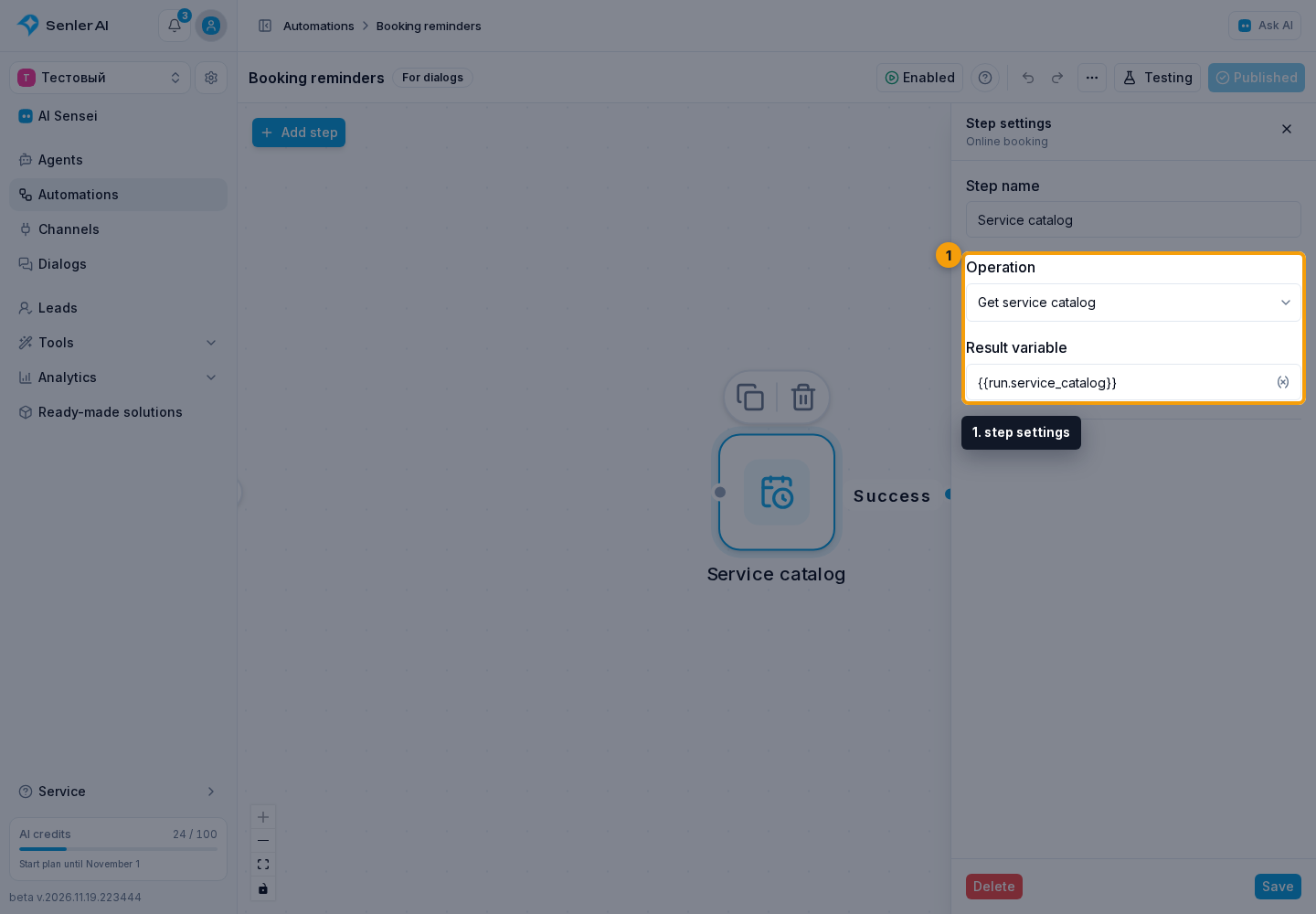
Operations include reading the catalog, specialists, availability, sessions and bookings; creating, rescheduling, cancelling, confirming, marking arrival, completing, marking no-show, changing seats and managing the waitlist.
For an individual booking, specify the service, specialist and start time; for a group class, use the specific session ID. To change an existing booking, specify its ID. The system reads the current revision when preparing the action, so there is no separate revision field to fill in. If a conflict occurs, check the current booking state and the step result.
In Join waitlist, fill Session time accepted by the client only after the client agrees to automatic booking. Pass the exact start time from the selected session through a variable; leaving the field empty keeps the request manual. For an existing request, use Confirm automatic booking consent with the request ID and the accepted time. Obtain fresh consent after the session is rescheduled.
To send a confirmation and start reminders after automatic promotion, select Promoted from waitlist. Check the status before messaging: Awaiting confirmation means places are occupied but a staff member has not confirmed the booking yet.
Event trigger
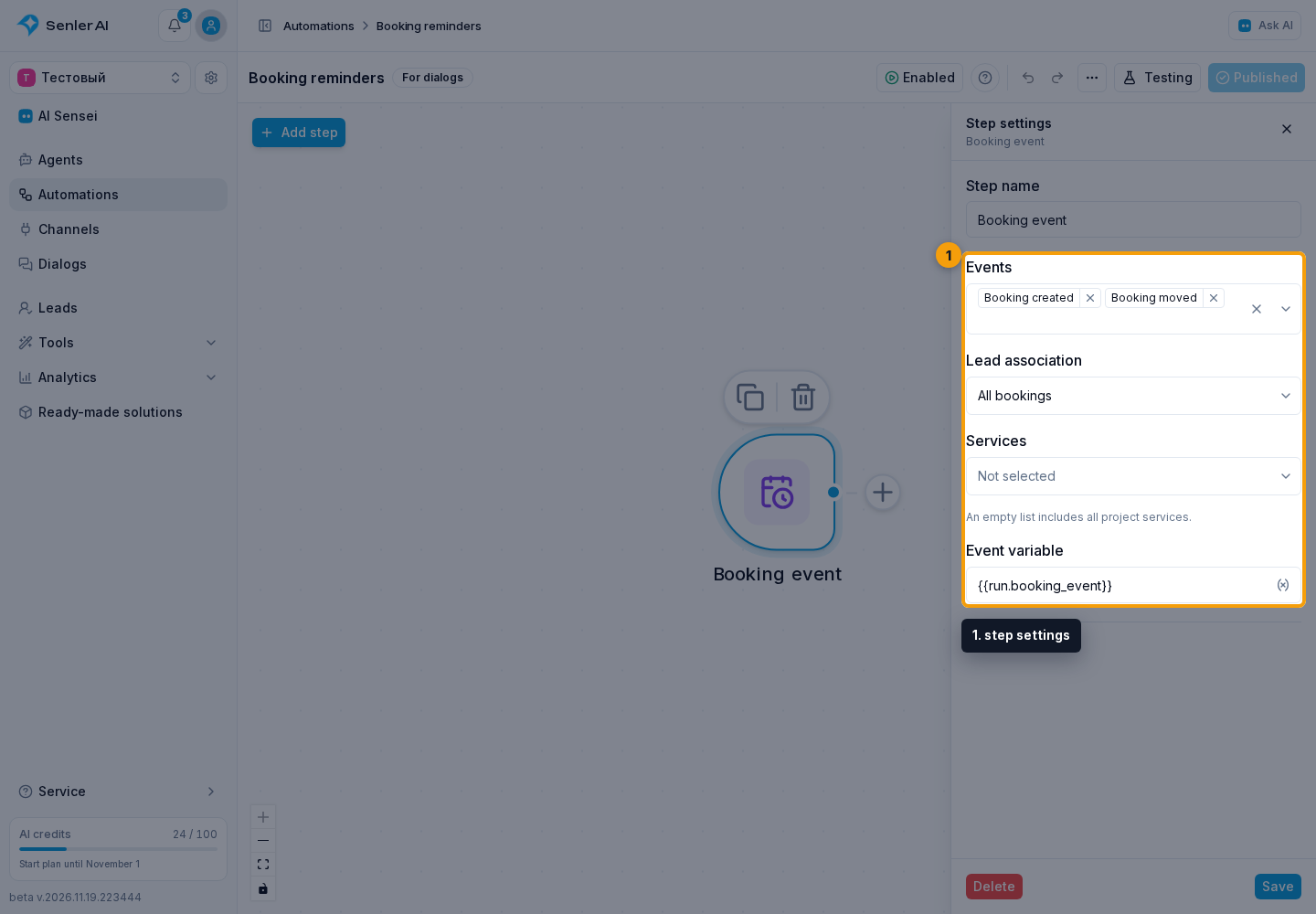
Add a Booking event trigger. In the trigger settings, select events and optionally limit the services. An empty service list means all project services.
In Lead association, choose All bookings, With a lead or Without a lead. The filter checks whether the booking is linked to a lead at the time of the event. All bookings is selected by default.
To separate processing, select With a lead in a For dialogs automation and Without a lead in a Background automation. Both workflows can listen to the same events and services: each event reaches the workflow whose filter matches. A For dialogs automation cannot start without a lead, regardless of the filter. If the Background automation keeps All bookings, an event with a lead can start both automations.
The trigger can respond to creation, notification connection, rescheduling, status or seat changes, joining the waitlist, promotion to a booking, and session updates, rescheduling or cancellation. A run variable of type Object receives event data: booking, session, change type, current revision and changed fields.
When the last service in a visit is completed, the status-change event also contains visit_completed_at, the completion time of the entire visit. For a single-service visit, it appears when that service is completed. The field is absent when any service is unfinished, cancelled or a no-show. To request a review after the visit, add the required delay to this time and wait until the resulting date. Allow parallel runs so different visits by the same client do not cancel each other; check the booking statuses again before sending. See the barbershop example for a ready-made scenario.
To message a client after booking on a landing page, select Booking notifications connected. The event occurs after message permission is granted, including permission granted earlier, and starts the scenario once for a visit containing several services. Booking created and Booking notifications connected are separate events: selecting both may start the automation twice. For a single confirmation, do not combine them without duplicate handling.
Reminder before a visit
After an event for an active booking, add a wait until the required time, then a message or an agent call.
The wait tracks the visit time that was current when it started. If the booking is rescheduled, cancelled or completed, the branch does not send the old reminder after waiting. Rescheduling or cancelling the whole session is also taken into account. Include a rescheduling event trigger to send a reminder for the new time.
Confirmation or seat count changes do not cancel the reminder if the time stays the same. A sequence without a wait, such as confirm → send message, runs without this check. Cancellation, completion and waitlist scenarios may use delays for their own messages.
If a booking is not linked to a lead, its event can start a background automation. Sending a message requires an available recipient: a phone number entered in the form does not create a conversation by itself.