
Schedule operator list
This list determines which operators appear in the work schedule and their order. Editing the list requires permission to manage project access.
Open the list
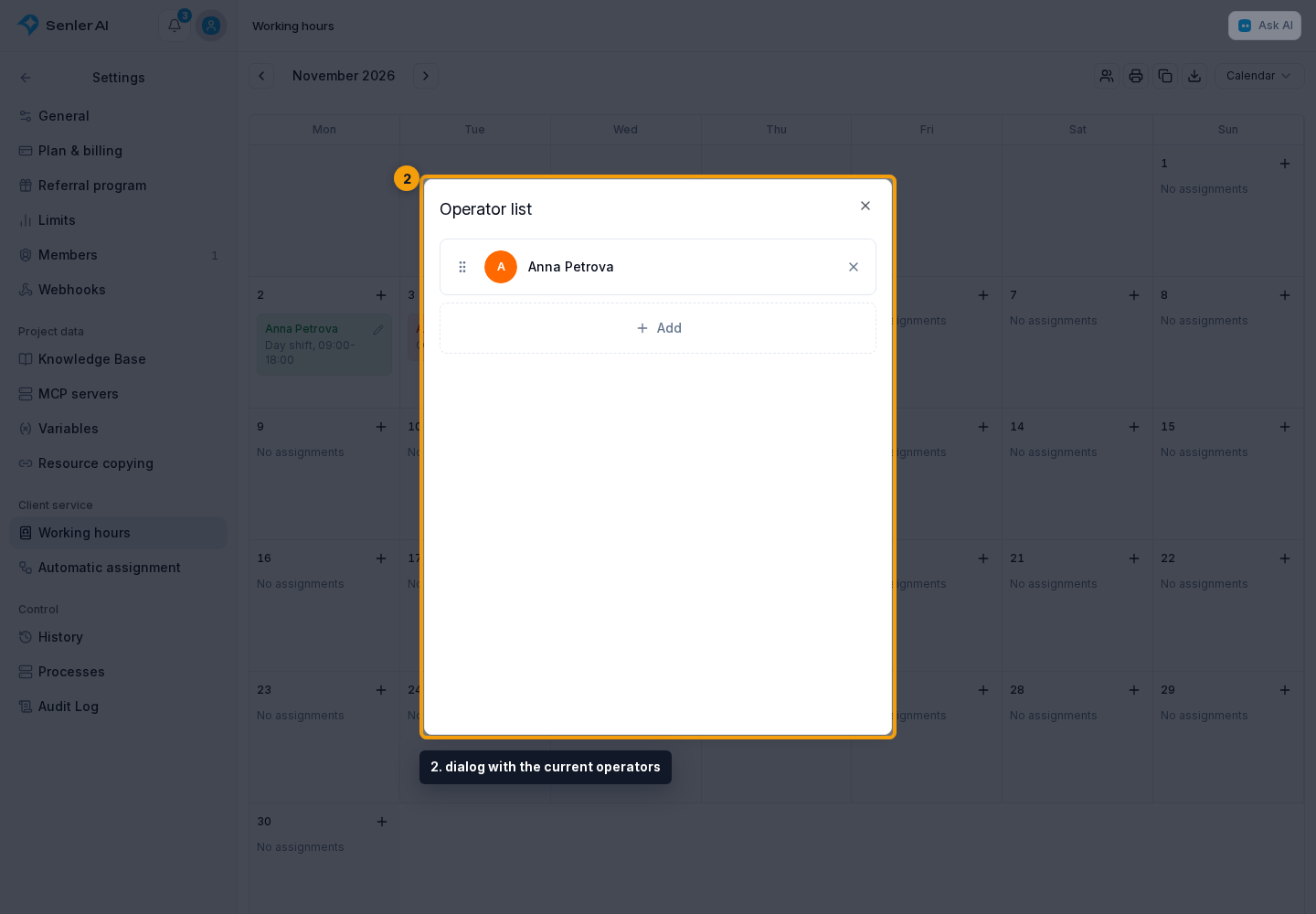
In project settings, open Work schedule. In the calendar toolbar, click Operator list. A dialog with the current operators opens.
Assign a member as an operator
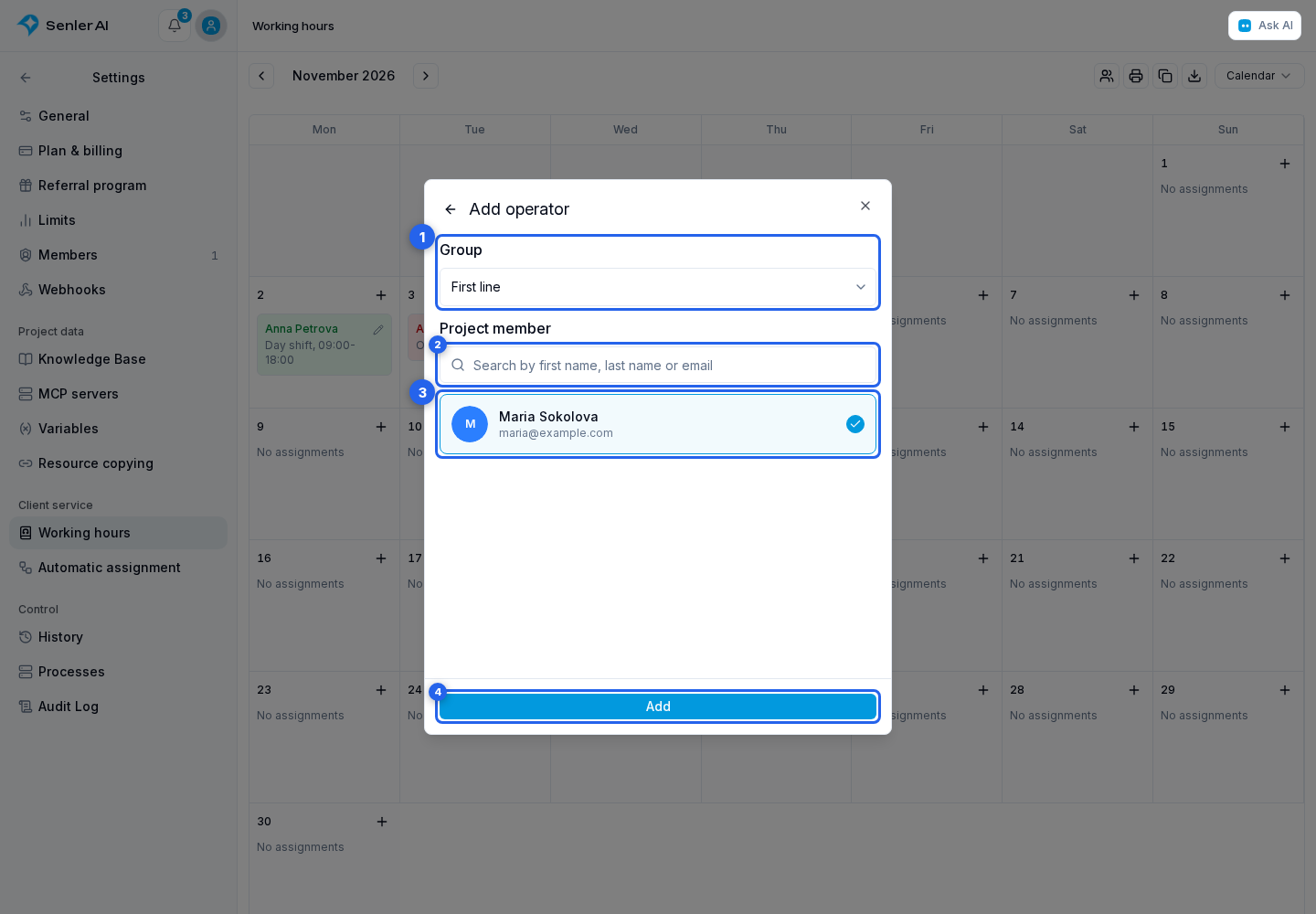
- Click Add.
- In the Group field, select an active support group. If none exist, create one in Operator assignment first.
- Find a member by first name, last name, or email in the search field, then select their row. The list offers active project members who are not operators yet.
- Click Add at the bottom of the form to assign the operator role and join the selected group.
Adding someone to the list does not assign working hours. Next, create schedule assignments and check the selected group's availability rules.
Change the order
Drag the handle on the left of an operator row to the required position. With the keyboard, focus the handle, press Space, move with the arrow keys, then press Space again to save; Escape cancels the move.
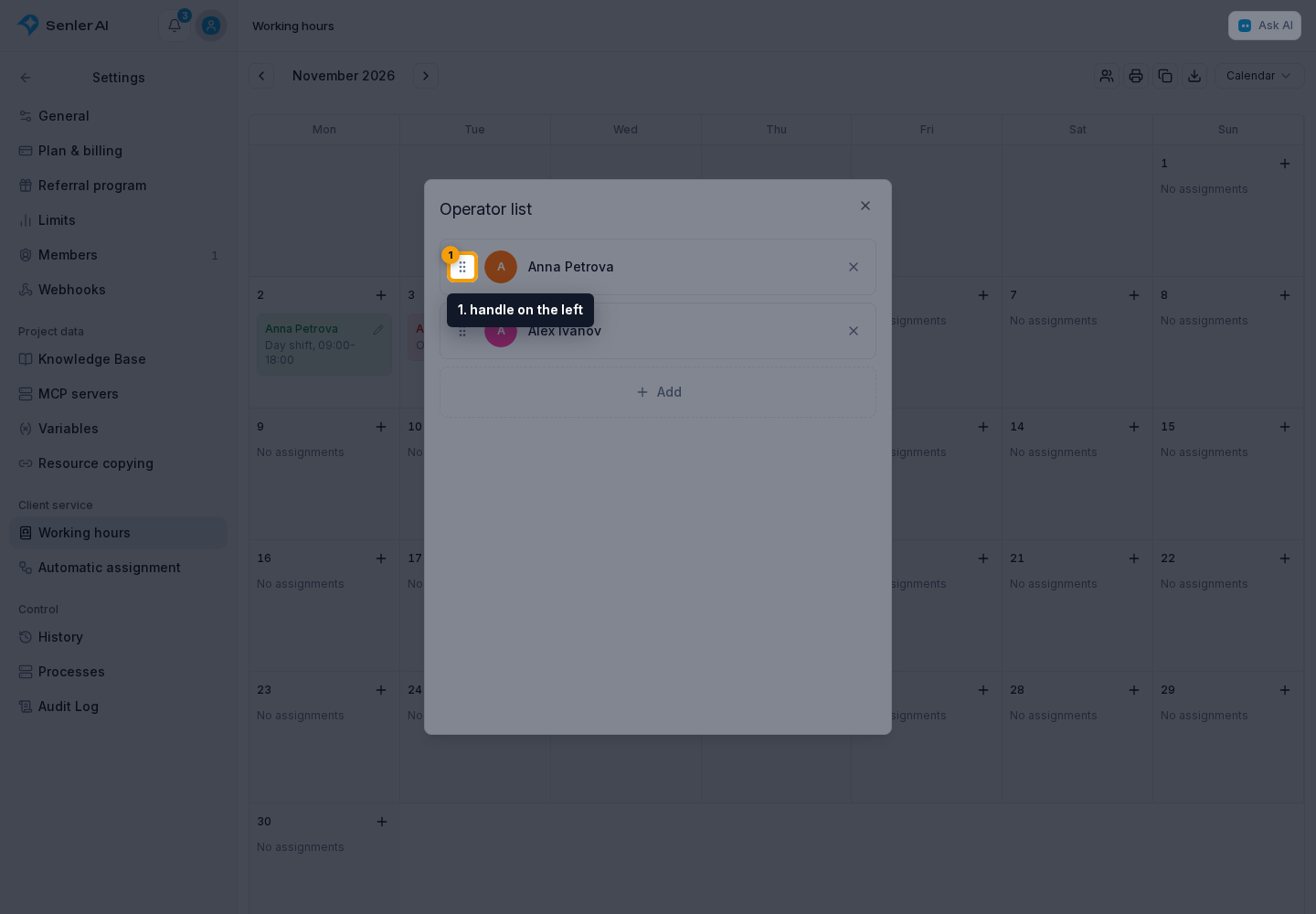
The order is saved after the move. It changes row positions, not groups, permissions, or working shifts. If saving fails, wait for the saved order to return and retry after resolving the cause.
Remove an operator
Click the cross in the required operator's row. In the confirmation dialog, check the name and click Delete.
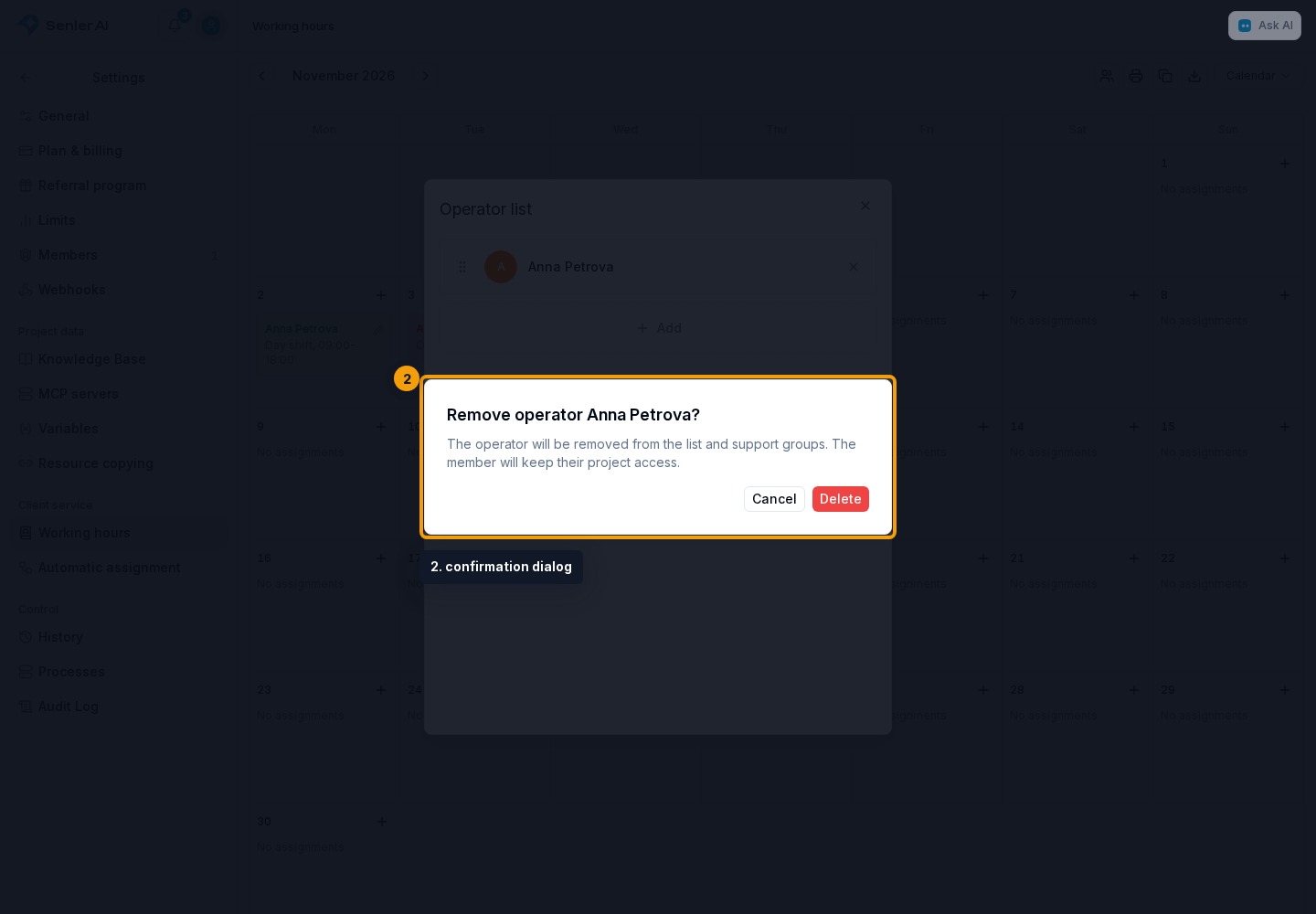
The employee stops being an operator and leaves the support groups. Their project membership and access permissions remain. To return them to support work, add them as an operator and choose a group again.