
Code test
Test in the Run code step executes the current code with sample data. You can check calculations, code messages and output selection. Changes to variables, segments, funnels and assignments are not applied to the project, and subsequent automation steps do not run.
Run a check
- Open the code step and click the Test icon (triangle) in the toolbar above the code. Testing is also available in the expanded editor; it uses the current edits even if the automation has not been saved yet.
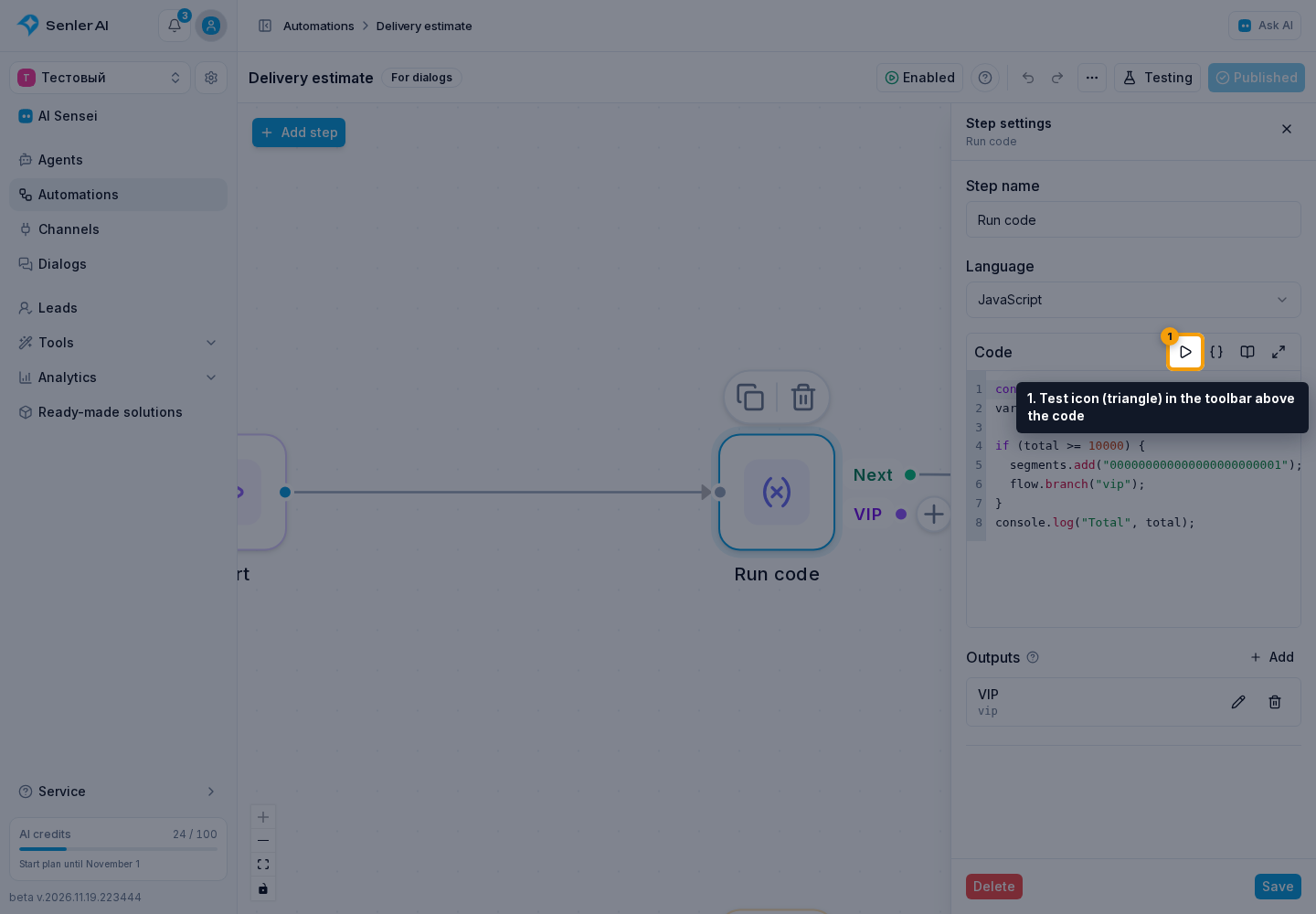
- The first run starts immediately in the test dialog. It uses initial sample data: empty variables and placeholder lead and dialog data. Real values from the project are not loaded.
- Inspect the result, then edit the JSON in the data field if needed. Below a completed result it is called Data used; after an edit, Test data.
- Click Run again to check the code with the new values.
For the discount calculation using a lead variable in the extended example, add an output with the name in code vip in the step settings and enter this data:
{
  "variables": {
    "lead": { "total": 12000 },
    "process": {},
    "dialog": {},
    "project": {}
  },
  "segments": [],
  "funnels": {}
}
The result will show Total 12000 and the output whose name in code is vip — the dialog displays its graph title. Then replace 12000 with 1000 and repeat the test: the message becomes Total 1000 and the output becomes Next.
What you can set in the data
| JSON field | What the code receives |
|---|---|
variables |
Sample variables in the process, lead, dialog and project scopes; the code reads them through vars. |
context |
lead, dialog and event data. For example, context.lead.first_name. To test a process without a lead, set "lead": null and "dialog": null. |
segments |
An array of segment IDs that the sample lead belongs to. Used by segments.has. |
funnels |
An object whose keys are funnel IDs and whose values are stage IDs. Used by funnels.getStage. |
Also include any lead, dialog or project variables the code writes in variables: their names and types in the test come from these sample values. This is not required for a new process variable. For example, set "score": 0 in the relevant scope for a numeric counter called score.
IDs and data in this JSON describe a sample situation. Entering a real lead ID does not load that lead's data. The JSON must be valid: use double quotes, with no comments or trailing commas.
Read the result
The test result shows:
- Code completed — the script finished successfully and its prepared actions passed the test's checks. The time alongside it includes waiting for execution and receiving the result.
- Messages from the code — only what the program wrote through
console.logorprint. Without these calls, the block is not shown. These messages are not sent to the lead. - Output — where the code would direct the process during a normal run. Next means no additional output was selected.
To inspect the calculated discount, add console.log("Discount:", vars.process.get("discount")) in JavaScript or print("Discount:", vars.process.get("discount")) in Python at the end of the example. For a total of 12,000, it will show Discount: 10. The set call itself does not print a message.
On failure, read the error text and code line, if available. Correct the code or sample data and repeat the test. If the service is busy or the test times out while waiting for execution, retry later.
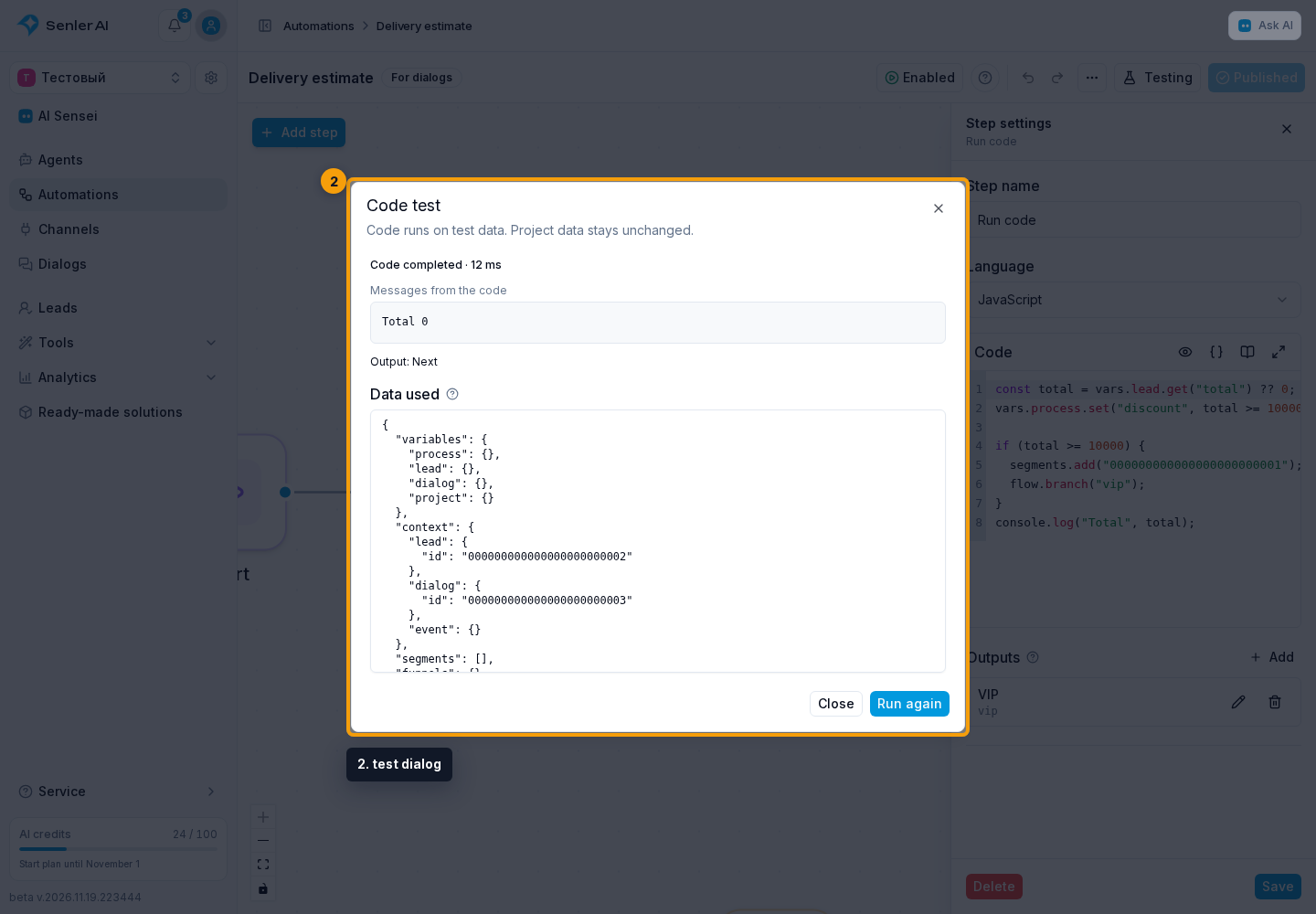
Changing the code or sample data makes the previous result out of date. Reopening the dialog without changes may show the result you already received; click Run again for a new run. Close closes the dialog without publishing the automation.
A successful test does not confirm that the specified segments, stages and agents exist in the project. Item availability, actual variable types and application of actions are checked during a normal run. To check the whole sequence, start a separate process with a test lead, accounting for real data changes. See testing an automation.