
Specialists
A specialist provides selected services according to their own schedule. They do not need a project account.
Open the Specialists tab. The Services column shows the number of assigned services. Open a specialist's row to view or change the list, or deactivate the profile. Search by name or filter by status and whether the specialist is linked to a project member.
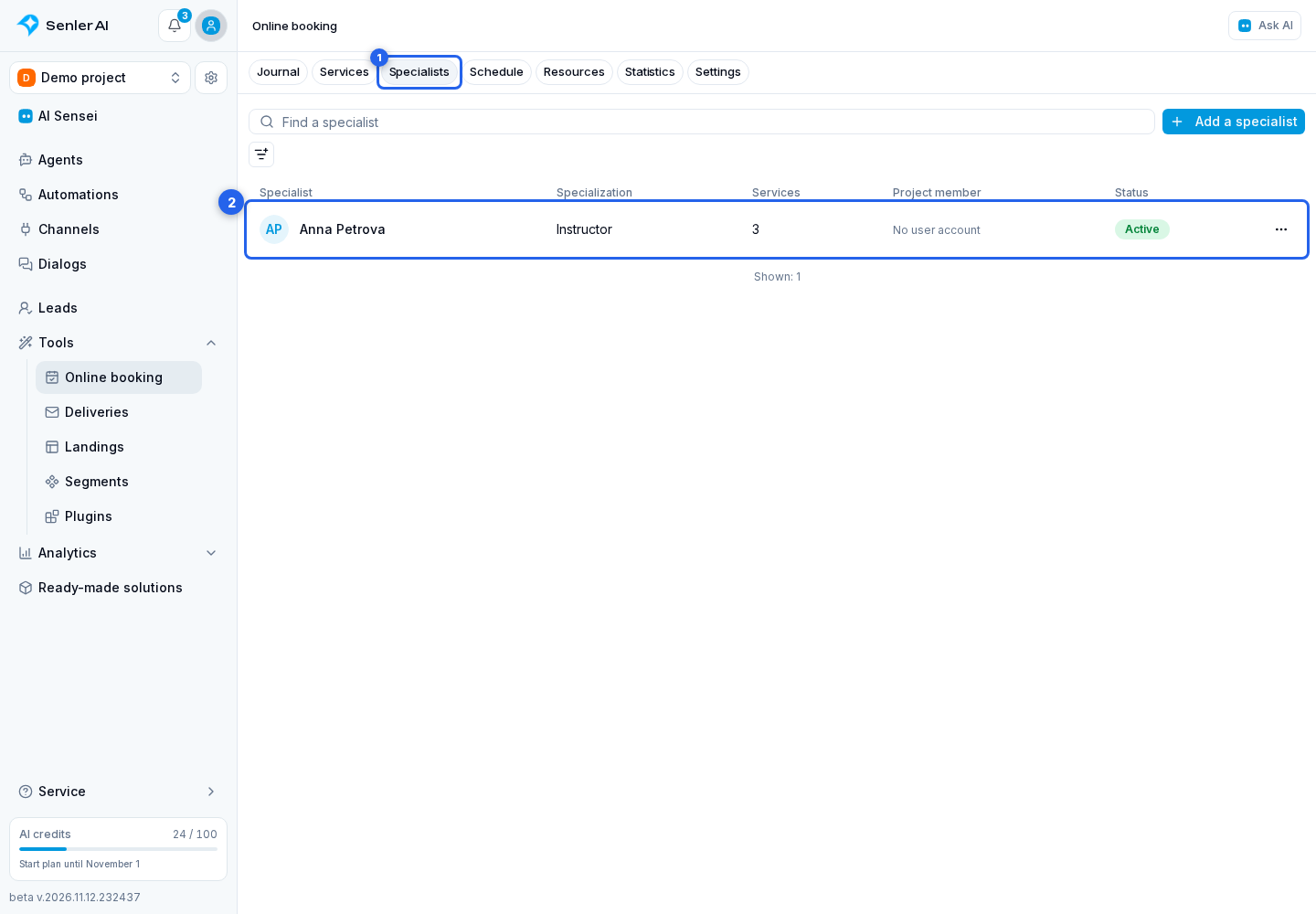
Add a specialist
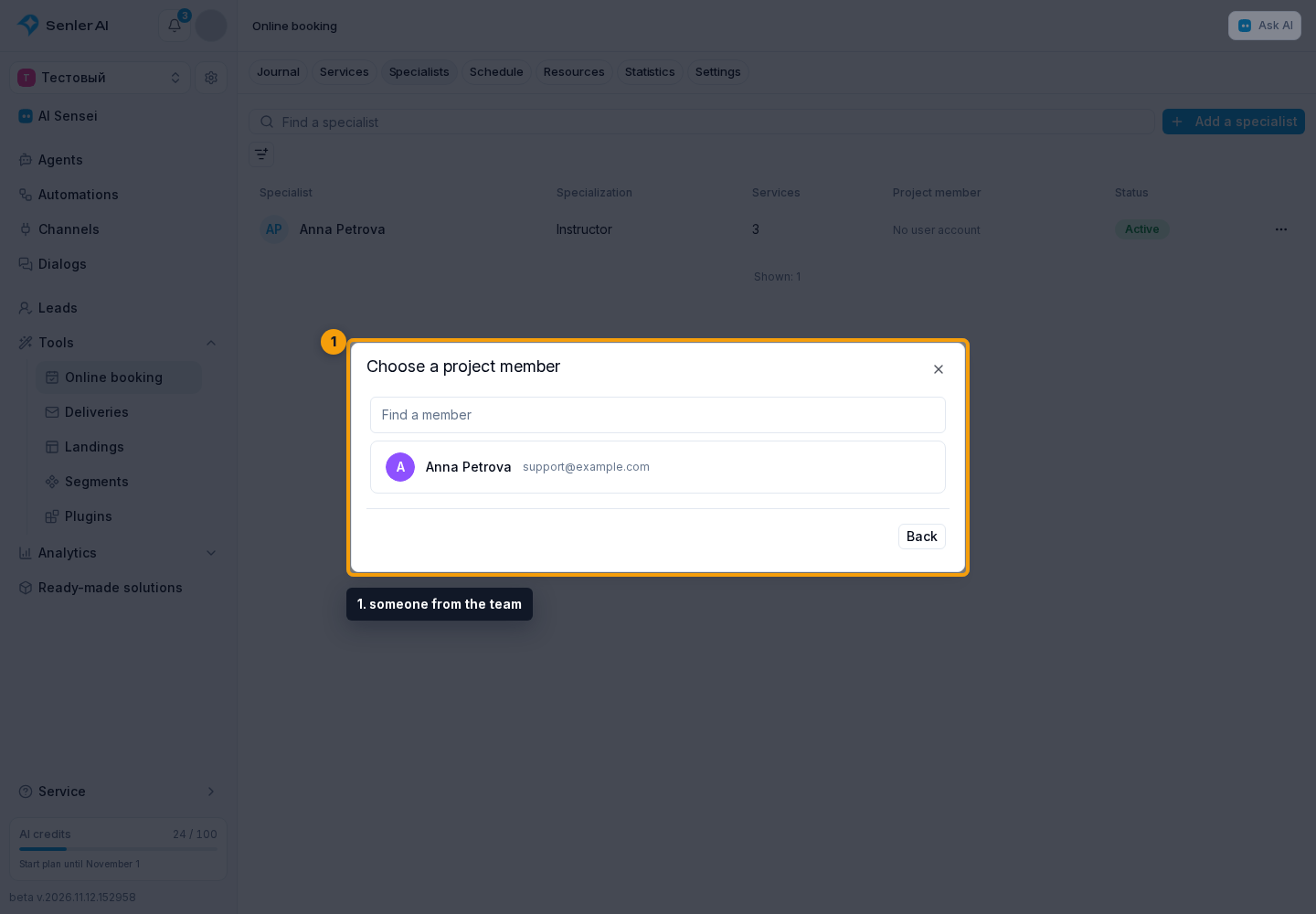
Click Add a specialist. In the selection dialog, choose the appropriate card.
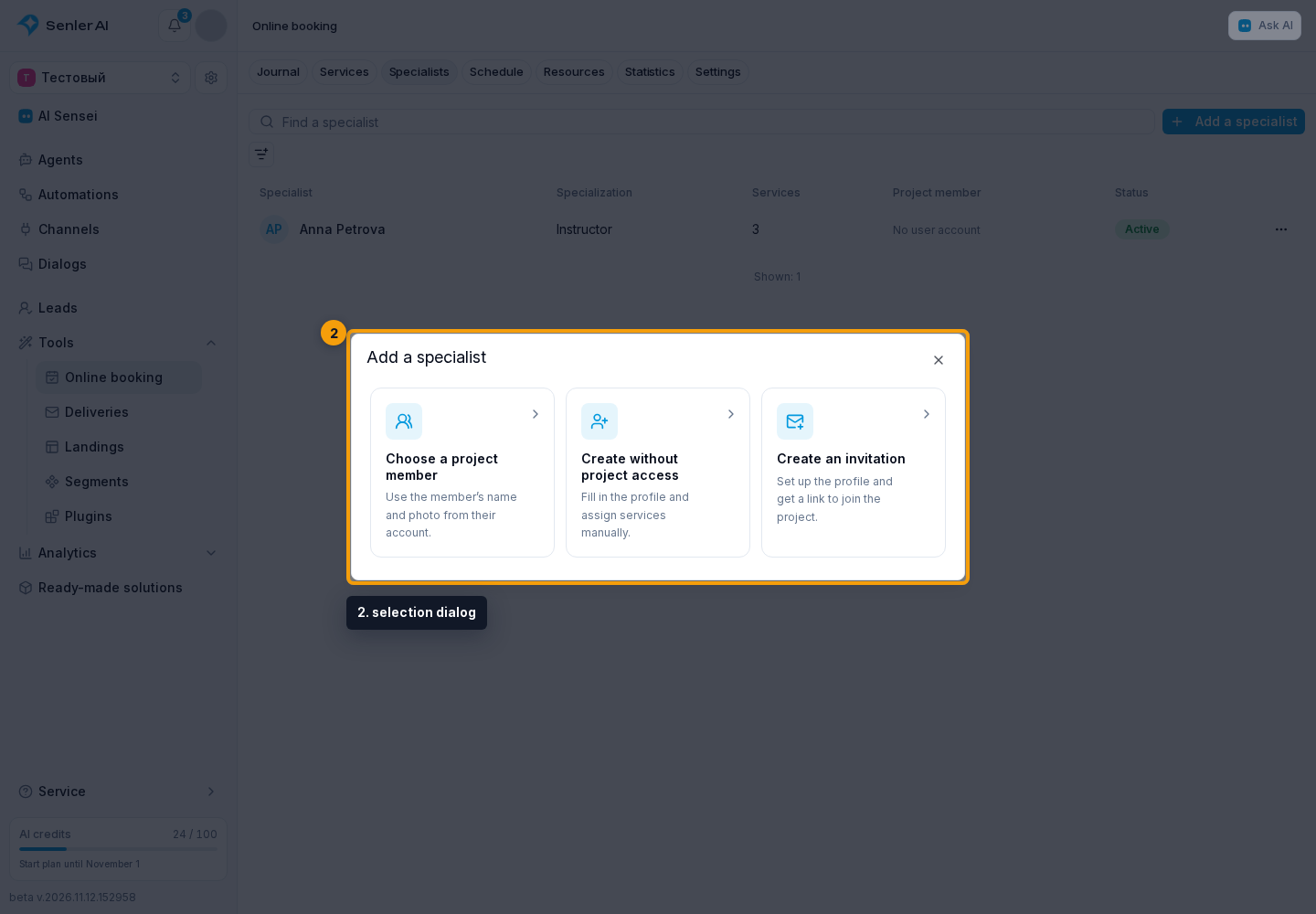
Choose a project member. Select someone from the team. The new profile uses their account name and photo. If they already have a specialist profile, that profile opens.
Create without project access. Fill in the profile manually. The specialist can receive bookings without a project account.
Create an invitation. Fill in the profile and click Next. In the standard invitation form, enter the email or user ID and choose a role. Copy the link. When the recipient accepts the invitation, their membership is linked to this profile automatically.
In the specialist form, click the avatar next to the name to select a JPEG, PNG or WebP photo up to 5 MB. The photo uploads when you save the profile. Review the name, enter their specialization and select services. The description and photo appear when choosing a specialist on the landing page. Keep Active enabled, save the profile and set up their schedule.
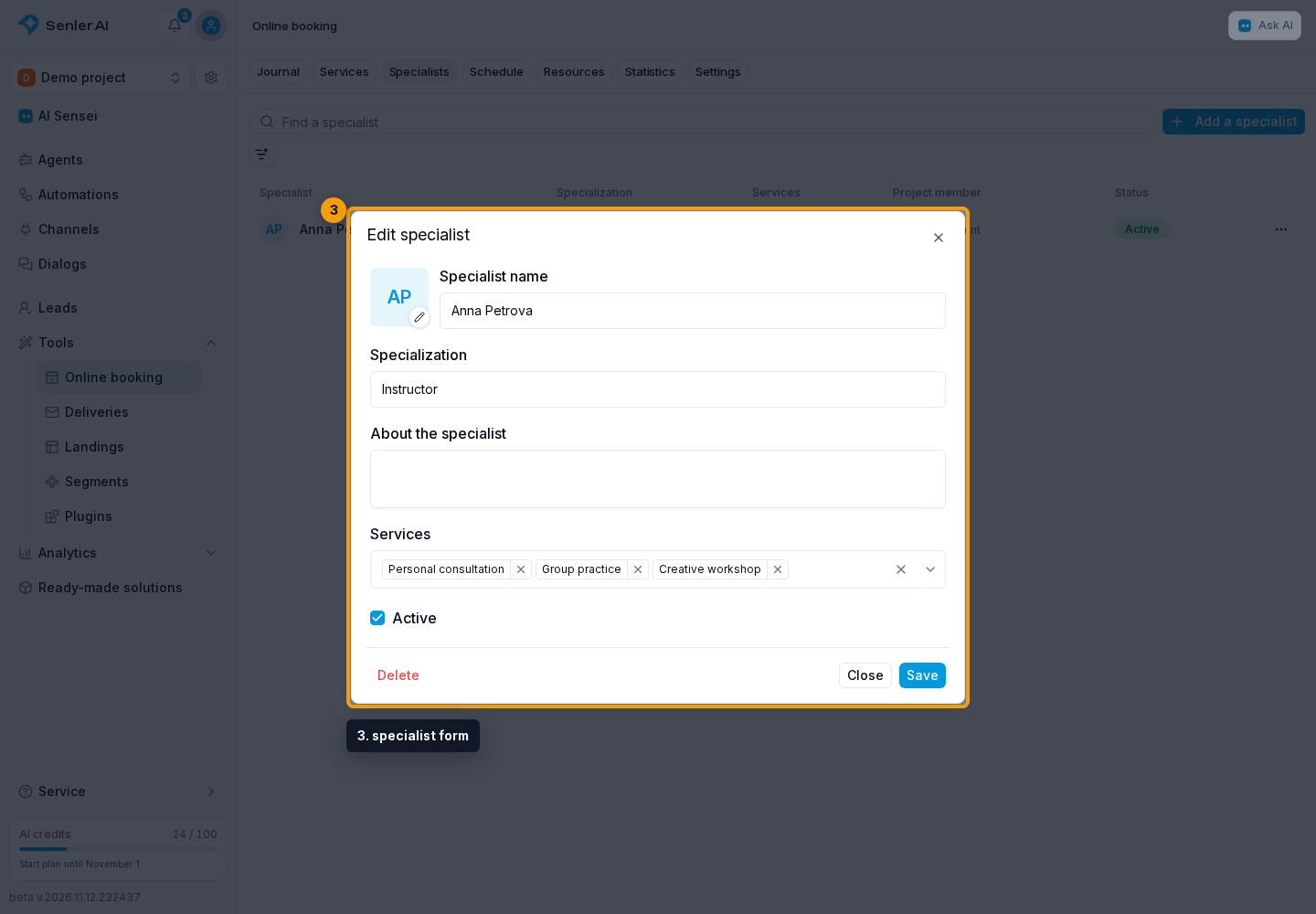
Clear Active to temporarily remove the specialist from new booking choices. To remove the profile from the catalog, click Delete at the bottom left and confirm. Existing bookings and sessions stay in the journal.
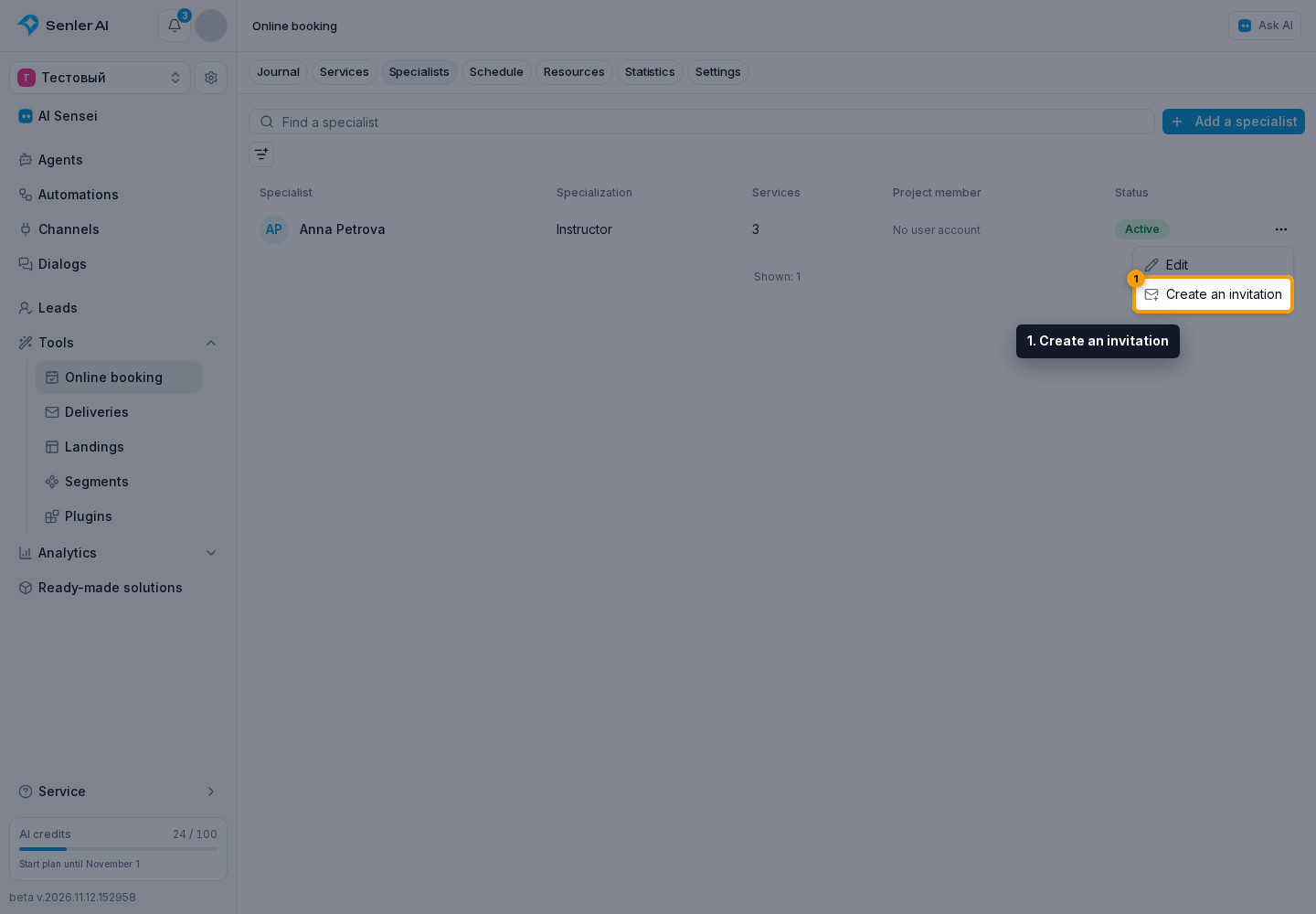
For a saved specialist without a linked member, open the row menu and select Create an invitation. Creating invitations requires permission to manage members.
Link a project member
Open a project member. In their profile, enable Specialist and select services. This links the member to a specialist profile; clearing the setting deactivates that profile.
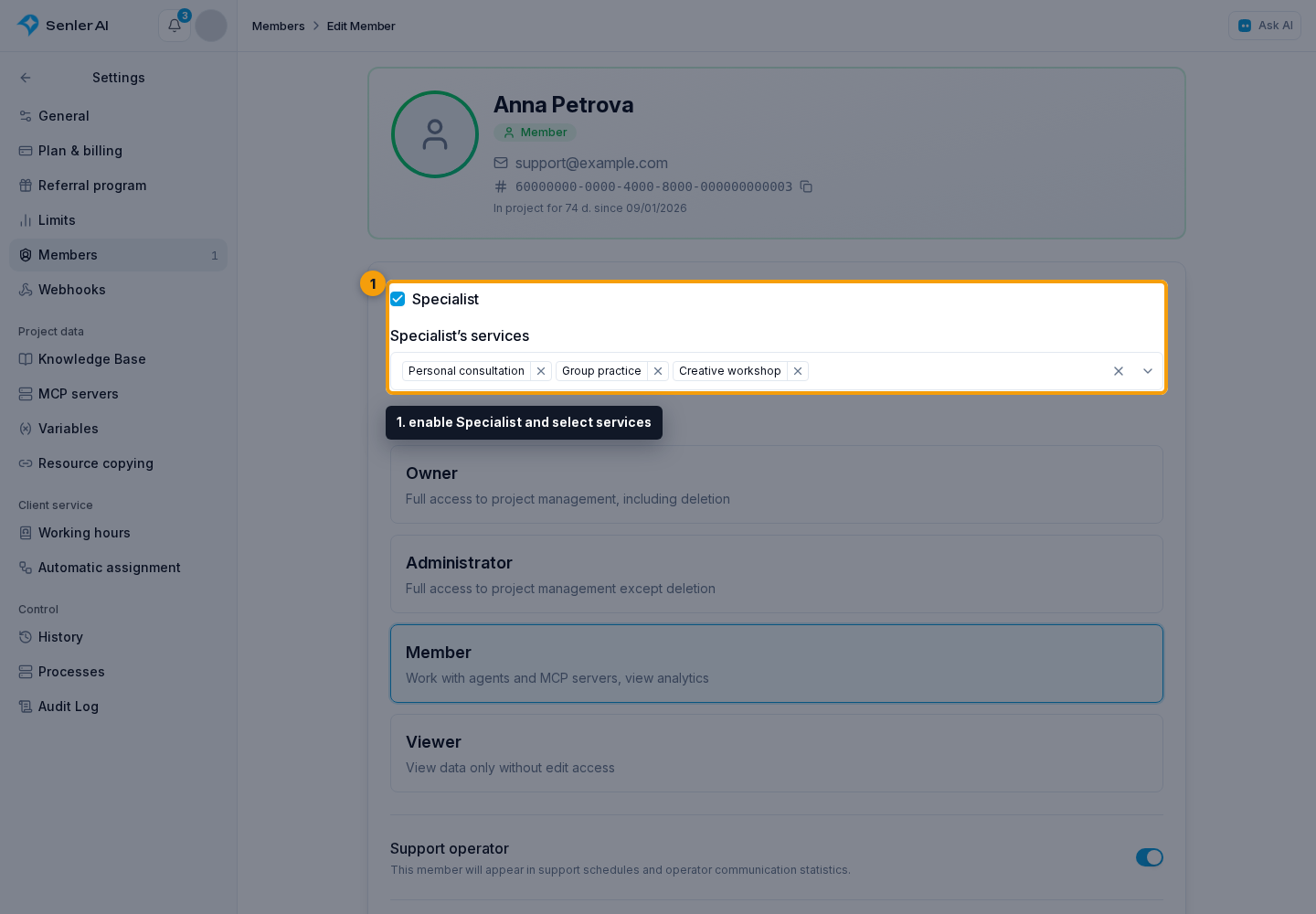
The Specialist setting does not change member permissions. Under the standard roles, owners, administrators and members can manage online booking, while observers can view it.