
Booking Journal
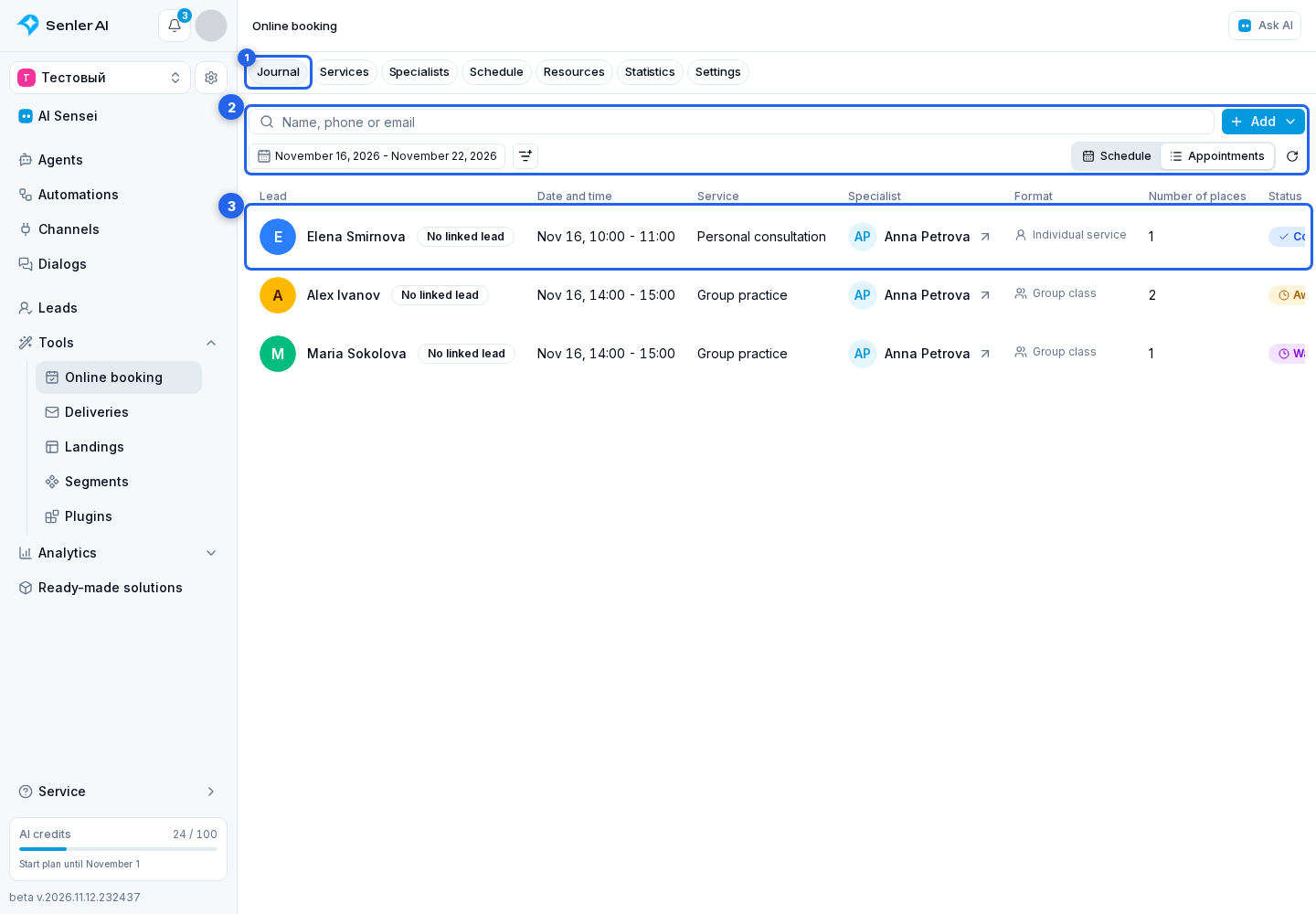
The Journal tab has two modes:
- Schedule: individual appointments and scheduled group classes for a day or week. Each group class appears as one card.
- Appointments: a table of client bookings. Each row is a client's booking for a service; the group class itself is not added as a separate row.
The Lead column shows the linked lead’s name and avatar when you have permission to view leads. Without a link, it shows the contact name from the booking and a No linked lead label. Other details have separate columns; on a narrow screen, the table scrolls horizontally.
Find a booking
The journal opens in Schedule with Week selected. Choose Appointments in the journal toolbar to find a client in the table.
In the journal toolbar, choose a period, enter a client name or contact, and switch the view if needed. A period can cover up to 31 days.
Click Add filter to select a service, specialist or status. The cross next to a filter removes it. Search and selected filters are kept in the page URL.
Click the client's row to open the booking you found.
Day and week
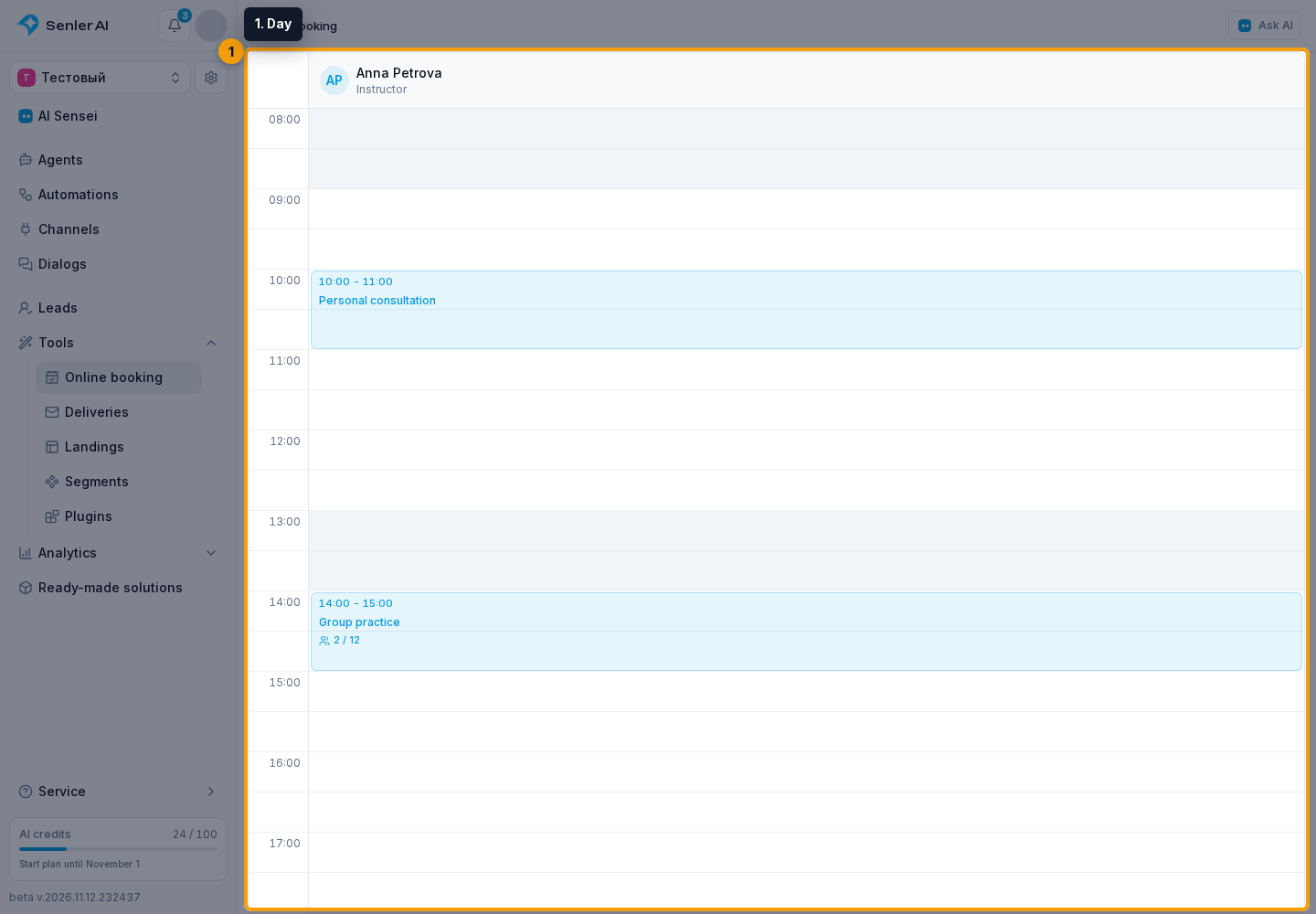
In Schedule, choose Day: time runs vertically and specialists and resources appear in columns. A booking's height reflects its duration. Non-working hours and breaks are shaded. Group classes show occupied seats and capacity. Click an appointment or class to open its details.
For an individual appointment, you can click an empty working-time cell. The form opens with the specialist, date and time selected; availability is checked for the chosen service. Then enter the client's details and save the booking.
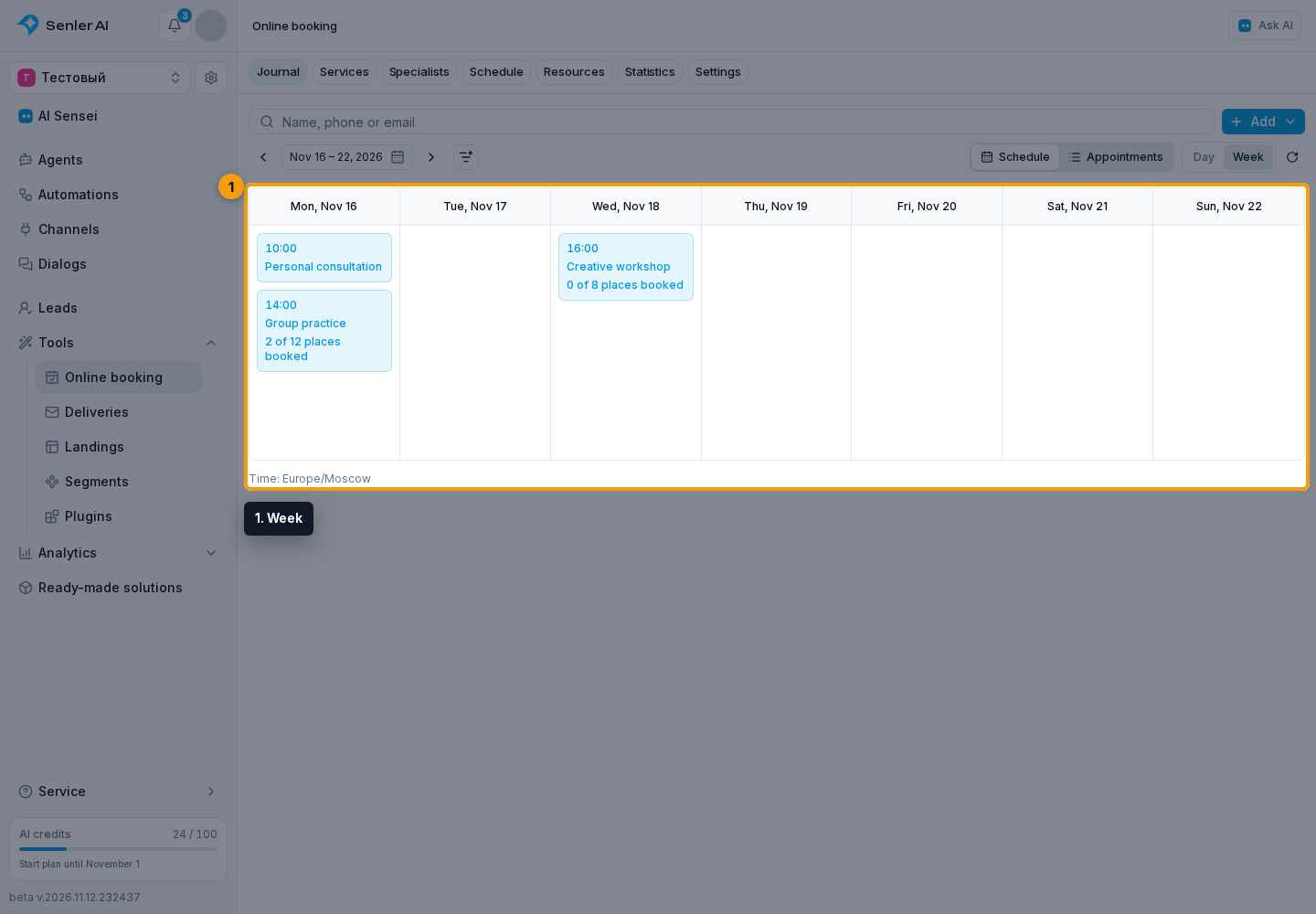
In Week view, sessions are arranged across seven dates. Clicking a date opens its daily grid. The week picker shows a Monday-to-Sunday date range. Click it and choose any day in the week you need: the calendar highlights the entire week. The arrows move by a day or a whole week depending on the view. On a narrow screen, the grid scrolls horizontally within the section.
Search by name, phone or email and service, specialist and status filters work in Appointments and Schedule. Without a client search or status filter, the schedule also shows classes with no bookings yet. Searching for a client or selecting a status leaves classes with matching bookings. Cancelled sessions remain visible with a Cancelled label unless excluded by the status filter.
Switching between Schedule and Appointments preserves filters and the table period. Returning to Schedule restores the selected Day or Week view and date. If no calendar date has been selected, the first date with a booking in the table period is used. Weeks run from Monday to Sunday. Reset filters removes search conditions while keeping the selected dates.
Participants appear as the final section of the group class details. Opening a participant's booking does not switch the journal view or add filters.
Book a client
- Click Add and choose Book client.
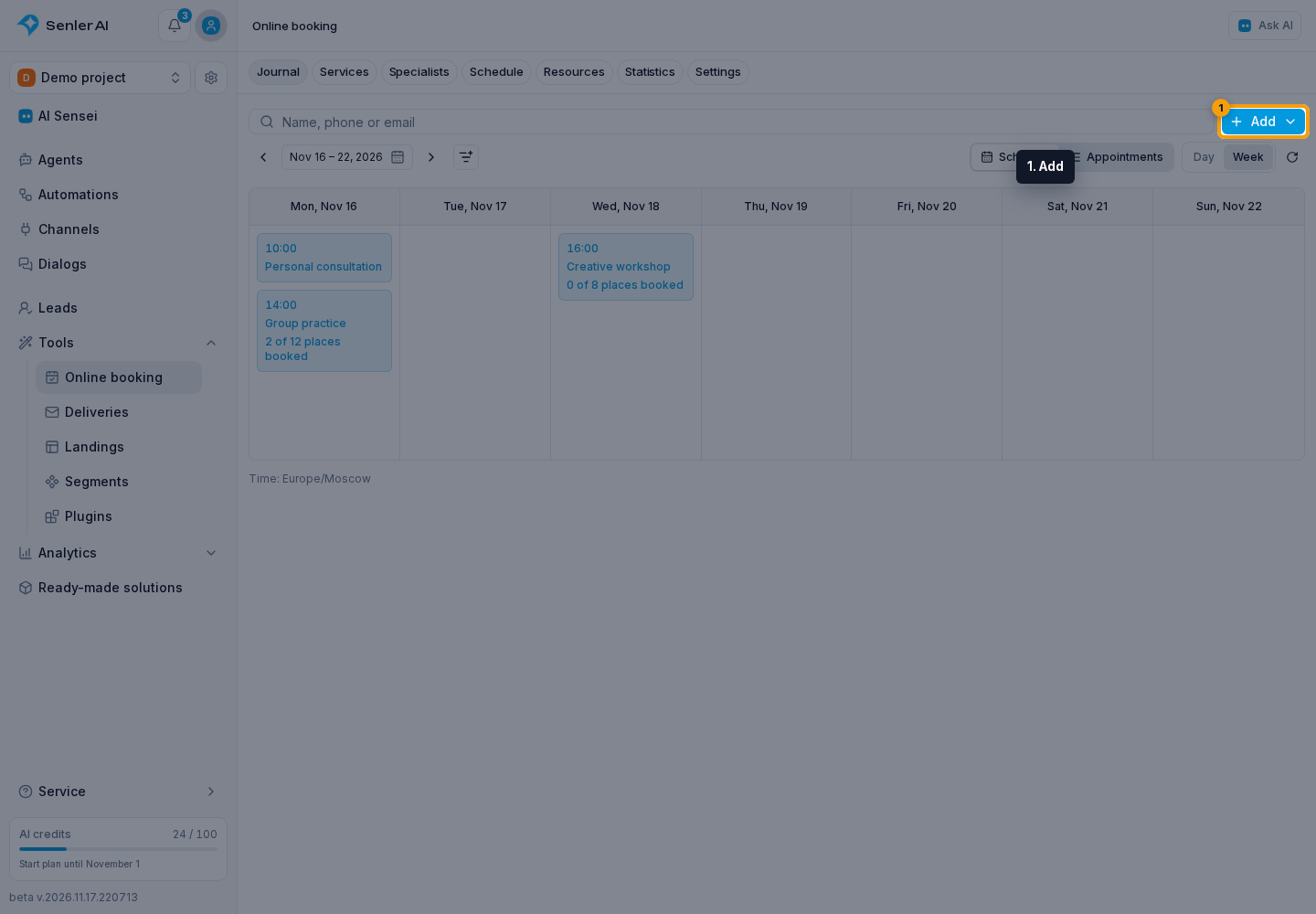
- In the booking form, select a service, specialist, date and available time.
- Enter the client's name and contacts. Optionally select an existing lead using search; this requires permission to view leads. Entering a phone number or name does not link the booking to a lead by itself.
- Click Book.
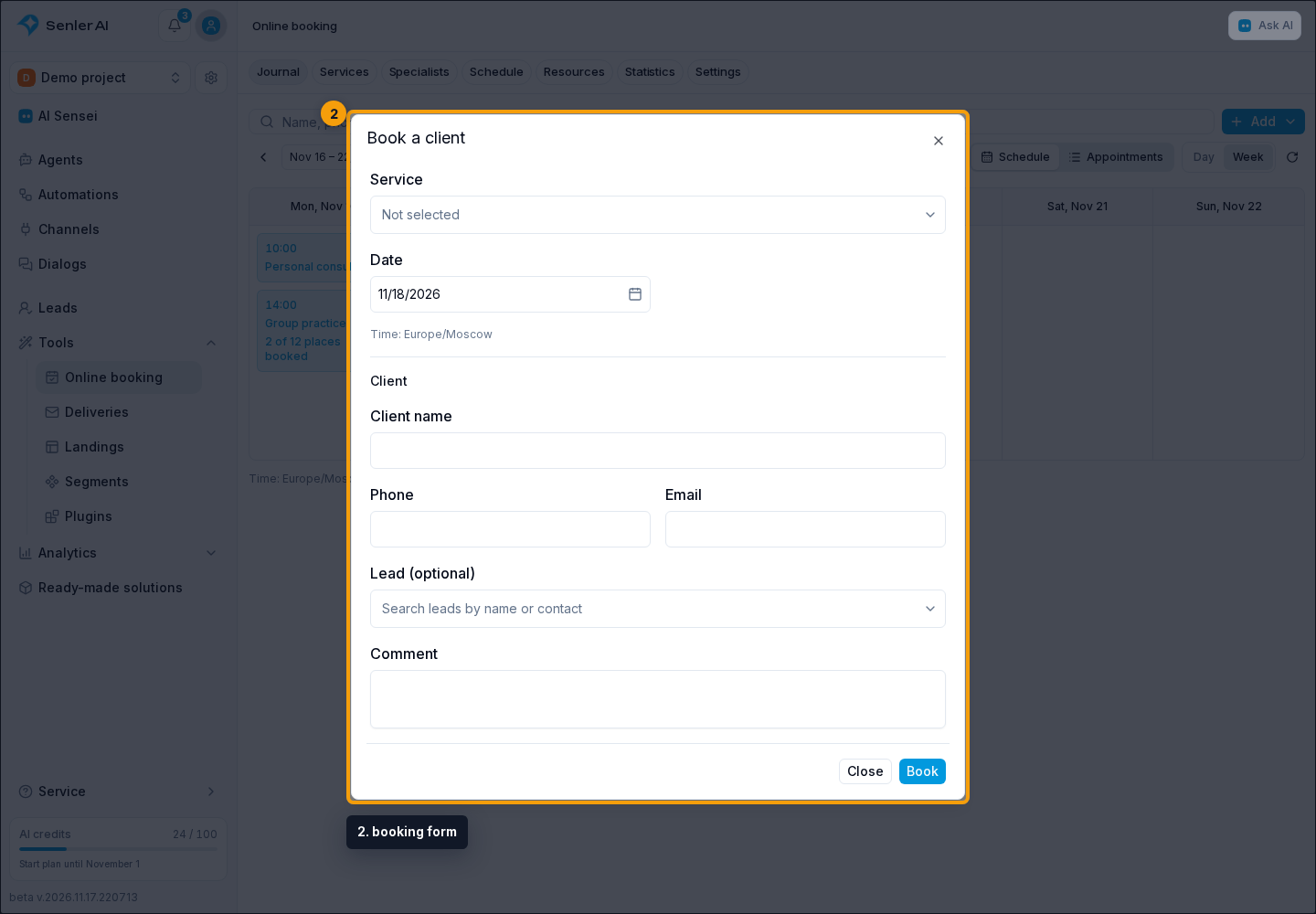
For a group booking, open the class in Schedule and click Book client above its participant list.
Staff bookings are confirmed immediately. Staff can choose a time closer to the start or beyond the horizon in client booking settings. Times must be in the future; working hours, specialist availability, resources and free seats are still checked. Waiting list entries remain waiting and do not occupy seats.
Change a booking
The booking details offer actions appropriate to its status: confirm, mark arrival, complete the visit, mark no-show, reschedule or cancel. For groups, you can change the seat count or promote a client from the waitlist. The main action has its own button; other actions are in More. Client arrived records arrival without completing the service; Complete means the service has been provided.
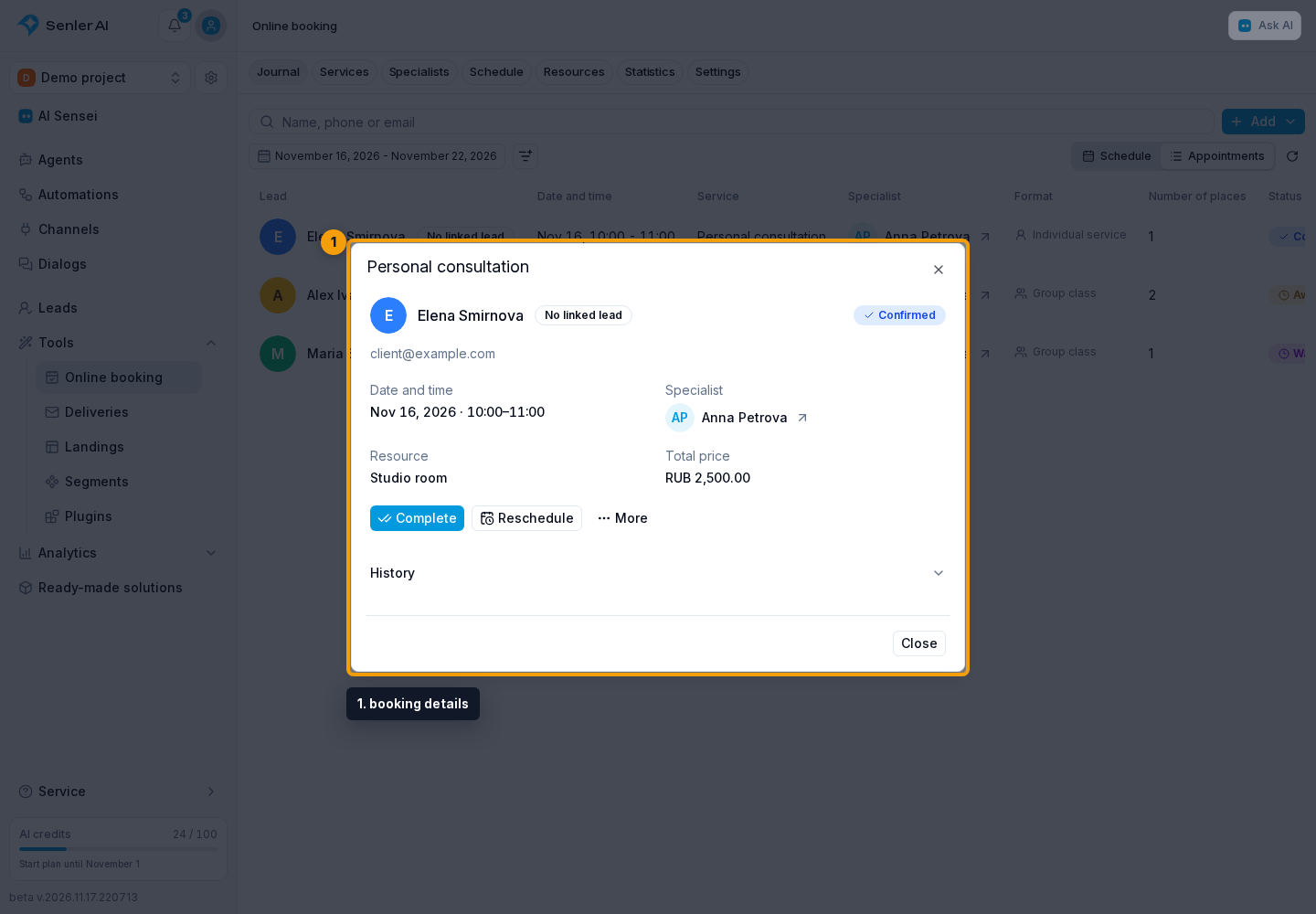
When rescheduling, choose a new time; for groups, choose another session of the same service. If the slot is taken, the original booking is preserved. An individual booking uses its saved duration and buffer even if service settings have changed.
Completed, cancelled and no-show bookings cannot be rescheduled, have their seat count changed or return to an active status.
History and result checks
Expand History in booking or session details. It shows previous and new values, including time, specialist and resource. After moving to another session, the history of sessions during the client's participation is retained.
If the form offers Check result after submission, use it: the operation's outcome is still unknown. Checking does not create a second booking. It remains available after closing and reopening the same form in the current browser tab.
If the saved request cannot be read, contact support before repeating the action. If an application update prevents resubmitting the previous request, continue checking its result. Do not clear the tab’s data or create another booking until the first attempt’s outcome is known.