
Calling automations
An agent can start selected automations during a conversation. For example, it can collect order details, call a delivery calculation and use the returned price in its reply. The automation is connected as a tool: the agent knows its purpose and required parameters.
Prepare the automation
- Create an automation with a Start step.
- Set its description and input parameters: when to call it and which details to pass.
- If the agent needs data for its reply, add a Return result step.
- Publish and enable the automation.
Connect it to the agent
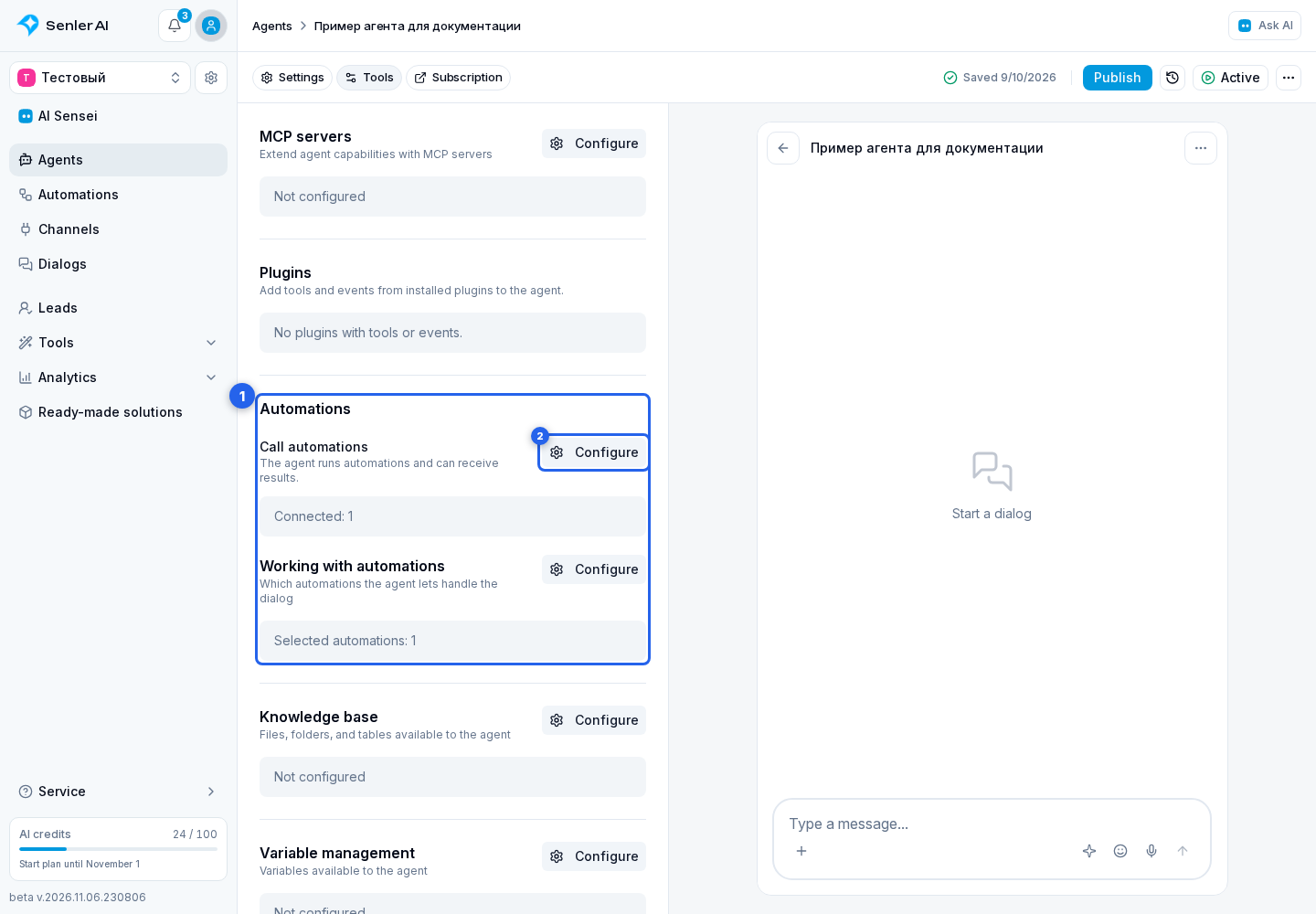
On the Tools tab, find the Automations section and click Configure next to Automation calls.
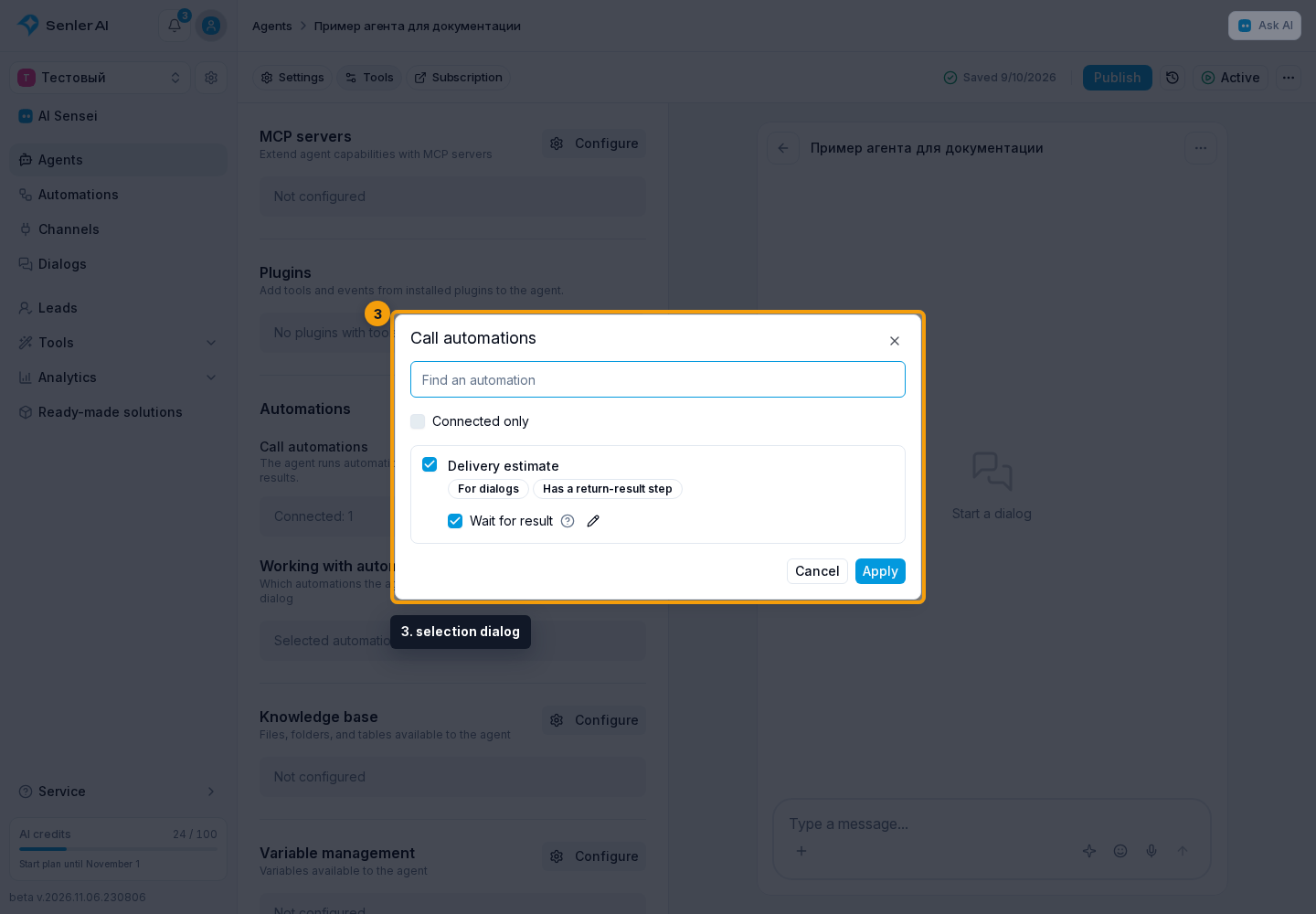
In the selection dialog:
- Find the automation by name and select it. You can connect up to 50 automations from your project. Connected only narrows the list to selected workflows.
- Enable Wait for result if the agent needs data from the workflow. This mode is enabled when selecting an automation that has a return step.
- By default, the agent waits up to 60 seconds for a result. To change the time for this automation, click the pencil beside Wait for result, enable Change waiting time and enter 1 to 300 seconds. Turn the switch off to use the default time.
- Click Apply, then publish the agent.
You can select a disabled or unpublished workflow in advance, but the agent can call it only after it is published and enabled. A warning in the row indicates a missing return step, so you can spot a wait that may end without a result.
Explain the task to the agent
Add a rule to the instructions, for example: "To calculate delivery, ask for the city and order amount. Call the delivery calculation automation. Tell the customer the price only after obtaining the result."
The agent passes the declared parameters. A For dialogs automation uses the current conversation context; a background automation gets parameters without a lead or dialog association.
Distinguish a start from a result
- Without waiting: the tool confirms only the start. This does not confirm that an order was created, a message was sent or the entire workflow finished.
- With waiting: the first Return result step that runs supplies its name and data to the agent. One tool can return different outcomes, such as Delivery available with a price and delivery time, or No delivery with a reason and pickup address. Field descriptions for every result are available to the agent; no storage variable needs to be configured in the agent. Other automation steps may continue running.
- The timeout expires: the agent is informed that the automation has started but its result has not arrived yet. The automation continues running; a late result does not itself invoke the agent or send a new reply to the customer. Check the process before starting again, particularly if it may already have changed data.
- The process completes without a result: waiting ends and the agent is informed that no result was returned.
The Start step's re-entry rule may prevent another process for the same lead or dialog. A skipped start does not mean the workflow ran.
Connecting a tool does not replace the cooperation setting: that setting determines when the agent should avoid starting an independent reply to an event already accepted by an automation.