
Analytics identifier in an automation
This substitution selects a visitor identifier by analytics system, counter and identifier type. It is available in HTTP request fields and as the entire value of a Set variable step. It does not install a counter or send a conversion on its own.
Pass the data from your site
Obtain the ClientID through the site's counter and pass it to the widget using setAnalytics. Wait for this call to finish before the message that starts the automation:
await SenlerWidget.setAnalytics({
  provider: "yandex_metrica",
  sourceId: "12345678",
  identifiers: { client_id: clientId },
});
clientId is the actual string returned by the counter. Senler cannot calculate it from a counter ID or a lead ID. Existing messages are not retroactively updated with a new ClientID.
Insert an identifier
Open the substitution picker in the relevant field and select the Analytics tab. Complete the identifier form:
- Analytics system: for example,
yandex_metricaorgoogle_analytics. - Counter or source ID: the exact
sourceIdpassed to the widget. - Identifier type: usually
client_id.
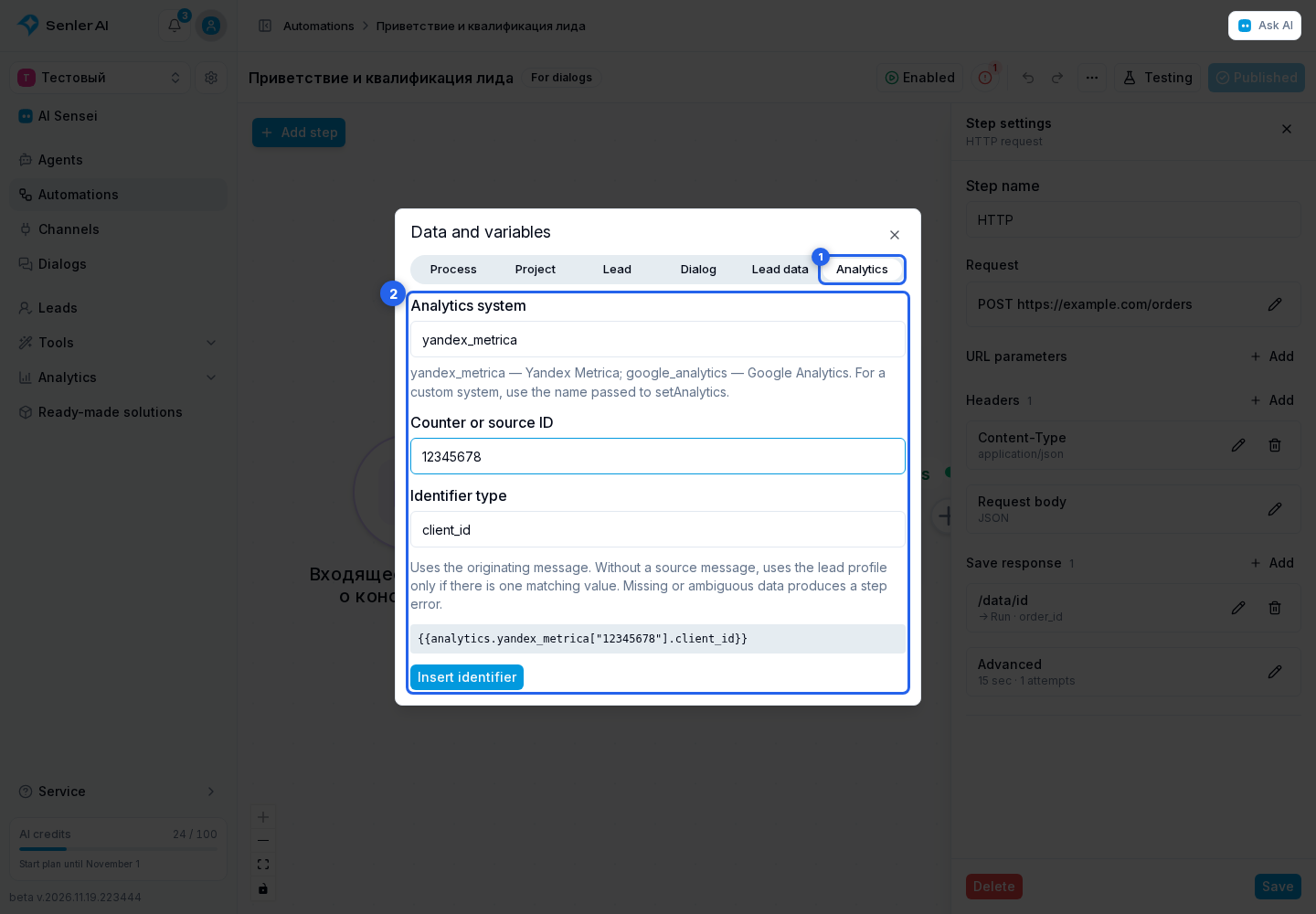
Click Insert identifier. Example:
{{analytics.yandex_metrica["12345678"].client_id}}In an HTTP form, this can be the value of cid. In a JSON body, inner quotes must be escaped; the insert button does this automatically:
{"cid":"{{analytics.yandex_metrica[\"12345678\"].client_id}}"}The counter ID must be double-quoted. Dots and colons within it are literal characters, for example {{analytics.my_analytics["analytics.example:42"].visitor_id}}. The identifier is returned as a string, preserving leading zeros.
For Set variable, use the entire substitution as the value and choose the text type. You can then use the saved run variable, such as {{run.client_id}}, in other steps. The Analytics tab is not shown in message editors or when selecting a variable name to modify.
How the value is selected
Values are selected once when the process starts, separately for each system, counter and identifier type:
- Use the data from the message or subscription event that started the process.
- If that source lacks the requested identifier, use the latest known lead value, ordered by when visitor data was received.
- Save the selection in the process. Waiting for a reply, switching devices, changing the lead profile or retrying a step does not change it.
For example, a person starts a process on a phone with ClientID A, then replies from a computer with B. This process's HTTP step sends A. A new process started by an event carrying B uses B. If a subscription event has no ClientID and the latest known value at startup is B, the process saves B.
Returning from a known device updates the ID observation time: A → B → A makes A the latest value. Importing a file does not establish a visit time or replace newer visitor observations. For historical data without timestamps, a single distinct value can be used; if multiple values have an unknown order, the step reports that the latest ID could not be determined. Array order is not treated as visit order.
If the ID was unavailable at startup, receiving it later does not update that process retroactively. Send the data through setAnalytics before starting a new process. If the stored snapshot or a determined value is unavailable, no HTTP request is sent and the Error output is used.
Retrying an HTTP step with a stored result reuses that result without sending another request. A database read failure while preparing the start remains a technical error and can retry through the existing queue.
This substitution does not return the page URL. Supply a full URL for a page-restricted goal separately; site_origin contains only the site origin without a path. Goal setup, authentication and other request parameters depend on the analytics system.