
Landing blocks and actions
Register a block or action
Open your app under “For developers” and select “Landing blocks”. The table shows name, type, and status. The status menu enables or disables an item; the three-dot menu provides settings and deletion.
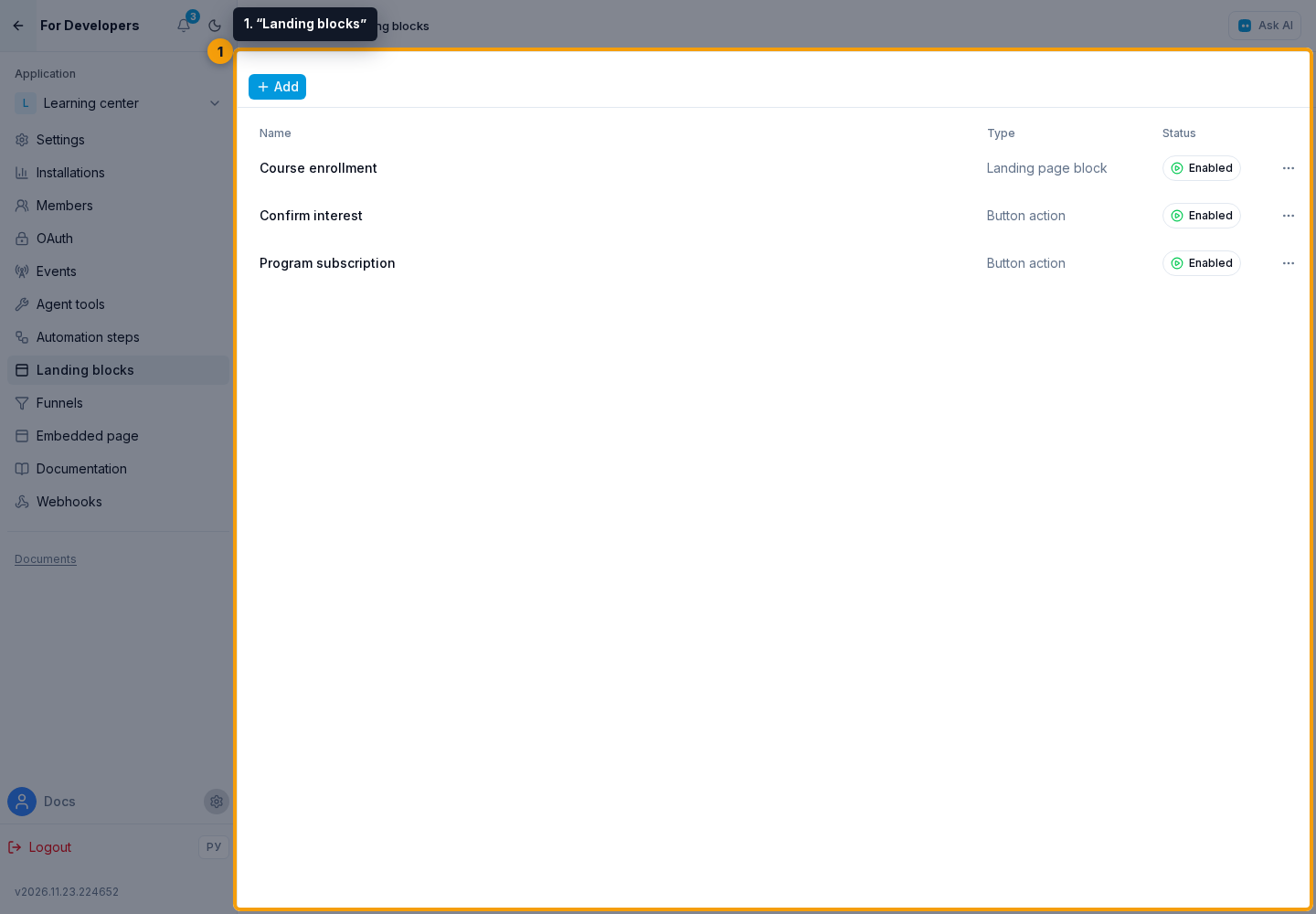
Click “Add” or open a row to go to a separate settings page. Breadcrumbs return to the list; the last item shows the component name.
- Select “Button action” or “Landing page block”.
- Enter a name and permanent key, such as
answer. The key and type cannot change after creation. - For a button, select “Subscribe” or “Standalone action”. A subscription needs no handler URL: the app receives the segment subscription event. A standalone action needs an HTTPS POST handler URL. A block needs the HTTPS URL of its iframe page.
- Under “Block configuration”, select “None”, “Embedded page”, or “Parameters”.
- Save the enabled definition. It becomes available to the landing owner after the app is connected to the project.
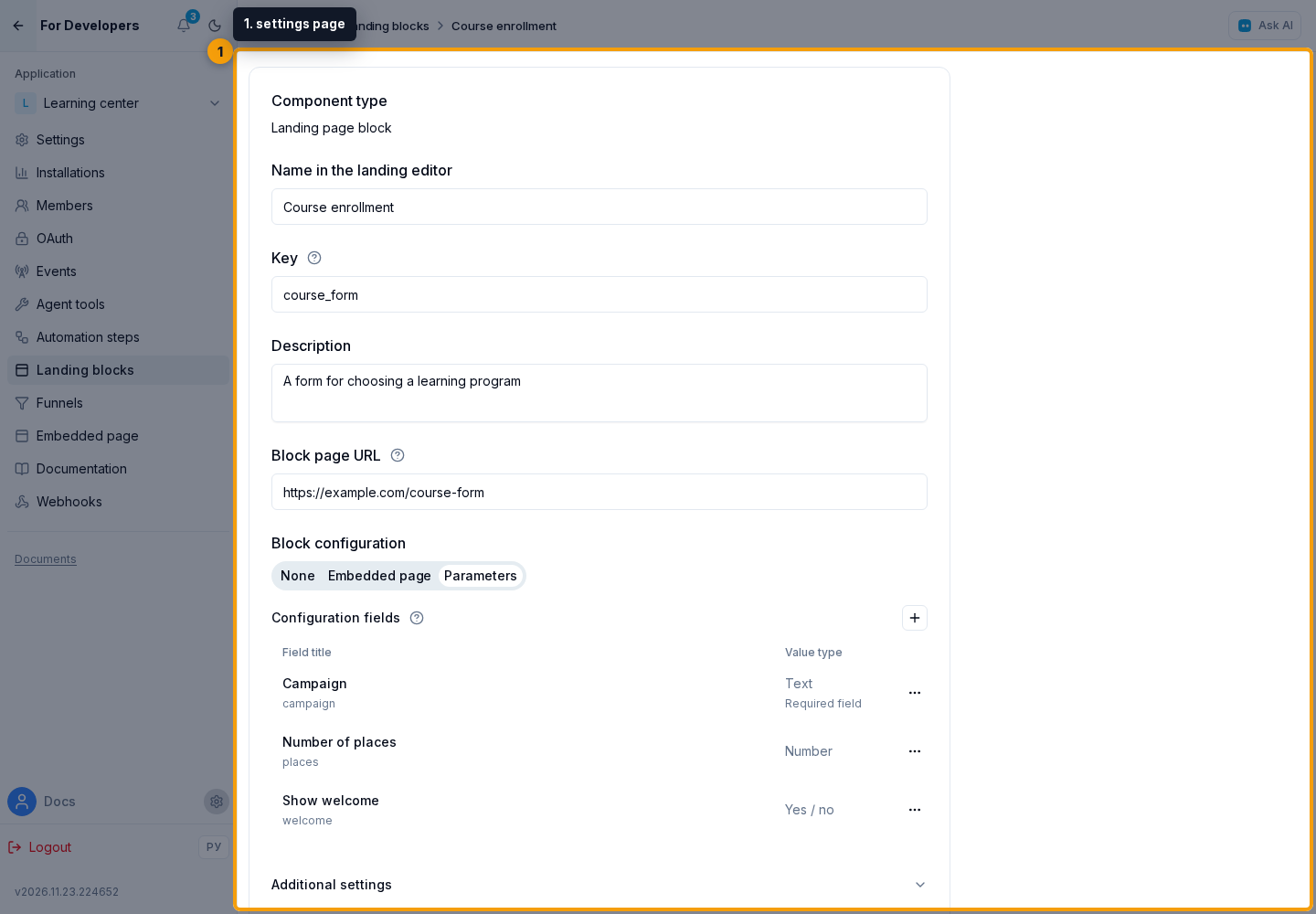
“Additional settings” starts collapsed and opens when it contains an error. Field explanations are available through “?”. Editing one field does not clear other fields’ errors. An app supports up to 50 definitions, with up to 30 configuration fields each.
Add configuration fields
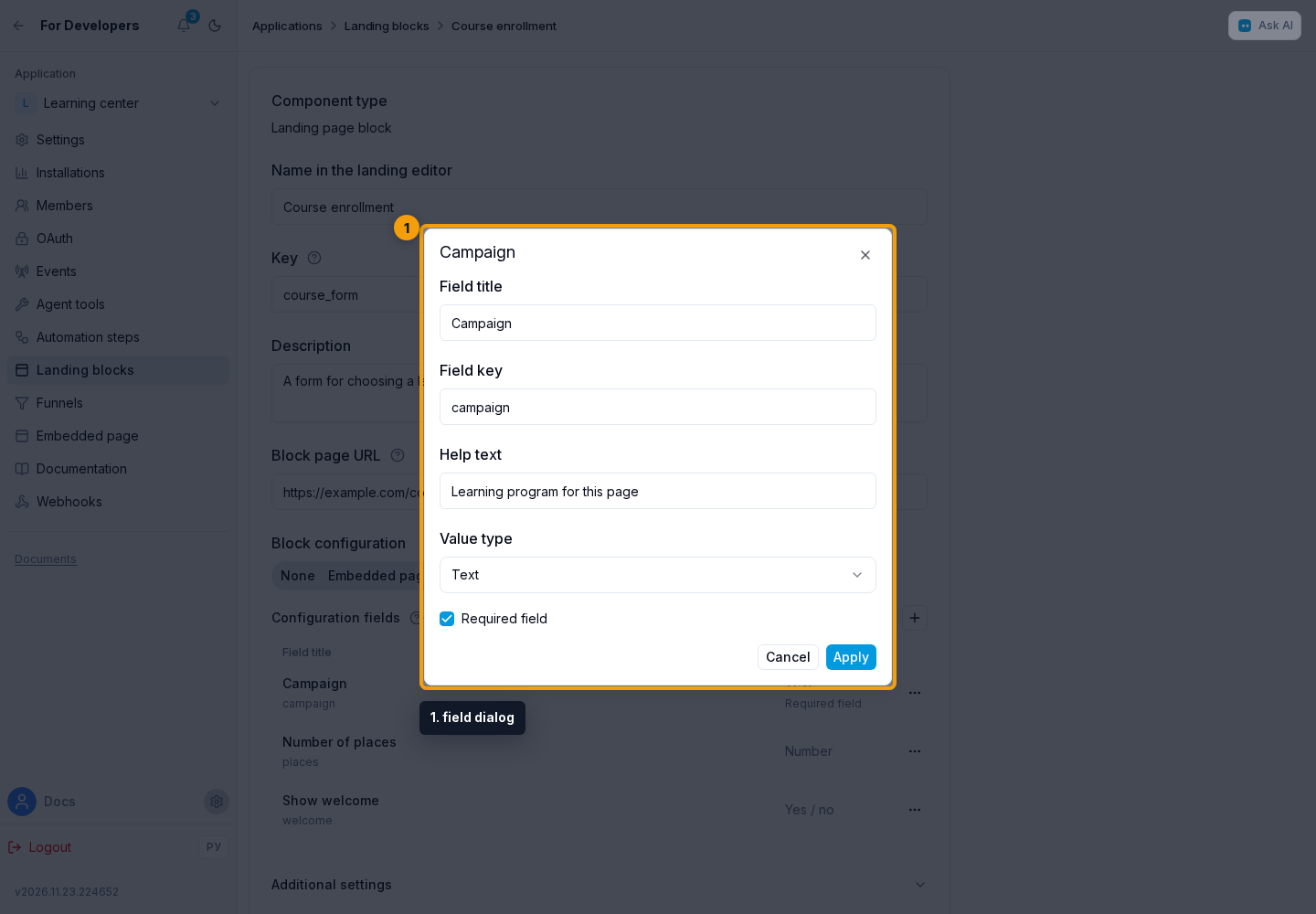
The “Parameters” tab keeps the field list visible. Click “+” with the “Add setting field” tooltip or open a row.
In the field dialog, enter the key, title, hint, “Text”, “Number”, or “Yes / no” type, and whether it is required. “Apply” transfers changes to the block form; “Cancel” discards changes made in the dialog.
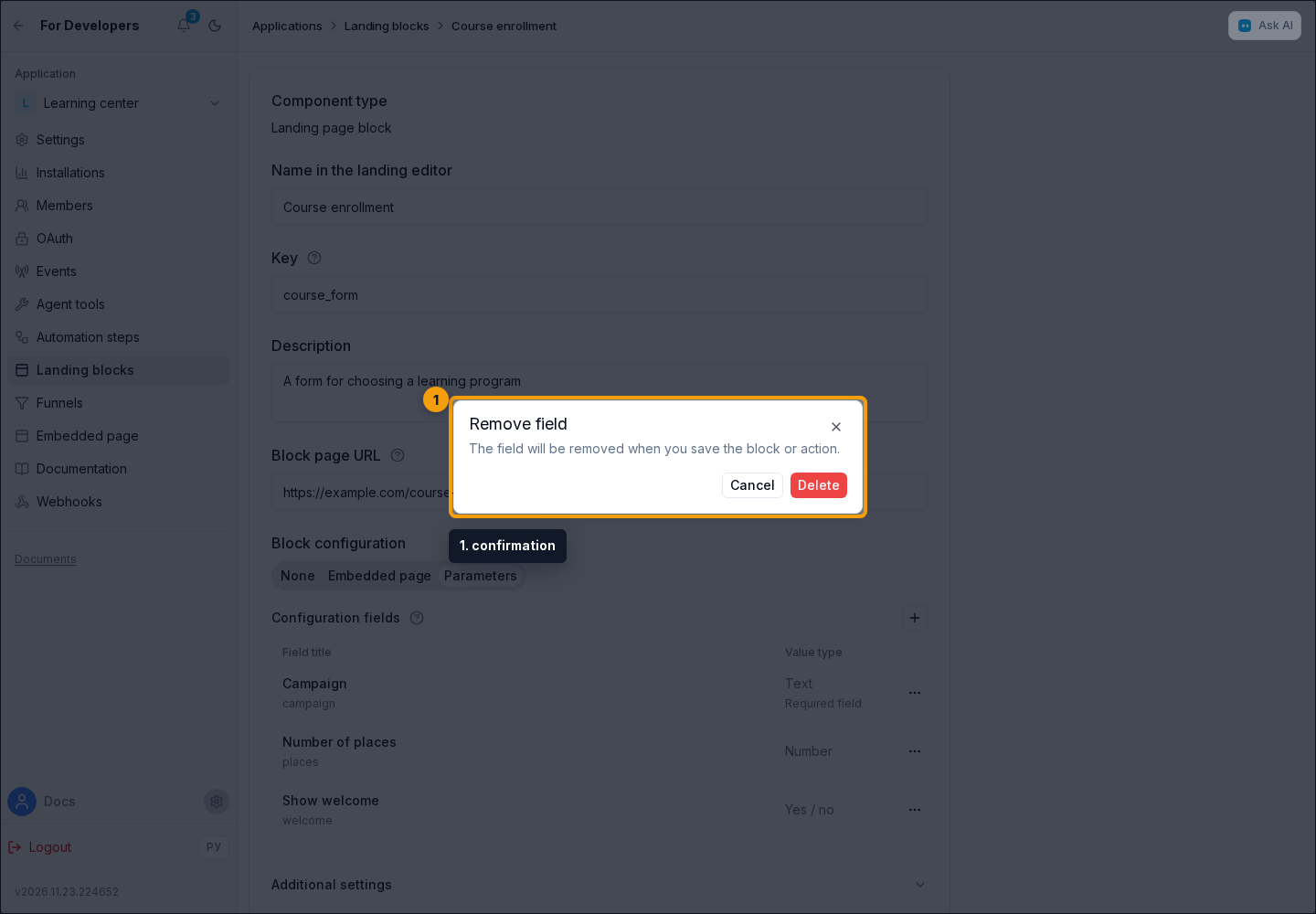
Deleting through the three-dot menu requires confirmation. Save the block after changing the list: until then, the app definition’s fields remain unchanged. Field errors appear in list rows and in the corresponding field dialog.
Connect an embedded form
The mode is saved in configuration_mode: none, embedded, or parameters. Before choosing embedded, set the embedded page URL in the app's general settings (embedded_page.url). This page configures the block for the landing owner; frame_url still opens the block for visitors. The app does not need a separate entry enabled in the project menu for the form to work.
In the landing editor, “Configure in app” opens the embedded page in a dialog authenticated as the current user. Bridge provides launch.type: 'landing_configurator', the app, project, and installation IDs, component: { method_name, kind, title }, and the saved configuration. The app renders its own form, such as a list of referral programs by name. The handler returns the selected values when the owner clicks “Apply”:
bridge.onLandingConfiguratorSubmit(() => ({
  kind: 'landing_configurator',
  configuration: { campaign_label: selectedCampaign.label },
}));
Senler applies the result to the block or button action draft. “Cancel” closes the dialog without applying changes. The owner then saves and publishes the landing as usual. Do not store secrets in configuration: it is available in the public landing. The configuration mode does not define visitor authentication or change the button's behavior.
This section registers a subscription action, a ready handler, or a page. The developer hosts the POST handler and iframe code in their app. Definition changes apply to subsequent calls; disabling or deleting a definition stops its execution on published landings too. Saved landings are not deleted. After changing the button mode, select its action again in the editor and publish the landing.
Registration and invocation contract
For automated setup, use GET/POST /api/apps/:appId/landing-components and PATCH/DELETE /api/apps/:appId/landing-components/:componentId with can_manage_app_settings. The name in the signed call is landing__<key>. These actions are not exposed through MCP and do not use a project management session.
The button mode is stored in the required button_mode field: subscription or action; an iframe block uses null. For subscription, the owner selects the app action, segment, and subscription channels in the editor. The published button stores a regular subscribe_segment action with an additional app binding. After a successful segment join, an app subscribed to the segment_subscribed webhook receives its settings in data.landing_app: { method_name, configuration } and its context from the a parameter in data.app_context, if provided. These fields are not sent to other apps or project webhooks. Clicking again as an existing subscriber does not create another join event. Subscription does not call a separate button HTTP handler.
The standalone action POST handler receives { "configuration": { "poll_id": "..." }, "input": {} }. The landing owner fills in configuration; Senler reads it from the published version, not from the visitor's request. These are public settings up to 16 KiB, without passwords or secrets. Button input is always empty. A block receives display settings through Bridge and requests their signed proof for backend operations, as shown below.
An absent field, false, 0, and an empty string are different values. A boolean offers “Not set”, “Yes”, and “No”; clearing a number removes the field from configuration. Incomplete settings can be saved as a draft. On publication, Senler validates configuration against the app schema and identifies the field that needs to be filled in or corrected.
The owner selects the app using the landing setup guide. The block URL must use public HTTPS without credentials or a fragment, on a different origin from the landing. Allow embedding on the landing domains through the app’s HTTP headers. The page loads in an iframe with sandbox="allow-scripts allow-same-origin allow-forms" and referrerPolicy="no-referrer". Theme, language, and height updates use @senlerio/bridge version 2.3.0.
The catalogue at GET /api/project-apps/landing-actions?project_id=... returns items and unavailable_apps. The catalogue reads app settings without loading OpenAPI. If an app definition no longer passes URL validation, other apps' actions remain available. The editor displays the unavailable app's name and a reload button; its saved settings are preserved.
A standalone-action button calls the app method directly; loading an iframe does not call it. Subscription mode uses the segment subscription and app event described above.
Connect the block page
Code inside the iframe:
import { createSenlerBridgeClient } from '@senlerio/bridge';

const parentOrigin = new URLSearchParams(location.search).get('senler_parent_origin');
if (!parentOrigin || new URL(parentOrigin).origin !== parentOrigin) {
  throw new Error('Missing embedding origin');
}
const bridge = createSenlerBridgeClient({ parentOrigin });
const { launch } = await bridge.connect();
if (launch.type !== 'landing_block') throw new Error('Unexpected surface');
// launch.configuration contains public settings for rendering the form.
const operationId = crypto.randomUUID(); // Persist for retries of this operation.
const { authorization } = await bridge.getLandingAuthorization();
const response = await fetch('/api/poll/answer', {
  method: 'POST',
  headers: { 'Content-Type': 'application/json' },
  body: JSON.stringify({ authorization, operation_id: operationId, answer: 'yes' }),
  credentials: 'omit',
  signal: AbortSignal.timeout(15000),
});
if (!response.ok) throw new Error('Could not save the answer');
getLandingAuthorization() routes a request through the parent landing to POST /api/public/landings/:landingPublicId/apps/:bindingId/authorize. The parent adds its app_token; the iframe never receives it. bindingId is the app block UUID. Senler checks the selected variant of the current publication, active installation and block settings, then returns { authorization, expires_at }. This proof lasts 60 seconds and contains signed settings and visitor context. The iframe sends it to its own backend alongside form data. The app developer defines the request URL and response format; Senler does not forward this request. The backend verifies the block authorization signature using the app secret. The parent page's one-hour visitor context becomes invalid after republishing; the page must be reloaded.
Requests to frame, authorize and execute accept only uncompressed JSON with a total body size of up to 32 KiB, including technical and unknown fields. Senler limits request rates per IP, app installation, and visitor, as well as concurrent requests. When a limit is exceeded, the server returns 429 with Retry-After without queuing the call. If admission checking is temporarily unavailable, it returns 503. Retry after the specified delay while keeping the ID of the same operation. The app backend applies its own limits to direct iframe requests.
A regular button calls POST /api/public/landings/:landingPublicId/apps/:bindingId/execute. An HTML block can invoke a published button action through window.SenlerLanding.runAppAction({ bindingId, operationId, input: {} }). Arbitrary app IDs, methods, or iframe block bindings cannot be supplied. The editor preview shows a placeholder and does not execute app actions.
The button handler returns { "data": { "saved": true }, "message": "Answer saved" }. data is required and must be an object; message is optional text of up to 1000 characters. The timeout is 15 seconds and the response limit is 64 KiB. After a lost response, keep the original operation_id; the backend must process the signature and Idempotency-Key.
senler_parent_origin and Bridge data configure transport and display, not authorization. Never authorize backend operations based on them. With requires_identity: true, Senler only allows the action after verifying identity through a connected messenger. Management tokens and the app secret never reach the browser.