
Booking on a Landing Page
Landing page visitors can choose services, a specialist or session, a time and seat count, then leave their contacts. First prepare active services and schedules.
Form on the page
- Add an Online booking block in the landing page editor.
- Select the booking block in the preview and open the block editor.
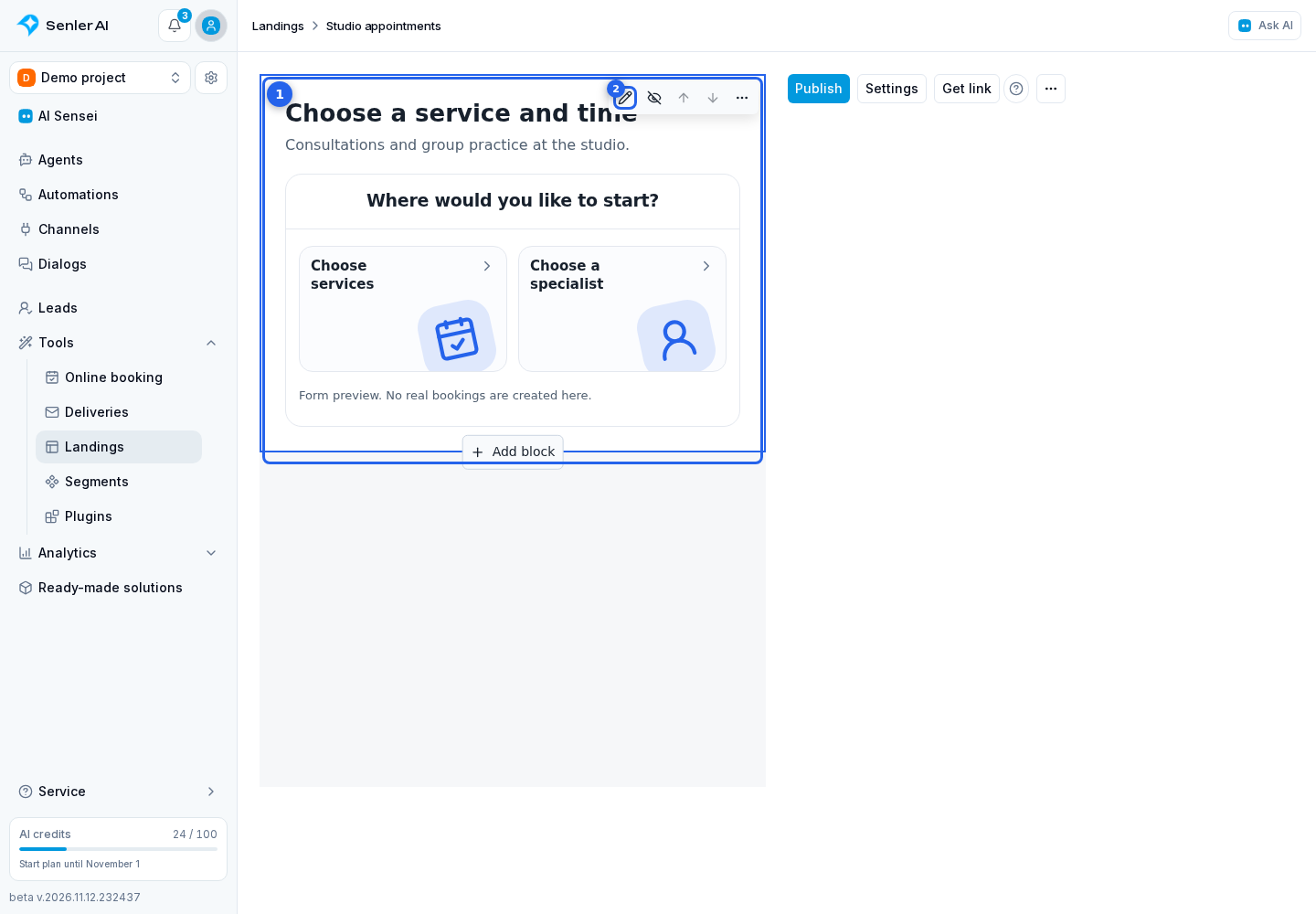
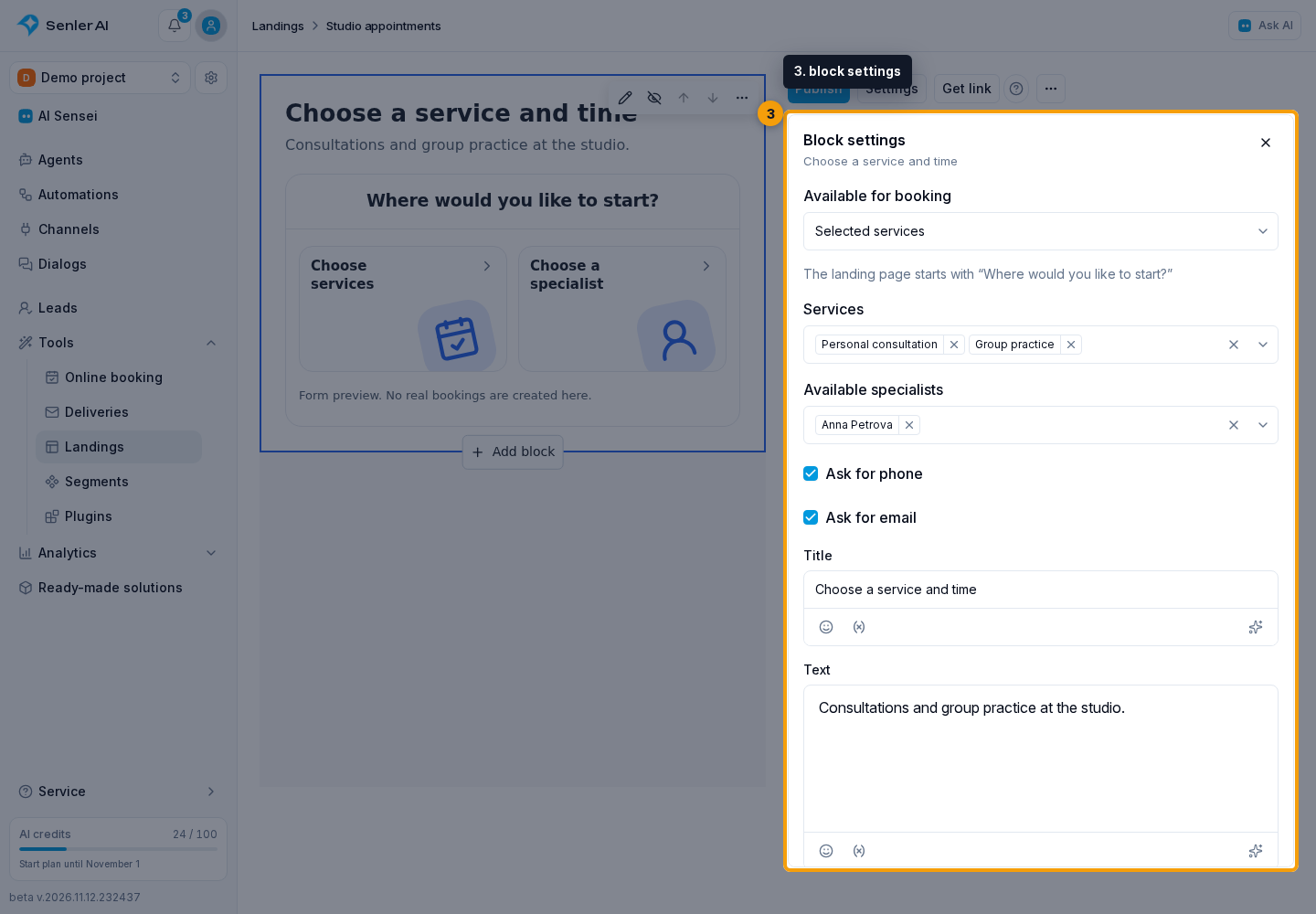
- In Available for booking, choose all services, selected services, one service, or a specific group class. For the entire catalog and a selected set, visitors start at Where would you like to start? For a specific service or session, steps that are already defined are skipped.
- Limit specialists if needed.
- Enable phone, email or both. At least one contact method is required.
The block settings contain the text above the form and booking options. The preview shows the opening screen within the landing page; it does not create real bookings.
Open with a button
Choose the Online booking action in a regular button and select services or a session. The same action is available for a product card button.
The button opens a booking dialog; no separate booking block is needed. Different buttons can lead to different services or sessions. Style the button in its own settings.
Publication and client booking
Publish the landing page and open its public address. Visitors see only the services, specialists and sessions allowed by that form and available on the landing page.
- On Where would you like to start?, select Choose services or Choose a specialist. In the latter case, the catalog is limited to that specialist's services.
- Choose a service. The catalog supports search and descriptions opened with Details. Several individual services can form one visit: up to 10 different services consecutively with one specialist. A group class is selected separately. If no specialist offers the whole set, change the selection. The list shows categories and uploaded service photos. For a group service, check the exact price and duration when choosing a specific session: sessions of the same service may differ.
- For an individual visit, choose a specialist or Any available specialist, then a date and time. If several specialists are available at that time, the form asks you to select one. Availability accounts for the duration of all selected services, buffers and resource occupancy.
- For a group booking, select the session and seat count. If a waitlist is available, visitors can request a place without reserving a seat.
- Check the services, specialist, time and total. Enter a name and the contact fields enabled in the form, then select Book.
Wait for the result: You're booked, Booking awaiting confirmation, or You are on the waiting list. The last status does not reserve a seat. If the time has been taken, the form asks you to choose another option.
If Check result appears after submission, it checks the previous attempt rather than creating another booking. Use it after reconnecting too. Do not start over while the result is unknown. For another visit, select Make another booking after the result is confirmed.
When you return to the page or reconnect, the form checks the saved visit's current time, specialist, and status. It can show confirmation, waiting, cancellation, check-in, completion, or a no-show. Services with different statuses, times, or specialists are shown separately.
We couldn't retrieve the current booking details does not mean the booking was cancelled. Select Check booking status and wait for the response. If the saved attempt cannot be found, use Check result first; Fill in the form again lets you re-enter the details for that attempt.
After the previous visit's time has passed, the form prepares a new booking. Make another booking also checks that the form and services remain available. If the landing page has changed, the form tries to retrieve its current settings; select Retry if it changes again. If bookings through this form are closed, use another available way to contact the organization.
If Reload page is offered, use it. Do not create an independent booking while the previous attempt's outcome remains unknown.
Connect booking messages
After saving the booking, the form may offer notifications through an available Telegram, VK or MAX channel. Entering a phone number or email does not by itself authorize messenger messages.
- Select an offered messenger. If there is one channel, select Open Telegram, Open VK or Open MAX.
- Start the bot for Telegram and MAX; for VK, send the community a message. In a VK mini app, message permission may be requested during booking.
- Return to the form and wait for Notification channel connected. If confirmation is delayed, use Check connection or Retry connection when that button appears.
A message connection error does not cancel the saved booking. Retry the connection for that booking rather than creating another visit. Channel availability depends on project connections and landing page settings.
For confirmations and reminders, configure an automation triggered by Booking notifications connected. Permission to send messages does not create a confirmation text or reminder schedule. See the full Forma barbershop example.