
Resources
A resource is needed when an available specialist is not enough: a service also requires a room, hall or equipment.
The table has separate columns for the name, type, number of linked active services, available units and status.
Open the Resources tab. Select a resource's row to edit it. Search by name or filter the list by status and resource type.
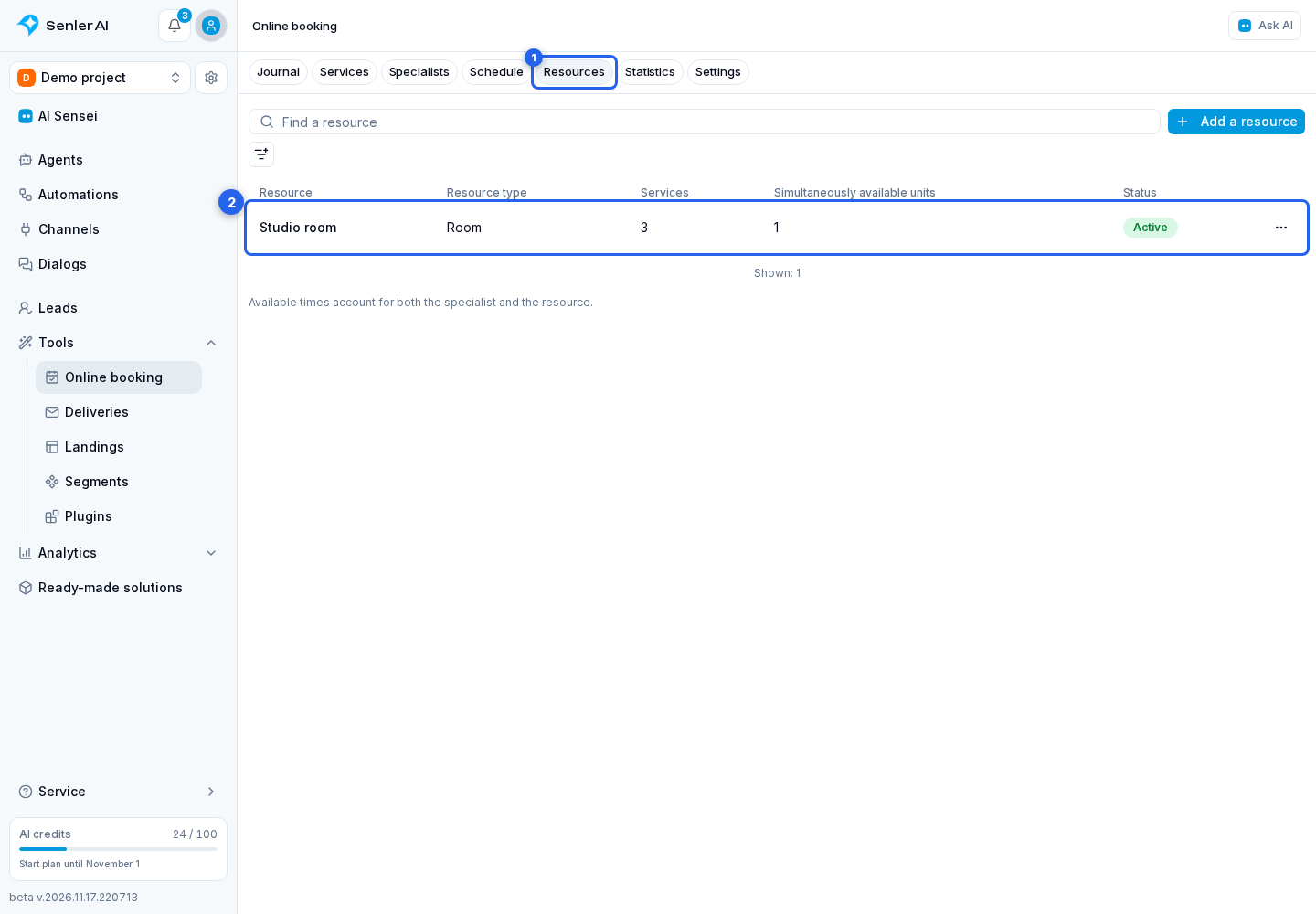
Add a resource
- Click Add a resource.
- Enter the name and type in the resource form.
- Set the number of concurrent uses in Simultaneously available units to a whole number of at least 1. The field cannot be left empty.
- Keep the resource active and save.
- Assign it to a service or when creating a session.
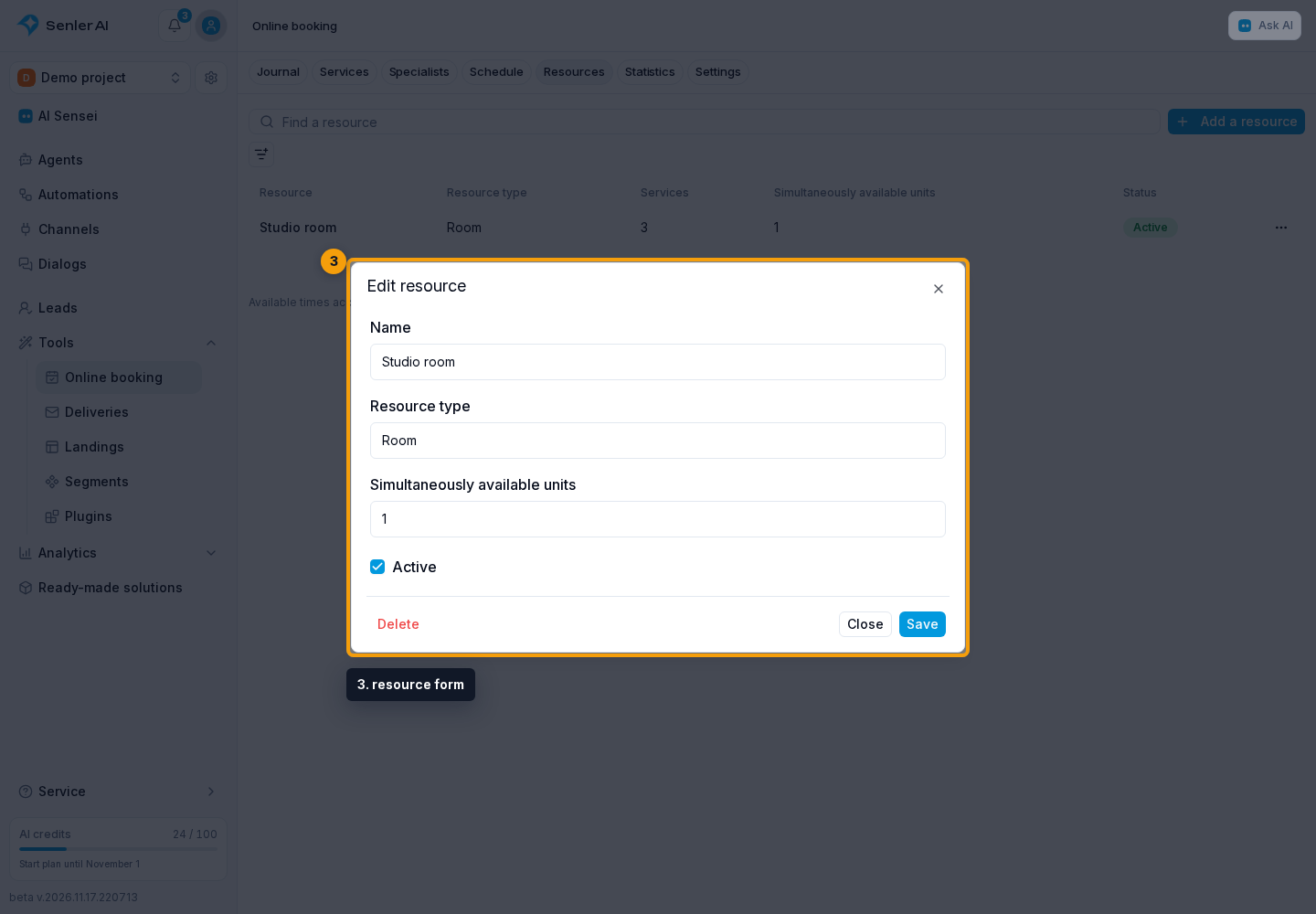
For example, a room with capacity 1 cannot host two appointments at once. A resource with capacity 3 allows three concurrent uses.
Resources and session seats
Resource capacity is not the number of participants. A group session reserves the resource once, even when ten clients attend. The session's own capacity limits the number of clients. Occupancy checks include the buffer after the service.
Active resources are available for new reservations. Clear Active to temporarily remove a resource from selection. To remove the profile from the catalog, click Delete at the bottom left and confirm. Existing bookings and sessions stay in the journal.