
Voice call recordings
Live voice calls with an agent are recorded. The chat shows a call card with its status and duration. The recording and transcript may become available after a delay following the end of the call.
Open a call in the cabinet
- Open the required conversation in the dialog list. You need permission to view the project's dialogs.
- Find the Voice call card. It shows whether the call is connecting, active, ended, or interrupted, together with its duration.
- When the recording is ready, press Play in the card. You can pause it or seek to the required point.
- Click Transcript to open the customer's and agent's lines with timestamps. If another part is available, click Show more.
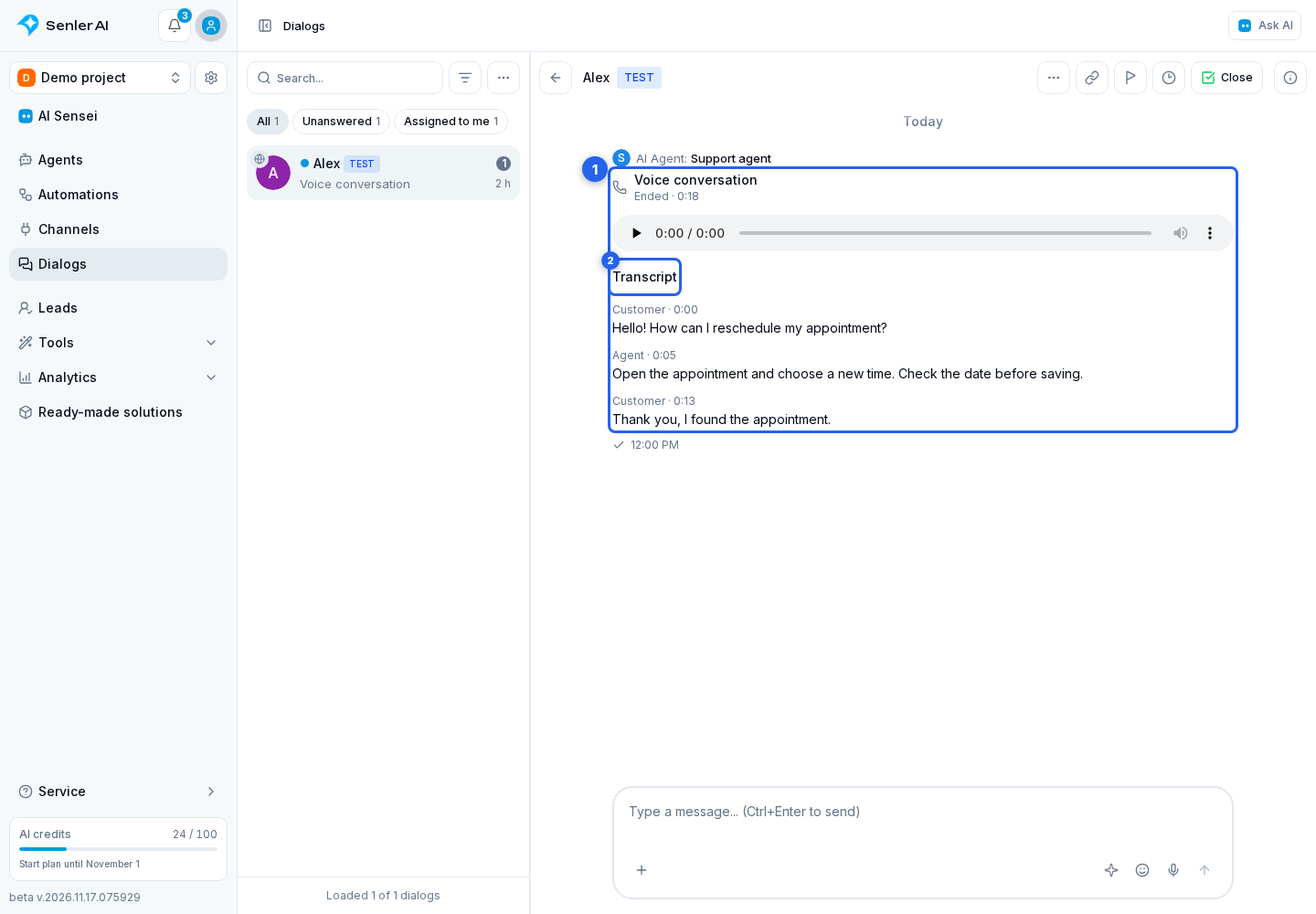
If Conversation events appears below the card, expand the list and select a line to view the original event's details.
Open a call in the widget
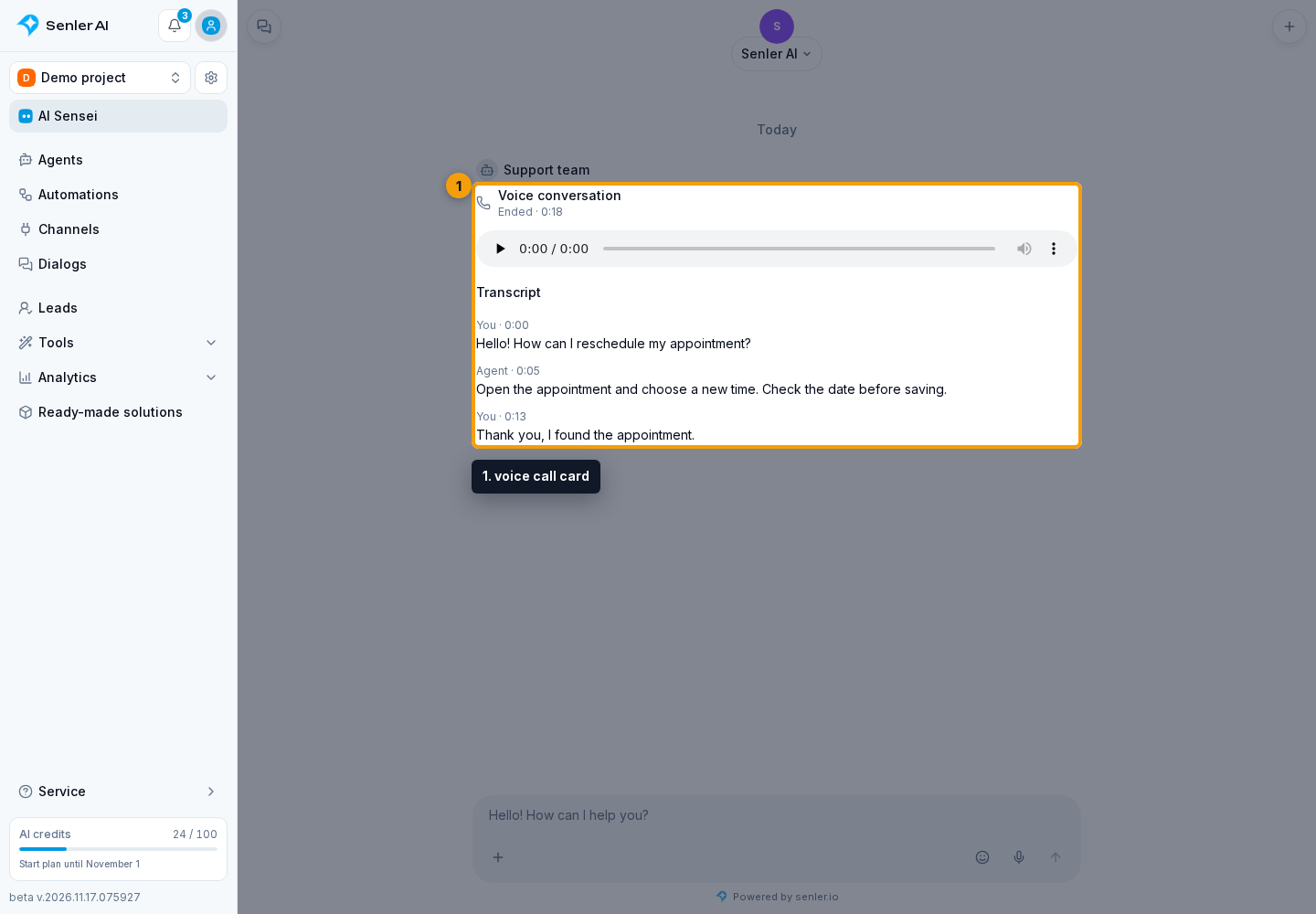
Find the voice call card in chat history. Use the audio player to listen, and Transcript in the widget to read the You and Agent lines. Load additional lines with Show more.
If audio or text is unavailable
| State | What to do |
|---|---|
| Saving recording… | Wait for processing. The card refreshes automatically. |
| Audio recording unavailable | There is no ready recording for this call. Check the transcript: text and audio may have different availability. |
| Could not load the conversation | Click Retry in the card or transcript after restoring the connection. |
| Could not play the recording | Click Refresh recording, then start playback again. |
| No speech recognized | The loaded transcript has no recognized lines. This does not confirm that the audio recording contains no sound. |
| The transcript may be incomplete | Allow for missing parts in the text; if a recording is available, listen to the relevant section. |
Reloading a call card or recording does not start a new voice call.