
Schedule
A schedule determines when a specialist can see clients. Times use the project time zone.
Regular working week
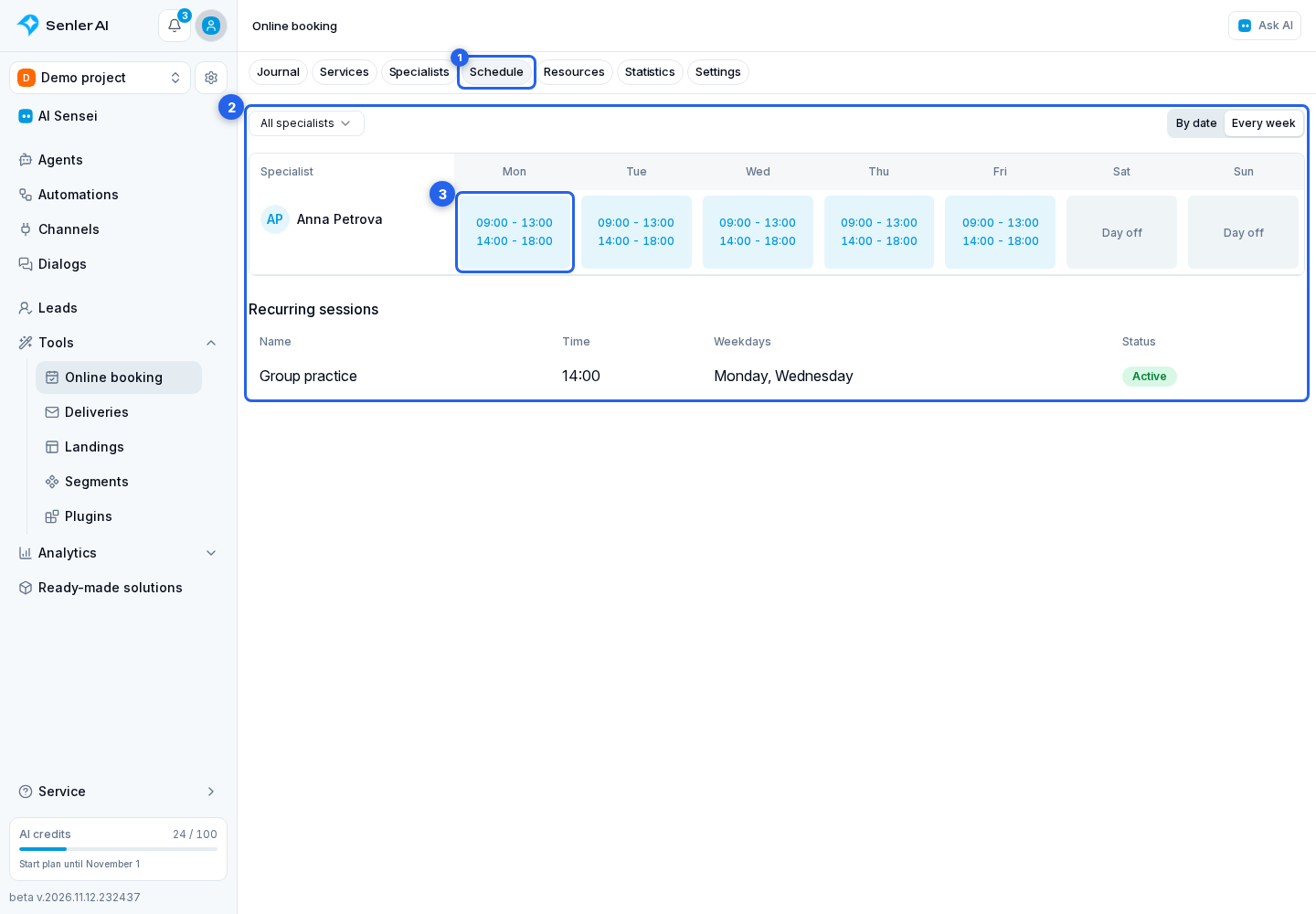
- Open the Schedule tab.
- In the work schedule, choose Every week. Show all specialists or select one.
- Click the day cell in the specialist's row.
- In the shift dialog, select the Working day tab and set the start and end times.
- For breaks, click Add a break and specify the times. For example, a 09:00–18:00 shift with a 13:00–14:00 break.
- Click Save shift.
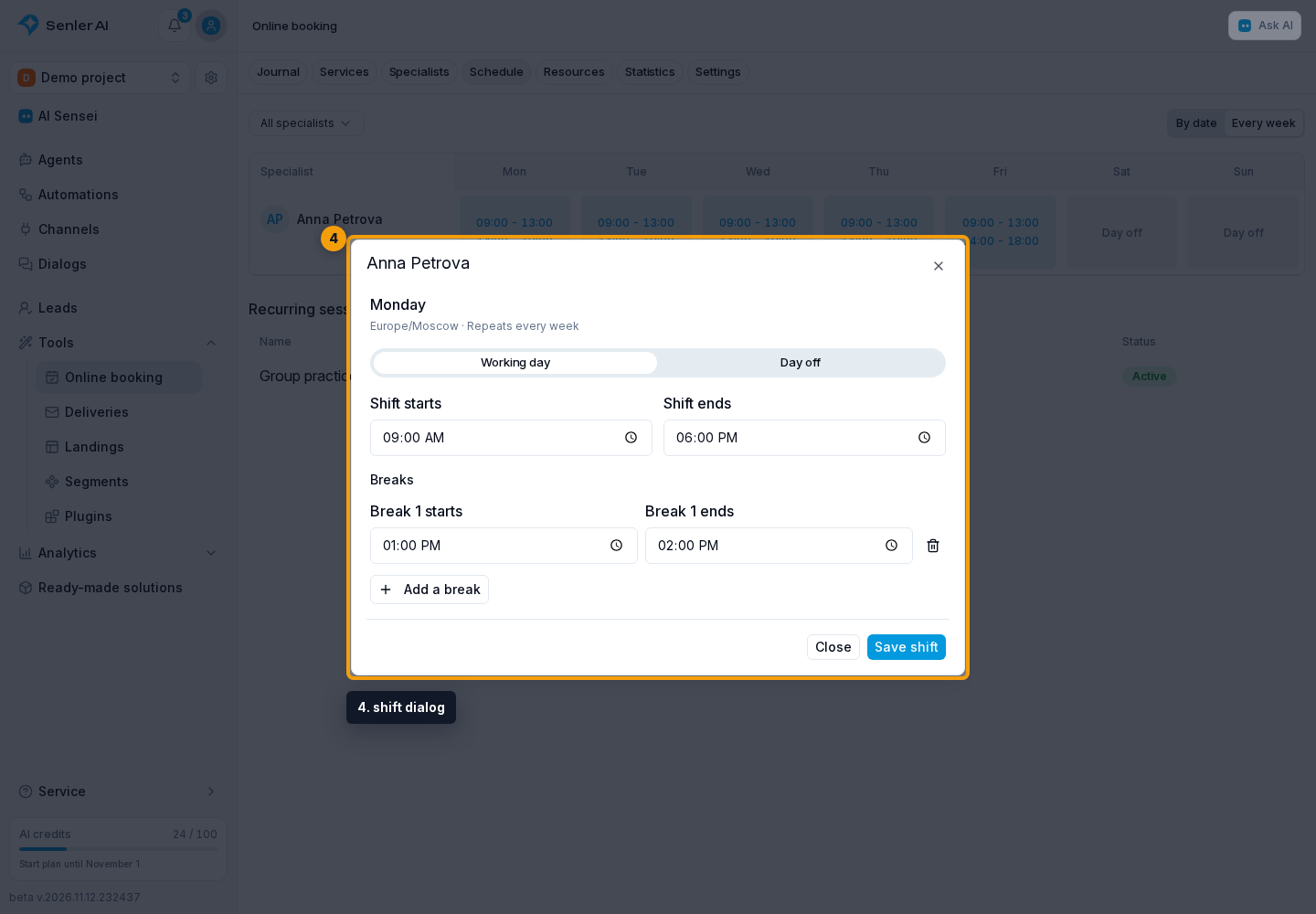
To remove working hours for this day, select the Day off tab. Breaks must be inside the shift and cannot overlap. The service duration and its buffer must fit entirely within available working time.
Change a specific date
- Switch to By date.
- Select a week using the calendar or arrows.
- Click a date in the specialist's row.
- Change hours and breaks, or select Day off.
- Click Save shift.
The change applies only to that date and replaces its regular weekly schedule. The cell is marked Adjusted. Existing bookings are not rescheduled: use the journal to change a visit.
Recurring sessions
Below the schedule are recurring group classes. Open a series to change its end date or access its sessions. A specialist's work schedule does not create group sessions by itself; schedule them separately.