
“Payment received” step
“Payment received” starts a process after a confirmed Telegram Stars payment or VK Donut subscription payment. It is available in “For dialogs” and “Background” automations. It does not need an incoming connection from “Start”.
Select sources
Add the trigger from the step catalog and select it on the canvas.
- In payment sources, keep all available channels or select Telegram bots and VK communities. The list respects the channel types allowed in the automation settings.
- For Telegram, optionally turn on “External invoices only”. This trigger will then skip project invoices. For a matching external invoice, the bot approves Telegram checkout, but a process starts only after confirmed payment.
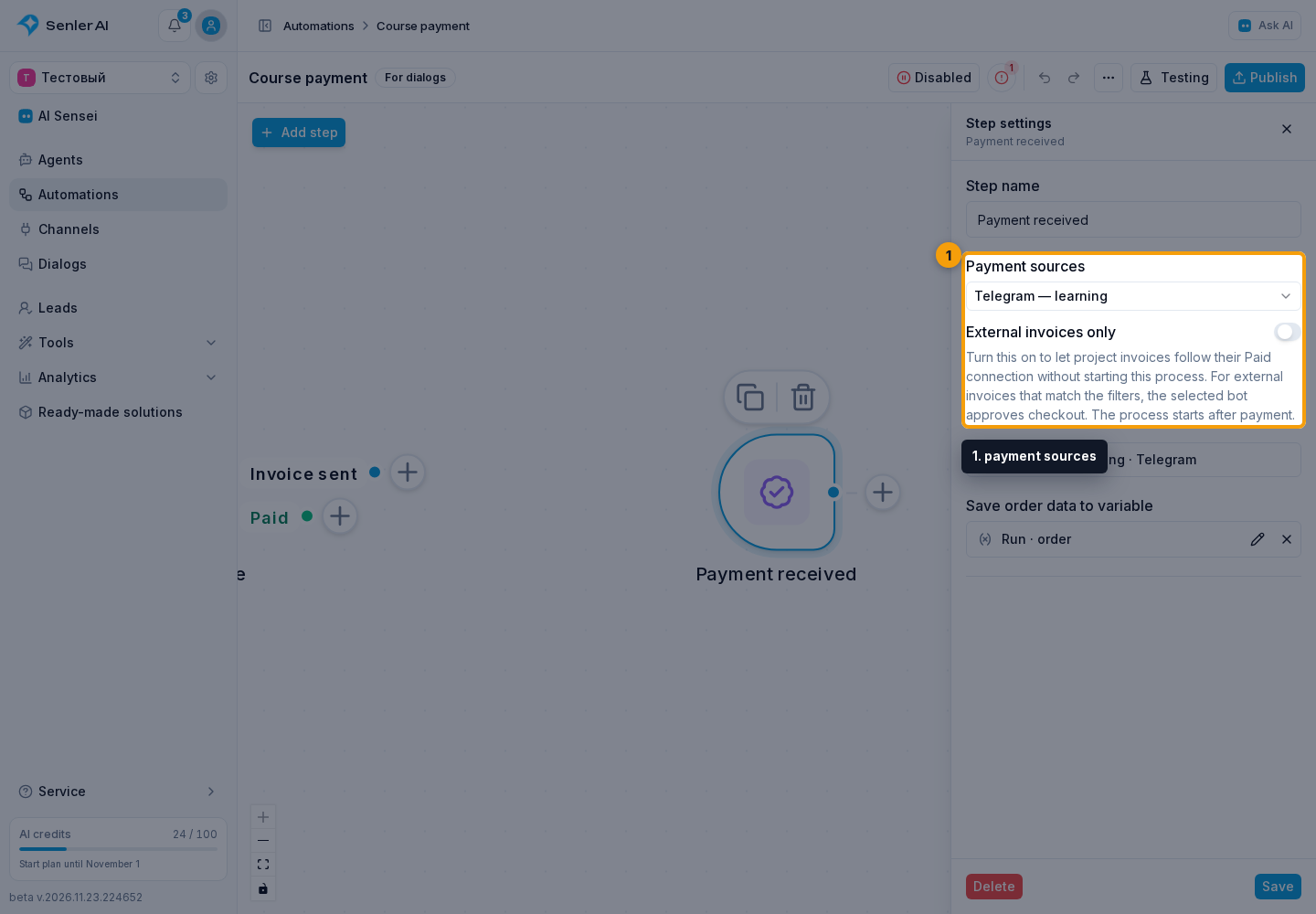
With “External invoices only” off, the trigger can include both project and external invoices, depending on the filters below. This switch does not exclude VK Donut payments.
Configure channel filters
Expand the selected channel row. Configure each source separately.
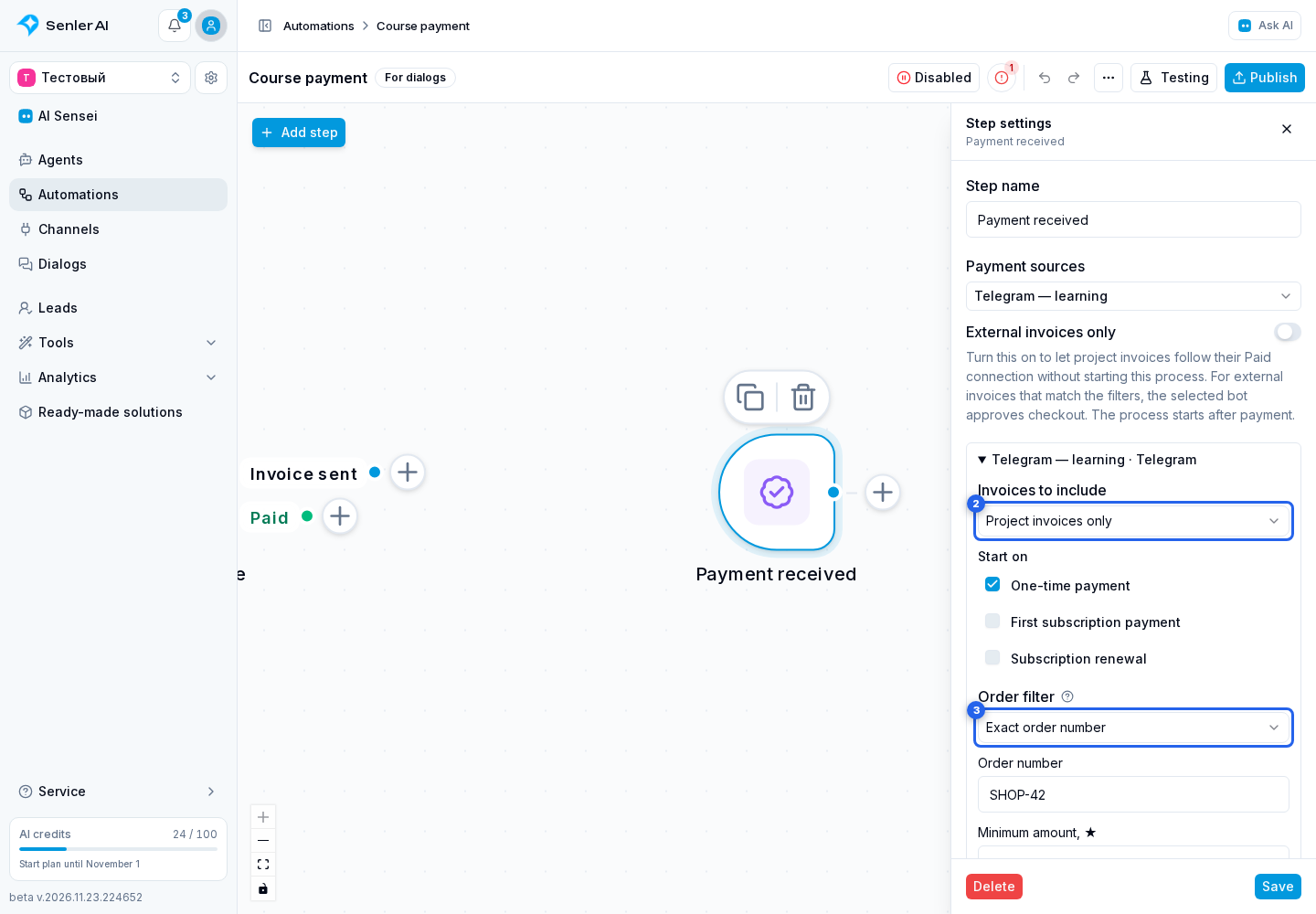
For Telegram, select “Invoices to include”: all invoices from the bot, project invoices only, project donations, or invoices from one project step. For the last option, select an “Issue an invoice” step or enter its ID. A project donation must have type: "donation" in its order data. The category selector is hidden when external invoices are enabled.
Keep at least one payment type selected under “Start on”. Telegram offers one-time payment, first subscription payment, and renewal; VK Donut offers first payment and renewal.
For Telegram, select an “Order filter”:
| Option | What it checks |
|---|---|
| Any order | Accepts a payment with or without an order number. |
| Has an order number | The number is provided on its own or in the order_id or id field of order data. |
| Exact order number | The full number matches the value you enter. |
| Invoice payload starts with… | The beginning of invoice_payload, set by the bot when issuing the invoice. For example, SHOP- matches SHOP-42. This does not search inside order JSON. |
You can set a minimum under “Minimum amount”: Stars for Telegram or rubles for VK Donut. Conditions for one channel apply together.
Use payment data
The process automatically receives a run.payment object. It contains platform (tg or vk), channel_id, payment_id, amount, currency (XTR or RUB), and kind (once, first, renewal). Telegram may also provide invoice_payload, invoice_id, issuing_node_id, and order_data.
For Telegram, “Save order data to variable” lets you select a separate process variable. It receives the complete order data. The name payment is reserved for payment details; choose another, such as order. The data remains available through run.payment.order_data as well.
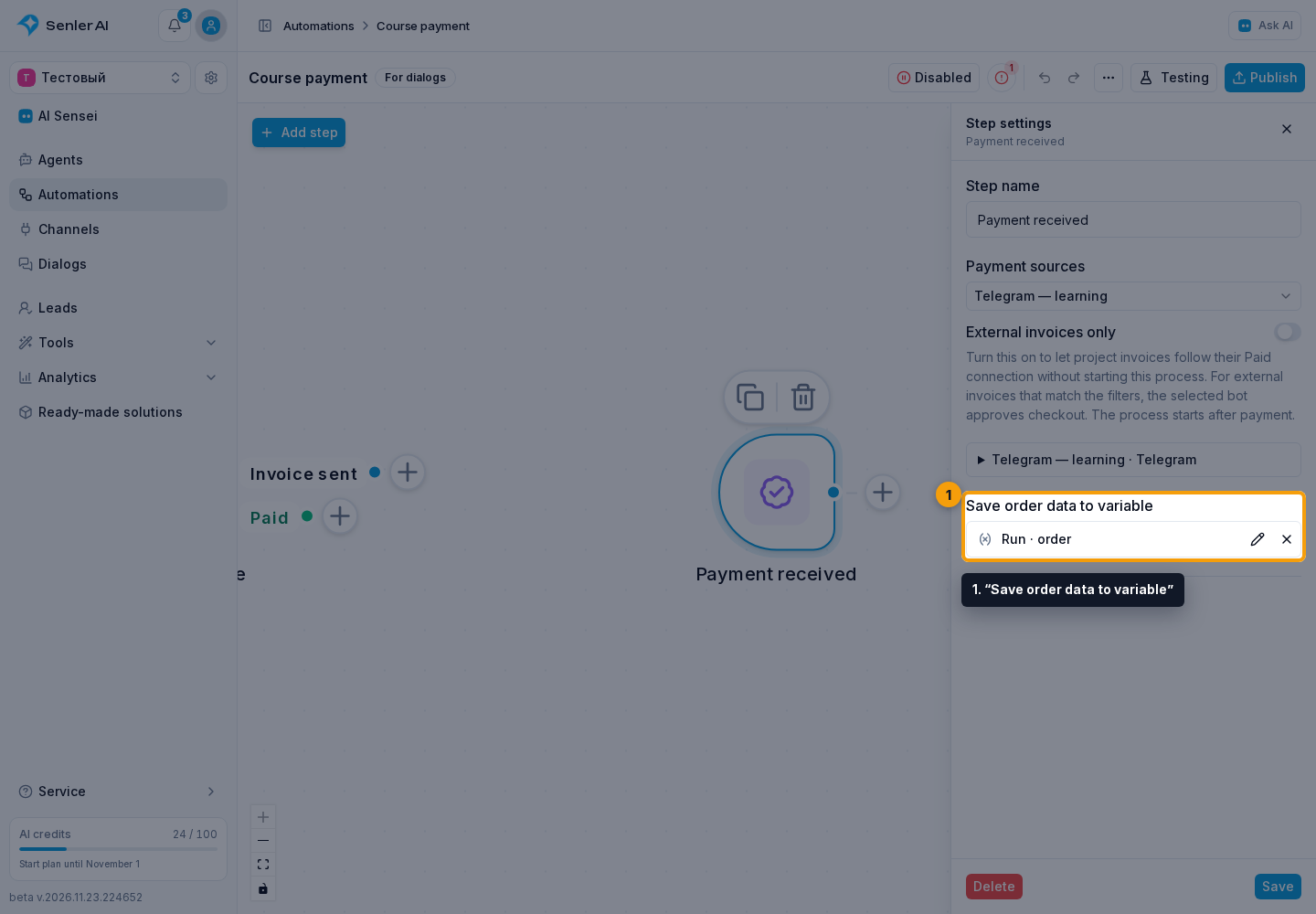
Connect the output to subsequent actions, save the step, then publish and enable the automation. Use a nested variable path, such as {{run.order.order_id}}, to read an order field.
If the same payment continues the “Paid” output of “Issue an invoice”, this trigger can create another process. Separate the branches’ responsibilities or restrict sources and filters to avoid delivering a purchase twice.