
Delete message step
The Delete message step removes one send from a Message or Interactive widget step, including all its parts: text, photos, files and other attachments. For example, remove a message with buttons after a choice, or a temporary notice after a delay. Deletion cannot be undone.
Choose the message
Add the step from the catalog. Choose the Source automation: the current automation or another published automation in this project. Then select the Message step. Select the step again after changing the automation.
The step deletes the latest send from the selected step by message date within the last 30 days in the current private dialog, including other automation runs. Attempts that sent nothing are excluded.
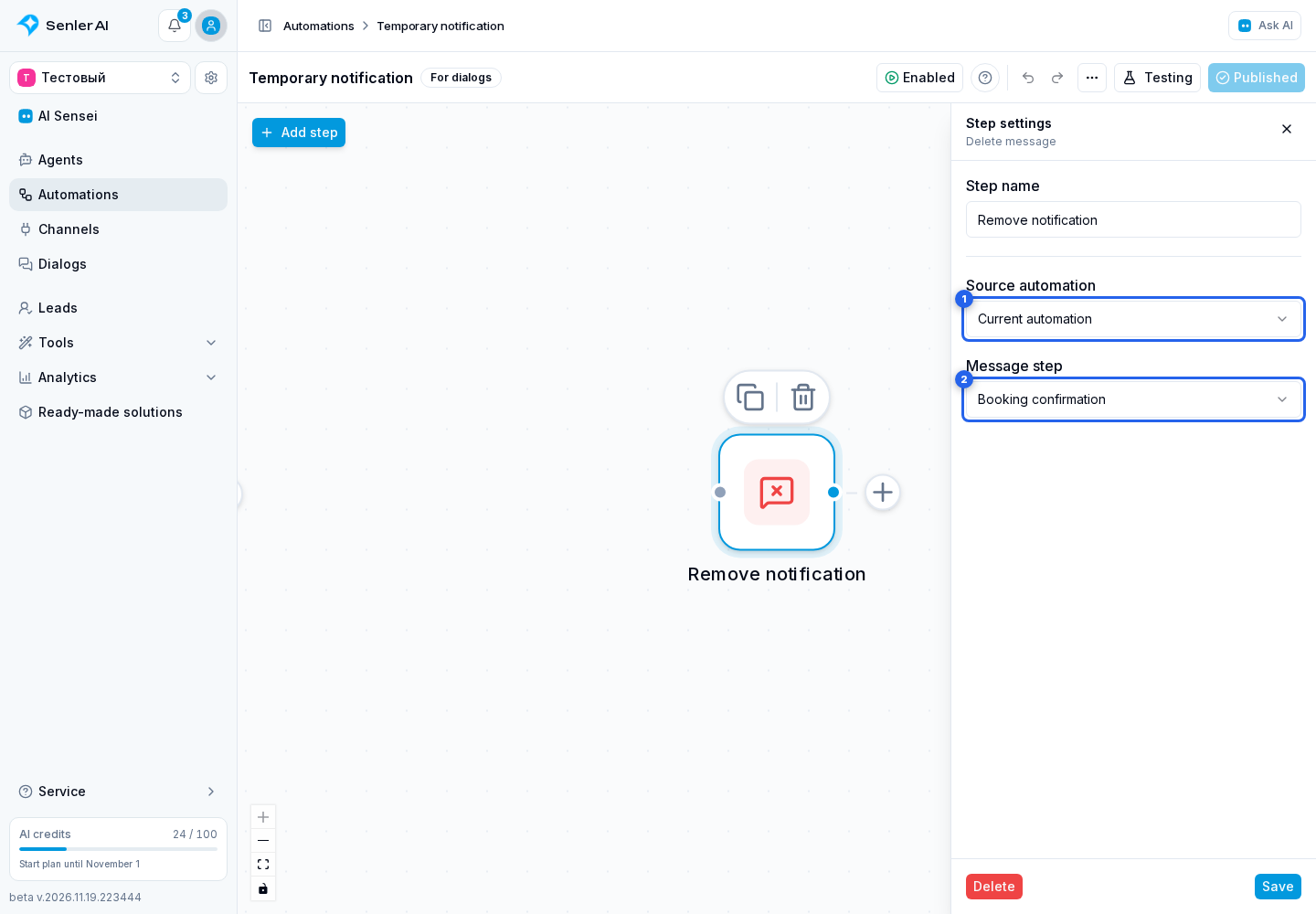
The search is limited to the current private dialog and does not affect other customers' messages. A background process must already have a current private dialog for this search. Empty text does not prevent deletion: the message may contain an attachment. If a step sends nothing, its previous actual send remains the latest.
Ordering uses the message date in Senler history among sends with parts that have already been sent. Delivery delays can make messages appear in a different order in the messenger. With concurrent runs, the step deletes the latest message when it executes: if another run sent a newer message during a pause, the newer message is deleted. This removes the step's current message; it does not set a separate lifetime for each send.
Save the settings, connect the output to the next step, and validate and publish the automation.
What happens during execution
The system pins the selected message when deletion starts. Retries, including a manual retry after an error, use the same send even if the step has sent a newer message. If there is no matching message, the action is skipped. If deletion of the selected message is already confirmed, the automation continues; it does not select an older message instead. If the pinned message history is no longer available, the step fails.
The automation continues after deletion of all message parts is confirmed. If part of the message is still being sent, the step waits for sending to finish for a limited time. Partial deletion does not count as success. A platform rejection fails the step; a timeout means confirmation has not arrived yet.
Confirmed deletion stops waiting for new replies and clicks on this message. Delayed processing of the send cannot reopen the wait. A reply the system already accepted before closing the wait is processed even if its queue delivery is delayed; branches already started by a reply or click continue. Late deletion confirmation, after a timeout or process cancellation, also closes waits, but does not itself restart the process. Explicit process cancellation remains in effect.
Deletion availability depends on the platform, message age and channel permissions. The 30-day search window does not mean the platform allows deleting messages of that age. In a test dialog, only test messages are deleted; real customer messages are unaffected.