
Condition group step
Condition group combines several checks in one step. For example, continue checkout only if the lead belongs to the Customers segment and the order amount is positive. Or choose an offer by the first matching segment.
Set up the checks
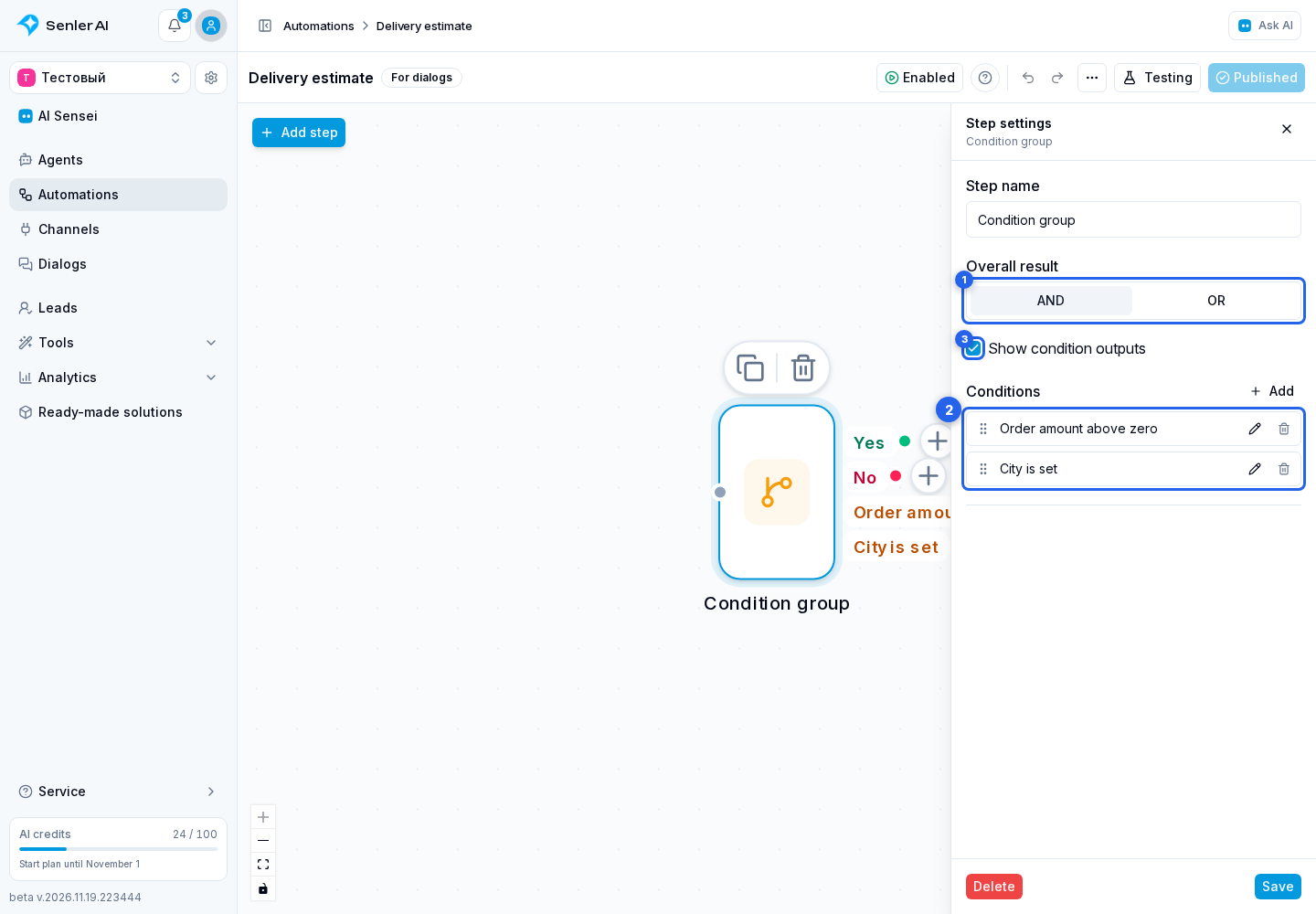
- Add Condition group from the catalog and open its settings.
- Select AND or OR in Overall result.
- Add checks in Conditions and configure each in its dialog. A group supports 1 to 20 conditions.
- Drag each row's handle to arrange the checks. The pencil opens settings; the trash icon removes a check from the group.
- Save the step and connect its outputs to subsequent actions.
Available checks cover variables, date and time, segments, funnel stages, automation membership, agents, operator assignment, channel types and table rows. AI conditions and nested groups cannot be added to a group.
Use the overall result
With Show condition outputs disabled, connect Yes and No:
- AND: Yes only when every check matches.
- OR: Yes when at least one check matches.
All checks run from top to bottom, even if the group's answer could already be determined. If a table check saves data to process variables, later conditions in the group can use it. A check error is not a No result: investigate its cause in the process.
Choose a condition branch
Enable Show condition outputs to display a separate output for each check on the graph.
In addition to the overall Yes or No output, the first matching condition from top to bottom fires its output. Outputs of other matching conditions do not run. If no condition matches, there is no additional branch.
For example, put the VIP segment check before Customers. A lead in both segments starts the VIP branch and the overall Yes output. If you only need the individual branch, do not connect the overall output to the same action: otherwise it may run through two paths. A missing connection on the first matching condition does not advance to the next one.