
Services
Open the Services tab. Use search and filters to find a service by name, status or format. Click Add filter to choose status, format, category or specialist. The cross removes an individual filter. Search and filters are kept in the page URL.
Open a service in the list to view or edit its settings.
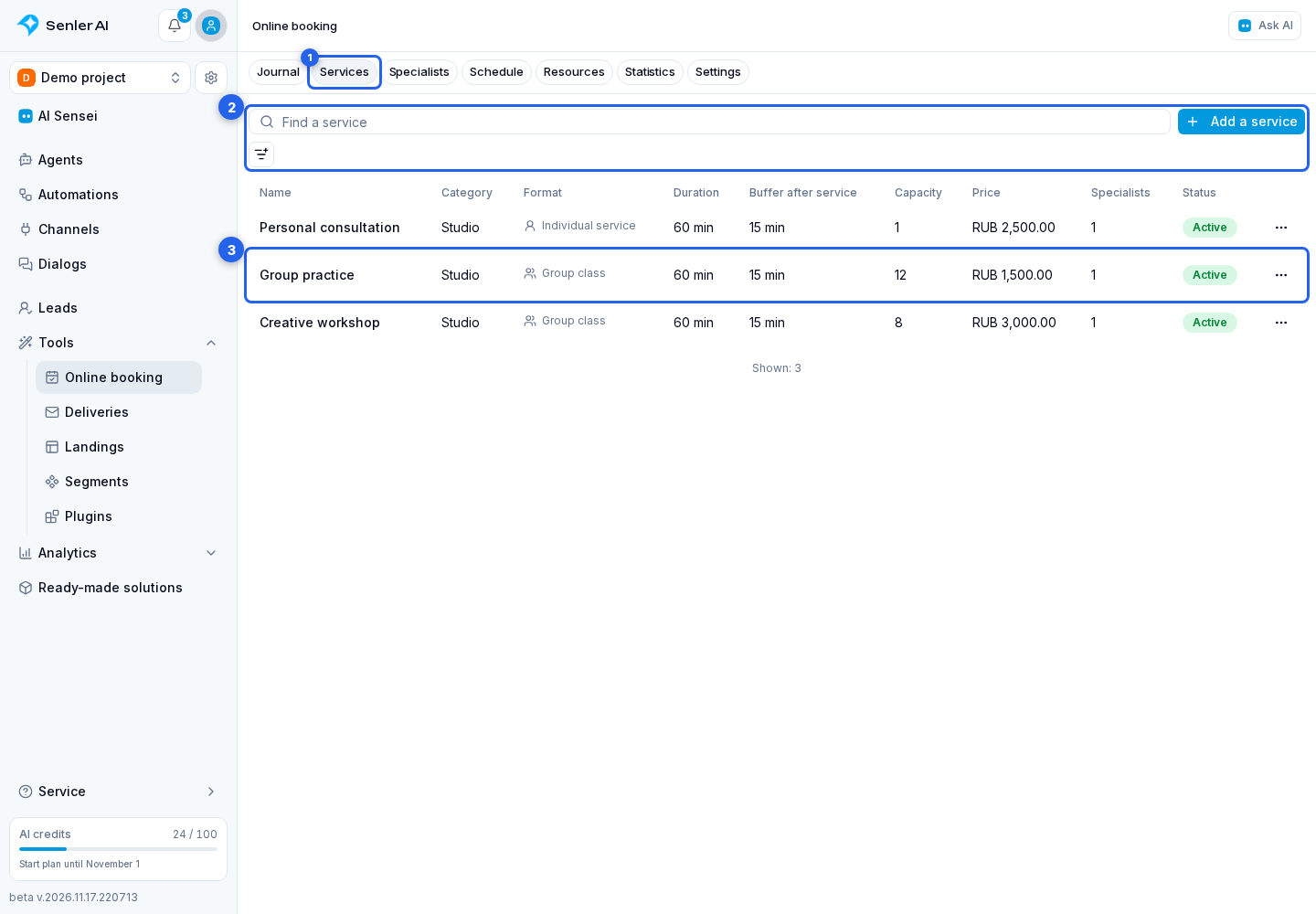
Add a service
- Click Add a service.
- In the service form, enter a name, fill in Service description on the landing page, and choose a format: individual service or group class. The description helps visitors understand what the service includes and opens with Details in the booking form. The format cannot be changed after saving.
- Specify the category. Set the duration to 5–1,440 minutes and the buffer after the service to 0–1,440 minutes. Enter whole numbers. The buffer is included when checking specialist and resource occupancy.
- Set the price and currency. A new service uses the default currency from settings; you can choose another currency for this service. For a group class, this is the price per seat; the booking total depends on the number of seats.
- Select a resource if needed.
- Keep Active enabled to offer the service for new bookings, including through a public form.
- Click Save.
Enter the price without spaces between digits or a currency symbol. Use a dot or comma for the decimal separator: for example, 1250,50 or 1250.50 for rubles. The currency determines the number of decimal places; rubles allow up to two. Enter 0 for a free service. An empty field does not replace a zero value.
To add a photo, click the image beside the service name and choose a JPEG, PNG, or WebP file up to 5 MB. It uploads when you save the card and appears in the public booking form.
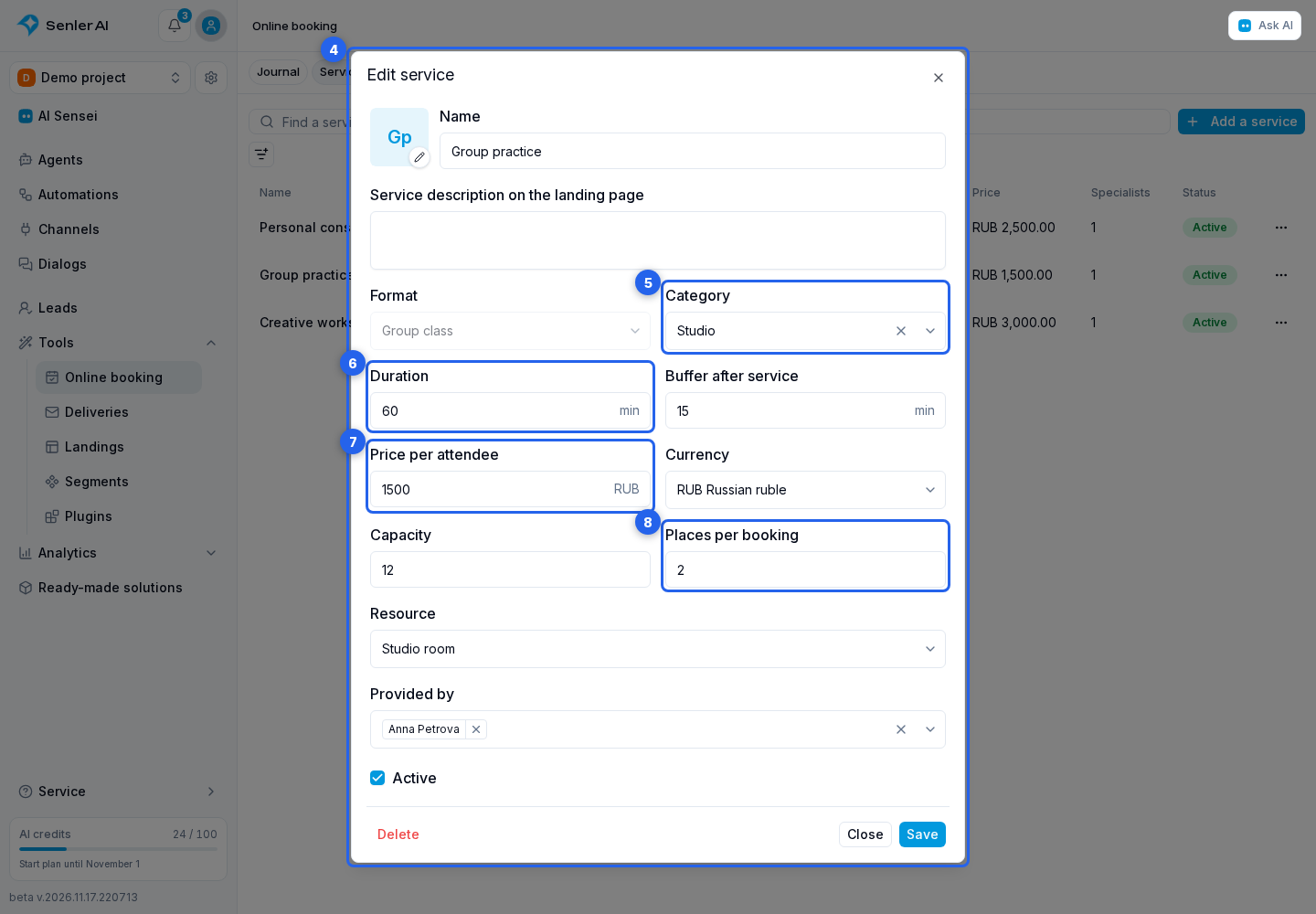
In Provided by, select the specialists who provide the service. This relationship is also available in specialist cards. Set their working hours for individual appointments, or create sessions for group services.
Service categories
In the service form, choose a category from the searchable list. To create one, click Add at the bottom of the list: it is selected for the service after saving. Opening the category dialog preserves the service form's entered values.
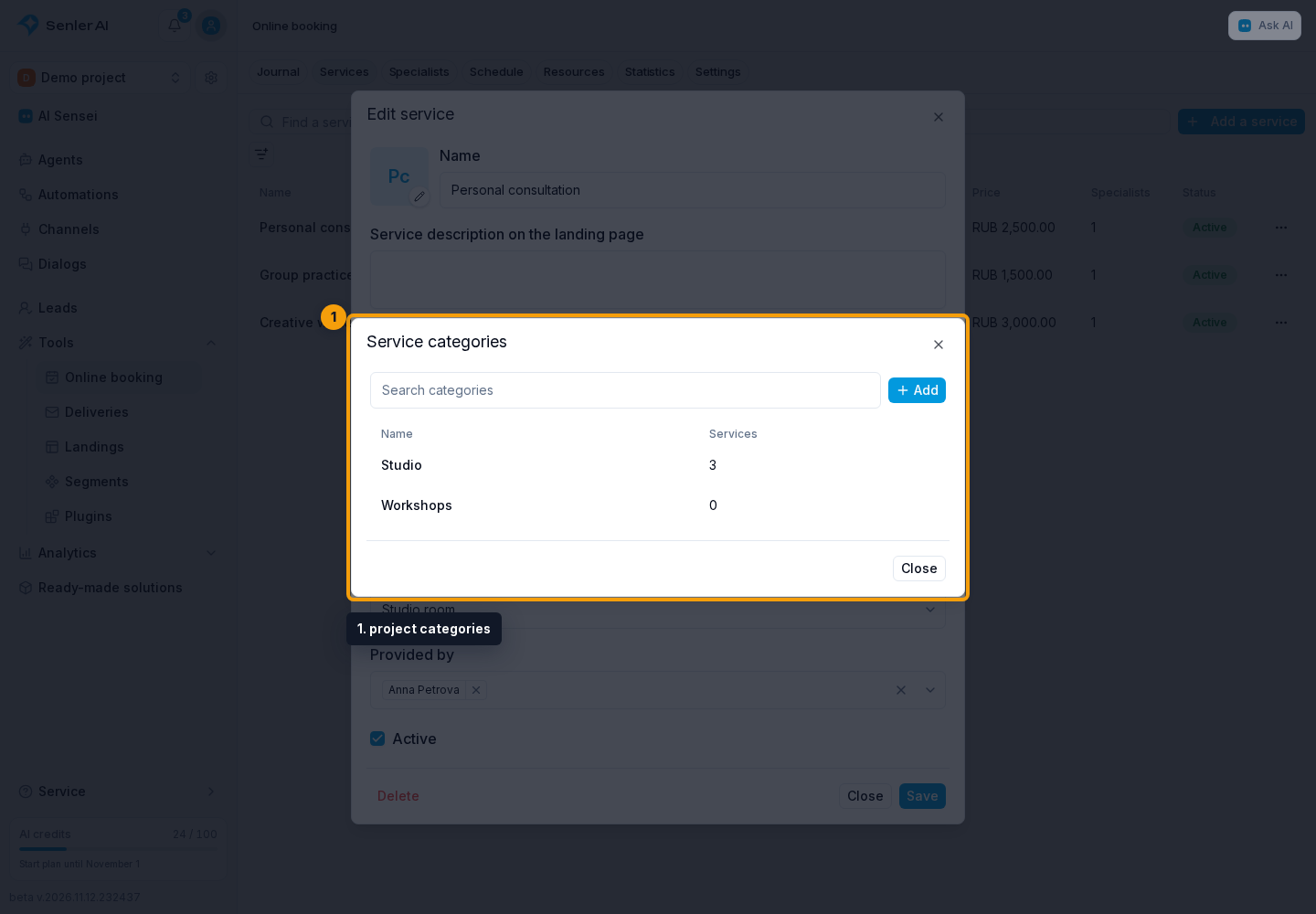
Click Manage at the bottom of the list to open the project categories. The dialog includes search, each category's service count, and an Add button. Click a category row to edit its name. Renaming updates the name for all its services, including on the landing page. Names differing only in letter case or surrounding spaces are treated as identical.
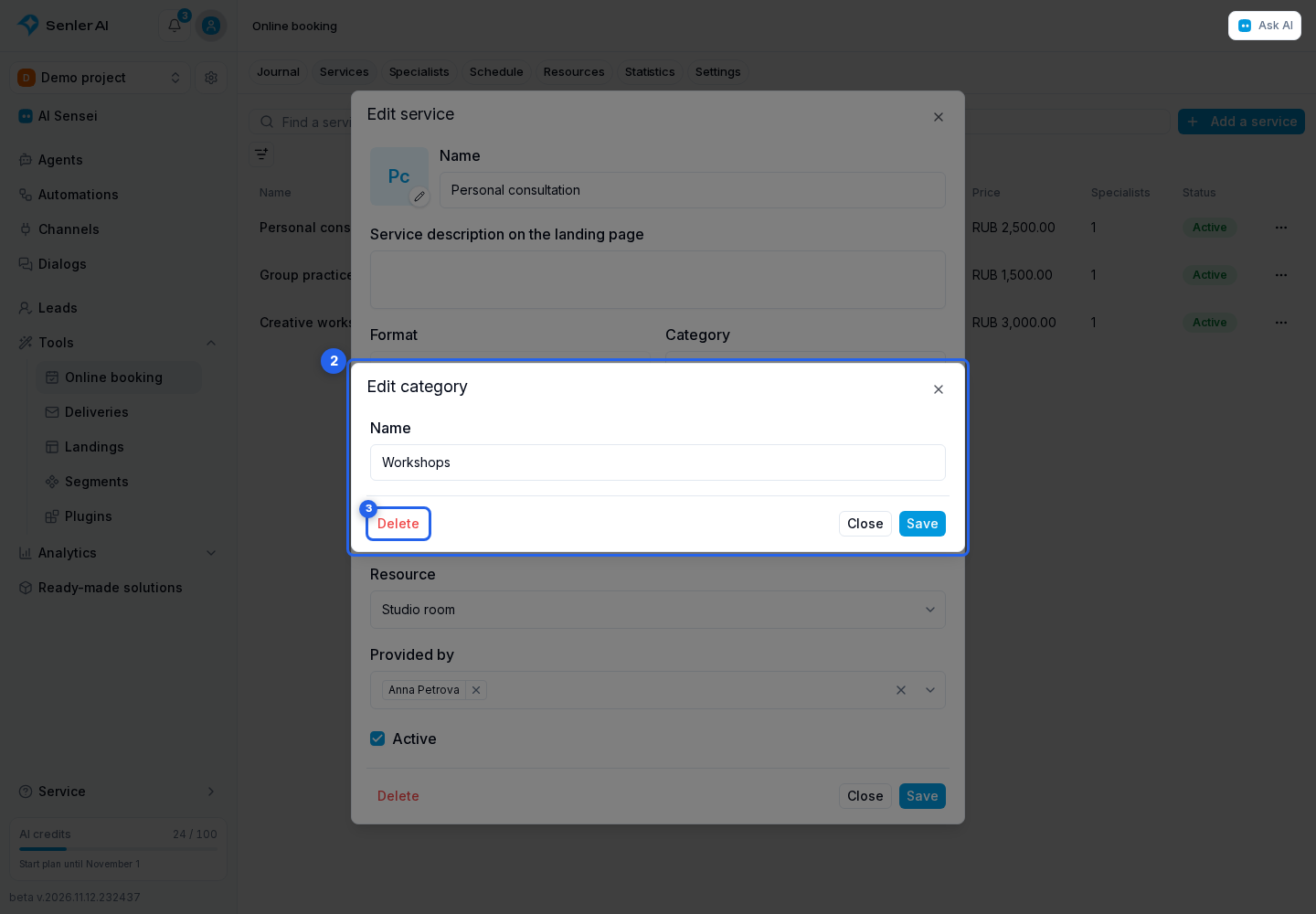
The Delete button is at the bottom left of the edit dialog. After confirmation, the category is deleted and its services are kept without a category. When services are copied to another project, their categories are carried over; an existing category with the same name in the destination project is reused.
Capacity and waitlist
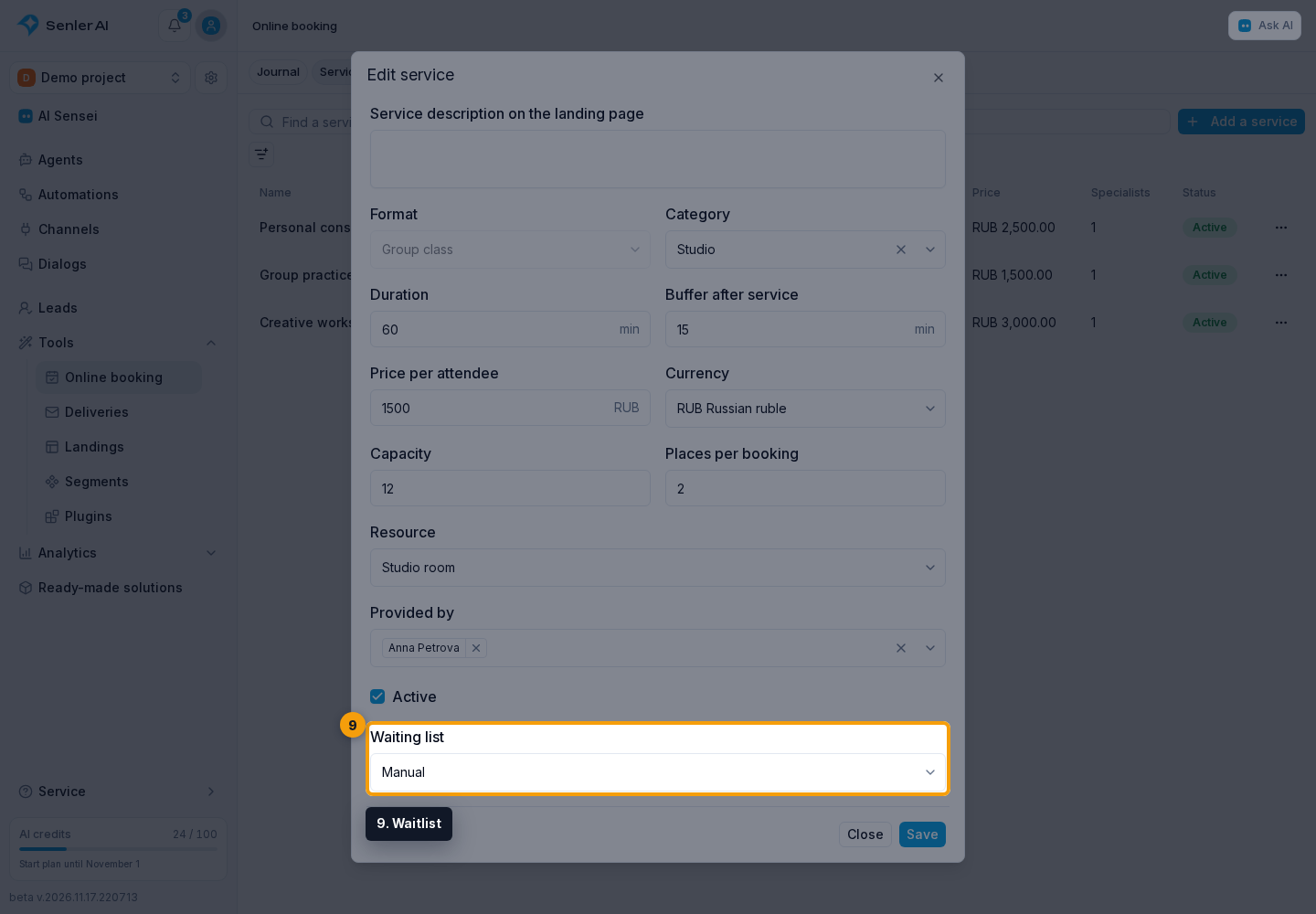
An individual service has one seat. For group services, configure:
- Capacity: the total seats in a session, a whole number of at least 1.
- Seats per booking: how many seats one client can reserve in a single booking, a whole number from 1 to 100.
- Waitlist: Disabled, Manual or Automatic. New sessions inherit the mode; you can override it for an individual session. How available places are assigned.
For example, a session can have 12 seats with a limit of two seats per booking.
Edit or remove a service from the offering
Existing bookings and sessions keep their original prices and durations. To temporarily remove a service from new booking choices, clear Active in its profile. To remove the profile from the catalog, click Delete at the bottom left and confirm. Existing bookings and sessions stay in the journal.