
Run code step
The Run code step lets you calculate a value, update variables, add a lead to a segment or choose the next step using JavaScript or Python. The code receives data from the current process. After it completes successfully, its actions are applied to the project and the automation continues.
Every execution starts in a fresh environment. Ordinary script variables disappear after execution; write a value through vars to pass it to subsequent steps.
Configure the step
Add the Run code action and open its settings. Select a language and enter the code. For your first run, use the simple example below.
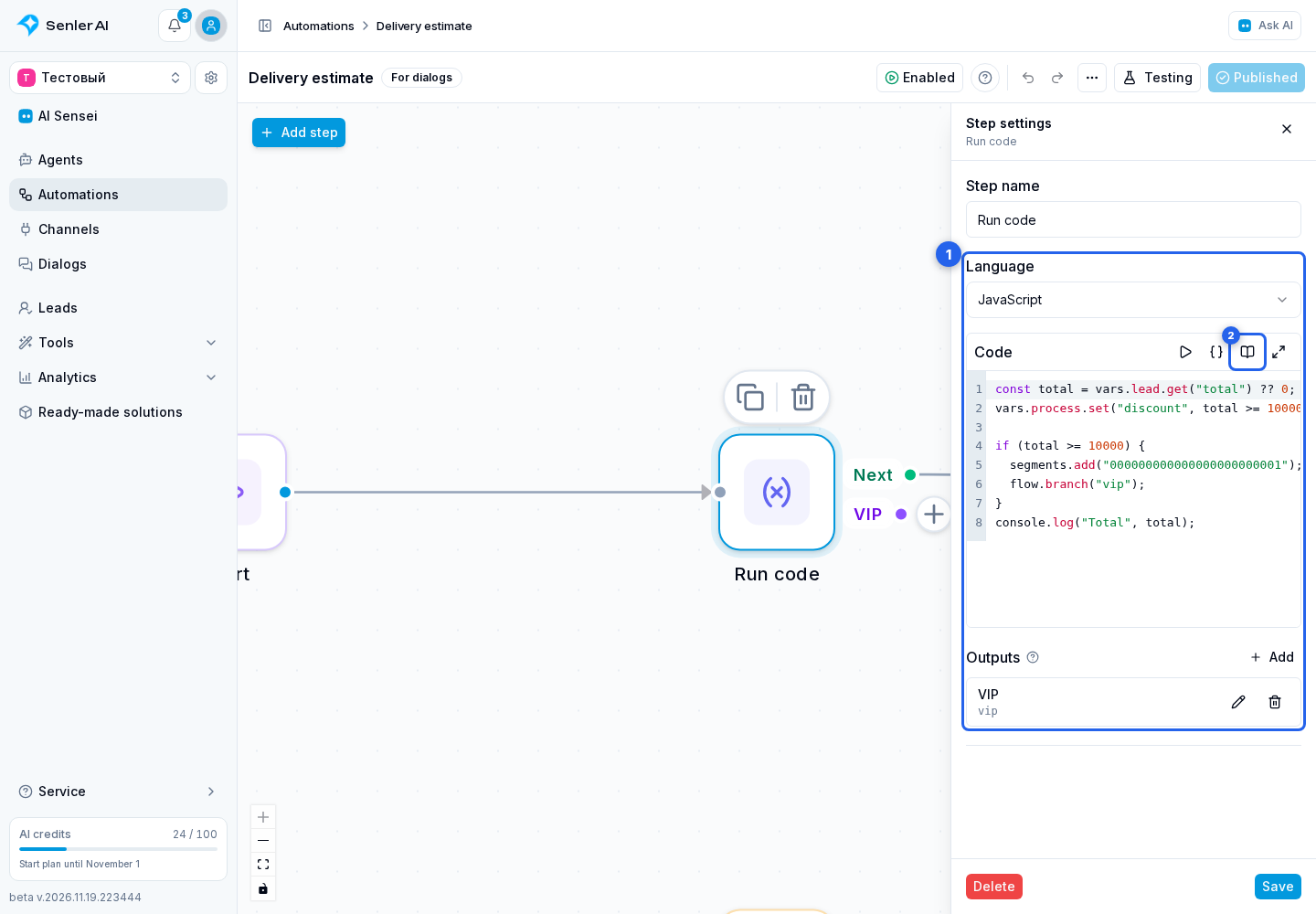
The editor marks detected syntax errors. Suggestions appear after a dot: for example, vars. shows variable scopes, and vars.process. shows get, set and increment with arguments and descriptions. Select a suggestion with the arrow keys and press Enter. Ctrl+Space opens the list manually; suggestions work in both languages.
Click Test to check the code with sample data. This test does not change project data. For a normal run, connect Next to the following step, save and publish the automation. Additional outputs are only needed for branching.
The toolbar above the code has four icons: Test (triangle), Insert (braces), Documentation (book) and Expand editor (arrows). Hover over a button to see its name. Documentation opens this article in a new tab.
Insert a variable or action
Place the cursor where you need the code and click Insert. The insertion list shows the main functions with a short explanation and a code snippet. Search matches descriptions and function names, such as “segment” or segments.add.
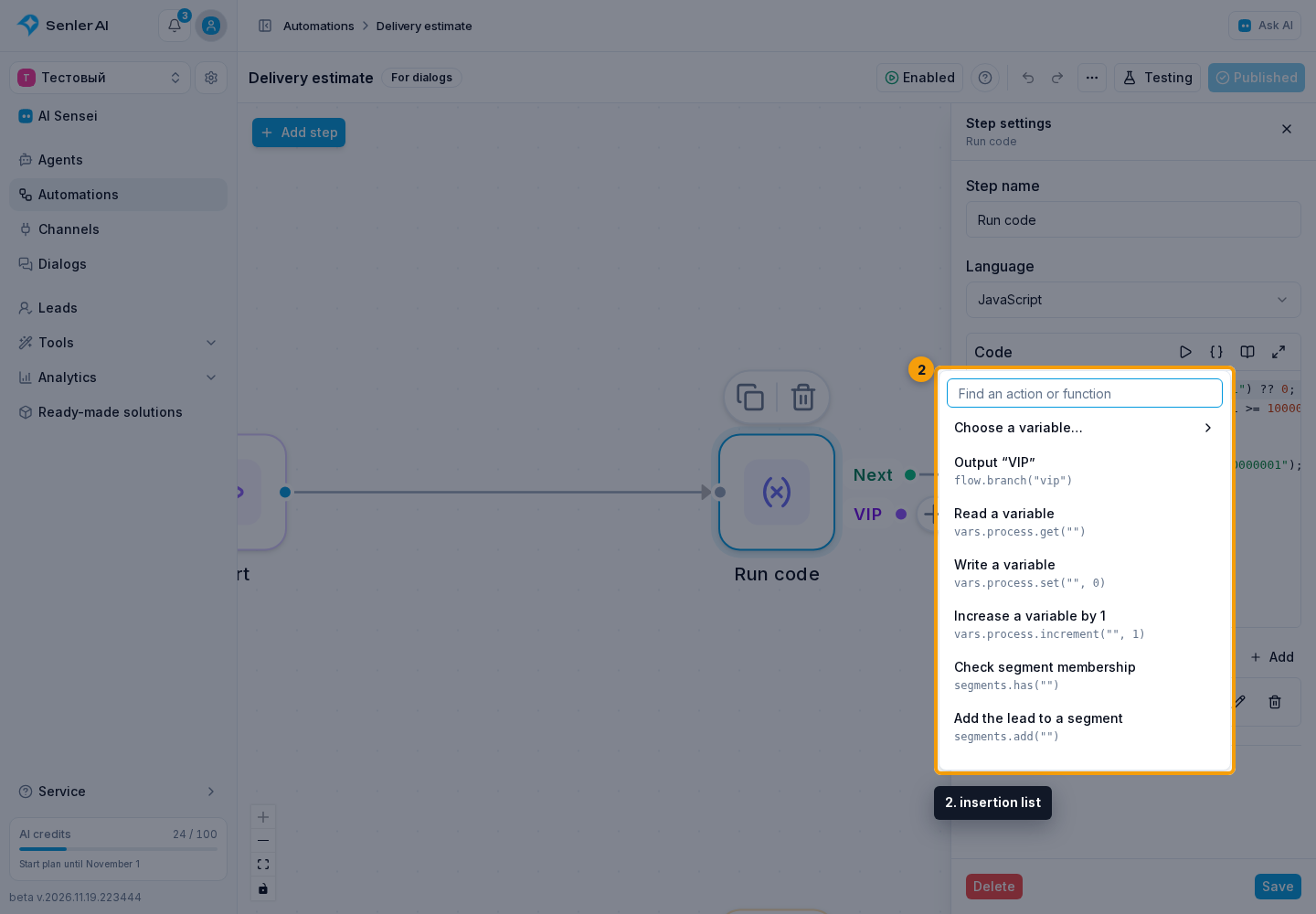
- Choose a variable… opens process, project, lead and dialog variables. Selecting one inserts a
varscall with the correct scope and name, such asvars.process.get("total"). The variable’s value is not copied into the code. - Click the function you need to insert it. Fill the empty quotes with a variable name or object ID; when writing a variable, replace
0with your value. The cursor moves into the first empty argument. Replace theprocessscope withlead,dialogorprojectif needed. - Configured step outputs are also listed: selecting one inserts
flow.branchwith its output name filled in. For result messages, the menu insertsprintin Python andconsole.login JavaScript.
Insertion replaces selected text or adds code at the cursor. It does not execute the code or change project data.
Edit in a large window
Expand editor opens a large code window. The same test, insertion, documentation and typing suggestions are available there.
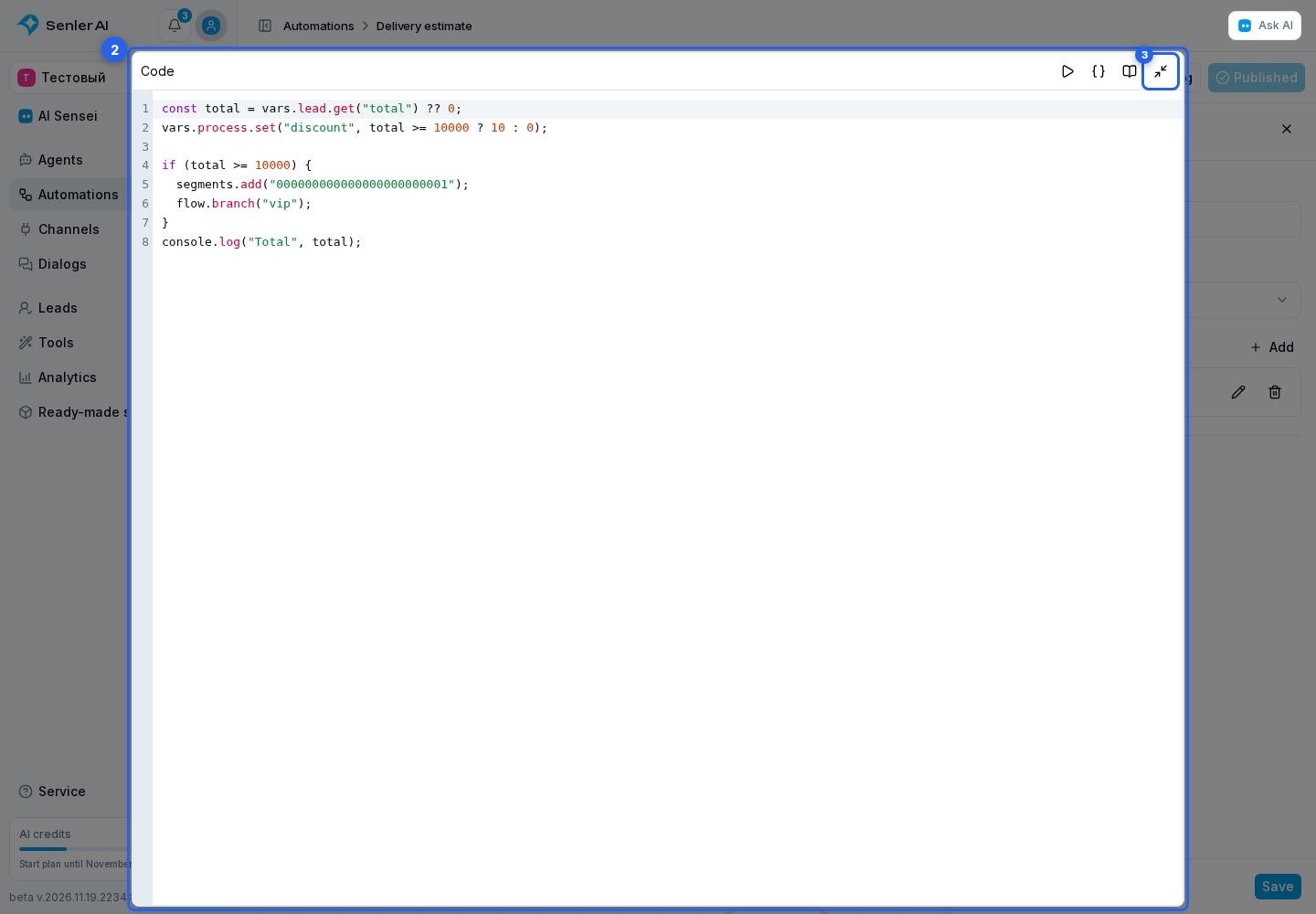
To return to the step settings, click Collapse editor or press Escape. Edits remain in the code field; save them by saving the automation as usual. Closing the window does not discard changes.
Start with a simple example
This code calculates a discount for a total of 12,000. It does not require any existing variables, segments or additional outputs.
const total = 12000;
const discount = total >= 10000 ? 10 : 0;
vars.process.set("discount", discount);
console.log("Discount, %:", discount);
The same example in Python:
total = 12000
discount = 10 if total >= 10000 else 0
vars.process.set("discount", discount)
print("Discount, %:", discount)
The test dialog will show Discount, %: 10 and the Next output. During a normal run, the number 10 is written to the process variable discount. Subsequent steps can read it: use vars.process.get("discount") in another code step or {{run.discount}} in message text.
The script's total and discount are temporary variables. In this example, the vars.process.set call passes the value to subsequent steps. In a test, this write stays within the test and is not saved to the project.
Access data and actions
Variables: vars
Choose the scope where the variable is stored:
| Scope | Where the value is available |
|---|---|
vars.process |
In the current automation process, including subsequent steps. A new process starts with its own values. |
vars.lead |
For the current lead, including other processes involving that lead. |
vars.dialog |
In the current dialog. |
vars.project |
Across the project; the value is shared by its processes and leads. |
Each scope provides the same functions:
| Call | Result |
|---|---|
vars.process.get("name") |
Reads the value. If it is unset, returns null in JavaScript or None in Python. |
vars.process.set("name", value) |
Writes a value. null / None clears it. |
vars.process.increment("count", 1) |
Increases a number and returns the calculated result. An unset value starts at zero. Without the second argument, adds 1; a negative number decreases the value. |
Replace process with the scope you need, for example vars.lead.get("total"). Use the variable name, not its ID. Lead, dialog and project variables must be created in advance; values you write must match their types. Process variables can be created directly in code by using a new name in set.
Values can be JSON-compatible strings, numbers, booleans, arrays and objects. If you retrieve an object with get and change its fields, call set to save the changes. Placeholders such as {{run.discount}} are for text fields in other steps; inside code, read variables through vars.
After set or increment, a subsequent get in the same script sees the new value. Use increment for shared counters: when applied, it increases the current stored value in the project. The value calculated inside the script can differ from the stored result if another process changes the counter concurrently.
Run data: context
context contains information about the current run. It is data for reading: assigning to a context field is not a way to update the lead or dialog. Read and write custom variables through vars.
| Object | Available fields |
|---|---|
context.lead |
id, first_name, last_name, full_name, username, email, phone, avatar_url, channel_id, channel_type, external_user_id, language_code, lead_source, lead_type, created_at, updated_at. |
context.dialog |
id, channel_id. |
context.process |
id, automation_id. |
context.project |
id. |
context.event |
Depending on the event: event_type, event_id, source_event_id, message_text, message_attachments, app_event_data, reaction_value, start_payload. |
If the process has no lead or dialog, the corresponding value is null / None. Event fields can also be absent: a suggestion in the editor does not guarantee that data will be present at runtime.
In both languages, read context fields with dots, for example context.lead.first_name. In Python, objects returned by vars are regular dictionaries: access their fields with square brackets or .get().
Actions and code messages
| Call | What it does |
|---|---|
segments.has(segmentId) |
Returns true / True if the current lead belongs to the segment; otherwise, false / False. |
segments.add(segmentId), segments.remove(segmentId) |
Adds the current lead to a segment or removes them, following the usual subscription and consent rules. |
funnels.getStage(funnelId) |
Returns the lead's current stage ID in the funnel, or null / None if no stage is set. |
funnels.move(funnelId, stageId) |
Moves the current lead to the specified funnel stage. |
agents.assign(agentId), agents.unassign() |
Assigns or removes the current dialog's primary agent. Assignment itself does not trigger a reply. |
operators.handoff() |
Hands the current dialog to an automatically selected operator, excluding the primary agent. |
flow.branch("vip") |
Selects an additional output previously added in the step settings. |
console.log(...values) |
Writes values to the result messages. Python also supports print(*values). |
Segment and funnel actions require a current lead; agent assignment and operator handoff also require a current dialog. These calls cannot target a different lead or dialog. In a background process without a lead, use process and project variables.
Pass the ID, not the segment, funnel, stage or agent's name. You can write the ID in the code or read it from a variable. The item must exist in the current project, and the stage must belong to the specified funnel.
You can obtain IDs from API responses: segments, funnels and their stages, and agents. Use the target item’s id field; a segment’s public ID, public_id, cannot be used for these calls. Obtain the ID in advance and insert it into the code: the step itself cannot call the API.
segments.has and funnels.getStage read the state from the start of the step. For example, segments.add(id) will not change the result of a later segments.has(id) in the same script: the addition is applied after the code finishes.
Messages from console.log and print appear in the test and process history; they are not sent to the lead. console.info, console.warn and console.error are also available: they add a message without stopping the script. Use separate automation steps to send a message, make an HTTP request or call AI.
Add outputs
Add outputs when the next step depends on the calculation result. If branching is not needed, keep the standard Next output.
Under Outputs, click Add.
In the output dialog, set a title for the graph, such as High total, and a name in code, such as vip. The name starts with a Latin letter and can contain Latin letters, digits and _. Click Save; Cancel closes the dialog without changes.
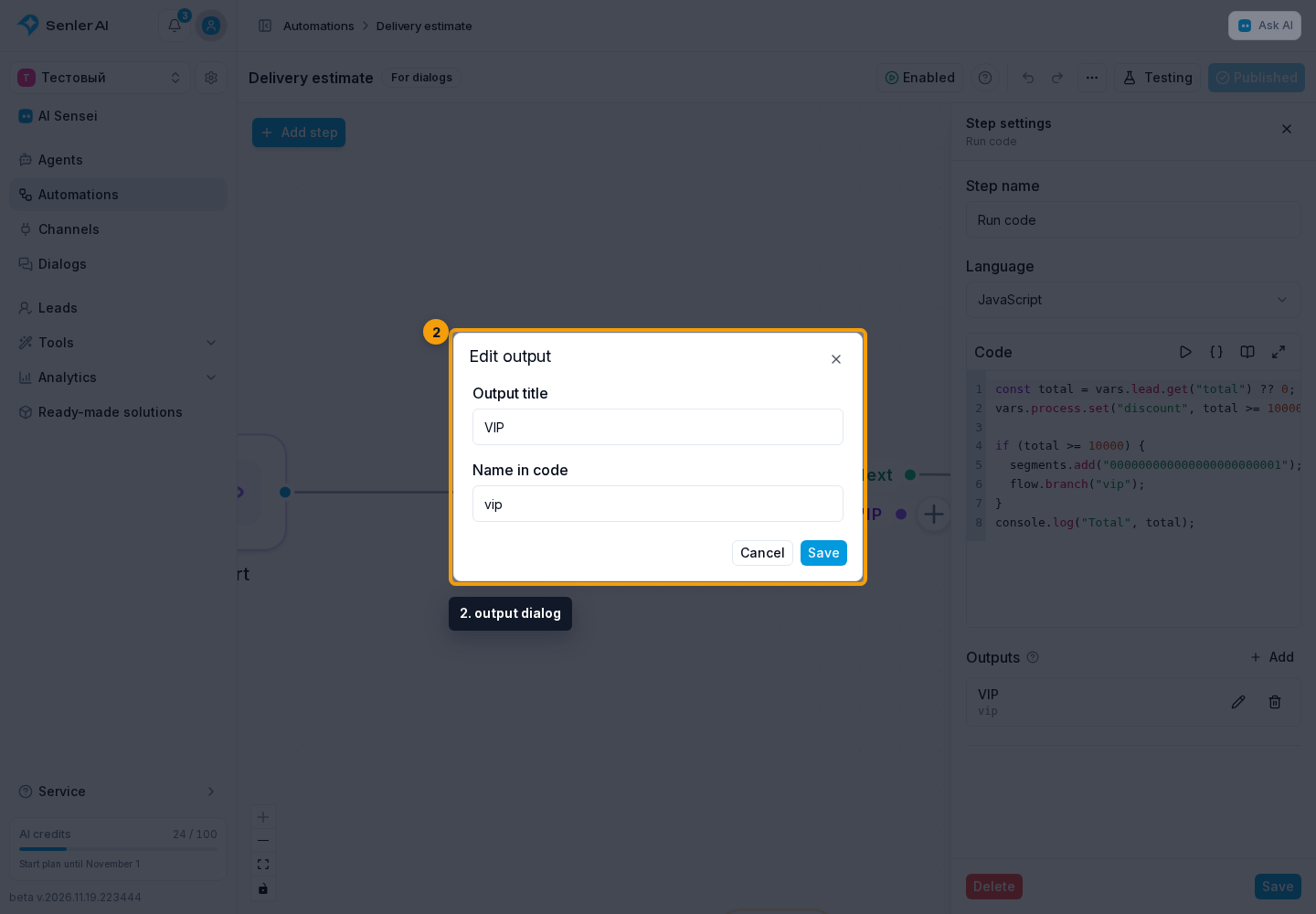
You can edit an output with the pencil or remove it with the trash icon. After changing its name in code, update the corresponding call in the script.
flow.branch("vip") selects an output by its name in code but does not stop the script. The last call wins; without a call, the process follows Next. An unknown name causes an error. Connect the outputs you use to subsequent steps and save the automation.
Example
Extend the discount calculation: read the total from a lead variable and, for totals of 10,000 or more, add the lead to a segment and choose the vip output. For a lower total, the discount is 0 and the process follows Next.
For a normal run, create a numeric lead variable total and set its value. Add an output with the name in code vip. Replace the example ID 000000000000000000000001 with the ID of the segment you want to use in your project.
const total = vars.lead.get("total") ?? 0;
vars.process.set("discount", total >= 10000 ? 10 : 0);

if (total >= 10000) {
  segments.add("000000000000000000000001");
  flow.branch("vip");
}
console.log("Total", total);
The same example in Python:
total = vars.lead.get("total") or 0
vars.process.set("discount", 10 if total >= 10000 else 0)

if total >= 10000:
    segments.add("000000000000000000000001")
    flow.branch("vip")
print("Total", total)
If total is unset, the example treats it as 0. To check both branches, run a test first with total: 12000, then with total: 1000.
Limits and errors
Network access and package installation are unavailable. In JavaScript, use the language's built-in features. Python supports the standard modules json, math, datetime, re, statistics, decimal, random, collections, itertools and functools.
| Limit | Value |
|---|---|
| Time per execution | Up to 5 seconds, including environment startup. JavaScript also has a 2-second script execution timeout. |
| Environment memory | 256 MiB. |
| Changes per execution | Up to 50 calls that write variables, add or remove segment membership, move a lead between stages, or assign or hand off a dialog. Reads, messages and output selection do not count towards this limit. |
| Variables | Up to 100 per scope. All supplied variables count, even if the code reads only some of them. |
| Additional outputs | Up to 10. |
| Source size | Up to 64 KiB. |
| Input and result | Up to 256 KiB each. |
| Code messages | Up to 16 KiB. Exceeding this truncates the log; it does not by itself stop the code. |
When the executor is busy, a normal run can wait up to 60 seconds before code execution. This wait is separate from the 5-second execution limit; other ready steps can continue working.
Actions are applied after the script finishes, in call order:
- If the script fails or exceeds an execution limit, its changes are not applied.
- If an invalid variable or an unavailable segment, stage or agent is found before applying actions, changes are not applied either.
- If a failure occurs while applying actions, completed actions remain. There is no overall rollback: check the process history before starting another real run.
If "Automation code executor is not enabled" appears, contact support: changing the program text will not fix it.
Code steps do not run inside a safe test dialog. Use Test in the editor to check the code itself; use a separate process with a test lead to check real actions. Such a normal run does change project data.
After copying an automation to another project, check variable names and replace object IDs in the code or variables. IDs inside a script are not remapped automatically.