
Group Classes
First create a Group class service, then schedule it on specific dates. This supports both regular classes and a one-off workshop.
The service defines the initial price, duration, capacity and booking rules. A scheduled class defines the specific date, time, specialist and resource; you can override its price, duration and capacity when scheduling. A client's booking occupies places in that class.
Create a session
- On the Journal tab, click Add.
- Choose Schedule a group class.
- In the session form, select a service and enter a title, date and time.
- Assign a specialist and resource if needed. In the duration, price and capacity section, enter a duration of 5–1,440 whole minutes and a capacity of at least 1 as a whole number. Check the price per participant: the currency comes from the service, and the same price entry rules apply as in its form.
- Set landing page availability and the waitlist. For a single date, keep Do not repeat selected and click Save.
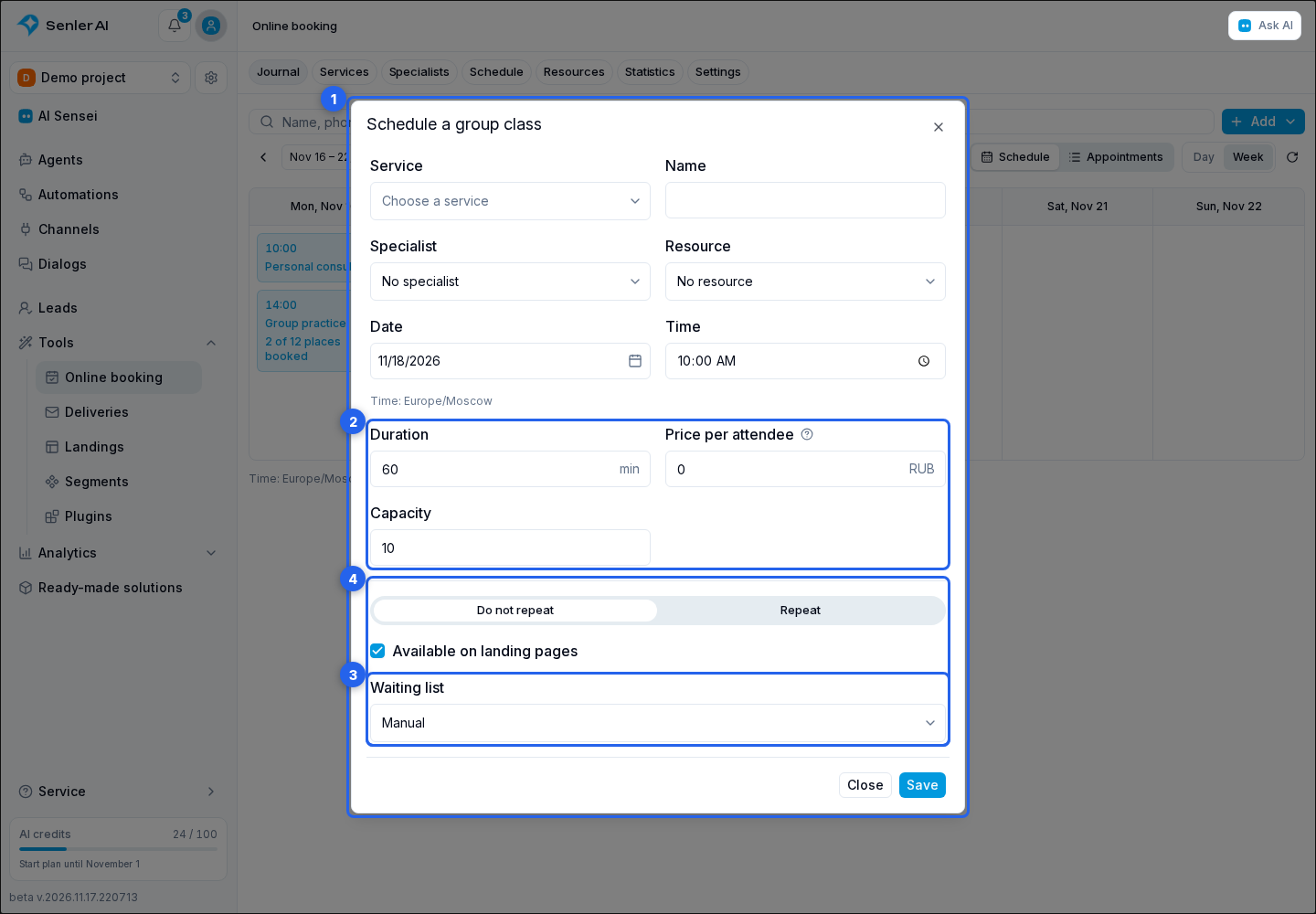
For example, schedule the same service at 12:00 for RUB 800 and at 19:00 for RUB 1,200. The price applies to the selected class. Changing a class's price does not recalculate existing client bookings.
For regular classes, select Repeat in the recurrence settings, set Repeat every, choose weekdays and optionally an end date. Enter a whole interval from 1 to 52 weeks: 1 means every week; 2 means every other week. The selected time, price, duration and capacity apply to all new sessions in that series. Sessions are created within the booking period, with further dates added as it advances.
To hold an additional class on another date, create it separately with Do not repeat selected. This does not change the weekly series.
Book participants
Open a session in the calendar. The session details show the time, specialist, resource, price per seat and occupancy.
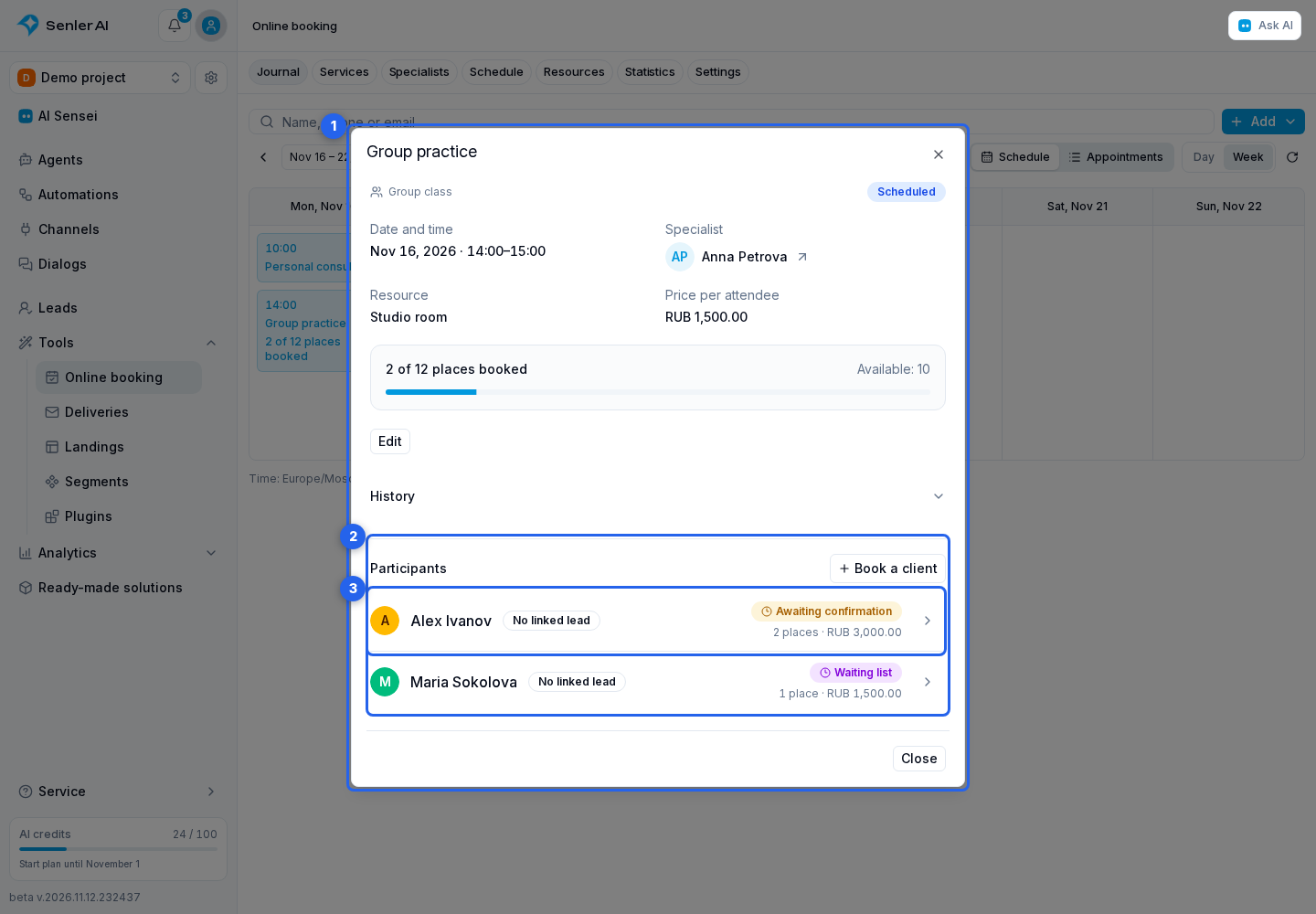
The final section of the card is Participants. It shows an avatar, name, status, seat count and cost for each booking. More rows load as you scroll. If nobody has booked, the card shows an empty participant list.
The linked lead's name opens their card when you have access to leads. Without a link, the contact name and No linked lead are shown. The arrow on the right of a participant row opens their booking. Closing it returns to the class card at the previous scroll position; the journal view, dates and filters do not change.
Click Book client above the list and enter contacts and seat count. The seat count must be a whole number of at least 1 and no greater than the selected service’s per-booking limit. A Pending confirmation booking already occupies seats.
In Manual mode, a request does not occupy a place. When a place becomes available, open it from the participant list or journal and click Book.
In Automatic mode, the client agrees in advance to booking at the selected time. The landing page shows this condition before submission. When a staff member adds a request, select “The client agreed to automatic booking at the selected time” only after obtaining consent. Requests without consent remain manual.
After a cancellation, a client’s move to another session, a decrease in booked places or an increase in session capacity, the system selects the oldest consenting request that fits in full. For example, if Anna needs two places and Boris needs one, one available place goes to Boris. Anna stays in the queue. Eligible waitlist requests take priority over new bookings.
Automatic promotion stops at the minimum advance booking time in settings. With auto-confirmation enabled, the booking is confirmed; otherwise it awaits confirmation and already occupies places. Disabling the service, specialist or resource pauses promotion; enabling it again wakes the queue.
Changing the session’s time, specialist or resource requires the client’s agreement to the new conditions. In the waiting request, select More → Confirm client consent only after the client agrees. You can also use this to enable automatic booking for a request that previously lacked consent.
To send messages after automatic promotion, use the Promoted from waitlist event in an automation. The same scenario can start reminders.
Change a session or series
Click Edit in the class card. For a session in a series, choose the scope: this session only, or this and subsequent sessions. You can change the time, duration, price, specialist, resource, capacity and booking rules. Availability and capacity are checked for conflicts; if one selected session cannot be changed, the operation is not applied partially. Capacity cannot be reduced below already occupied seats. Existing client bookings keep their agreed price.
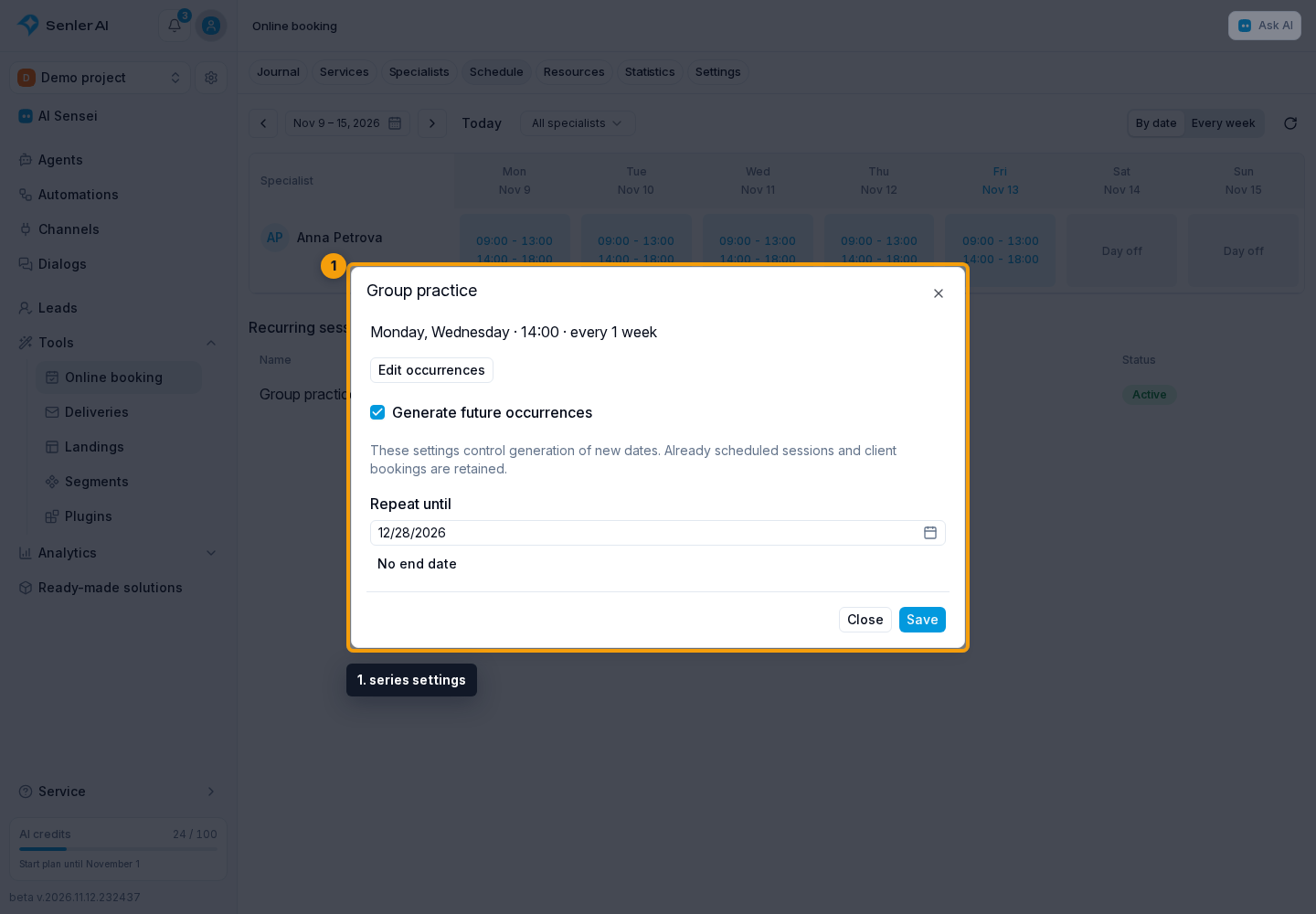
In the schedule, open the series settings. To change session details, click Edit occurrences and select a starting date. Landing page availability and waitlist settings also apply to future sessions in the series.
Generate future occurrences and the end date control the creation of new dates. Changing them does not cancel existing sessions or bookings.
Cancelling a session cancels its associated active bookings. A session with completed visits or no-shows cannot be changed or cancelled.