
Return result step
Return result sends calculated data to the caller that is waiting: an agent or a step in another automation. For example, a workflow returns price, and the agent tells the customer the delivery cost. The step itself does not send a message to the dialog.
Configure the result
- Add Return result after the steps that prepare the data and give it a meaningful name, such as Delivery available.
- Open Returned data and click Add.
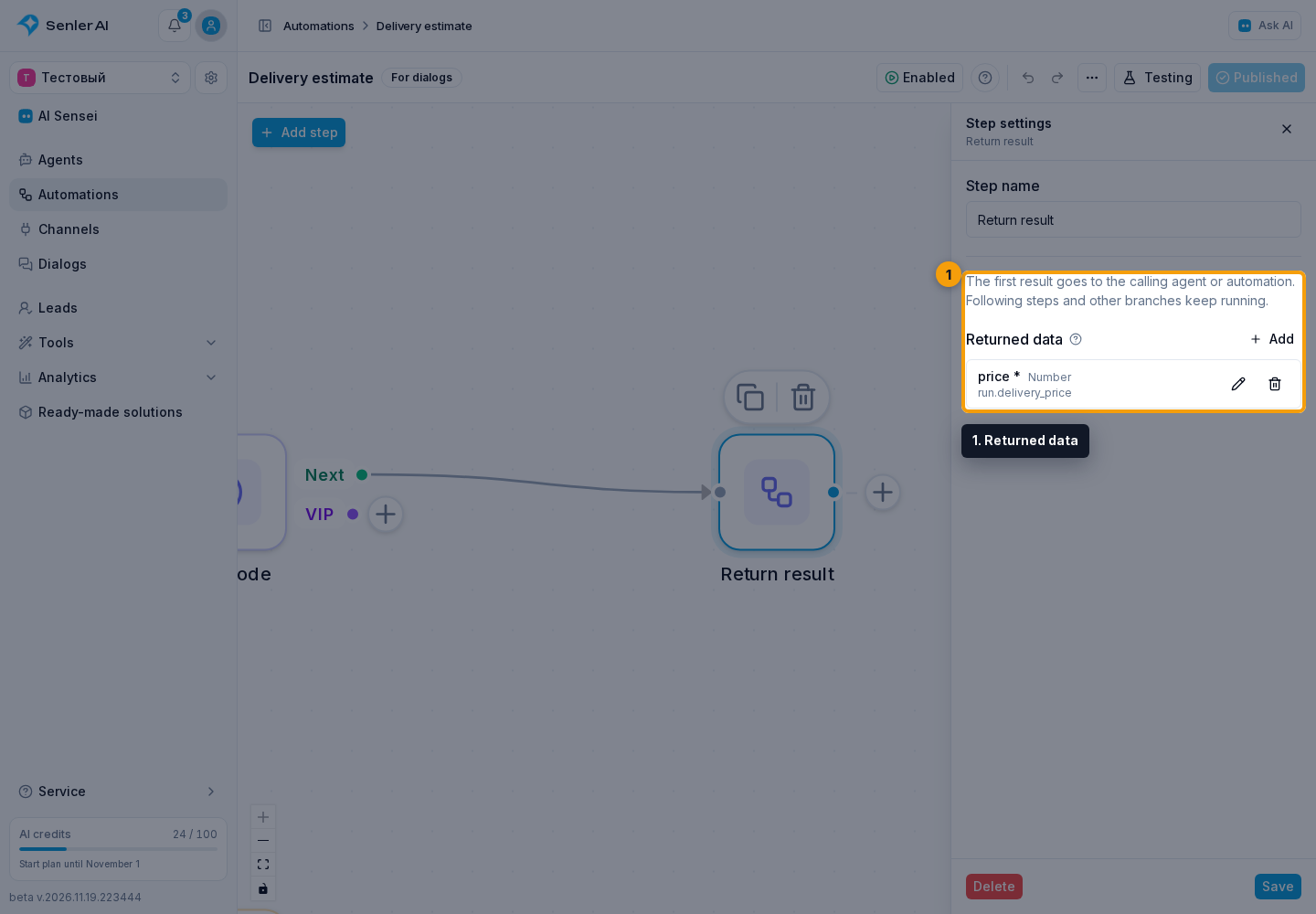
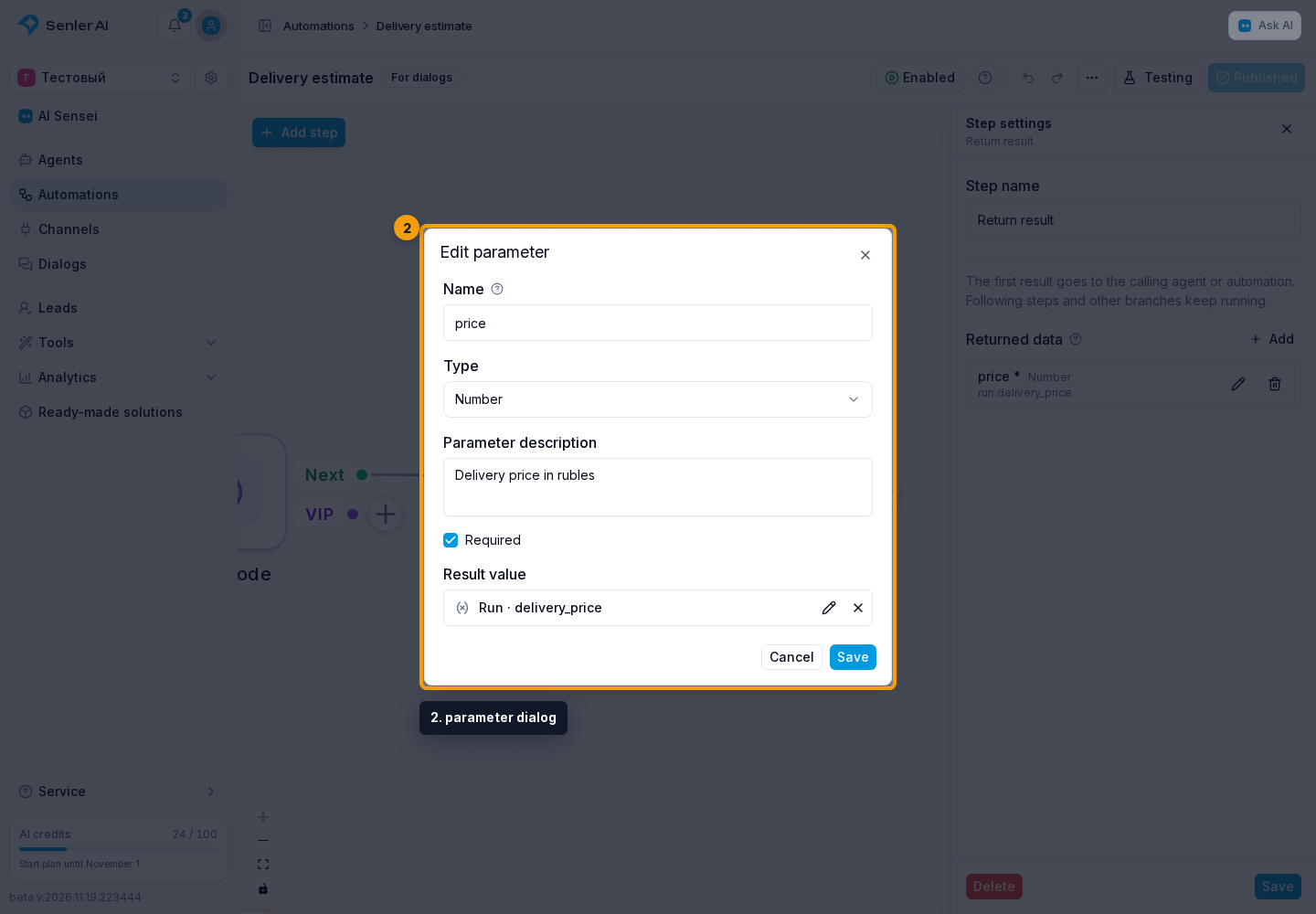
- In the parameter dialog, enter the field's name, type and description, and whether it is required.
- In Result value, select the source variable. For example, return a
pricefield from thedelivery_priceprocess variable. - Save the settings and publish the automation.
Each Return result step is a separate outcome with its own name, fields and values. For example, Delivery available returns price and days, while No delivery returns reason and pickup_address. Several branches can lead to the same return step. Each result can declare up to 50 fields; required fields must be populated and match their types.
What happens after returning
The caller gets the first result. The called automation's Next output and other branches continue: returning does not finish the entire process. A later return does not replace the result already delivered.
For an agent, enable Wait for result on the connected workflow. For a call from another automation, enable waiting and optionally set a variable for each result. The calling step has outputs named after the results; execution continues through the output of the return step that ran.
If no result arrives
Check the process history: did it reach the return step, and do the values contain an error? A Has a return step label means the published graph contains that step, not that every branch reaches it.
Calls from another automation have no time limit. If the called process completes without returning a result, the waiting step fails; failure or cancellation of the process also ends the wait.
An agent waits within the time configured when connecting the tool. After a timeout, the process continues running, but a late result does not itself invoke the agent. If the process completes without a result before the timeout, waiting ends immediately.
A timeout does not prove that the automation's actions were not performed. Do not repeat order creation or another change before checking the first process's result.