
Apps on a landing page
An app can add its own block or button action to a landing page. First connect the app to the project. The list contains only enabled definitions that the developer prepared for landings.
Add an app block
- Add “App” in the block editor.
- In the block area, click the pencil edit button.
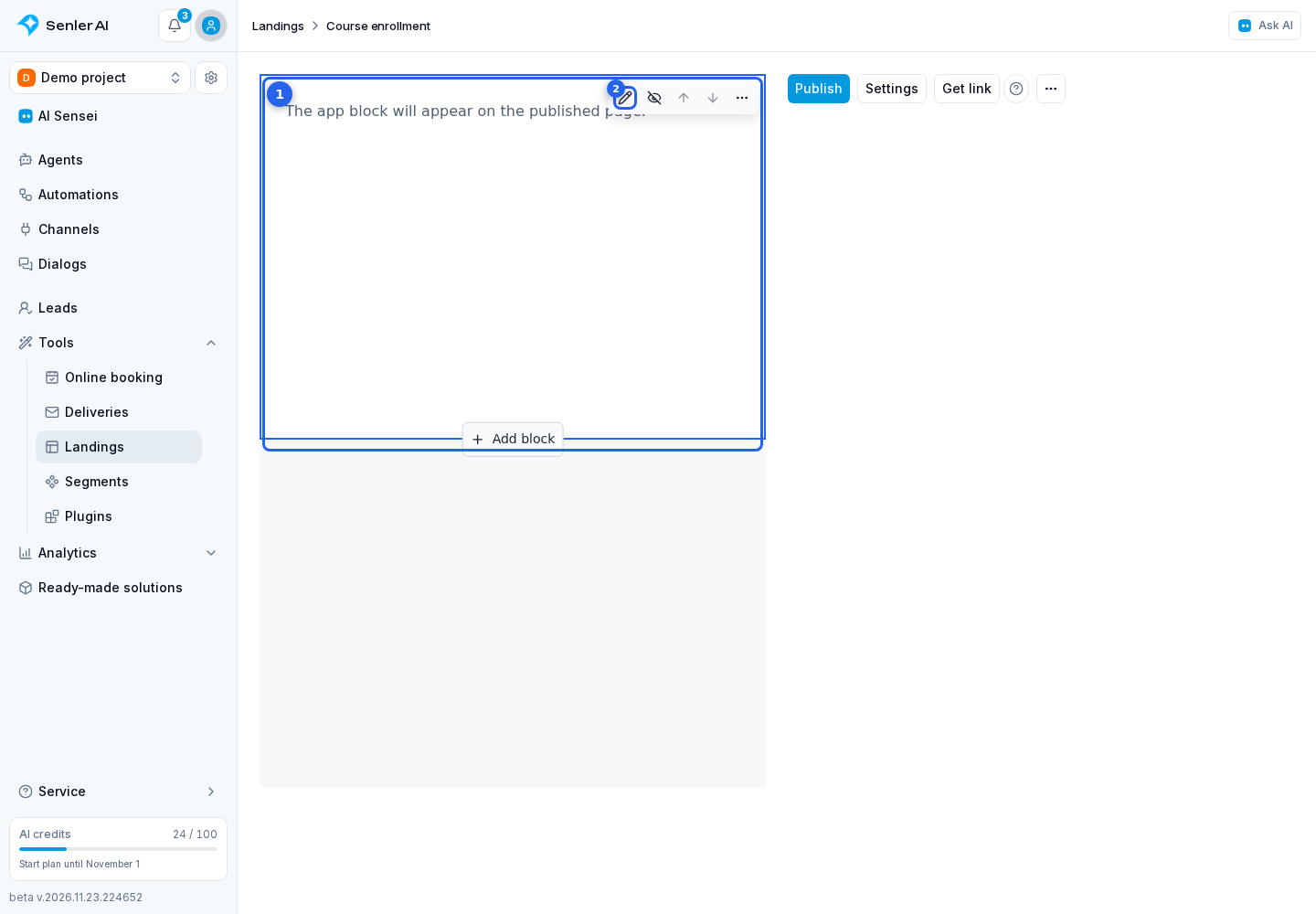
- In the block settings, select the app and block. Options show the app and block names.
- Complete any provided settings. Set the block height from 100 to 2000 pixels.
- Close the block settings and publish the landing.
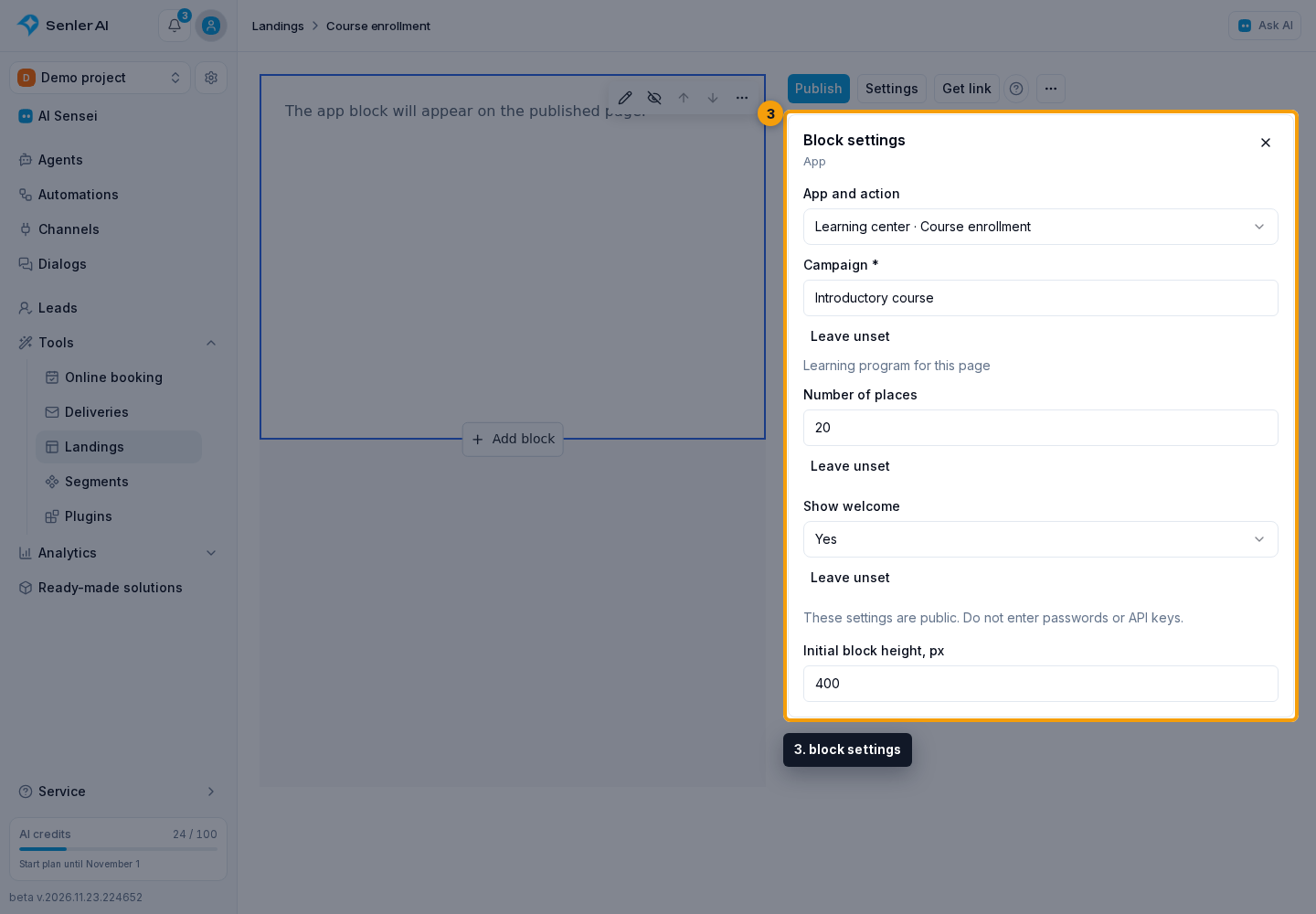
The editor displays a placeholder for the block. Check the app page on the published landing.
Configure a button action
Open the button settings using the standard guide and select “App action”, then the app and action.
- If the developer selected subscription mode, also choose a segment and subscription channels. After a successful subscription, the app receives an event with this button’s settings. Clicking again as an existing subscriber does not create another subscription event.
- A standalone action calls the app when clicked. It does not subscribe the visitor to a segment by itself.
Complete the app settings and click “Apply”. Save and publish the landing. The editor preview does not execute the app action.
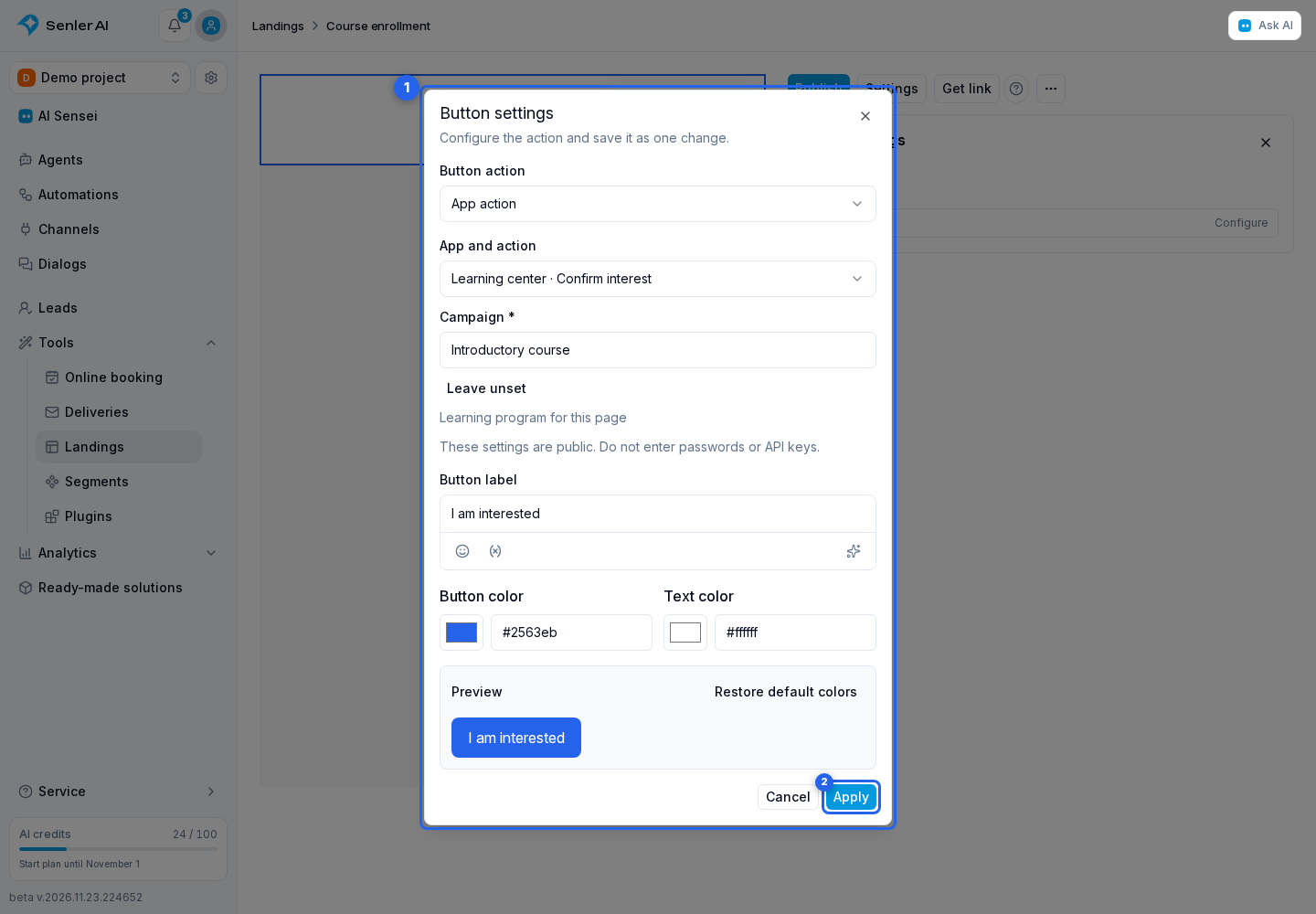
Complete the settings
The developer chooses how the app is configured:
- No additional settings: select the block or action.
- Regular fields: enter text, a number, or “Yes / no”. “Not set” differs from “No”, and a blank number differs from zero. “Clear” removes a value.
- Embedded form: click “Configure in app”, complete the form, and click “Apply” in that dialog. “Cancel” closes it without applying changes. Close the block settings or apply the button settings.
Settings are available on the public landing: do not enter passwords or secret keys. Incomplete settings can be saved in a draft; publication checks required fields and the editor indicates what to correct.
If the app is unavailable
Check the project’s app connection and the availability of the required block or action. If the catalog fails, the editor shows the app name and a reload button; saved settings are preserved.
Disabling or deleting a definition stops it from working on published pages too. After changing a button’s mode, select its action again and publish the landing. If an action requires sign-in through a messenger, the visitor must confirm their identity before using it.
For developers: registering blocks and actions.